CLI: Example for Configuring Web UI Login Through HTTPS (Two-Factor Authentication)
This section describes how to configure the administrator to log in to the web UI in HTTPS mode and to configure the FW to authenticate the administrator in two-factor mode through the CLI.
Networking Requirements
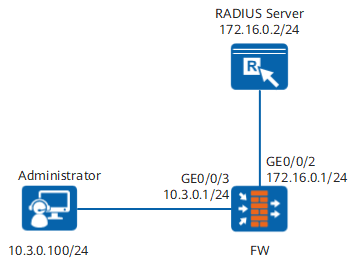
As shown in Figure 1, configure a local administrator webadmin that can log in to the web UI through HTTPS for the FW. The uses two factors (user name/password and verification code) to authenticate the administrator.
Data Planning
| Item | Data | Description |
|---|---|---|
User name |
webadmin |
- |
Authentication mode |
RADIUS |
- |
Role |
service-admin |
service-admin is a user-defined role that has read and write permissions on networks, policies, and objects but no permissions on other configuration items. |
Configuration Roadmap
Configure a login interface.
Configure an interface for connecting to the RADIUS server.
Configure a security policy.
Configure a RADIUS server template.
Configure an authentication scheme.
Create an administrator and an administrator role.

Procedure
- Optional: Configure a login interface.
If the default management interface is used for login, skip this step.
The default IP address of the management interface is 192.168.0.1, and the interface has been added to the Trust zone and allows the administrator to log in to the device through HTTPS.
- Configure the interface for connecting to the RADIUS server and add the interface to the security zone.
Configure the interface IP address.
[FW] interface GigabitEthernet 0/0/2
[FW-GigabitEthernet0/0/2] ip address 172.16.0.1 255.255.255.0
[FW-GigabitEthernet0/0/2] quit
Assign the interface to a security zone.
[FW] firewall zone dmz
[FW-zone-dmz] add interface GigabitEthernet0/0/2
[FW-zone-dmz] quit
- Configure a security policy so that the FW can communicate with the RADIUS server.
[FW] security-policy
[FW-policy-security] rule name rule1
[FW-policy-security-rule-rule1] source-zone local
[FW-policy-security-rule-rule1] destination-zone dmz
[FW-policy-security-rule-rule1] destination-address 172.16.0.2 32
[FW-policy-security-rule-rule1] action permit
[FW-policy-security-rule-rule1] quit
[FW-policy-security] quit
- Configure a RADIUS server template.
[FW] radius-server template radius_server
[FW-radius-radius_server] radius-server authentication 172.16.0.2 1812
[FW-radius-radius_server] radius-server shared-key cipher Admin@123
[FW-radius-auth_server_radius] test-aaa testname testpassword radius-template radius_server
[FW-radius-radius_server] quit
- Configure an authentication scheme.
[FW] aaa
[FW-aaa] authentication-scheme radius
[FW-aaa-authen-radius] authentication-mode radius
[FW-aaa-authen-radius] quit
- Create an administrator.
- Optional: Create an administrator role.
If the default administrator role is used, skip this step.
[FW] aaa
[FW-aaa] role service-admin
[FW-aaa-role-service-admin] description policy_object_network_readwrite_and_other_modules_none
[FW-aaa-role-service-admin] dashboard none
[FW-aaa-role-service-admin] monitor none
[FW-aaa-role-service-admin] system none
[FW-aaa-role-service-admin] network read-write
[FW-aaa-role-service-admin] object read-write
[FW-aaa-role-service-admin] policy read-write
[FW-aaa-role-service-admin] quit
- Optional: Create an administrator role.
Verification
- Open the browser on the PC and access https://10.3.0.1:8443, the IP address of the device to be logged in to.
- On the login page, enter the user name and password of the administrator and click Login.
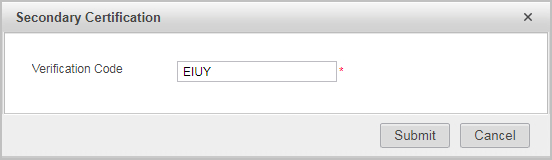
- After the user name and password are authenticated, the following page is displayed. Enter the verification code and click Submit.
After the user name and password are authenticated, the RADIUS server sends a verification code to the administrator's mobile phone or email address.
Configuration Scripts
#
interface GigabitEthernet0/0/2
 ip address 172.16.0.1 255.255.255.0
#
interface GigabitEthernet0/0/3
 ip address 10.3.0.1 255.255.255.0
 service-manage https permit
#
firewall zone trust
 set priority 85
 add interface GigabitEthernet0/0/3
#
firewall zone dmz
 set priority 50
 add interface GigabitEthernet0/0/2
#
radius-server template radius_server
 radius-server authentication 172.16.0.2 1812
 radius-server shared-key cipher %@%@*y:3*ZN}.%%qcL1cCyDwlB.|@XBVMDWq'6JF(iOz2D8>A\SN%@%@
#
aaa
 authentication-scheme radius
 authentication-mode radius
#
manager-user webadmin
 service-type web
 level 15
 authentication-scheme radius
 radius-server radius_server
#
 bind manager-user webadmin role service-admin
role service-admin
 description policy_object_network_readwrite_and_other_modules_none
 dashboard none
 monitor none
 system none
 network read-write
 object read-write
 policy read-write
#
security-policy
 rule name rule1
  source-zone local
  destination-zone dmz
  destination-address 172.16.0.2 32
  action permit
#
return