Configuring Cloud Management Using the Web UI
Context
The FW has preset local and CA certificates issued by a CA server for authentication on the cloud management platform. Manually update the certificate if required. You can only use the CLI to update the certificate.
The FW does not have an administrator account by default. When you log in to the device for the first time, you need to create an administrator. For details, see Administrator.
The API administrator huawei is preset in the cloud management mode, and the password is empty. In cloud management mode, no password is required when certificate authentication is used.
- The following describes only key configuration points on the FW that interconnects with the cloud management platform. For details about operations on the FW and cloud management platform, see the Product Documentation.
Procedure
- Log in to the FW with the created administrator account.
- Change the running mode to cloud management.
Choose , click Configure, select Enable, and click OK.
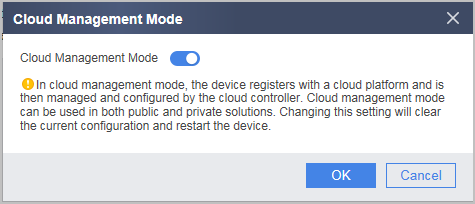
- After the FW is switched to the cloud management mode, the FW clears the current configuration and restarts. After the FW is restarted, log in to the web UI in HTTPS mode again. The system identifies the login as the first login. On the login page, register an administrator account as prompted and log in to the web UI again.

- After the FW is switched to the cloud management mode, the FW configuration is cleared, and no administrator account is available. When you log in to the web UI of the FW for the first time using HTTPS, the registered administrator account is bound to the cloud management role by default and the service type is web. If you still need to configure and manage the FW through the console port, SSH, or other methods, choose to create an administrator or change the service type of the administrator.
- After the FW is managed by the cloud management platform, the administrator account on the FW is determined by the configuration on the cloud management platform.
- Configure Internet access. Assign the interface connected to the Internet to the untrust zone.
- Static IP address: Configure the fixed IP address and default gateway.
- PPPoE: Configure PPPoE. When Internet access in PPPoE mode is used, check whether the device has received the default route configuration from the server. If not, log in to the CLI through the console port or SSH to configure the default route with the outbound interface set to the dialer interface because the device does not support the configuration of the default route on the web UI.
- DHCP Client: Configure DHCP.
- Optional: Specify the DNS server on the FW so that the FW can resolve the domain names of cloud management platforms. In cloud management mode, the domain name resolution function is enabled by default. You need to manually configure the DNS server when using a static IP address for access. In other access modes, the DNS server allocated by the carrier is automatically obtained, and you do not need to perform this step.
- Optional: Configure security policies. In cloud management mode, the FW enables a permit security policy by default. In this policy, the source security zone is dmz or local, and the destination security zone is dmz or untrust. Therefore, the security policies required for connecting to the cloud management platform are all permitted by default with no need of administrator configuration. After the FW is connected to the cloud management platform, the cloud management platform delivers services to the FW. The security policies required by these services can be configured and delivered by the cloud management platform.
- Set up or modify the connection to the cloud management platform.
Choose , click Add of Call-home Proactive Registration in Northbound Interface Setting, enter the connection information, and click OK and then Apply.
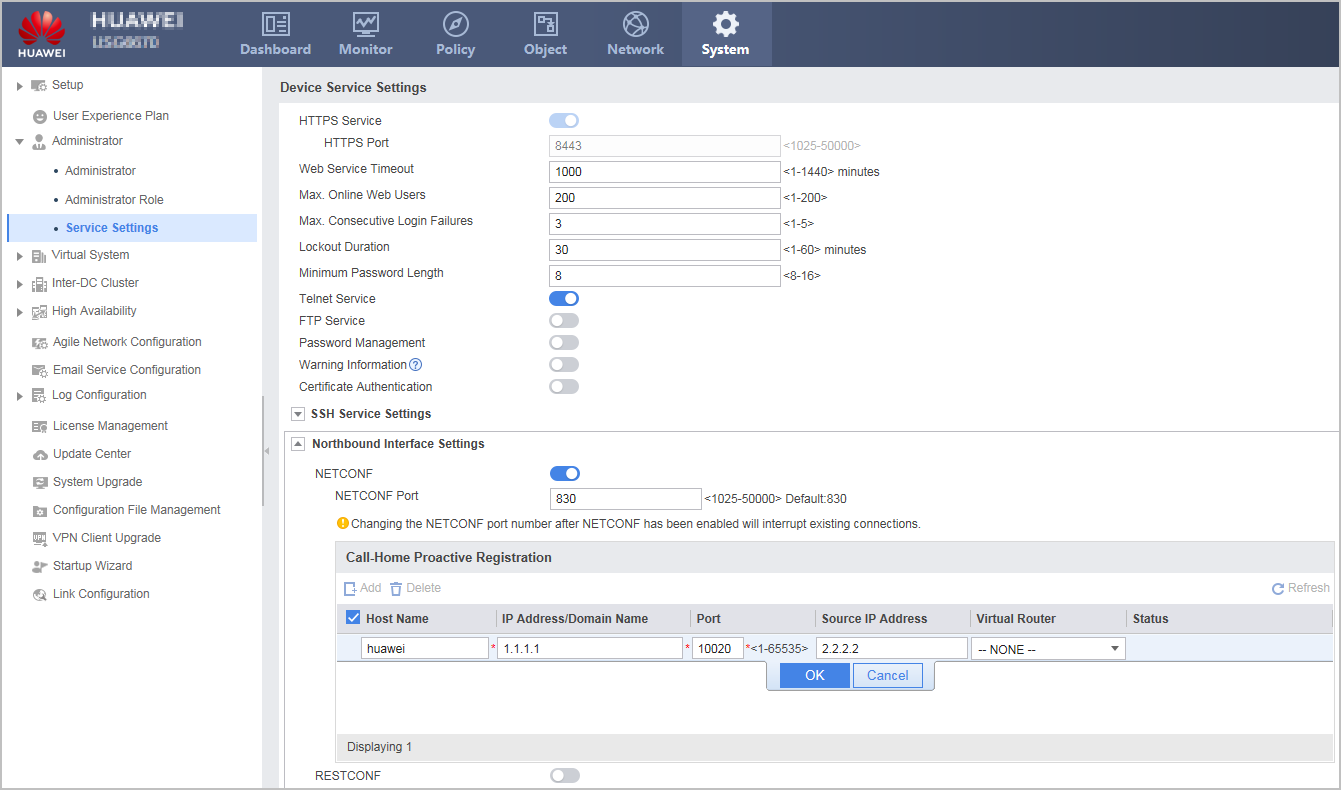
Parameter
Description
Value
Host Name
Host name of the cloud management platform. This parameter is used only inside the FW.
The value is a string of 1 to 31 case-sensitive characters. Spaces are not supported.
IP Address/Domain Name
IP address/Domain name of the cloud management platform, which is obtained from the platform administrator.
The IP address is in dotted decimal notation.
The domain name is a string of 1 to 64 case-sensitive characters. Spaces are not supported.
Port
Port of the cloud management platform.
Generally, the port number is 10020. Obtain the actual port number from the platform administrator.
The value is an integer ranging from 1 to 65535.
Source IP Address
Source IP address used to initiate connections to the cloud management platform.
The IP address is in dotted decimal format.
Virtual Router
VPN instance.
The value must be the name of an existing VPN instance.
- Optional: Replace pre-installed certificates.
- Choose .
- Delete the old pre-installed certificate (local certificate).
- Click Replace Pre-installed Certificate and upload the local certificate that is to replace the pre-installed certificate.
- Choose .
- Delete the old pre-installed certificate (CA certificate).
- Click Replace Pre-installed Certificate and upload the CA certificate that is to replace the pre-installed certificate.
When the FW connects to the registration center and cloud management platform, the FW sends its own device certificate to the peer for authentication. Meanwhile, the FW uses its own CA certificate to verify the device certificate from the peer. In cloud management mode, the device and CA certificates of the FW are already pre-installed in the system before delivery. By default, the FW uses these two certificates for authentication. If you hope to use your own certificates for authentication, use this function to replace the pre-installed certificates. - If you attempt to replace the pre-installed certificates, you must replace both the local and CA certificates. If you replace only one of them, a service anomaly may occur.
- You can centrally replace the pre-installed certificates of the FWs in batches on the cloud management platform or directly log in to the FWs one by one to replace the certificates. Select a method based on your network environment.
Follow-up Procedure
You can determine whether the FW successfully connects to the cloud management platform by checking the status of the CLOUD indicator on the device.
- Off: indicates that the FW does not initiate any connection to the cloud management platform.
- On: indicates that the FW has connected to the cloud management platform.
- Blink: indicates that the FW is initiating a connection to the cloud management platform.
The network quality may be unstable. Therefore, the time spent on connection establishment is not fixed. Generally, a connection can be established within 10 minutes. If the CLOUD indicator blinks for more than 10 minutes, the configuration or network may be faulty. In this case, check the configuration and network.