Managing Configuration Files Using the Web UI
This section describes how to use the Web UI to manage configuration files.
Restoring the Factory Defaults
You can restore the device to the factory default settings. The restoration exerts no impact on saved configuration files. Before the restoration, you can determine whether to back up the current configurations on the device.

Restore the factory configuration will reboot the device.
- Choose ,Click Restore Factory Settings.
The information displayed in Current Configuration is the current configurations of the FW.
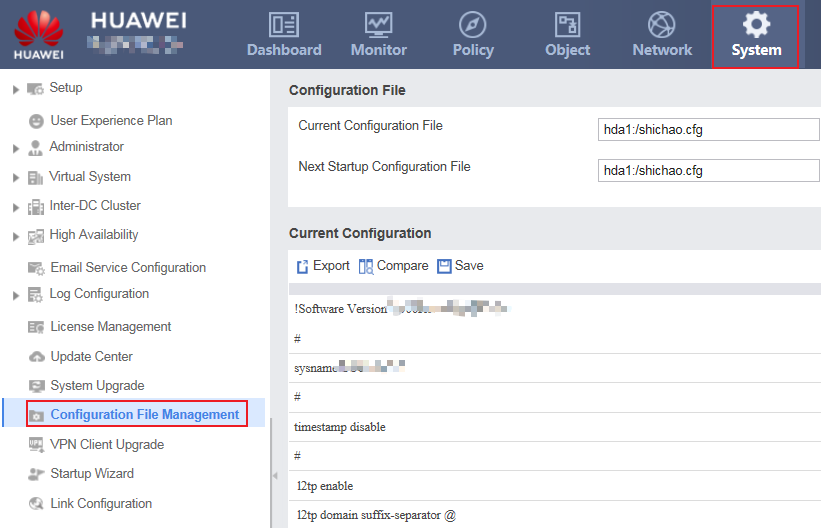
- Optional: Back up the current configurations.
- Select Back Up the Current Configuration File.
- In File Name, enter the file name including the file name extension of the backup configuration file.
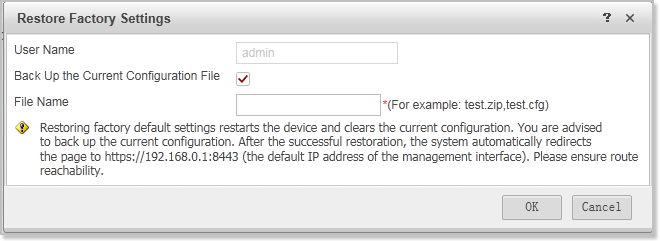
- Click OK, and the device reboot and restore the factory defaults.
Updating Configuration File
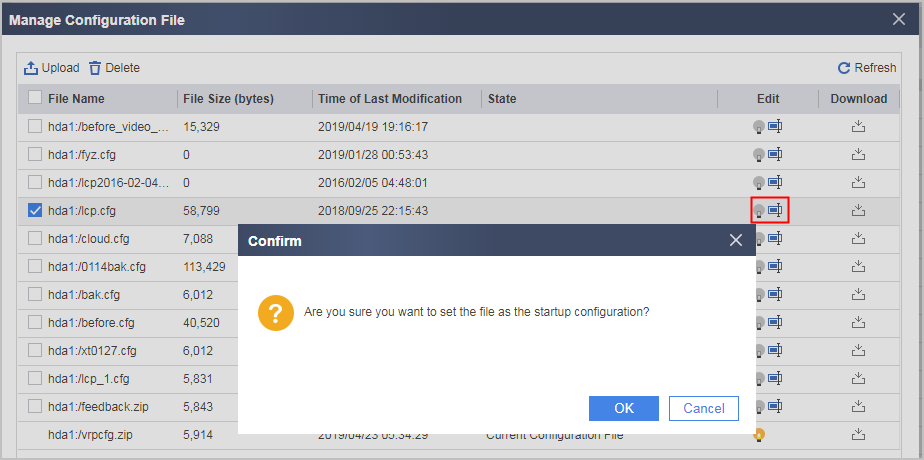
- Upload the configuration file to the firewall. Ensure that the firewall has enough storage space. If not, delete unneeded files.
- Specify the startup configuration file.
The configuration file name extension must be .zip or .cfg, and the file name cannot contain Chinese.
- Choose .
- Click Select. The Configuration File Management dialog box is displayed.
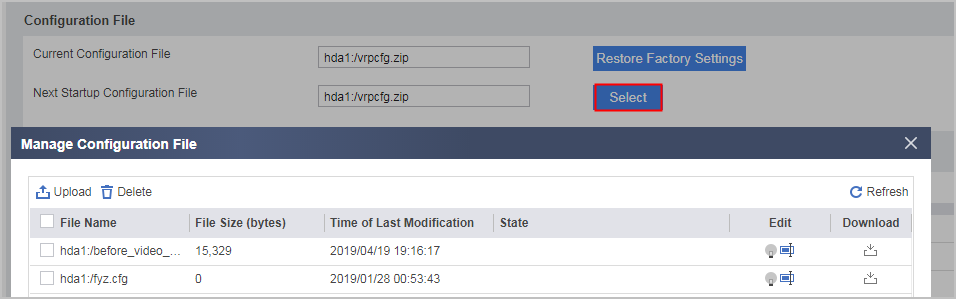
- Click Upload. The Upload File dialog box is displayed.
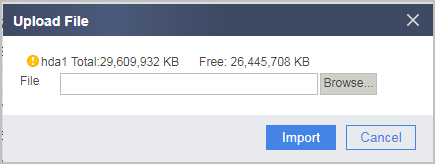
- Click Browse and select the configuration file to be uploaded.
- Click Import to upload the configuration file.
After the configuration file is successfully uploaded, return to the Configuration File Management page. The corresponding file is displayed in the list.
- Click
 to configure the current file as the startup configuration file.
The configuration takes effect only after the firewall is restarted.
Displaying Configuration
You can display a maximum of 2000 configuration messages. To view more configuration information, you must export the configuration information.
- Choose .
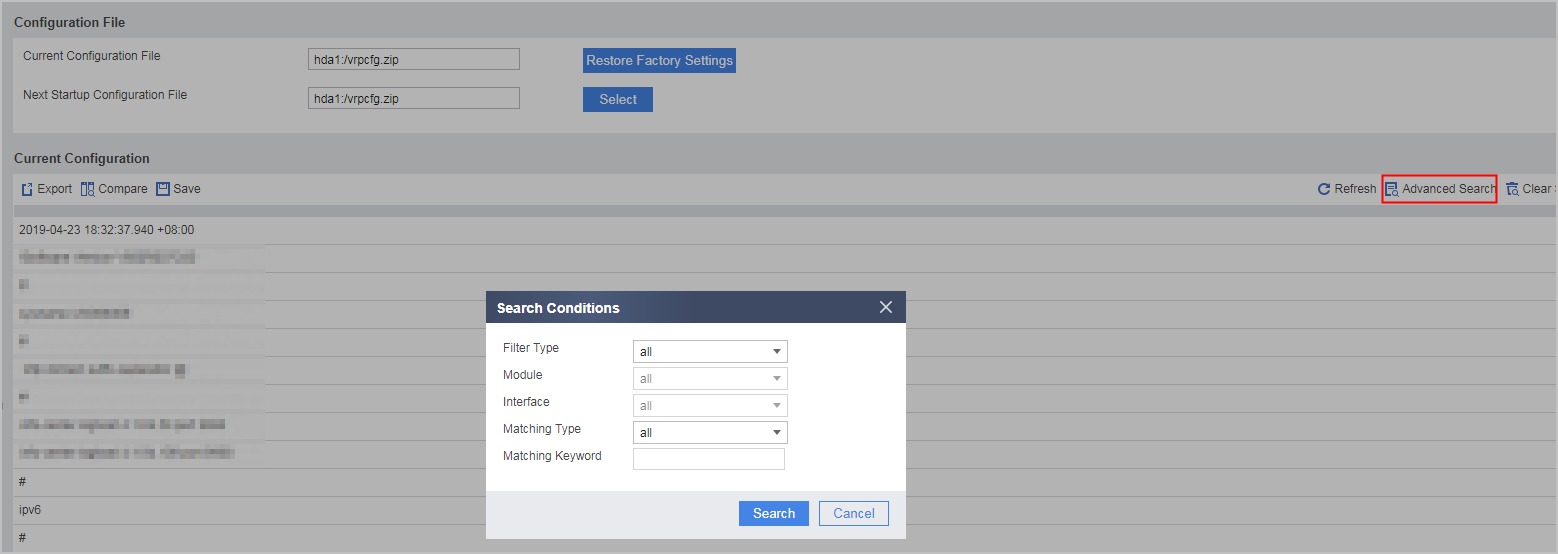
- Under Current Configuration, click Advanced Search, select search conditions on the Query Condition dialog box, and click Search.
Parameter
Description
Filter Type
- all: Display all configuration information.
- configuration: Display the configuration information of a specified function module.
- interface: Displays the configuration of all interfaces or a specified interface
Module
This option is available only when the Filter Type is configuration.
Interface
This option is available only when the Filter Type is interface. You can specify all or an interface number.
Matching Type
Specify the position of the keyword.- all: Display all configuration information.
- begin: Display the configuration information that starts with the keyword.
- exclude: Display the configuration information that does not contain the keyword.
- include: Display the configuration information that contains the keyword.
Matching Keyword
This option is unavailable when Matching Type is all.
Backing Up the Current Configurations
You can back up the current configurations of the FW to the terminal.
The file name extension of a configuration file can be .zip or .cfg.
- Choose .
- Click Export in Current Configuration.
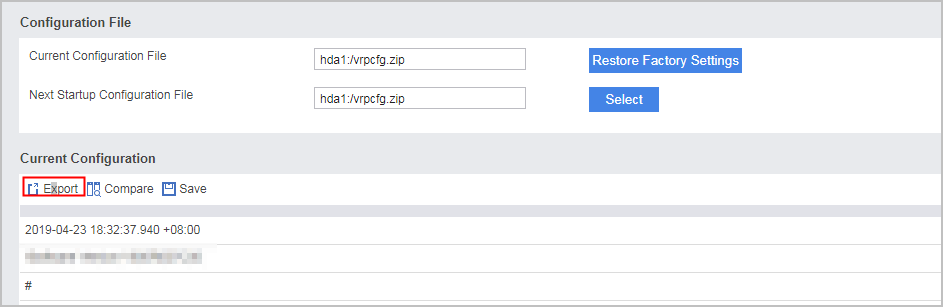

If there are a large number of configuration items, clicking Export may affect other web users' operations. To avoid this, ensure that no other web users log in at this time.
- Click Save and select a path on the terminal to save the configuration file.
Comparing Configurations
You can compare the current configurations with the configurations saved in the next startup configuration files.
- Choose .
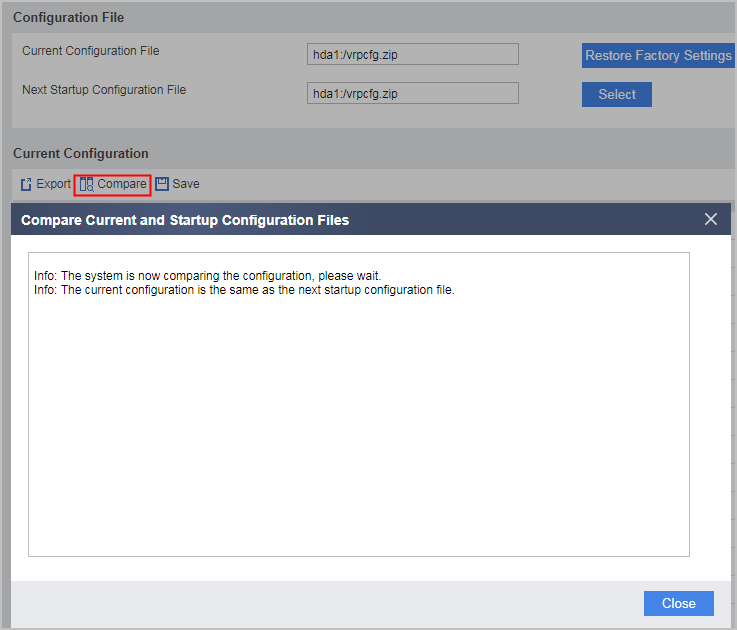
- Click Compare in Current Configuration.
The differences between the configurations are displayed in Compare Current and Next Configuration Files.
Saving the Current Configuration
By default, only the system administrator has the configuration saving permission. If a non-system administrator needs to save configuration, contact the system administrator for the permission.
You can save the current configurations on the FW.
The file name extension of a configuration file can be .zip or .cfg. The file name is case-insensitive, special characters (~/|\*:'"?) and spaces not supported. The value is a string of 5 to 48 characters, including a path. If no path is specified, the configuration file is saved in the default path.
- Choose .
- Click Save in Current Configuration.
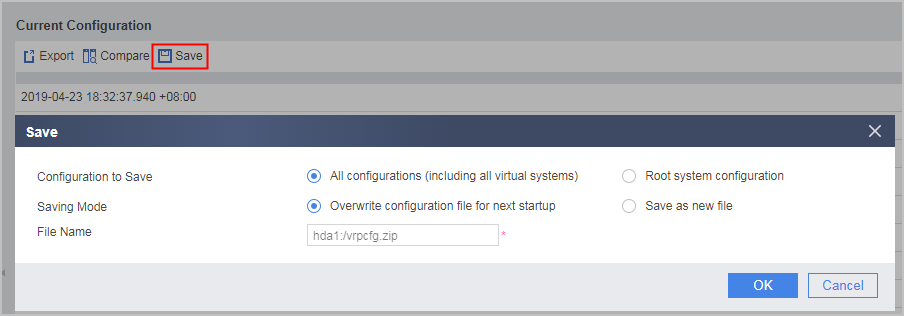
- Choose All configurations (including all virtual systems) or Root system configuration.
- Select Overwrite configuration file for next startup or Save as.
If you select Save as, enter a new file name.
- Optional: If the host is the active host on a hot standby network, you can select Synchronously Save Peer Device Configurations on the active host, so that the standby host also saves its own configurations.