Web: Example for Using the SSL-encrypted Traffic Detection Function to Protect Servers
You can configure SSL-encrypted traffic detection policies so that the FW decrypts SSL-encrypted traffic generated by an extranet user to access an intranet server, and configure security policies to enable the FW to check content security of decrypted traffic.
Networking Requirements
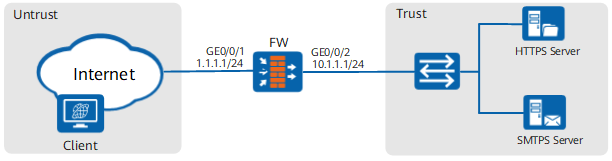
As shown in Figure 1, the FW is deployed on the network boundary as an enterprise gateway, and checks content security of traffic generated by extranet users to access intranet HTTPS servers and SMTPS servers (mail servers).
Configuration Principles
- Import the server certificate and private key.
You need to obtain server certificates and private keys of the HTTPS Server and SMTPS Server in this example from the server administrator.
- Configure a detection profile.
Set the file type of the detection profile to Inbound.
- Configure SSL-encrypted traffic detection policies.
According to actual requirements, you can configure refined SSL-encrypted traffic detection policies, so that the FW decrypts only traffic that really requires content security check. You must avoid policies with wide configuration conditions, because traffic encryption or decryption affects the forwarding performance of the device to a certain extent.
- Configure a security policy.
Configure correct security policies and set the security policies to reference the content security profile, so that the system can check the content security of decrypted traffic.
Procedure
- Configure the interface IP address, security zones, and basic network parameters.
- Choose Network > Interface.
- Click
 of GigabitEthernet 0/0/1 and set the parameters as follows:
Zone
untrust
IPv4
IP Address
1.1.1.1/24
- Click OK.
- Configure the GigabitEthernet 0/0/2 interface based on the preceding steps.
Zone
trust
IPv4
IP Address
10.1.1.1/24
- Import server certificates and private keys of the HTTPS Server and SMTPS Server.
- Choose Object > Certificates > Local Certificates.
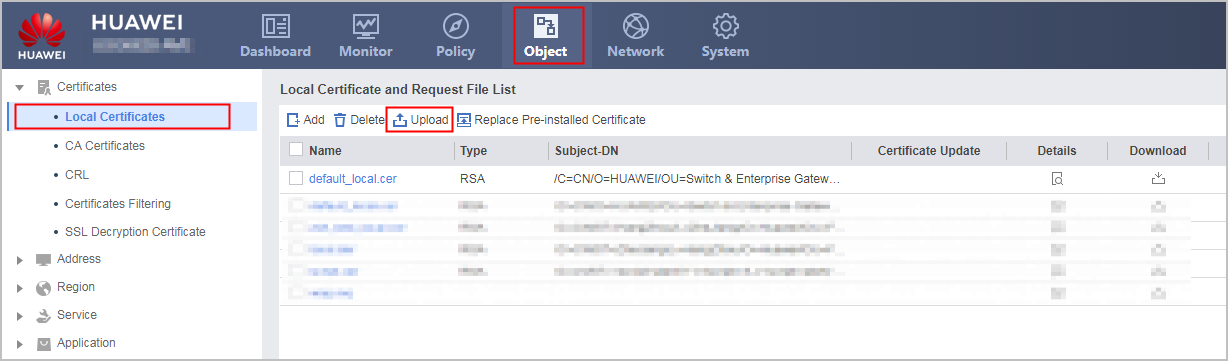
- Click Upload, and upload the server certificate and private key of the HTTPS Server.
The private key of the server certificate may be independent or included in the server certificate. If the private key of the server certificate is included in the server certificate, set the certificate format to PKCS12 Certificate/PEM Certificate with Key. If the private key of the server certificate is independent, set the certificate format to Certificate/PEM Certificate Without Key. The private key is a confidential file and a password is required when you export it. The password indicates the one used to encrypt the private key file.
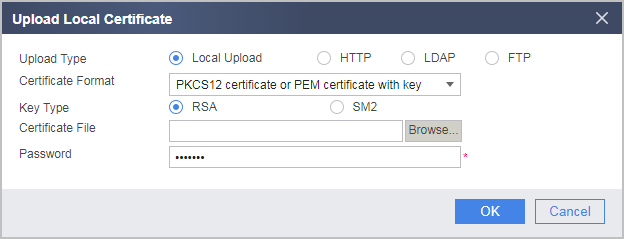
- Click OK.
- Repeat the preceding steps to import the server certificate and private key of the SMTPS Server.
- Choose Object > Certificates > Local Certificates.
- Specify the imported server certificate and private key as Internal Server Certificate.
- Choose Object > Certificates > SSL Decryption Certificate.
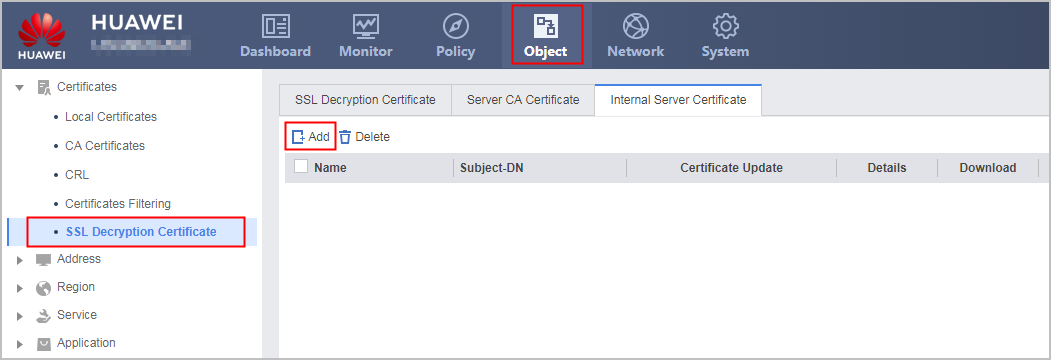
- Select the Internal Server Certificate tab and click Add.
Click the right arrowhead corresponding to the imported server certificate in the Available list box to move the server certificate to the Selected list box.
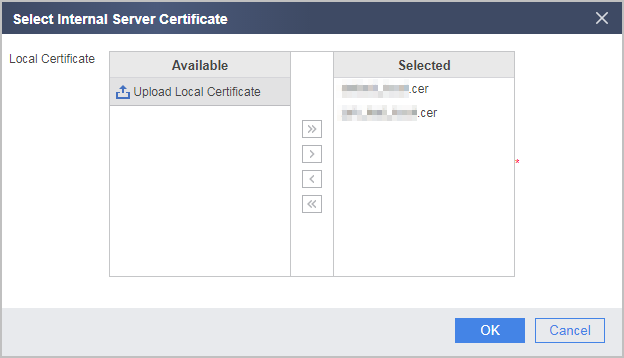
- Click OK.
- Choose Object > Certificates > SSL Decryption Certificate.
- Create a detection profile.
- Choose Policy > Encrypted Traffic Detection > Detection Profile.
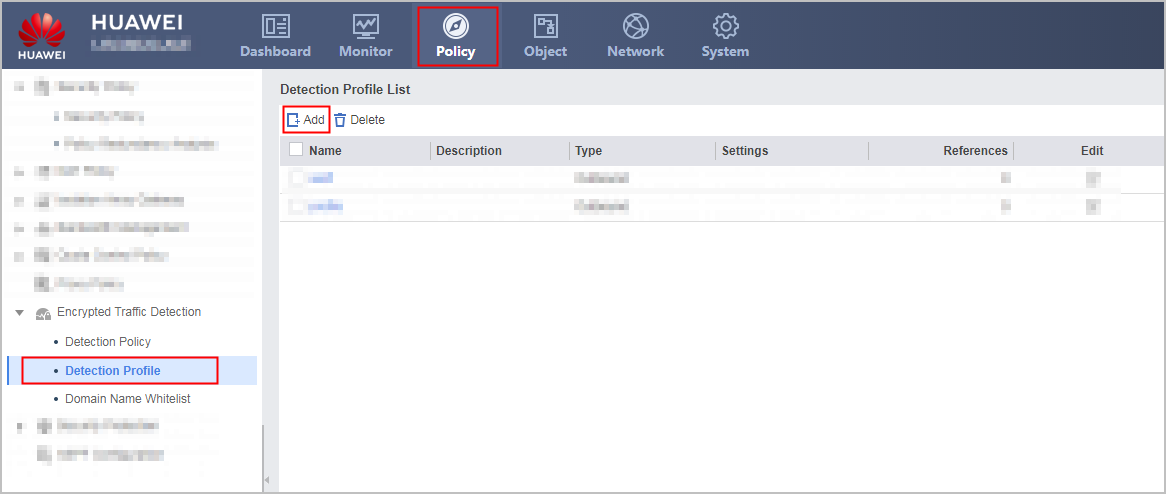
- Click Add, and configure detection profile parameters, as shown in the following figure.
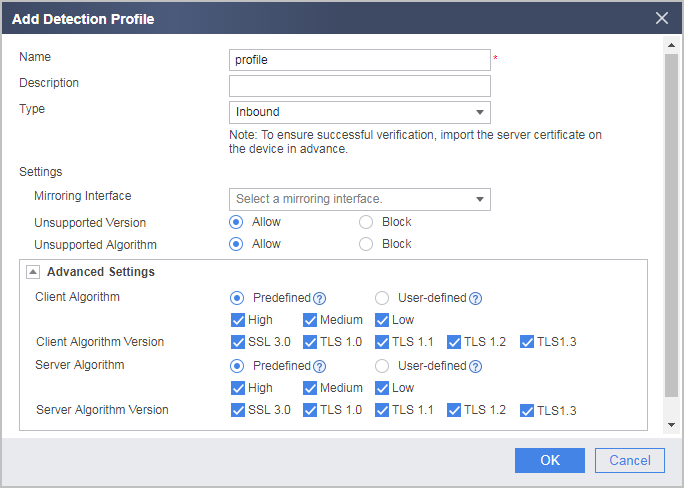
- Click OK.
- Choose Policy > Encrypted Traffic Detection > Detection Profile.
- Configure SSL-encrypted traffic detection policies.
- Choose Policy > Encrypted Traffic Detection > Detection Policy.
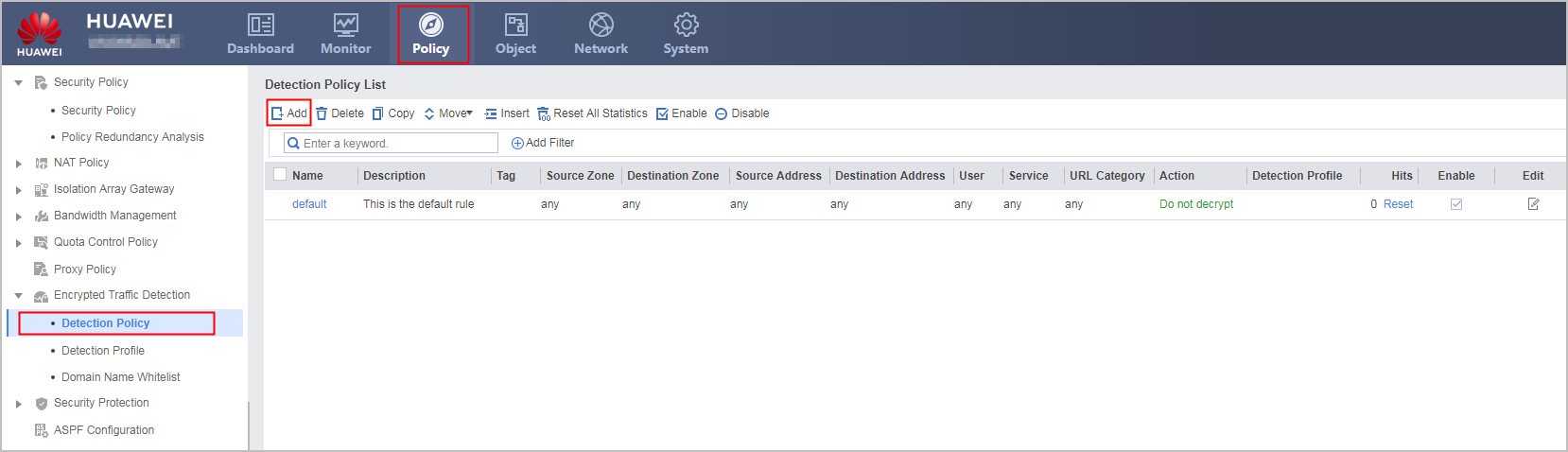
- Click Add, and set the SSL-encrypted traffic detection policy to reference the new detection profile.
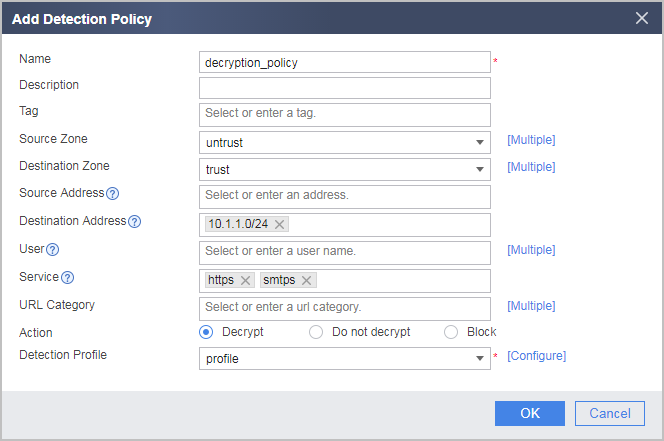
- Click OK.
- Choose Policy > Encrypted Traffic Detection > Detection Policy.
- Configure a security policy to enable the system checks the content security of decrypted SSL traffic.
- Create a mail content filtering profile.
In this example, a mail content filtering profile needs to be configured to filter traffic of a user who accesses the mail server.
- Choose Object > Security Profiles > Mail Filtering.
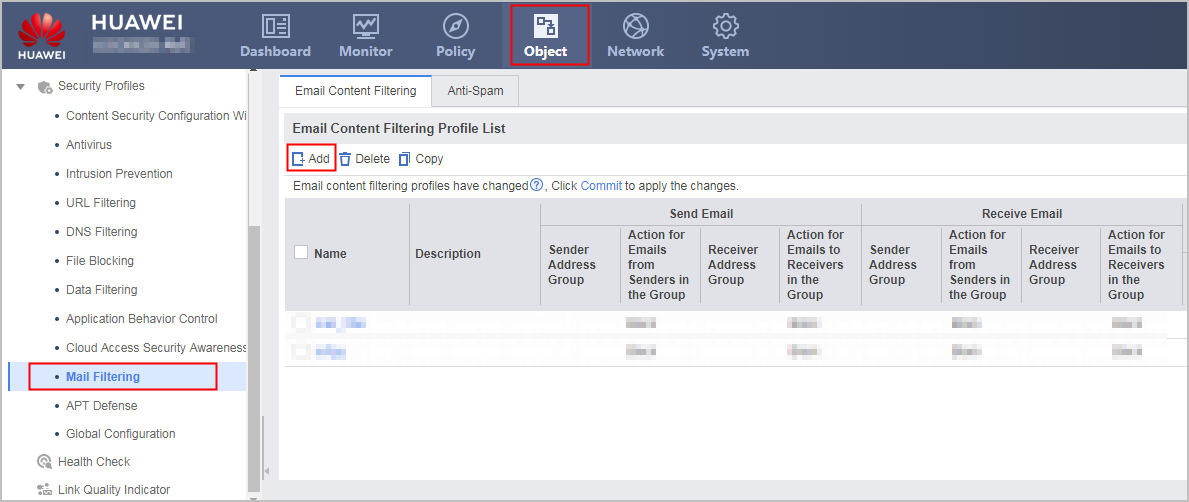
- Select the Mail Content Filtering tab.
- Click Add to create a mail content filtering profile.
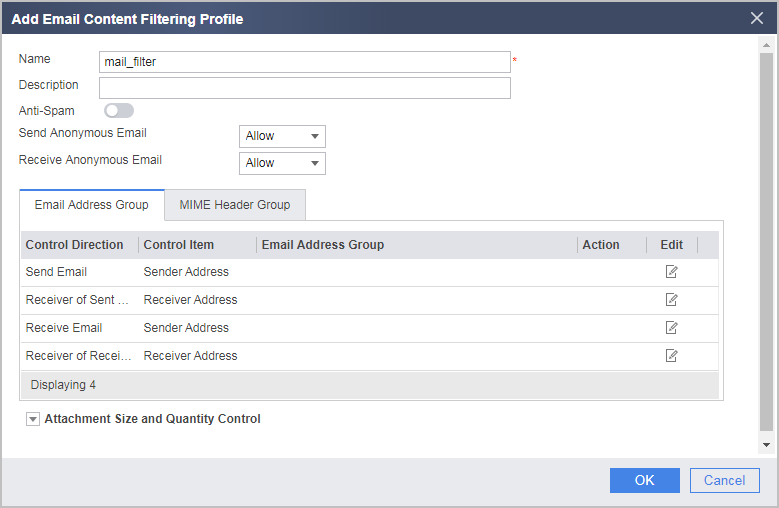
- Click OK.
- Choose Object > Security Profiles > Mail Filtering.
- Configure a security policy.
- Choose Policy > Security Policy > Security Policy.
- Click Add Security Policy and configure the security policy.

- This example provides only the security policy configuration for mail filtering on the SMTPS server. To filter mails on the POP3S or IMAPS server, you need to configure POP3S and IMAPS in the service matching items of the security policy.
- In this example, antivirus, IPS, and mail filtering items are selected for content security check. Default security profiles of antivirus and IPS are used. You can configure or select multiple security profiles based on actual situations.
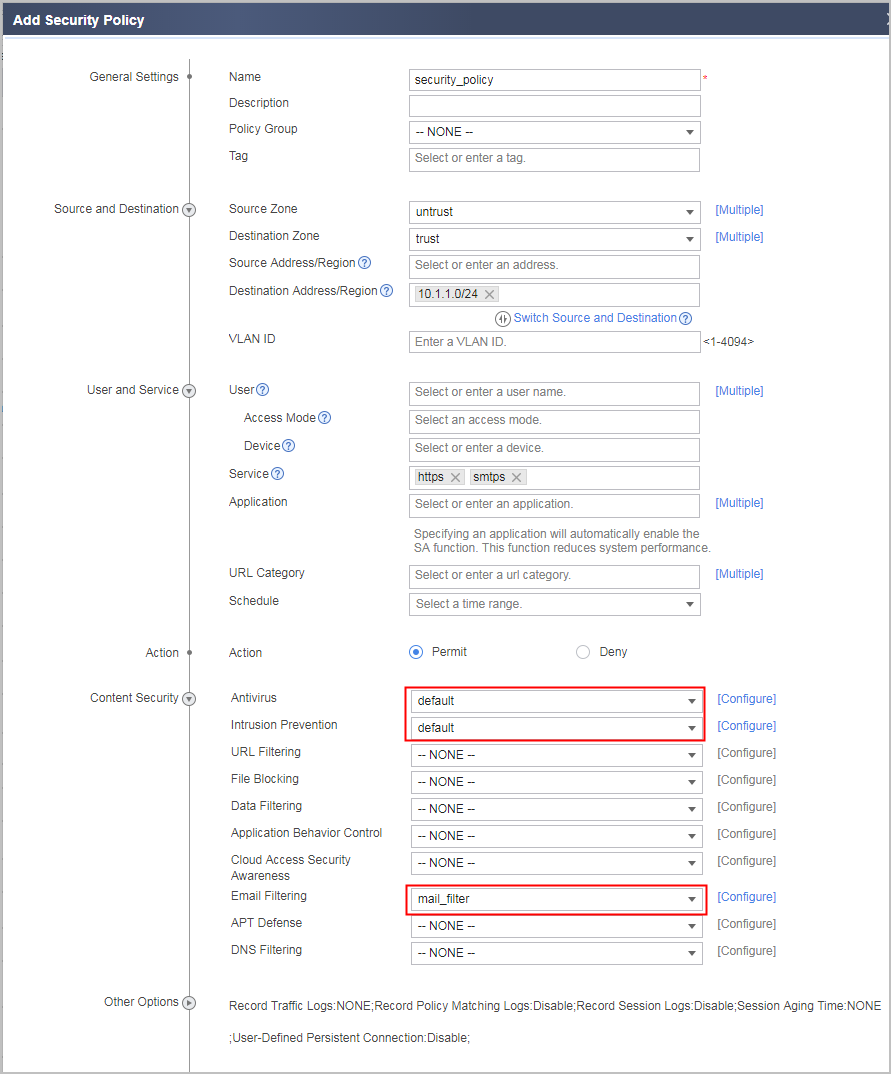
- Click OK.
- Create a mail content filtering profile.
Verification
- When an extranet user accesses the intranet HTTPS server or SMTPS server, the traffic matches the SSL-encrypted traffic detection policy. If the decrypted traffic passes the content security check, the traffic is released. If the decrypted traffic does not pass the content security check, the traffic is blocked.
- On the FW, check the SSL proxy session table. If entries are generated, the SSL connection for the extranet user to access the intranet server is processed by the proxy.
<FW> display app-proxy session table
 Vsys: 0 2.2.2.2:3449--->10.1.1.1:443 Left: 0: 0: 5  Age:1
      down:0000  -->bytes: 314 <--bytes: 1016

 Vsys: 0 2.2.2.2:3450--->10.1.1.1:443 Left: 0: 0: 5  Age:1
      down:0000  -->bytes: 124 <--bytes: 0

 Vsys: 0 2.2.2.2:3448--->10.1.1.1:443 Left: 0: 0: 5  Age:1
      down:0000  -->bytes: 628 <--bytes: 1067
Configuration Scripts
#
app-proxy server certificate filename https_server_local.cer
app-proxy server certificate filename smtps_server_local.cer
#
interface GigabitEthernet 0/0/1
 undo shutdown
 ip address 1.1.1.1 255.255.255.0
#
interface GigabitEthernet 0/0/2
 undo shutdown
 ip address 10.1.1.1 255.255.255.0
#
firewall zone trust
 add interface GigabitEthernet 0/0/2
#
firewall zone untrust
 add interface GigabitEthernet 0/0/1
#
profile type decryption name profile
  detect type inbound
#
decryption-policy
 rule name decrption_policy
  source-zone untrust
  destination-zone trust
  destination-address 10.1.1.0 mask 255.255.255.0
  service smtps
  service https
  action decrypt profile profile
#
profile type mail-filter name mail_filter
 undo rbl-filter enable
 send-mail anonymity action allow
 recv-mail anonymity action allow
 send-mail attachment max-amount enable
 send-mail attachment max-amount 10 action alert
 recv-mail attachment max-amount enable
 recv-mail attachment max-amount 10 action alert
 send-mail attachment max-size enable
 send-mail attachment max-size 20480 action alert
 recv-mail attachment max-size enable
 recv-mail attachment max-size 20480 action alert
 send-mail sender filter-mode block
 send-mail receiver filter-mode block
 recv-mail sender filter-mode block
 recv-mail receiver filter-mode block
#
security-policy
 rule name security_policy
  source-zone untrust
  destination-zone trust
  destination-address 10.1.1.0 mask 255.255.255.0
  service https
  service smtps
  profile av default
  profile ips default
  profile mail-filter mail_filter
  action permit