Configuring Devices and Device Groups Using the Web UI
This section describes how to configure devices and device groups on the web UI.
Configuring Devices
- Choose .
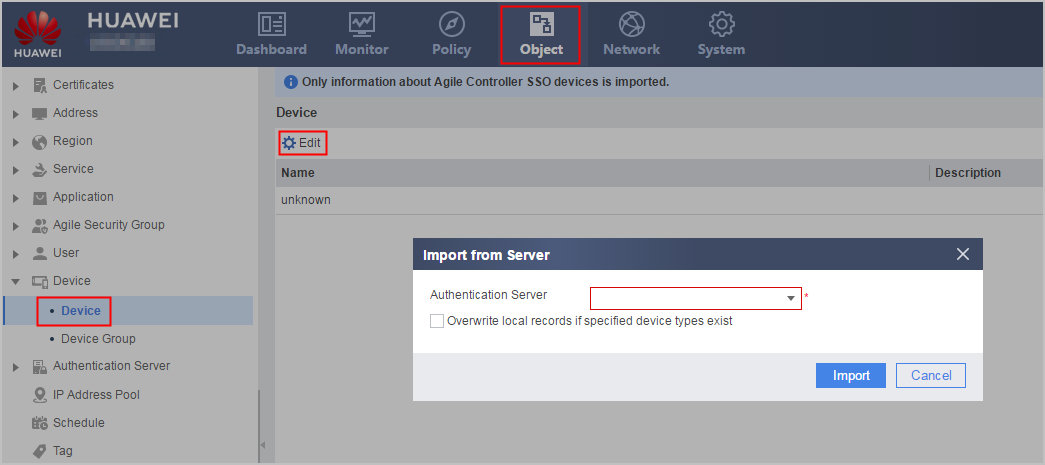
- Click Edit to set required parameters to import devices from the Agile Controller server.
Parameter
Description
Authentication Server
Select a server name or click Add to create a server. The server defines parameters for communication between the FW and Agile Controller servers.
Overwrite local records if specified device types exist
If the device type exists and you select this check box, the FW will update the device type by overwriting it. If you do not select the check box, the FW will skip the device type.
The predefined device group configuration is synchronized from the Agile Controller server during the import of the device configuration. The devices are added to corresponding device groups. If this parameter is not set, new devices do not belong to any device group.
- Click Import.
Configuring Device Groups
- Choose .
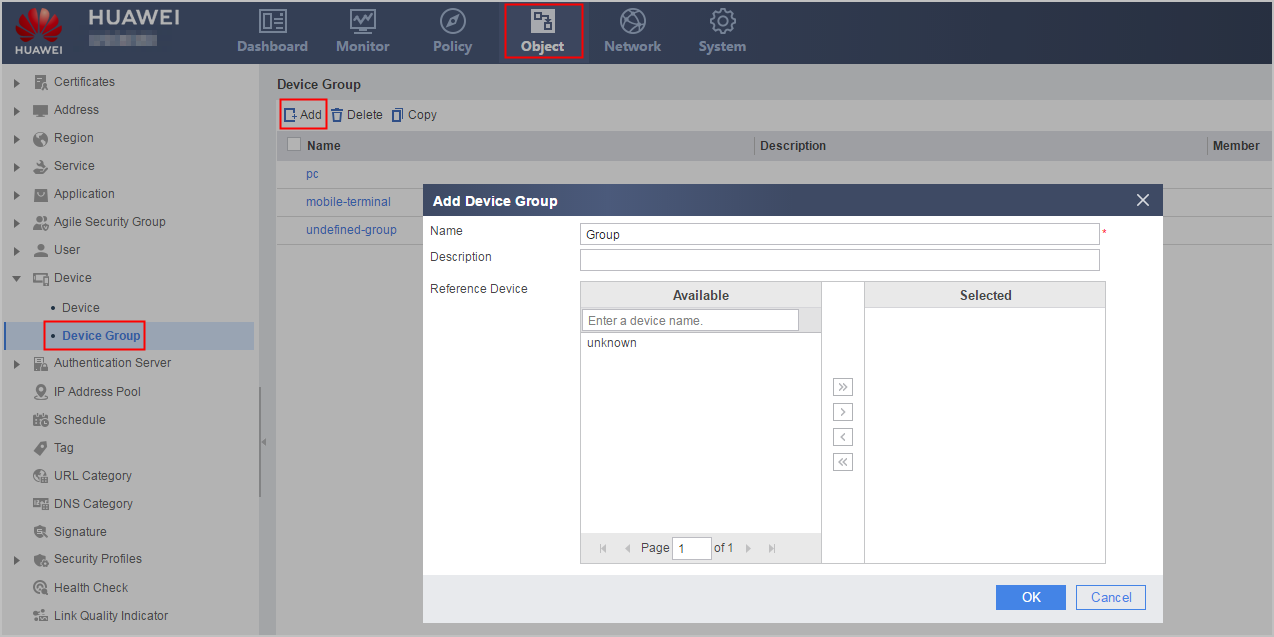
- Click Add and set device group parameters.
Parameter
Description
Name
Device group name
Description
Description of a device group
Reference Device
Add existing devices in the Available group box to the Selected group box.
- Click OK to view the created device groups.