Periodically Uploading Logs to the eLog Log Host
After you configure the FW to send service logs to a log server, you can display and analyze the service logs generated on the FW on the log server.
Application Scenarios

Using the function that the FW periodically uploads logs to the log server may cause log data losses. Therefore, this function is recommended only for scenarios with large link bandwidth pressure.
There are many dataflow traffic logs, binary session logs, and dataflow URL audit logs. Sending such logs to a log server greatly consumes link bandwidth resources and affects services. To resolve this problem, you can configure the scheduled log sending function, so that the FW caches logs locally during service peak hours and sends them to the log server when service traffic is light.
The following types of logs can be cached locally: dataflow traffic logs, binary session logs, and dataflow URL audit logs. When the specified sending period starts, the FW begins to send the logs to the log server. After the scheduled log sending function is enabled, for the first time, the logs generated in the last 24 hours are sent; for a subsequent time, the logs generated since the previous sending period ends are sent. Upon a scheduled log sending success, the system generates the NLOG/6/NLGSOK log. If scheduled log sending fails, the system generates the NLOG/4/NLGSFAL logs.
If there are multiple FW devices send logs to a log server, you must set a rate limit for scheduled log sending. Otherwise, the log server may be too busy to receive all the logs. Setting a rate limit may cause log losses.

- After scheduled log sending is enabled, the FW sends dataflow traffic logs, binary session logs, and dataflow URL audit logs with the specified period and will not send other dataflow logs.
If the function of intelligently adding such fields as the virtual system name and security policy name to binary session aging logs is enabled using the firewall log session log-type binary content smart-append, traffic logs and policy matching logs in the dataflow format will not be sent to the log server, and only binary session logs are sent to the log server. This is because these fields include information on the traffic logs and policy matching logs.
- If the network is interrupted during the sending period (for example, the sending period is from 18:00 to 23:00, but the network is interrupted at 22:00), the dataflow traffic logs, binary session logs, and dataflow URL audit logs will not be sent after 22:00.
- If the FW generates a lot of dataflow traffic logs, binary session logs, and dataflow URL audit logs, a longer sending period is preferred.
- The log server is busy from 00:00:00 to 3:00:00. Therefore, the sending rate is reduced to the half of the normal rate during this period.
- For example, if the periodical log upload time is set to 17:00-22:00, logs uploaded are those generated after 17:00 of the last day. If the upload of logs generated between 17:00 and 18:00 of the last day is not complete at 18:00 of the current day, logs that have not been uploaded are discarded, and the FW continues to upload logs generated between 18:00 and 19:00.
- This function is supported only when the USG6510E/6510E-POE/6530E SD card is in use.
Configuring the Periodic Sending of Logs to Log Servers Through the Web UI
- Choose and click Send Cached Logs.
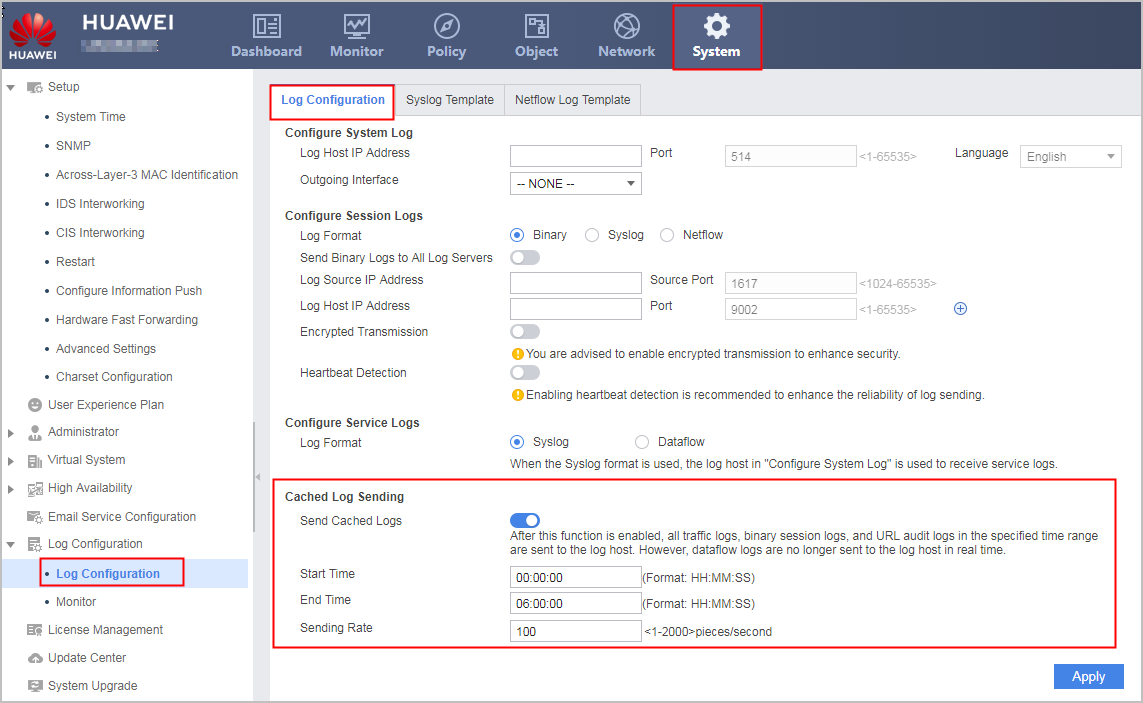
- Set the start time and end time for sending cached logs.
- Set a rate for sending cached logs.
Configuring the Periodic Sending of Logs to Log Servers Through the CLI
- Run the system-view command to access the system view.
- Run the dataflow cache-send time from start-time to end-time command to enable scheduled log sending and specify the sending period.
- Run the dataflow cache-send speed speed command to set a rate at which cached logs are sent.