Bandwidth IP Connections Logs
You can view the IP addresses that exceed the maximum number of connections specified in the traffic policy.
Context
When users access the intranet from the Internet or access the Internet from the intranet, the system blocks the access of these users' IP addresses if the number of concurrent IP connections exceeds the value of Per IP Limit Max Connection configured in Traffic Profile or the new IP connection rate exceeds the value of Per IP Max. Connection Rate configured in Traffic Profile.
The log of bandwidth IP connections is displayed only when the thresholds shown in the figure are exceeded for per-IP traffic limiting of the traffic profile.
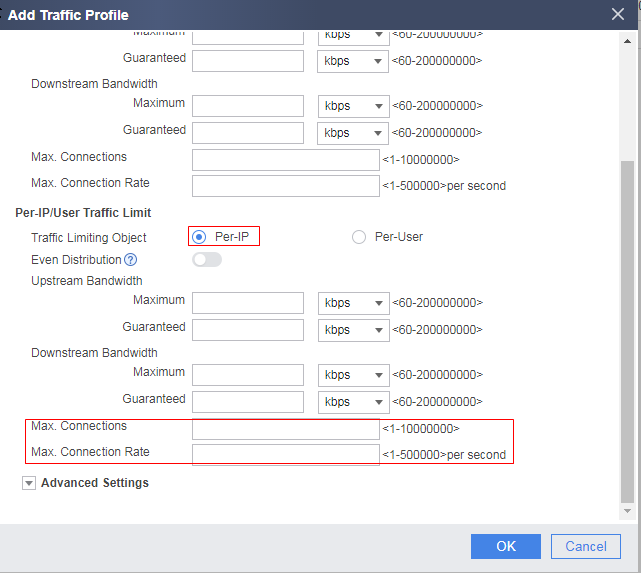

For the USG6000E, before viewing IP new connection logs, run the traffic-policy discard packet log enable (System view) and logging (traffic profile view) commands on the FW to enable the bandwidth management log function. After the traffic-policy discard packet log enable (System view) and logging (traffic profile view) commands are run, the FW sends bandwidth management logs to a log host. If you do not need to send this type of log to the log host, run the undo info-center source bwm channel loghost (System view) command to disable the information center from sending logs.
When you open this page for the first time, the system displays a message indicating that no disk space is allocated to bandwidth IP connections logs. To use this function, you need to allocate disk space in .
Procedure
- Choose to view log information.
- Optional: Click Export to export bandwidth IP connections logs in CSV format to the management PC.
- Click Advanced Search, enter matching criteria to search for bandwidth IP connections logs.
- Optional: You can click
 to save the current log query conditions as a log query template for future use.
The next time you want to use these query conditions, you only need to click
 to select the template name and click OK. Then the system queries logs based on the template conditions. The device administrator can click Template Distribution to view the number of templates created by each user. In addition, you can click
  to delete a log query template.
 Only the user that creates a log query template can view or use this template.
Each log page supports a maximum of 10 log query templates, and a device supports a maximum of 1000 log query templates.
Log Example
Operation logs within a given time range are displayed in the following figure.

Field meanings are as follows.
Field |
Description |
|---|---|
Time |
Time when the log is generated. |
Statistics Duration(Minute) |
Period for collecting logs. The value ranges from 1 to 6000, in minutes. The default value is 5 minutes. |
IP Address |
IP address of the source zone. For example, when IP addresses of extranet users in the Untrust zone access the intranet server in the Trust zone, the IP addresses that are blocked when the number of external IP addresses exceeds the threshold. |
Traffic Policy |
Name of the traffic policy to which the log belongs. |
Denied Connections |
Number of times that a new connection initiated by an IP address is blocked by the traffic policy. |