CLI: Example for Configuring DDNS and Interface IP Address Based NAT Server for Internet Users to Access Intranet Servers
This section provides an example for configuring DDNS and interface IP address based NAT Server for Internet users to access intranet servers.
Networking Requirements
As shown in Figure 1, an enterprise has deployed a FW to connect an intranet to the Internet. Intranet users are in the Trust zone, the Internet users are in the Untrust zone. The web server in the Trust zone has a domain name example.com.
The FW's WAN interface obtains a public IP address using DHCP. The FW functions as both the DDNS client and server. When an Internet user enters example.com in the address bar of a browser, the FW uses DDNS to resolve the domain name into the web server's IP address 10.1.1.3/24.
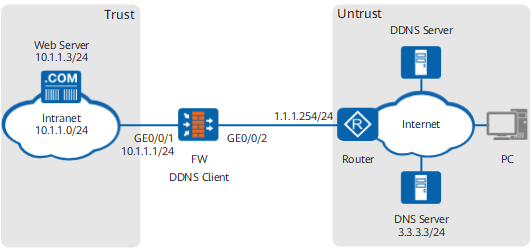
Data Planning
Item |
Data |
Description |
|---|---|---|
Interface name: GigabitEthernet 0/0/1 |
IP address: 10.1.1.1/24 Security zone: Trust |
- |
Interface name: GigabitEthernet 0/0/2 |
IP address: assigned using DHCP Security zone: Untrust |
- |
NAT Server |
Name: policy_web Public address: GigabitEthernet 0/0/2's WAN interface address Private address: 10.1.1.3 Public port number: 80 Private port number: 8080 |
- |
DDNS |
User name: a Password: Aaa123456 Domain name: example.com DDNS provider's domain name: dyndns.com DNS server address: 3.3.3.3/24 |
Before you configure the FW, apply for the DDNS service from your provider and obtain the preceding information. |
Web server |
Address: 10.1.1.3/24 |
- |
Default route |
Destination address: 0.0.0.0 Next hop address: 1.1.1.254 |
Configure a default route on the FW to direct intranet traffic to the ISP network. |
Configuration Roadmap
The configuration roadmap is as follows:
- Assign IP addresses to interfaces, add the interfaces to security zones, and configure network connectivity.
- Configure a security policy for traffic between Internet users and intranet servers.
- Configure interface-based NAT Server.
- Enable DNS and configure a DNS server.
- Configure a DDNS policy and apply it to the GigabitEthernet 0/0/2's WAN interface so that an Internet user can access the web server using the domain name example.com.
- Configure a default route on the FW to direct intranet traffic to the ISP router.
Procedure
- Assign IP addresses to interfaces and add the interfaces to security zones.
<FW> system-view
[FW] interface GigabitEthernet 0/0/1
[FW-GigabitEthernet0/0/1] ip address 10.1.1.1 24
[FW-GigabitEthernet0/0/1] quit
[FW] firewall zone trust
[FW-zone-trust] add interface GigabitEthernet 0/0/1
[FW-zone-trust] quit
[FW] firewall zone untrust
[FW-zone-untrust] add interface GigabitEthernet 0/0/2
[FW-zone-untrust] quit
- Configure a security policy for traffic between Internet users and intranet servers.
[FW] security-policy
[FW-policy-security] rule name policy1
[FW-policy-security-rule-policy1] destination-address 10.1.1.3 32
[FW-policy-security-rule-policy1] action permit
[FW-policy-security-rule-policy1] quit
[FW-policy-security] quit
- Configure interface-based NAT Server, map the public IP address of the GigabitEthernet 0/0/2 to the intranet server's IP address 10.1.1.3, and map public port 80 to private port 8080.
[FW] nat server policy_web protocol tcp global interface GigabitEthernet 0/0/2 80 inside 10.1.1.3 8080
- Enable DNS and configure a DNS server.
[FW] dns resolve
[FW] dns server 3.3.3.3
- Configure a DDNS policy and apply it to the GigabitEthernet 0/0/2's WAN interface so that an Internet user can access the web server with IP address 10.1.1.3/24 based on the domain name example.com.
[FW] ddns policy abc
[FW-ddns-policy-abc] url "http://<username>:<password>@update.dyndns.com/nic/update?hostname=<h>&myip=<a>" username a password Aaa123456
[FW-ddns-policy-abc] quit
[FW] interface GigabitEthernet 0/0/2
[FW-GigabitEthernet 0/0/2] ddns apply policy abc fqdn example.com
[FW-GigabitEthernet 0/0/2] quit
- Configure a default route on the GigabitEthernet 0/0/2 to direct intranet traffic to the ISP router.
[FW] ip route-static 0.0.0.0 0.0.0.0 1.1.1.254
Configuration Verification
After completing the configuration, use an Internet PC to attempt to access the web server.
If the Internet PC can access the web server, the configuration is successful. If the Internet PC cannot access the intranet server, modify the configuration and try again.
Configuration Scripts
Configuration script for FW:
#
 sysname FW
#
 nat server policy_web protocol tcp global interface GigabitEthernet 0/0/2 www inside 10.1.1.3 8080
#
 dns resolve
 dns server unnumbered interface GigabitEthernet0/0/4
 dns server 3.3.3.3
#
 ddns client enable
#
interface GigabitEthernet0/0/1
 ip address 10.1.1.1 255.255.255.0
#
interface GigabitEthernet0/0/2
 ddns apply policy abc fqdn example.com
#
firewall zone trust
 set priority 85
 add interface GigabitEthernet0/0/1
#
firewall zone untrust
 set priority 5
 add interface GigabitEthernet0/0/2
#
 ip route-static 0.0.0.0 0.0.0.0 1.1.1.254
#
ddns policy abc
 url "http://<username>:<password>@update.dyndns.com/nic/update?hostname=<h>&myip=<a>" username a password Aaa123456
#
security-policy
 rule name policy1
  destination-address 10.1.1.3 32
  action permit
#
return