CLI: Example for Configuring Internet Users of Different ISPs to Access the Same Public IP address of a Server on a Dual-Egress Intranet (Sticky Load Balancing)
This section provides an example for configuring internet users of different ISPs to access the same public IP address of a server on a dual-egress intranet in the case of sticky load balancing.
Networking Requirements
As shown in Figure 1, an enterprise deploys a FW at the network border as the security gateway that connects to the Internet over two ISP networks. The intranet FTP server applies a public IP address (1.1.1.10) only from ISP1 to provide services for Internet users. Internet users on ISP1 and ISP2 networks must use this public IP address to access the FTP server.
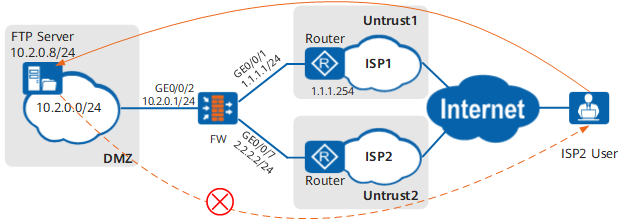
Data Planning
Item |
Data |
Description |
|
|---|---|---|---|
GigabitEthernet 0/0/1 |
IP address: 1.1.1.1/24 Security zone: Untrust1 |
Obtain the public IP address from the ISP. |
|
GigabitEthernet 0/0/7 |
IP address: 2.2.2.2/24 Security zone: Untrust2 |
Obtain the public IP address from the ISP. |
|
GigabitEthernet 0/0/2 |
IP address: 10.2.0.1/24 Security zone: DMZ |
- |
|
NAT Server |
Name: policy_ftp Public IP address: 1.1.1.10 Private IP address: 10.2.0.8 Public port: 21 Private port: 21 |
When Internet users send traffic to 1.1.1.10 through port 21, the FW can forward the traffic to the FTP server based on this mapping entry. |
|
Configuration Roadmap
- Configure NAT Server for Internet users to access the intranet FTP server using a public IP address.
On the GigabitEthernet 0/0/1 and GigabitEthernet 0/0/7, configure sticky load balancing and default gateway.

Make clear the incoming interface of the traffic that may have different forward and return paths based on the configured routes and then configure the sticky load balancing function.
Procedure
- Assign IP addresses to interfaces, add the interfaces to security zones, and configure network connectivity.
# Assign an IP address to GigabitEthernet 0/0/1.
<FW> system-view
[FW] interface GigabitEthernet 0/0/1
[FW-GigabitEthernet 0/0/1] ip address 1.1.1.1 24
[FW-GigabitEthernet 0/0/1] quit
# Assign an IP address to GigabitEthernet 0/0/2.
[FW] interface GigabitEthernet 0/0/2
[FW-GigabitEthernet 0/0/2] ip address 10.2.0.1 24
[FW-GigabitEthernet 0/0/2] quit
# Assign an IP address to GigabitEthernet 0/0/7.
[FW] interface GigabitEthernet 0/0/7
[FW-GigabitEthernet 0/0/7] ip address 2.2.2.2 24
[FW-GigabitEthernet 0/0/7] quit
# Add GigabitEthernet 0/0/2 to the DMZ zone.
[FW] firewall zone dmz
[FW-zone-dmz] add interface GigabitEthernet 0/0/2
[FW-zone-dmz] quit
# Add GigabitEthernet 0/0/1 to the untrust1 zone.
[FW] firewall zone name untrust1
[FW-zone-untrust1] set priority 10
[FW-zone-untrust1] add interface GigabitEthernet 0/0/1
[FW-zone-untrust1] quit
# Add GigabitEthernet 0/0/7 to the untrust2 zone.
[FW] firewall zone name untrust2
[FW-zone-untrust2] set priority 20
[FW-zone-untrust2] add interface GigabitEthernet 0/0/7
[FW-zone-untrust2] quit
- Configure a security policy for traffic between Internet users and intranet servers.
[FW] security-policy
[FW-policy-security] rule name policy1
[FW-policy-security-rule-policy1] source-zone untrust1
[FW-policy-security-rule-policy1] source-zone untrust2
[FW-policy-security-rule-policy1] destination-zone dmz
[FW-policy-security-rule-policy1] destination-address 10.2.0.0 24
[FW-policy-security-rule-policy1] action permit
[FW-policy-security-rule-policy1] quit
[FW-policy-security] quit
- Configure NAT Server.
[FW] nat server policy_ftp protocol tcp global 1.1.1.10 ftp inside 10.2.0.8 ftp no-reverse unr-route - Enable NAT ALG for FTP.
[FW] firewall interzone dmz untrust1
[FW-interzone-dmz-untrust1] detect ftp
[FW-interzone-dmz-untrust1] quit
- Configure the sticky load balancing function and default gateway.
[FW] interface GigabitEthernet 0/0/1
[FW-GigabitEthernet 0/0/1] redirect-reverse next-hop 1.1.1.254
[FW-GigabitEthernet 0/0/1] gateway 1.1.1.254
[FW-GigabitEthernet 0/0/1] quit
[FW] interface GigabitEthernet 0/0/7
[FW-GigabitEthernet 0/0/7] redirect-reverse next-hop 2.2.2.254
[FW-GigabitEthernet 0/0/7] gateway 2.2.2.254
[FW-GigabitEthernet 0/0/7] quit
- On the router, configure a static route.
Contact your ISP administrator to perform this step.
Configuration Scripts
Configuration script for the FW:
#
 sysname FW
#
 nat server policy_ftp protocol tcp global 1.1.1.10 ftp inside 10.2.0.8 ftp no-reverse unr-route
#
interface GigabitEthernet0/0/1
 undo shutdown
 ip address 1.1.1.1 255.255.255.0
 redirect-reverse next-hop 1.1.1.254
 gateway 1.1.1.254
#
interface GigabitEthernet0/0/2
 undo shutdown
 ip address 10.2.0.1 255.255.255.0
#
interface GigabitEthernet0/0/7
 undo shutdown
 ip address 2.2.2.2 255.255.255.0
 redirect-reverse next-hop 2.2.2.254
 gateway 2.2.2.254
#
firewall zone dmz
 set priority 50
 add interface GigabitEthernet0/0/2
#
firewall zone name untrust1 id 4
 set priority 10
 add interface GigabitEthernet0/0/1
#
firewall zone name untrust2 id 5
 set priority 20
 add interface GigabitEthernet0/0/7
#
firewall interzone dmz untrust1
 detect ftp
#
security-policy
  rule name policy1
    source-zone untrust1
    source-zone untrust2
    destination-zone dmz
    destination-address 10.2.0.0 24
    action permit
#
return