Configuring an Interface Pair Using the Web UI
This section describes how to configure an interface pair.
Context
An interface pair is a pair of incoming and outgoing interfaces of the same type. After an interface pair is formed, the traffic enters the incoming interface of the interface pair is forwarded out of the outgoing interface in the interface pair, without MAC address table lookup. If the incoming and outgoing interfaces are the same interface, the packets entering the interface are forwarded out of the same interface after being processed.

If the incoming and outgoing interfaces are the same interface, do not send broadcast traffic to the interface. Otherwise, a local loopback may occur on the connected device.
Procedure
- Choose .
- Click Edit in the row of the interface to change the interface mode to Interface Pair.
- Choose .
- Click Add and create an interface pair. Only interfaces in Interface Pair mode can be added to an interface pair.
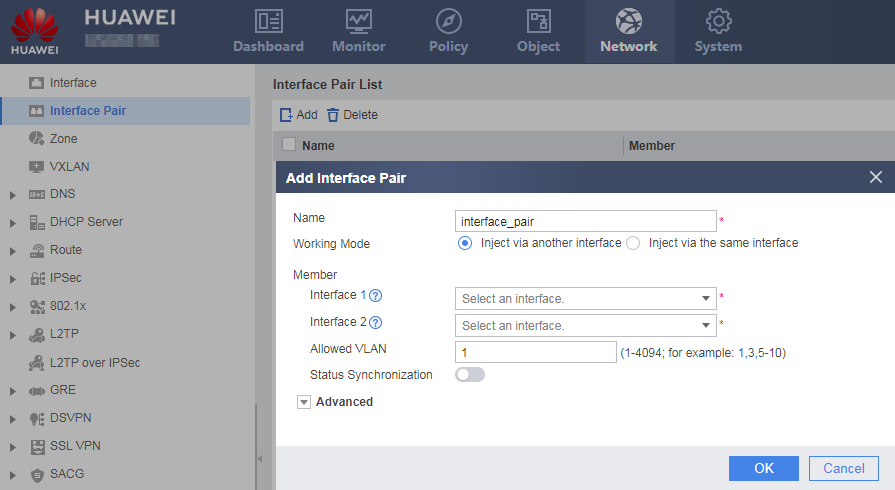
Parameter
Description
Name
Specifies the name of the interface pair.
Working mode
Specifies the working mode of the interface.
- Inject via another interface: An interface pair has two interfaces. Packets entering one interface are forwarded through the other.
- Inject via the same interface: The interface pair has only one interface. Packets entering the interface are forwarded out of the same interface after being processed.
Member
Select members for an interface pair.
When the working mode of the interface pair is Inject via another interface, you are advised not to use interfaces with different bandwidth upper limits as an interface pair to prevent adverse impact on services due to traffic congestion caused by surging traffic.
Allowed VLAN
Specifies the scope of the VLAN ID.
Status Synchronization
Enables the function of status synchronization.
Advanced
Default VLAN ID
Specifies the default VLAN ID.
- Click OK.