Configuring Static Route Using the Web UI
This section describes how to configure IPv4 and IPv6 static routes on the Web UI.
Configuring the Default Priority
The default priority of a static route is 60. You can change the default priority as follows:
- Choose .
- Under Configure Default Priority, enter the default priority for static routes in Default Priority.
- Click Apply.
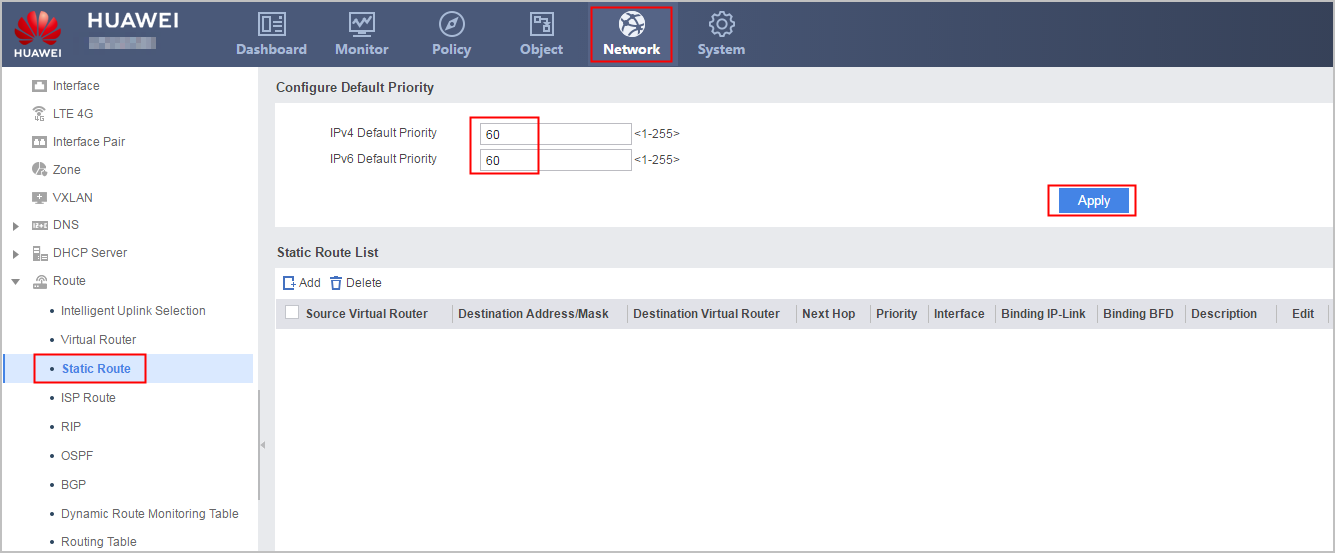
If the priority is updated on the Web UI, the operation succeeds.
Creating a Static Route
- Choose .
- Under Static Route List, click Add.
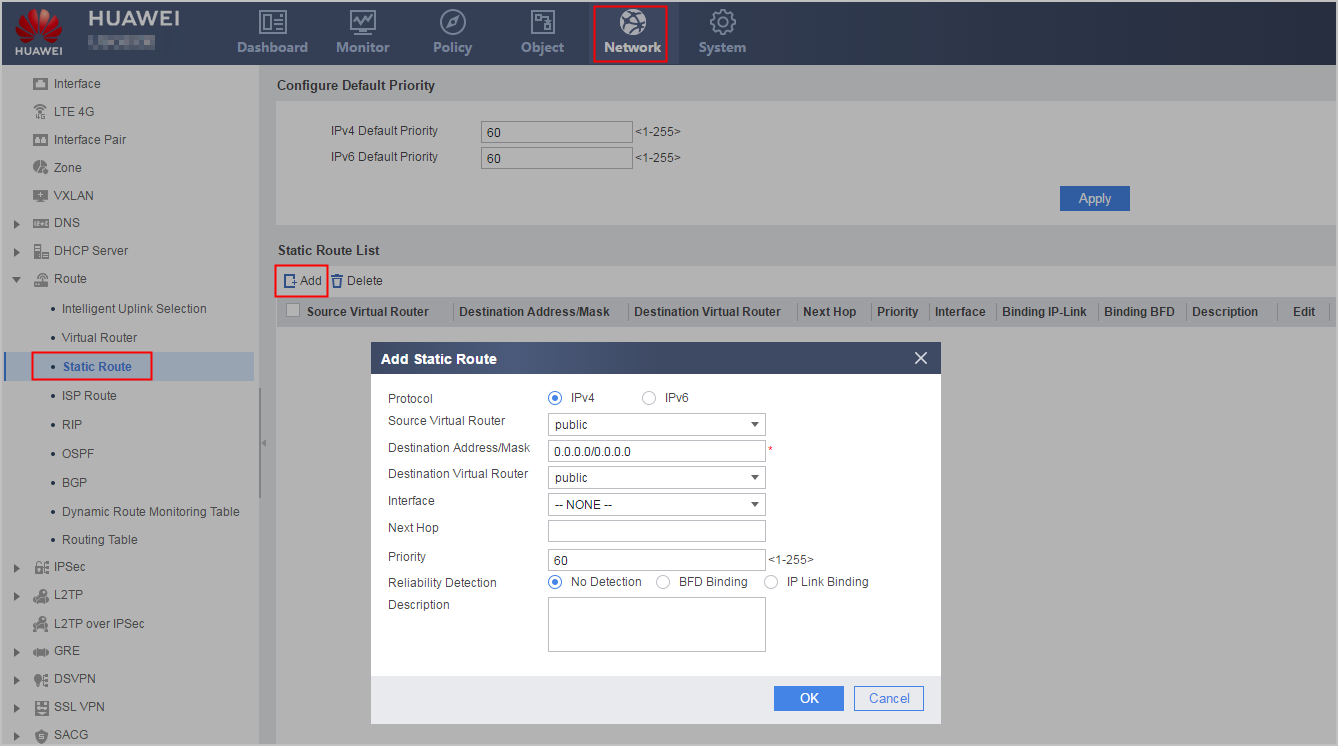
- Set the parameters of the static route.
If the new static route is displayed, the operation succeeds.
Parameter
Description
Protocol
Protocol type of the static route. You can selectIPv4 or IPv6.
Source Virtual Router
Source virtual router. The VPN instance name indicates a common VPN or the VPN created for a virtual system.
When you configure a static route for a virtual system, the source virtual router must be set to the VPN instance with the same name as the virtual system.
Destination Address/Mask
Destination IP address and mask.
The destination IP address can be an IPv4 or IPv6 address.
For an IPv4 address, the format is similar to 10.1.1.1/24 or 10.1.1.1/255.255.255.0. For an IPv6 address, the format is similar to 3::3/64.
Destination Virtual Router
Destination virtual router. Set this parameter to the public or VPN instance name. The VPN instance name indicates a common VPN or the VPN created for a virtual system.
When you configure a static route for a virtual system, the destination virtual router must be set to the VPN instance with the same name as the virtual system.
If the destination virtual router is set to the VPN instance with the same as the virtual system, the next hop cannot be configured. If the destination virtual router is set to a common VPN instance, the next hop can be configured.
Interface
Name of the outgoing interface.
During the configuration of static routes, you can specify the next hop and the outgoing interface or specify either of them based on actual situations.For point-to-point interface, specify the outgoing interface.
For NBMA, Ethernet, and Virtual-template interfaces, specify the next hop.
Next Hop
Next-hop IP address.
You must specify the outgoing interface or the next-hop IP address when you configure a static route.
The destination IP address can be an IPv4 or IPv6 address. For an IPv4 address, the format is similar to 10.1.1.1/24 or 10.1.1.1/255.255.255.0. For an IPv6 address, the format is similar to 3::3/64.
Priority
Priority of static routes.
You can configure different priorities for static routes as needed. If multiple routes to the same destination have the same priority, you can load balance the traffic among the routes. If the routes have different priorities, you can implement route redundancy.
The configured priority overrides the default route priority.
Reliability Detection
Reliability Detection for the static route. You can select the mode from the following:
- No Detection
- Binding BFD
- Binding IP-LinkNOTE:
When the protocol type is IPv4, the preceding three options are all available. When the protocol type is IPv6, only No Detection and Binding BFD are available and they can be configured only when the source virtual router and destination virtual router are both public.
BFD Name
Input or select the name of the BFD to be bound.
This option is only displayed after you select Binding BFD under Reliability Detection.
IP-Link Name
Input or select the name of the IP-Link to be bound.
This option is only displayed after you select Binding IP-Link under Reliability Detection.
Description
Description of the static route.
- Click OK.