Configuring Hardware Fast Forwarding Using the Web UI
This section describes how to configure hardware fast forwarding on the web UI.
Context
To reduce the CPU load and improve the service processing capability of the device, the FW supports fast forwarding for some simple heavy-traffic services (such as NAT services). You can enable or disable hardware fast forwarding as required and configure filtering conditions for hardware fast forwarding.
Procedure
- Choose .
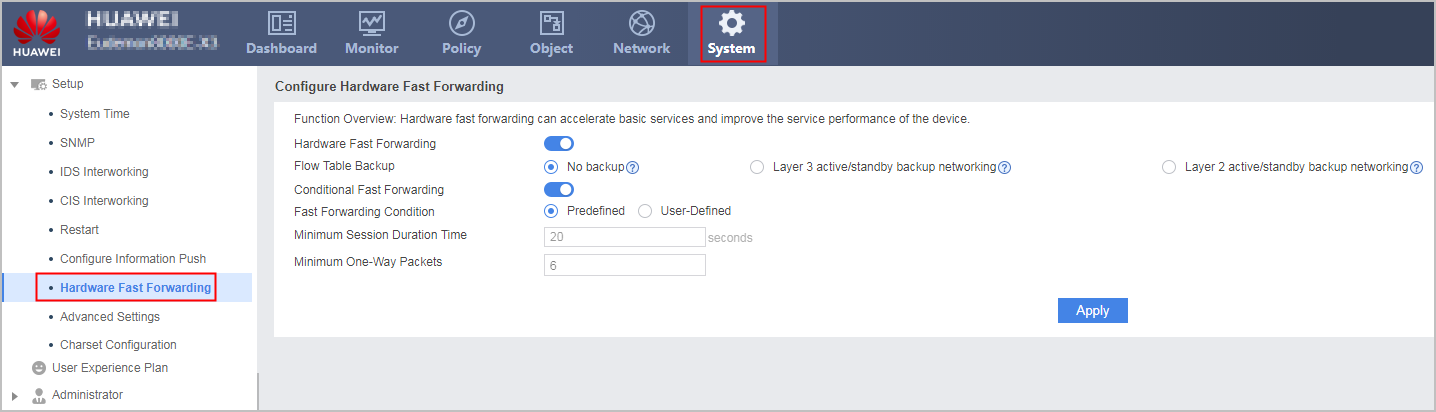
- Enable Hardware Fast Forwarding to enable the global hardware fast forwarding. All services that support fast forwarding are rapidly forwarded.
To make full use of fast forwarding resources, you are advised to configure filtering conditions for fast forwarding. For configuration details, see 4.
- Optional: Choose whether to enable flow table backup.
Only the USG6510E/6510E-POE/6530E do not support this parameter.

In versions earlier than V600R007C20SPC200, USG6680E and USG6712E/6716E support this parameter. For V600R007C20SPC200 and later versions, device batches are distinguished by BomID Version (which can be checked using the display version command). Only the USG6680E and USG6712E/6716E whose BomID Version is earlier than 003 and whose device BOM numbers does not contain "-001" support this parameter.
In hot standby deployment in active/standby mode, if the active device properly operates, the standby device does not receive service packets. Therefore, the delivery of the fast forwarding table is not triggered. After active/standby switchover, the new active device needs to re-implement the fast forwarding table delivery process, which may occupy additional CPU resources.
Therefore, in a hot standby scenario, if the hardware fast forwarding function is enabled, you need to enable the flow table backup function on the active device and enable the standby device to automatically deliver the fast forwarding flow table.
Parameter
Description
No backup
In a load balancing scenario, you are advised not to enable flow table backup.
Layer 3 active/standby backup networking
In an active/standby backup scenario, if the FWs work at Layer 3 and the next hops of the routes on the active and standby FWs are different, the outbound interface and next hop in the backup flow table are replaced with the outbound interface and next hop of the route (except policy-based routing) on the standby FW.
Layer 2 active/standby backup networking
In an active/standby backup scenario, if the FWs work at Layer 2, the outbound interface and next hop in the backup flow table are the outbound interface and next hop of the route on the active FW.
- Enable Conditional Fast Forwarding to set filtering conditions for fast forwarding.
- Determine to use predefined or user-defined filtering conditions.
Select Predefined for Fast Forwarding Condition. You can find a default predefined filtering condition on the FW. The filtering condition cannot be modified or deleted.
The condition is that the duration of a session is not less than 20s and the number of one-way session packets is not less than 6. Hardware fast forwarding is implemented only on the traffic that meets the configuration.
When a predefined filtering condition is used for fast forwarding, and an alarm on the number of fast forwarding tables is generated, you can configure a user-defined filtering condition for more fine-grained control.
- Set Fast Forwarding Condition to User-Defined. On the User-Defined Fast Forwarding Conditions page, click Add.
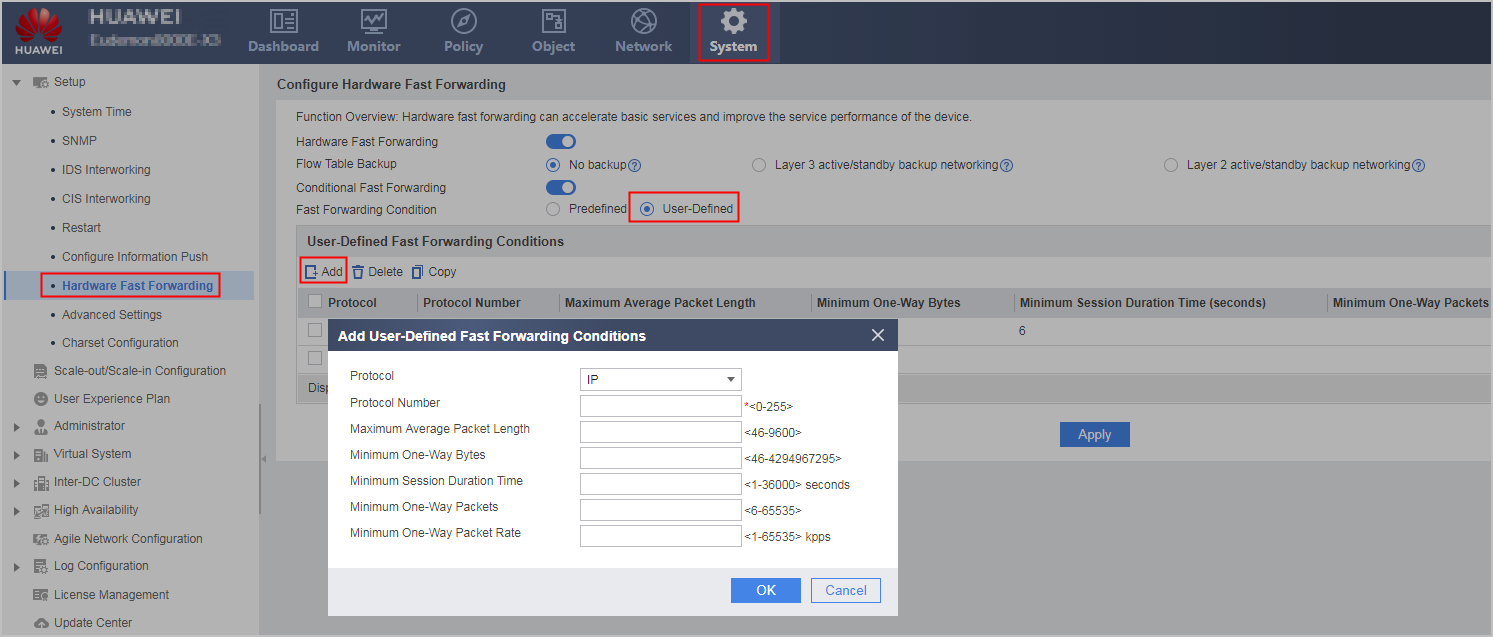
Configure a user-defined filtering condition.
Parameter
Description
Protocol
Select a protocol type or enter a protocol ID.
- GRE
- ICMP
- SCTP
- TCP
- UDP
- IP
- default: indicates all unspecified protocols.
NOTE:There is only one filtering condition for a protocol.
The specified protocol is preferentially matched with. If the specified protocol is not matched, the default protocol is matched with.
The traffic that does not match any protocol is not subject to the filtering control of hardware fast forwarding.
Protocol Number
Set this parameter to specify a protocol number of IP packets when Protocol is set to IP.
This parameter does not need to be set when Protocol is set to GRE, ICMP, SCTP, TCP, UDP, or default.
Maximum Average Packet Length
Indicates that fast forwarding is implemented only for the sessions whose average packet length is not greater than the value.
Minimum One-Way Bytes
Indicates that fast forwarding is implemented only for the sessions of which the number of one-way bytes is not less than the value.
Minimum Session Duration Time
Indicates that fast forwarding is implemented only for traffic of which the duration is not less than this value.
Minimum One-Way Packets
Indicates that fast forwarding is implemented only for the sessions of which the number of one-way packets is not less than the value.
Minimum One-Way Packet Rate
Indicates that fast forwarding is implemented only for the sessions of which the one-way packet rate is not less than the value.
Properly set filtering parameters based on the actual network traffic model.
- Repeat the preceding steps to create multiple filtering conditions.
- Set Fast Forwarding Condition to User-Defined. On the User-Defined Fast Forwarding Conditions page, click Add.
- After completing the preceding configurations, click Apply.