Application Policy Tuning
This section describes how to use the policy tuning tool to facilitate policy optimization.
Prerequisites
The application identification function in full mode has been enabled by choosing , or applications/application groups have been referenced when security policies are configured.
General security policies have been configured and running for a period of time.

Context
Policy tuning has the following functions:
- Identifies applications and converts service (port)-based security policies into application-based policies.
- Provides tuning suggestions to optimize security policies and deploy security functions such as intrusion prevention and antivirus.
The intelligent awareness engine of the FW defines different types of risks and the content security measures to cope with them, as shown in Table 1.
Risk Category |
Risk Types |
Countermeasures |
|---|---|---|
Security risks |
Exploitable, Malware-vehicle, Evasive |
Intrusion Prevention, Anti-Virus, URL Filtering |
Data loss risks |
Tunneling, Data-loss |
File Blocking, Data Filtering |
Productivity loss |
Productivity-loss, Bandwidth-consuming |
Bandwidth or application control |
For productivity-loss risks, configure bandwidth control by referring to Bandwidth Management or block the applications.
Policies whose action is Deny are not involved in tuning. Only policies whose action is Permit are involved in tuning.
Application risk analysis
- Choose .
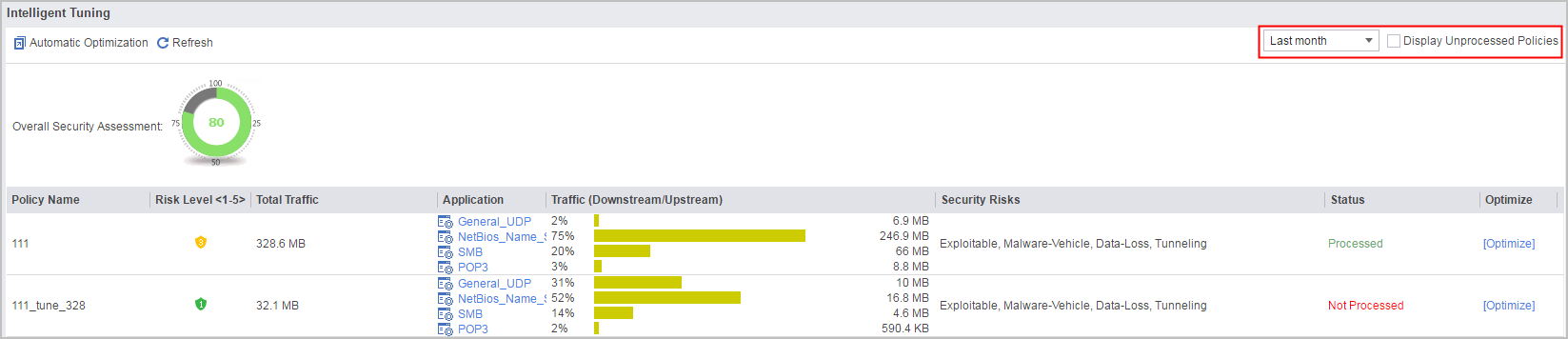
- The device automatically starts the analysis and displays
the result, as shown in Figure 1.
Click Refresh to refresh analysis results in real time.
By default, the analysis of the Last month is displayed. To display the analysis of the Today, Last 3 days, or Last week, select the option from the drop-down list on the upper-right corner.
If you select Display Unprocessed Policy on the upper-right corner, policies whose state is Processed are not filtered out, and only policies whose state is Not Processed are displayed.
The waiting time varies depending on the query condition.
- The system displays the analysis results of Today at least 20 minutes after traffic passes the device.
- The system displays the analysis results of Last 3 days and Last week at least 1 hour after traffic passes the device.
- The system displays the analysis results of Last month at least 1 day after traffic passes the device.
- Table 2 describes the items in the
analysis result.
Table 2 Application risk analysis result Item
Description
Overall Security Assessment
The overall score of the security policies on the device. The higher the score is, the more secure the device is. The over score depends on the following factors:
- Number of risks with no countermeasures. A large number leads to a low score.
- Proportion of policies that have risks in the total policies. A high proportion leads to a low score.
Policy Name
Name of the policy.
Risk Level <1-5>
Risk level ranging from 1 to 5. A larger value indicates a higher risk level.
The value is calculated using established algorithms based on the risk types defined on the intelligent awareness engine to indicate the risk level of the applications in a policy. The more risk types a policy has, the more likely the policy has a higher risk level.
Total Traffic
Total volume of traffic that matches security policies.
Application
Applications that are not defined in the policy but are identified in the traffic that matches the security policy.
Traffic (Downstream/Upstream)
Application-specific traffic statistics, including:
- Traffic percentage of an application in the total volume of traffic that matches the policy.
- Received and sent traffic of an application on a device, with red indicating received traffic and yellow sent traffic.
Security Risks
All application risk types of each policy.
For example, a security policy defines applications a and b. Application a has Exploitable risks and application b has Evasive risks. Then, the policy has Exploitable and Evasive risks.
Status
Policy tuning status.
- Not Processed: indicates that the policy has not been tuned.
- Processed: indicates that the policy has been tuned but may still have risks. You can further tune the policy if necessary.
Solution
The device supports policy tuning in batch or one by one. Batch tuning is more efficient, but not as reliable as one-by-one tuning due to complex network conditions. The following tuning page will be described in detail to illustrate the tuning process and provide precautions. When you tune a policy, you can manually adjust the settings or click the View Tuning button to automatically change the settings as the device suggests.
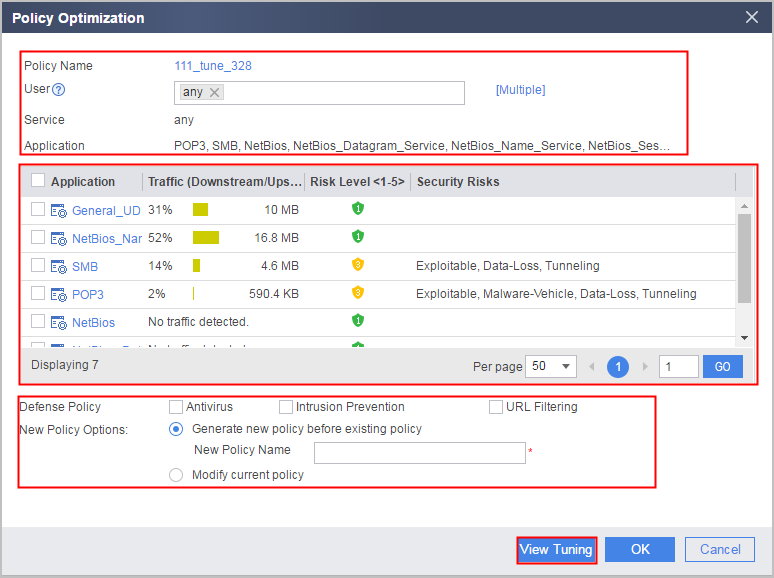
As shown in Figure 2, the policy tuning page includes basic policy information, applications information, and defense measures and new policy options.
- Basic policy information includes policy name, user, service, and application/application group.
- Applications information includes applications defined in the policy and applications that are not defined in the policy but are identified in traffic that matches the policy. Applications information provides visibility into application mix of network traffic for you to verify and modify based on the minimum authorization principle.
- Defense measures are available security functions that reference default security profiles. You can select these functions as appropriate.
- New policy options allow you to modify the existing policy or create a new one.
For detailed description, see Table 3.
| Basic Policy Information | |
|---|---|
Policy Name |
Name of the policy. You can click the policy name to display the modification page and modify the policy. For details, see Security Policy. |
User |
The user defined in the policy. You can modify the user or user group setting in the text box. |
Service |
The service defined in the policy. |
Application |
The application defined in the policy. |
| Applications Information | |
Application |
Name of the application. Applications include:
You can click the application name to view details about the application. |
Traffic (Downstream/Upstream) |
Application-specific traffic statistics, including:
|
Risk Level <1-5> |
Risk level ranging from 1 to 5. A larger value indicates a higher risk level. The value is calculated using established algorithms based on the risk types defined on the intelligent awareness engine to indicate the risk level of the applications in a policy. The more risk types a policy has, the more likely the policy has a higher risk level. |
Security Risks |
The types of security risks are defined on the intelligent awareness engine. |
| Others | |
| Defense Policy | The check boxes of default actions in the policy are selected on the page. For details on risk types and their countermeasures, see Table 2. The policy tuning tool allows a policy to reference only default profiles. If you need to reference a user-defined profile, you must create a policy. |
| New Policy Options |
|
| View Tuning | Tuning suggestions based on general principles. |
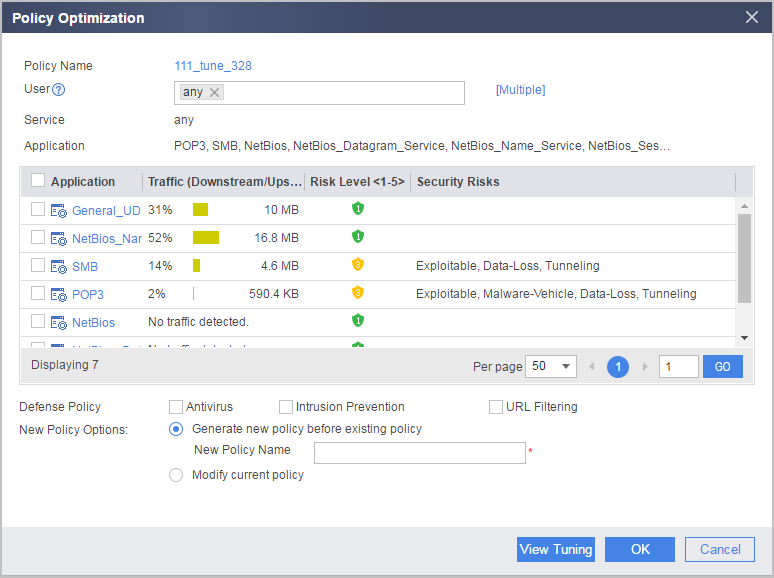
You can better understand the functions of the View Tuning button by comparing the pages before and after the button is clicked. Figure 3 shows the page before the View Tuning button is clicked and Figure 4 shows the page after the button is clicked.
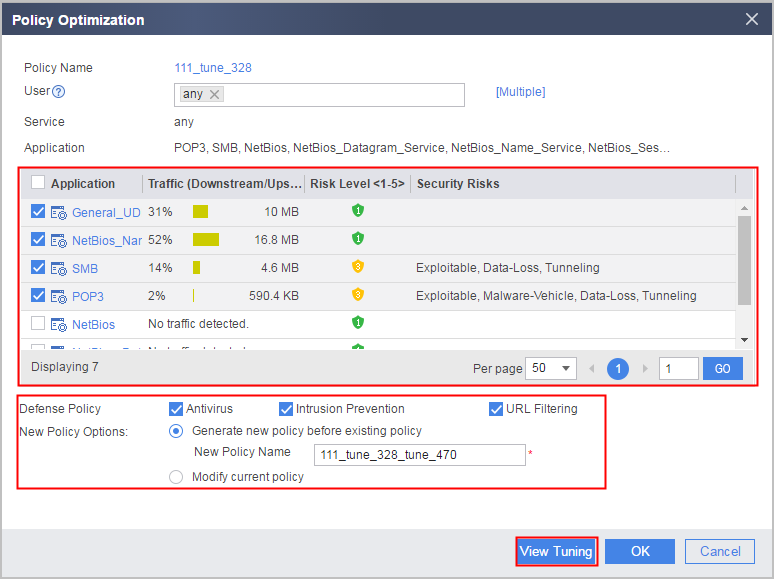
To sum up, View Tuning provides the following function:
- Add the identified applications that are not defined in the policy to the new policy as match conditions.
- Select identified applications as protection objects and configure defense measures for them.
- Automatically name the new policy if you do not manually specify a name. The name generated by the device can be modified.
Precautions
Do not perform policy matching analysis immediately after policy tuning because no sufficient traffic matches the changed policies.