Understanding Network Extension
Concept
The FW uses network extension to set up SSL VPN tunnels between virtual gateways and remote users to allow them to access intranet IP services.
Network extension service process
Figure 1 shows the service process.
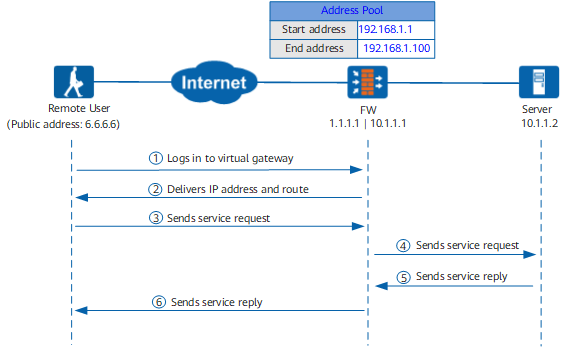
- A remote user logs in to the virtual gateway using a browser.
- After login, the remote user enables network extension on the virtual gateway.
After network extension is enabled:
- An SSL VPN tunnel is established the remote user and the virtual gateway.
- A virtual network adapter is generated on the remote user's PC. The virtual gateway assigns an IP address in the address pool to the virtual adapter for the communication between the remote user and intranet server. With the private IP address, the remote user can access intranet IP resources as an intranet user does.
- The virtual gateway sends the remote user a route pointing to the intranet server
based on network extension configurations.
- The remote user sends a service request packet to the intranet server. The packet reaches the virtual gateway over an SSL VPN tunnel.
- After receiving the request packet, the virtual gateway decapsulates the packet and then forwards it to the intranet server.
- The intranet server responds to the service request of the remote user.
- After receiving the response packet, the virtual gateway forwards it to the remote user over the SSL VPN tunnel.
After the remote user receives the reply packet, the packet is decapsulated and the request is extracted
Packet Encapsulation Process
In network extension, an SSL VPN tunnel can be established in either reliable or quick transmission mode. In reliable transmission mode, the SSL VPN uses the SSL protocol to encapsulate packets and uses the TCP protocol as the transmission protocol. In quick transmission mode, the SSL VPN uses the UDP protocol as the transmission protocol. The reliable transmission mode is recommended when the network environment is unstable. If the network environment is stable, the quick transmission mode is recommended to improve data transmission efficiency.
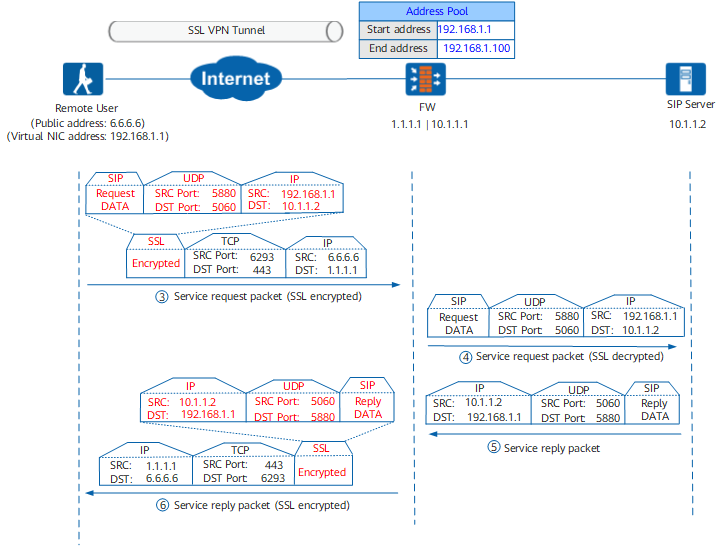
- Packet encapsulation in reliable transmission mode
Figure 2 shows packet encapsulation in reliable transmission mode. The remote user uses its adapter card IP address (SRC: 192.168.1.1) to communicate with the intranet server (SIP server in this example). Packets are encrypted before transmission and decrypted after reception. In the inner packet sent by the remote user to the SIP server, the source port is 5880 (randomly selected), the destination port is 5060, and the transport protocol is UDP. The outer packet is encapsulated using SSL and transmitted over TCP.
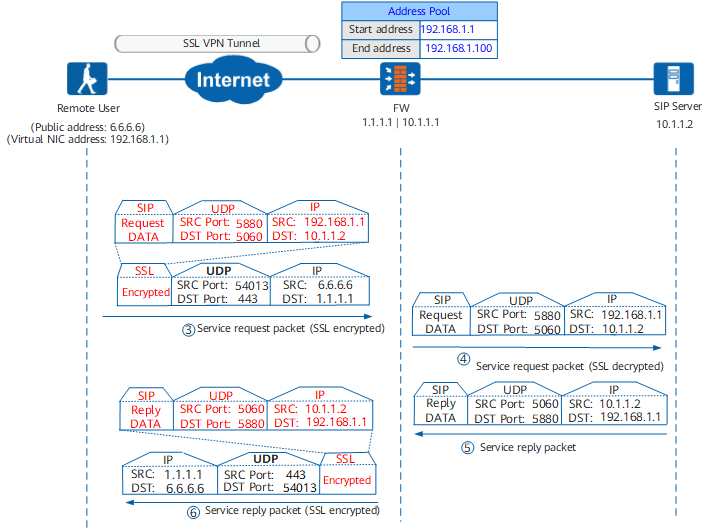
- Packet encapsulation in quick transmission mode
Figure 3 shows packet encapsulation in quick transmission mode. The packet encapsulation is similar to that in reliable transmission mode. The only difference is that the transmission protocol is changed from TCP to UDP.
Security Policy
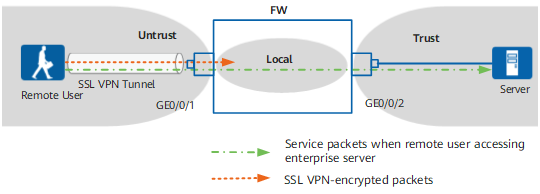
Figure 4 shows the FW security zones that packets pass through.
When a remote user accesses an intranet server, the packets that pass through the FW are classified into two types, and the corresponding security policies are as follows:
- Encrypted SSL VPN packets between the remote user and the FW.
The encrypted SSL VPN packets pass through the Untrust zone to the Local zone.
- Service packets involved when the remote user accesses the enterprise server.
The destination security zone of the decrypted service packets is the Trust zone, and the source security zone is the security zone where the inbound interface of the service packets resides. The inbound interface of service packets is GE0/0/1 and the security zone is the Untrust zone. The source security zone of decrypted packets is the Untrust zone.