Configuring Cache Clearing
Prerequisites
The basic SSL VPN configurations have been completed.
Procedure
- Choose .
- Click
 for an SSL VPN gateway.
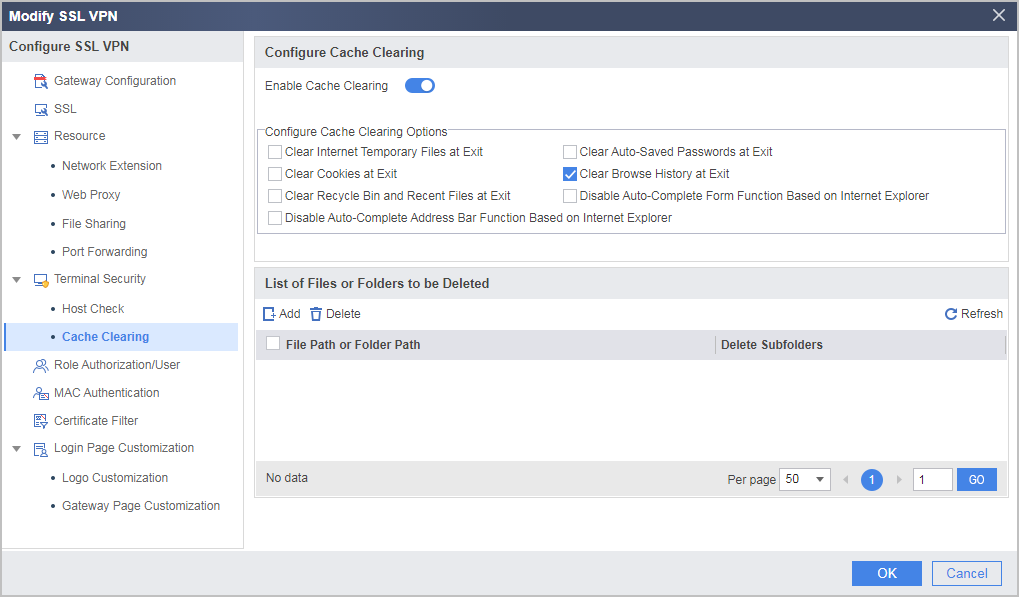
 - Choose to enable cache clearing, configure cache clearing options, and click OK.
Select the items based on the caches to be cleared (in the example, the operating system is installed in drive C, and <user name> is the name of the current user logging in to the operating system).

It is recommended that you select all items if the user terminal is a public PC or is used in cyber bars.
Parameter
Description
Clear Internet Temporary Files at Exit
Deletes all contents from the temporary Internet folder.
Clear Auto-Saved Passwords at Exit
Deletes the password that a network browser automatically saved when a host accesses the virtual gateway.
Clear Cookies at Exit
Deletes the cookie records that the network browser generates when accessing the virtual gateway.
Different network browsers save cookie records in different positions.
- IE
C:\Documents and Settings\<user name>\Cookies.
- FireFox
C:\Documents and Settings\<user name>\Application Data\Mozilla\Firefox\Profiles\*.default\cookies.sqlite.
NOTE:Cookies ensure that the web server can save and search information of a client (browser). They are generated by the server and sent to the client. If the cookies are accepted, the client sends the information automatically to the server upon next access to the same service. However, client information is saved in the cookies, which may pose security problems.
Clear the Browser's History at Exit
Deletes all history records of the browser.
The path of the browser's history records is C:\Documents and Settings\<user name>\Local Settings\History
Clear Recycle Bin and Recent Files at Exit
Deletes all contents from the recycle bin and the list of recently opened files.
The path of the list of recently opened files is C:\Documents and Settings\<user name>\Recent. The contents in the list of recently opened files in the registry are also deleted.
Disable Auto-Complete Form Function Based on Internet Explorer
The auto-complete form function based on Internet Explorer records all the items that a user creates on web pages. These items contain the personal information about the user and the information can be viewed by other users.
If Disable Auto-Complete Form Function Based on Internet Explorer is selected, Internet Explorer-based network browsers are forbidden to save items created by users.
Disable Auto-Complete Address Bar Function Based on Internet Explorer
The auto-complete address bar function based on the Internet Explorer records Internet addresses entered by users. When a user is entering an Internet address, the network browser automatically provides suggested addresses to facilitate user access. The auto-complete address function, however, discloses user access information.
If you select Disable Auto-Complete Address Bar Function Based on Internet Explorer, Internet Explorer-based network browsers are forbidden to save Internet addresses.
Clear the Browser's History at Exit is used as an example:
- IE
- Configure the clearing of specified files or folders.
Some files or folders contain sensitive information. After this function is configured, the specified files or folders are automatically deleted when users log out of the virtual gateway.
- In the List of Files or Folders to be Deleted area, click Add.
- Enter the path of the file or folder to be deleted in File Path or Folder Path.
The path supports directory macros, including %USERPROFILE% and %Temp%.
For example, to delete file 1.txt in the Temp folder, enter C:\Documents and Settings\Administrator\Local Settings\Temp\1.txt. Alternatively, you can use a directory macro and enter %Temp%\1.txt.
Directory Marco
Description
%USERPROFILE%
System user folder. If C Drive is the system disk, the path is C:\Documents and Settings\<user name>.
NOTE:Exercise caution when using this macro. Improper use of this macro may cause the failure of the system or some programs.
%Temp%
System temporary folder. If C Drive is the system disk, the path is C:\Documents and Settings\<user name>\Local Settings\Temp.
Wildcards question mark (?) and asterisk (*) are supported in file names.
- Asterisk: You can use an asterisk to represent zero or more characters. If the name of the file to be deleted contains "temp", you can enter the character string of "*temp*". In this case, all files (such as Intenettemp.txt and extemper.doc) whose names contain "temp" will be deleted, regardless of the file format.
- Question mark: You can replace zero or a single character in the name with a question mark. For example, if you enter "temp?.doc", files temp.doc and temp1.doc will be deleted, but temper.doc will not.
For example, to delete all files in .tmp format in the Temp folder, enter C:\Documents and Settings\Administrator\Local Settings\Temp\*.tmp. Alternatively, you can use a directory macro and enter %TEMP%\*.tmp.

Do not enter %Temp% directly. Otherwise, all files in the Temp folder may be deleted.
- Select or deselect Delete Subfolders.
- If you select Delete Subfolders, all files and folders in the path will be deleted.
- If you deselect Delete Subfolders, only the files in the path are deleted. Folders in the path will not be deleted.
- Click OK.
Verifying the Configuration
Clear the Browser's History at Exit is used as an example.
- Before logging in to the virtual gateway, view the historical records in Internet Explorer. Some records exist.
- Enter https://1.1.1.1:443 in the address bar of the browser, enter the user name and password on the login page, and click Login. Log out of the virtual gateway after the service access is complete.
- View the historical records in the Internet Explorer. You can find that the historical records are cleared.