Upgrading the System Using the Web UI
This section describes how to manage the signature database using the Web UI.
Viewing System Version Information
- Choose .
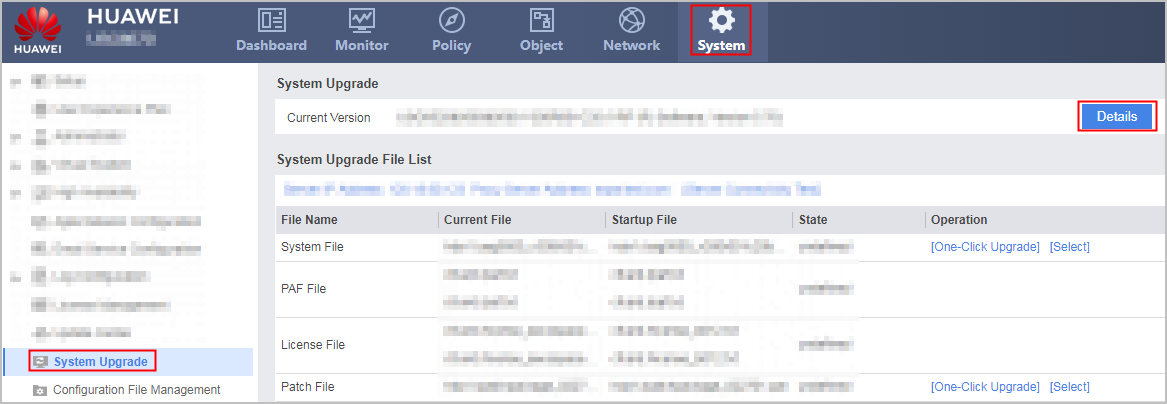
The Current Version is the system version information. For detailed information, click Details on the right.
One-Click Upgrading the System Software
If the free storage space on the USG6000E is insufficient, the device prompts a message asking you whether to delete redundant system software.
The extension name of a system software file is .bin. The software file name cannot contain any Chinese characters.
- Choose .
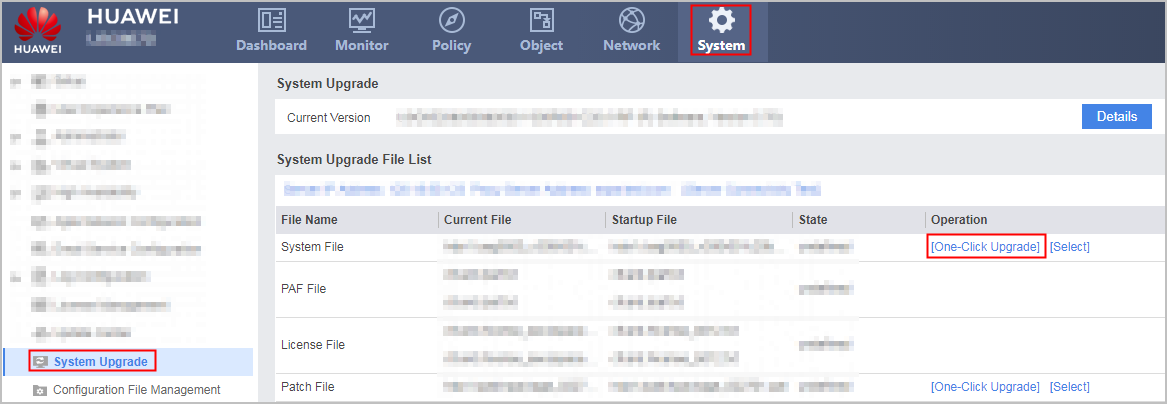
- Click One-Click Upgrade behind the System File. The One-Click Version Upgrade wizard is displayed.
- Optional: Click the Export buttons in sequence to export the alarm information, log information, and configuration information about the USG6000E to the terminal.
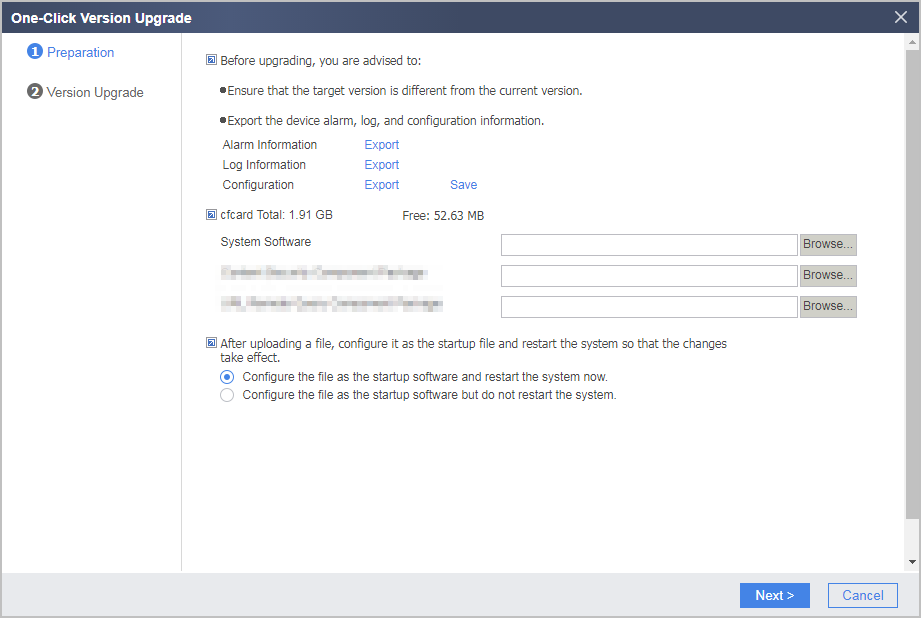
- Optional: Click Save to save the current system configuration information.
You are advised to save the current system configuration information to the terminal.
- Click Browse and select the system software to be upgraded.
If the packages also need to be upgraded, upload the target component packages. If the component packages do not need to be upgraded, uninstall it before upgrading the system software.
- Select Configure the file as the startup software and restart the system now. or Configure the file as the startup software but do not restart the system. .
- Click Next. The device automatically starts to upgrade the system software.
The upgraded system software can be used only after you restart the USG6000E.
Managing System Software
The extension name of a system software file is .bin. The software file name cannot contain any Chinese characters. Ensure that the free storage space is sufficient on the device. If the space is insufficient, delete unnecessary files first.
The extension name of a system software file is .bin. The software file name cannot contain any Chinese characters.
- Choose .
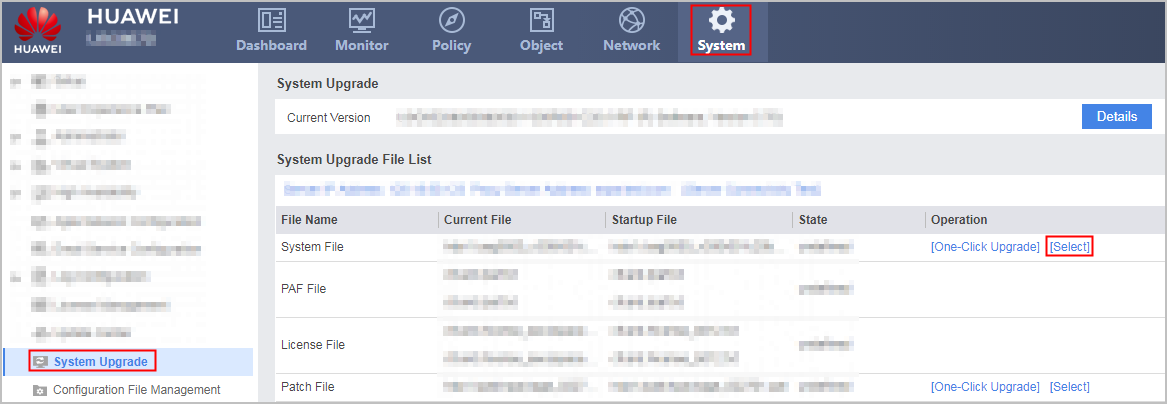
- Click Select behind the System File. The System Software Management window is displayed.
- Click Upload. The Upload File window is displayed.
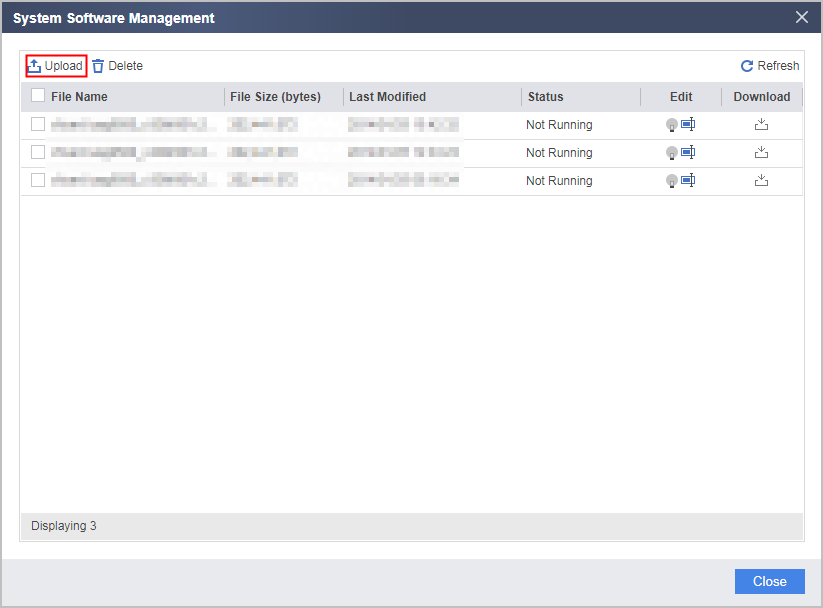
- Click Browse. Select the system software to be uploaded. Click Import to upload the system software.
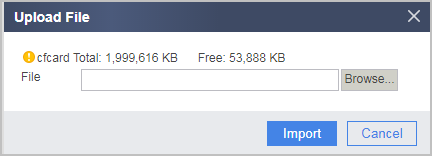
After the system software is uploaded successfully, return to the System Software Management page, and the new system software file is displayed in the list.
- Click
 to set the current file as the system software for the next startup.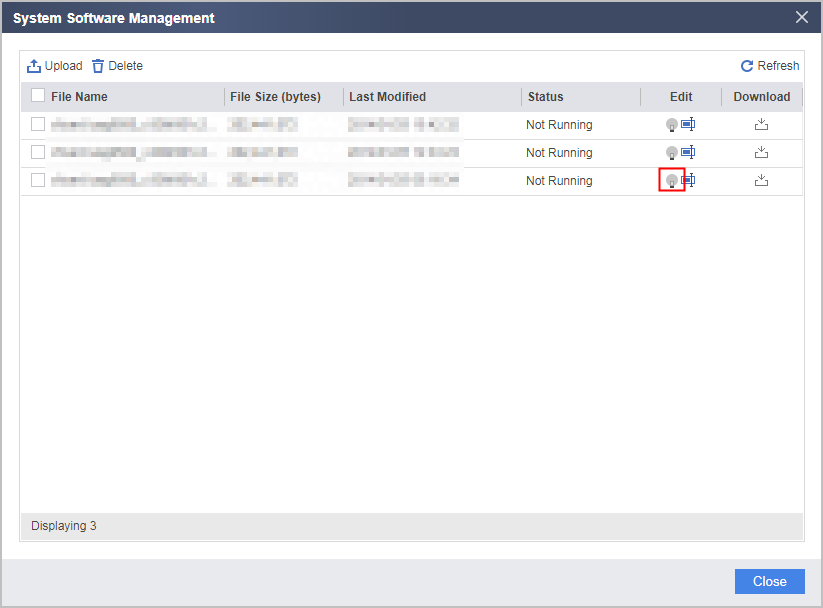
The upgraded system software can be used only after you restart the USG6000E.
One-Click Installing a System Patch File
You can upgrade the system software without interrupting the system running by One-Click system patch file installation. A USG6000E can have multiple patch files, but only one of them is loaded in the system. To load a new patch file, you must uninstall the loaded one first.
The extension name of a patch file is .pat. The patch file name cannot contain any Chinese characters.
- Choose .
- Click One-Click Upgrade behind the Patch File. The One-Click Patch wizard is displayed.
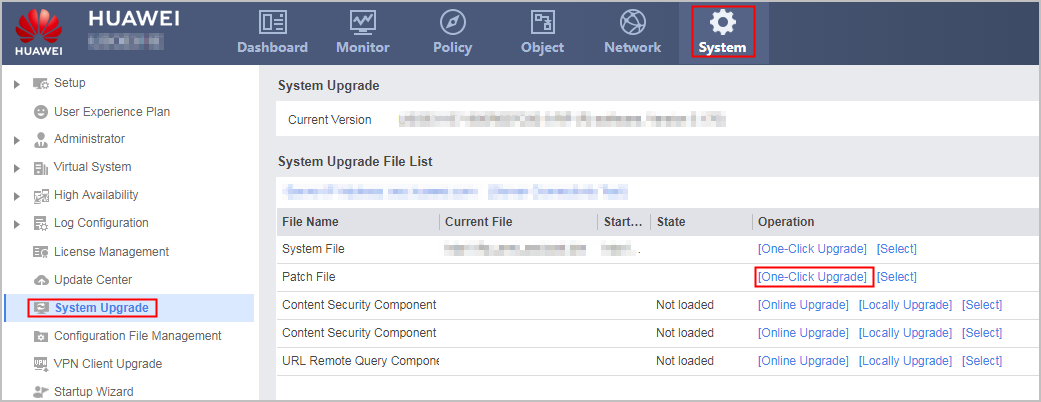
- Click Browse. Select the patch file to be uploaded.
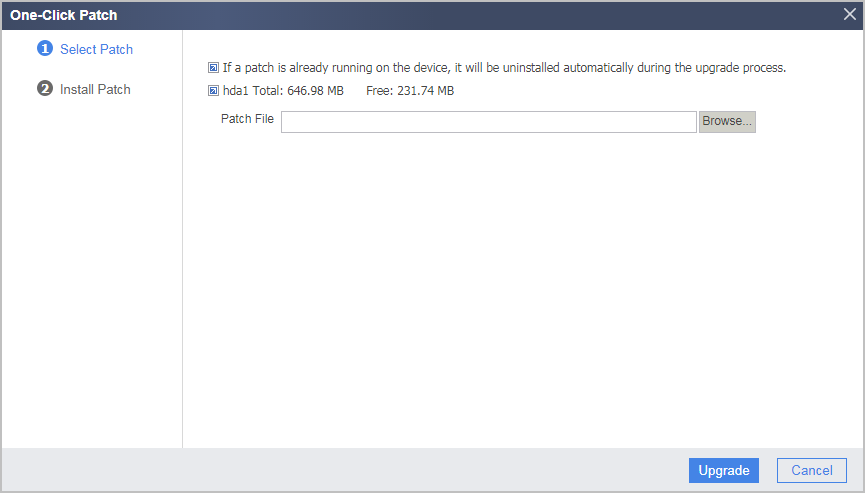
- Click Upgrade. The patch file is automatically installed.
Managing Patches
You can upgrade the system software without interrupting system running by installing patches. A USG6000E can have multiple patch files, but only one of them is loaded in the system. To load a new patch file, you must uninstall the loaded one first.
The extension name of a patch file is .pat. The patch file name cannot contain any Chinese characters.
- Choose .
- Click Select behind the Patch File. The Patch Document Management window is displayed.
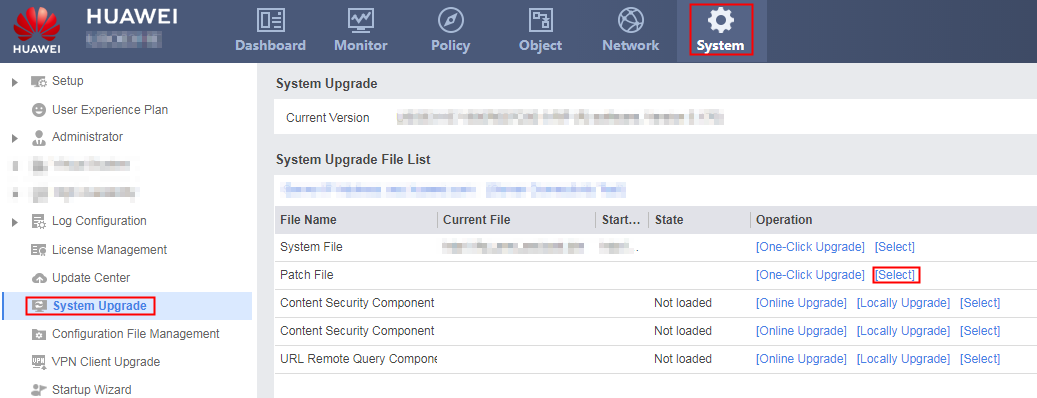
- Click Upload. The Upload File window is displayed.
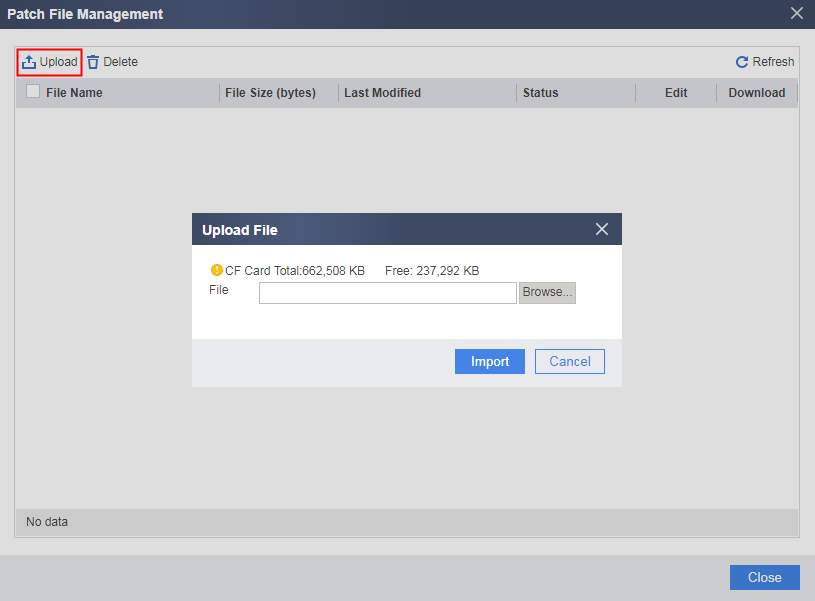
- Click Browse. Select the patch file to be uploaded.
- Click Import to upload the patch file.
After the patch file is successfully uploaded, return to the Patch Document Management window. The patch file is displayed in the list but is in idle state.
- Click of the patch file in idle state and click Load in the dialog box that is displayed to upload, activate, and run the patch file.
One-Click Installing a Web Patch File
You can upgrade the web UI without interrupting the system running by installing a web patch with one simple click. A device can have multiple web patch files, but only one patch file can be installed.
The patch file name extension is .web. The patch file name cannot contain any Chinese characters.
- Choose .
- Click One-Click Upgrade next to Web Patch File. The one-click web patch installation wizard is displayed.
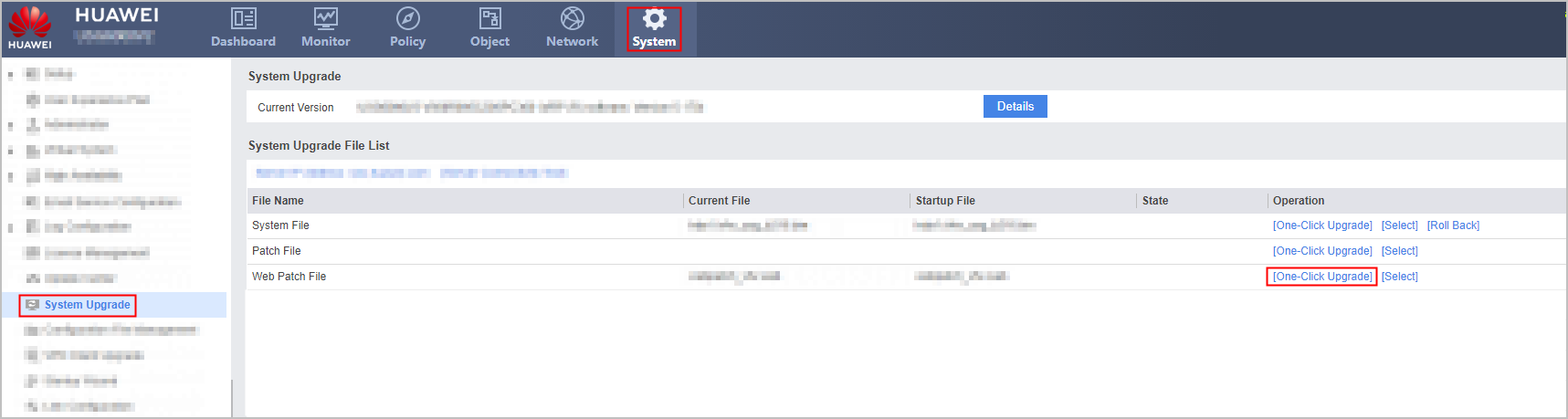
- Click Browse and select the web patch file to be uploaded.
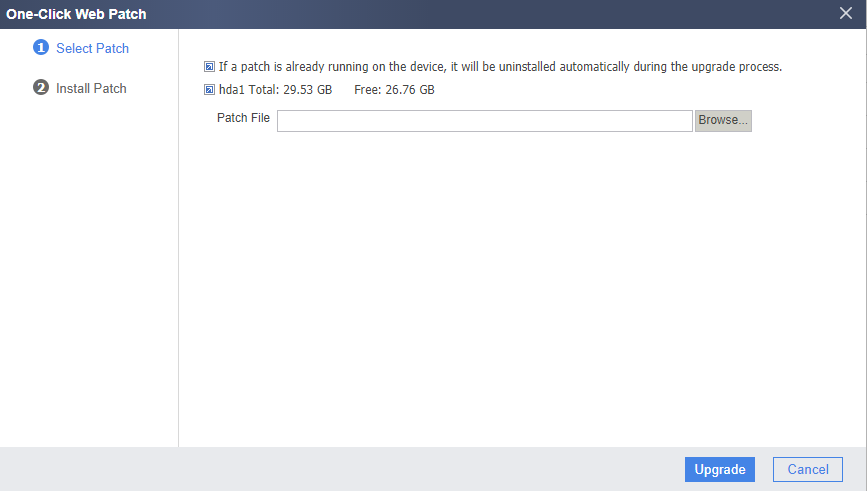
- Click Upgrade. The device starts installing the web patch file.
Managing Web Patch Files
You can upgrade the web UI without interrupting the system running by installing a web patch. A device can have multiple web patch files, but only one patch can be installed. To install a new patch, you must uninstall the old one first.
The patch file name extension is .web. The patch file name cannot contain any Chinese characters.
- Choose .
- Click Select next to Web Patch File. The Web Patch File Management dialog box is displayed.
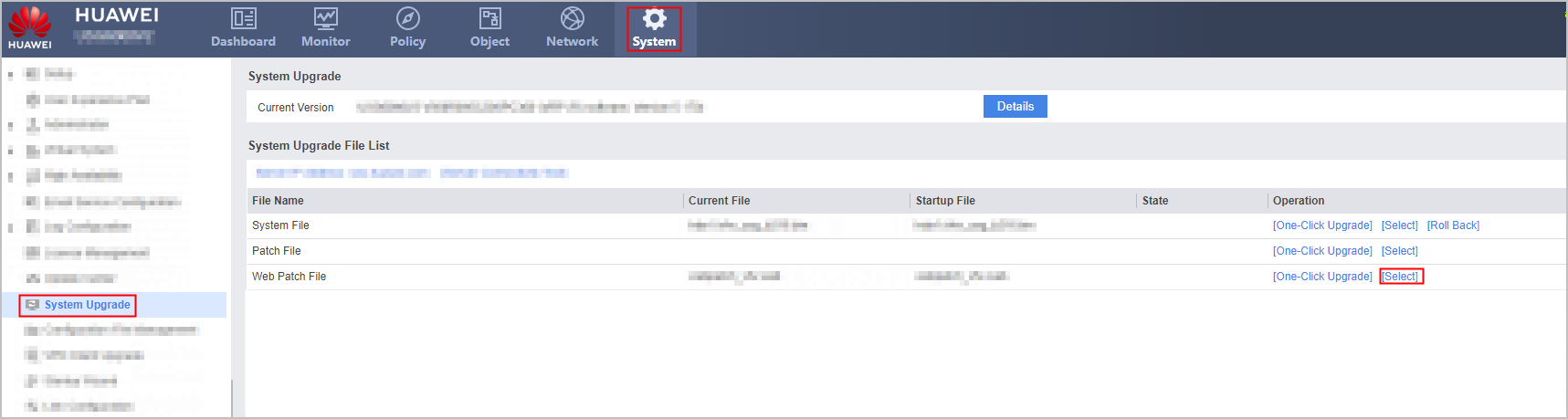
- Click Upload. The Upload File dialog box is displayed.
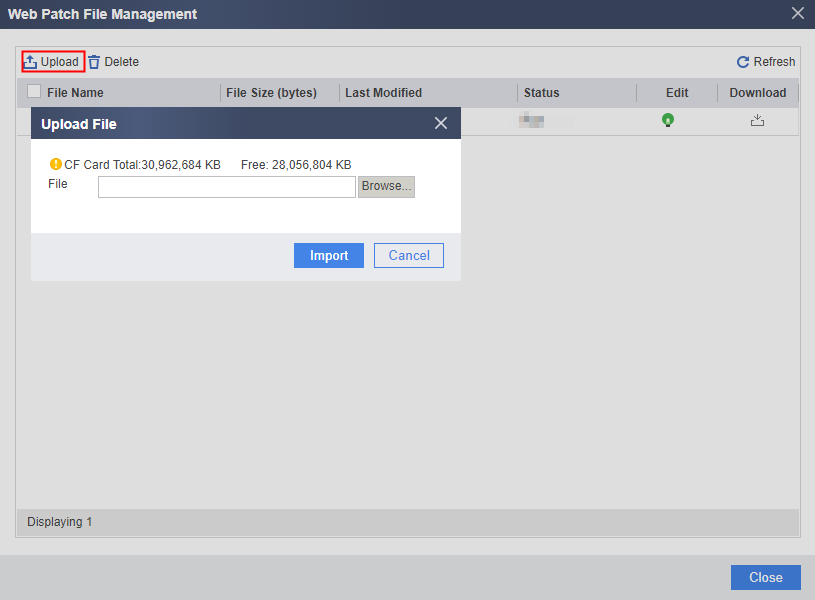
- Click Browse and select the web patch file to be uploaded.
- Click Import to upload the web patch file.
After the web patch file is successfully uploaded, return to the Web Patch File Management dialog box. The web patch file is displayed in the list but is in idle state.
- Click
 corresponding to the web patch file in idle state. In the dialog box that is displayed, click OK to load the web patch file.
Dynamic Loading
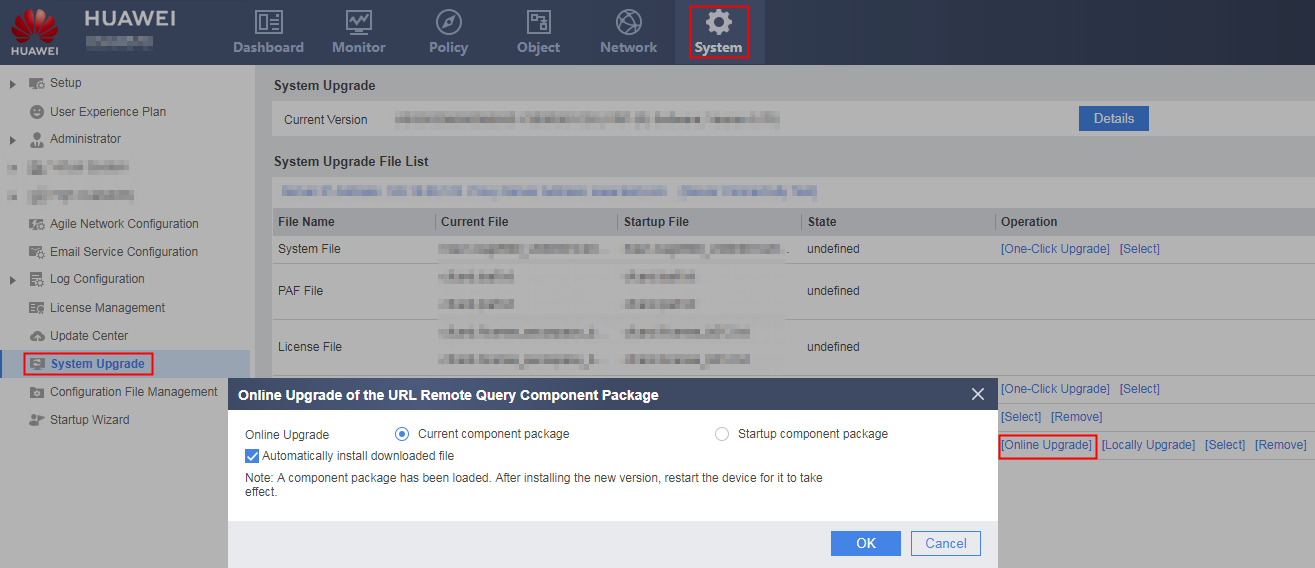
- Perform online update.
- Choose .
- Click Update Locally for the package to be upgraded.
Parameter
Description
Automatically install downloaded file
The downloaded package is automatically installed.
Current component package
The package takes effect immediately after being downloaded to the device. If a component package is running on the device or the device is not restarted after the component package is deleted, the downloaded component package does not take effect immediately, and will take effect after a device restart.
After selecting Current component package, click Browse and select the package file to be uploaded.
Startup component package
The component does not take effect after being downloaded to the device and takes effect only after the device restarts.
After selecting Startup component package, click Browse and select the package file to be uploaded.
- Perform local update.
- Access Huawei security platform (domain name: isecurity.huawei.com). Choose . Select the corresponding product and version.
- Download the required component package file.

Ensure that the system software version and component package version match. Otherwise, the component package cannot be loaded.
- Choose .
Click Locally Update for the component package to be upgraded.
The component package upgrade does not require the uninstallation of the old component package. You can directly load the new component package.
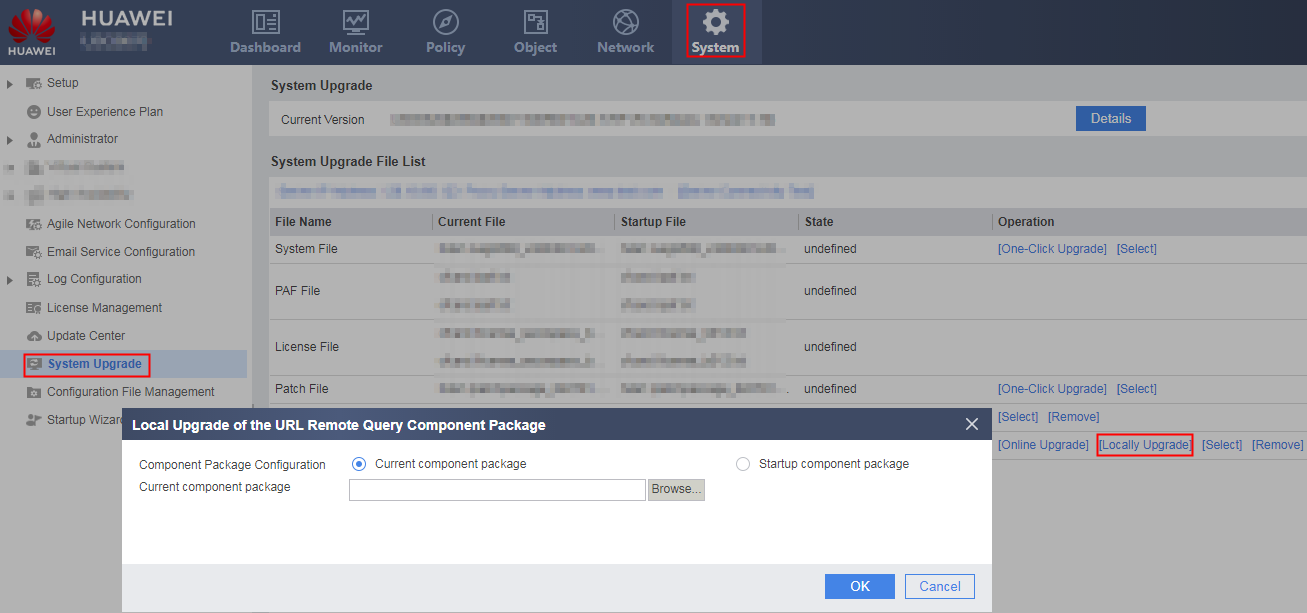
Parameter
Description
Component Package Configuration
Mode in which the component package takes effect. The value can be Current component package or Startup component package.
Current component package
The component package takes effect immediately after being uploaded. If a component package is running on the device or the device is not restarted after the component package is deleted, the downloaded component package does not take effect immediately, and will take effect after a device restart.
Select Current component package, click Browse, and select the component package file to be uploaded.
Startup component package
The component package does not take effect immediately after being uploaded but takes effect after device restart.
Select Startup component package, click Browse, and select the component package file to be uploaded.
- Package to Uninstall
Choose .
Click Remove for the component package to be uninstalled.
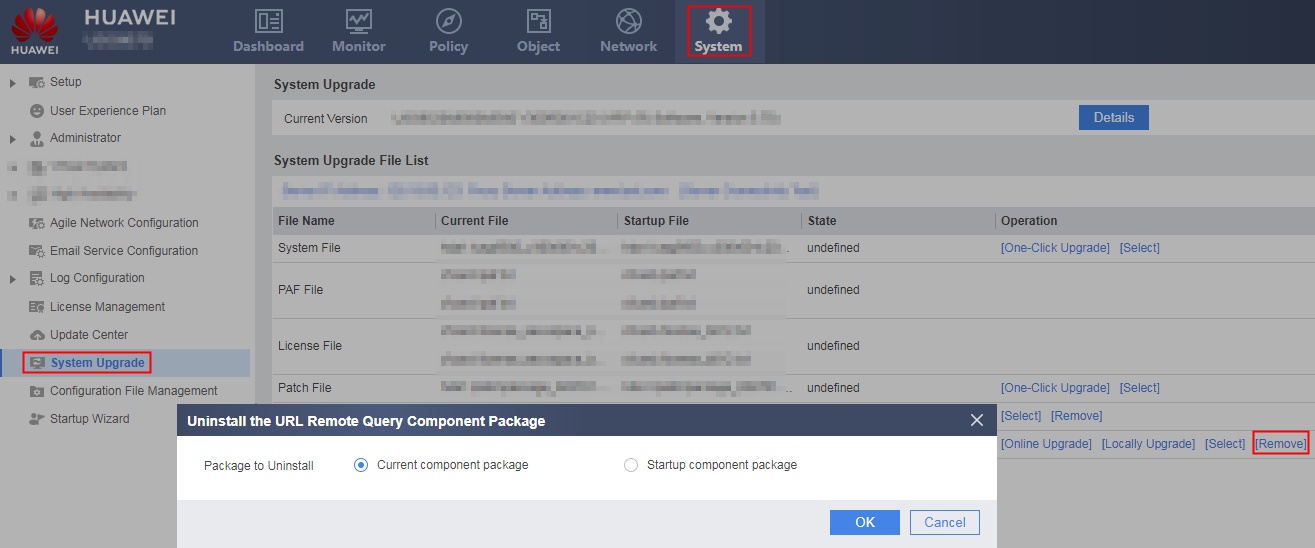
Parameter
Description
Package to Uninstall
Uninstallation type. The value can be Current component package or Startup component package.
Current component package
The component package is uninstalled immediately and restart the system for the uninstallation to take effect.
Startup component package
The component package is uninstalled after device restart and the authorization function of the package becomes invalid immediately
After the component package is uninstalled, if you need to set Current component package again, you must first restart the system.
- Delete the package.
Delete the component package.
Click Select corresponding to the component package and click Delete.