Web: Example for Configuring Local Authentication on Remote Access Users Using SSL VPN
This section provides an example for configuring local authentication on remote access users using SSL VPN when a FW works as a VPN access gateway.
Networking Requirements
An enterprise has deployed a FW as the VPN access gateway that connects the intranet to the Internet, as shown in Figure 1. Employees on the move connect to the FW using SSL VPN to access network resources.
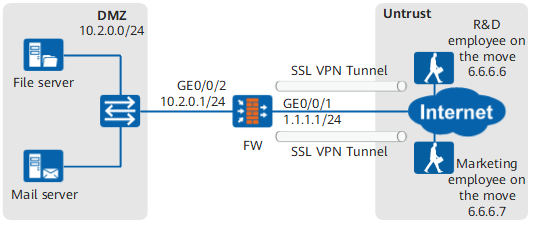
The user management and authentication mechanisms of the FW must allow employees on the move to connect to the headquarters and identify their IP addresses as users to implement user-specific behavior control and permission assignment. Information about users and departments is saved on the FW and can be referenced by policies and SSL VPNs.
Configuration Roadmap

This example describes only how to configure user management and authentication. For details on certificate authentication, see SSL VPN related sections.
- Create user groups and users and set passwords for the users.
- Configure a default authentication domain.
Data Planning
| Item | Data | Description |
|---|---|---|
R&D employee on the move |
Group
User
|
Add the R&D employee on the move to group research. You can repeat the operations in this example to configure multiple user accounts. |
Marketing employee on the move |
Group
User
|
Add the marketing employee on the move to group marketing. You can repeat the operations in this example to configure multiple user accounts. |
Authentication domain |
|
The default authentication domain is used during authentication. No authentication domain is required in the entered user names of the employees on the move. |
Procedure
- Choose , set IP addresses for interfaces and assign the interfaces to security zones.
The following example describes how to configure interface GigabitEthernet 0/0/2. You can configure other interfaces based on the networking diagram.
Zone
dmz
IP Address
10.2.0.1/24
- Choose , configure local authentication.
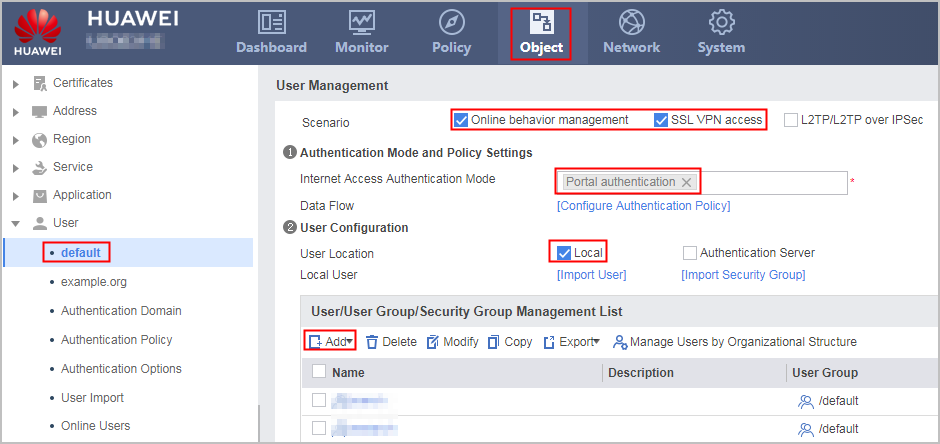
For mobile employees that use the network extension service, if user name-specific permission control is required, configure SSL VPN access and Online behavior management in Scenario; if user name-specific permission control is not required, configure SSL VPN access only. For mobile employees that do not use the network extension service, configure SSL VPN access only. In this case, permission control can be implemented using the role-based authorization function of SSL VPN.
The Online behavior management option enables the FW to record the mapping between IP addresses and user names.
Click Add and create user groups and users.
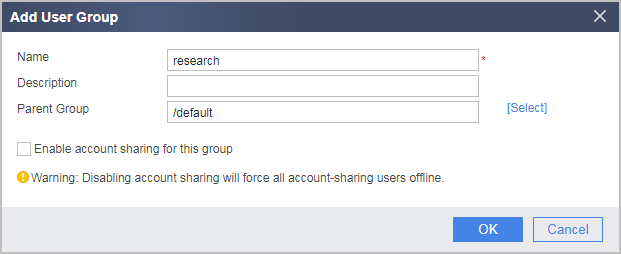
- Choose Add Group, create a user group object for an R&D employee.
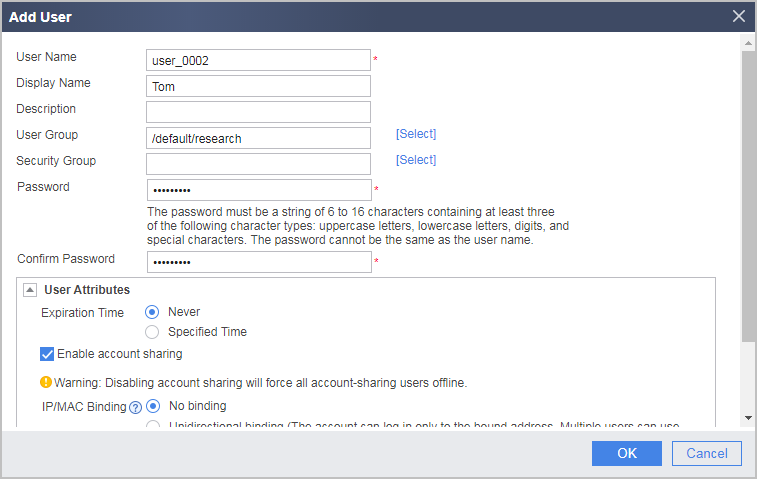
- Choose Add a User, create a user object for an R&D employee.
- Choose Add Group, create a user group object for an R&D employee.
- Choose , click Add to create an authentication policy.
Name
auth_policy_service
Source Address/Region
10.2.0.2-10.2.0.15
Action
Authentication exemption
To configure user-specific policies for VPN access users, you need to configure authentication policies for private IP addresses after VPN decapsulation. For example, addresses in the network extension address pool are 10.2.0.2-10.2.0.15.
- After the configuration is complete, you can configure service authorization.
- Network extension service: Configure security policies, PBR policies, bandwidth policies, quota control policies, proxy policies, and audit policies that reference the user and user group objects.
- Web proxy, file sharing, and port forwarding services: Reference the user and user group objects in the role module of the SSL VPN.
Verification
- An R&D employee on the move accesses the authentication web page of the SSL VPN virtual gateway and enters user name user_0002 and password Admin@123 for authentication. After being authenticated, the employee on the move can access network resources.
- A marketing employee on the move accesses the authentication web page of the SSL VPN virtual gateway and enters user name user_0003 and password Admin@123 for authentication. After being authenticated, the employee on the move can access network resources.
- On the FW, choose to see information about online users.
Configuration Scripts
#
 sysname FW
#
interface GigabitEthernet0/0/1
 ip address 1.1.1.1 255.255.255.0
#
interface GigabitEthernet0/0/2
 ip address 10.2.0.1 255.255.255.0
#
firewall zone untrust
 add interface GigabitEthernet0/0/1
#
firewall zone dmz
 add interface GigabitEthernet0/0/2
#
aaa
 #
 domain default
  service-type internetaccess ssl-vpn
 #
#
auth-policy
 rule name auth_policy_service
  source-address range 10.2.0.2 10.2.0.15
  action exempt-auth

# The following user/group creation configuration is stored in the database, but not in the configuration profile.
user-manage group /default/research
user-manage group /default/marketing
user-manage user user_0002
 alias Tom
 parent-group /default/research
 password *********
 undo multi-ip online enable
user-manage user user_0003
 alias Jack
 parent-group /default/marketing
 password *********
 undo multi-ip online enable