Web: Example for Configuring RADIUS Authentication on Remote Access Users Using EAP authentication IPSec VPN
This section describes how to configure EAP authentication IPSec VPN between an AP and the FW in wireless solutions.
Networking Requirements
As shown in Figure 1, a FW serves as a security gateway at the core network border. An IPSec VPN tunnel is set up between the AP and the FW to ensure data security. When EAP authentication IPSec VPN is used, the FW uses a RADIUS server to authenticate the AP. The tunnel can be set up only after the AP is authenticated.
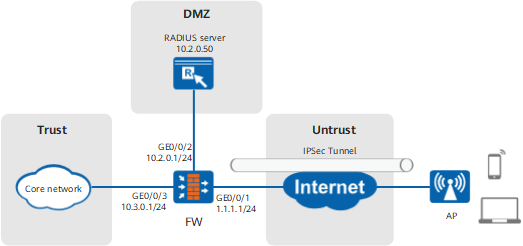
Configuration Roadmap

This example describes only how to configure user management and authentication.
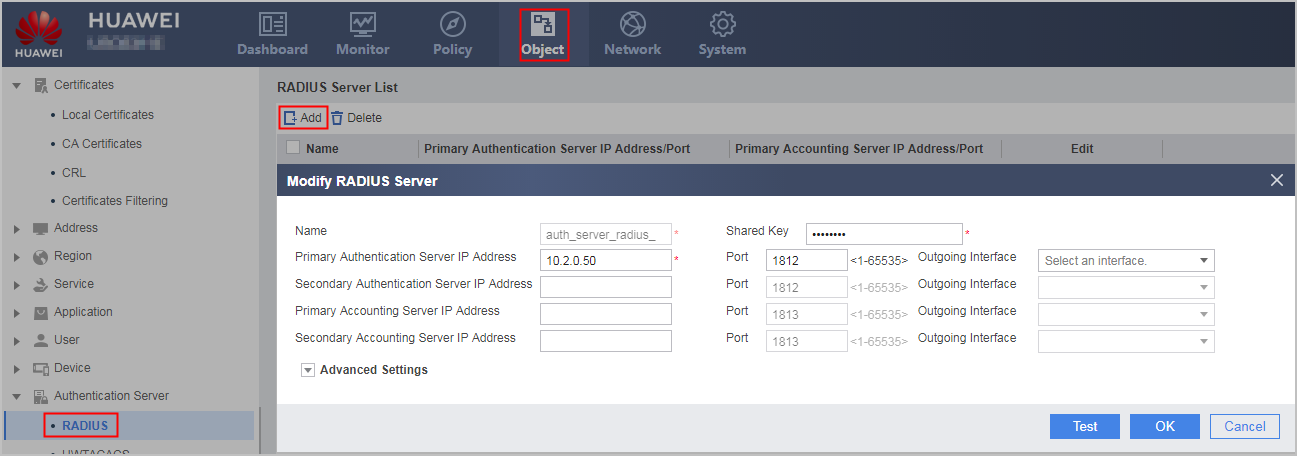
- Set parameters for the FW to communicate with the RADIUS server and configure the FW to work as a client of the RADIUS server by sending user names and passwords to the RADIUS server for authentication.
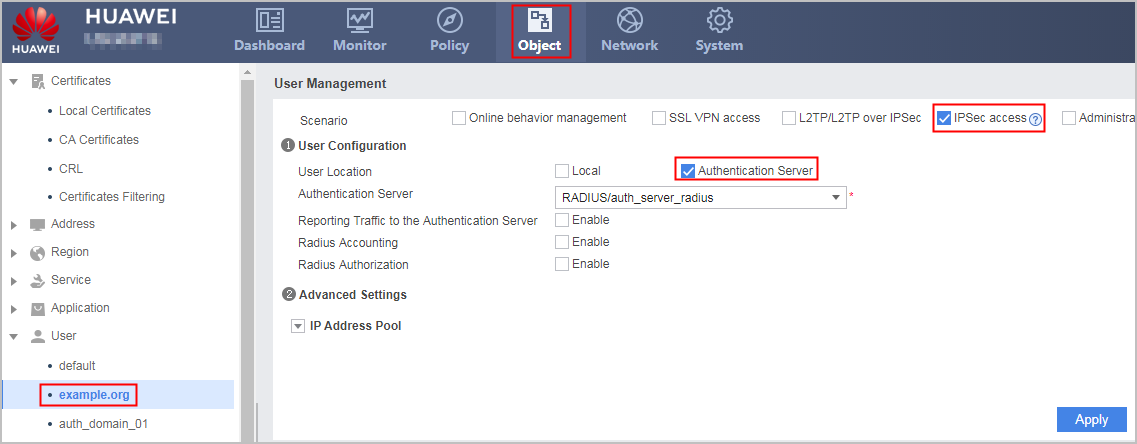
- Configure an authentication scheme and set the authentication mode to RADIUS.
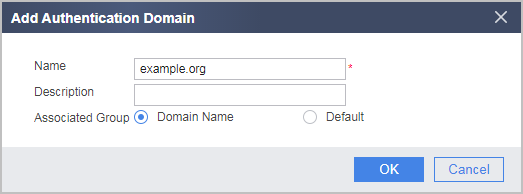
- On the FW, set the authentication domain name to be the same as the domain name stored on the SIM card on the AP, set the access control method to IKEEAP access, and reference the RADIUS server and authentication scheme.
Data Planning
| Item | Data | Description |
|---|---|---|
RADIUS server |
|
On the FW, set the parameters for communicating with a RADIUS server. The parameters on the FW must be consistent with those on the RADIUS server. |
Authentication domain |
|
The example.org authentication domain is used during authentication. The domain name is stored in the SIM card of the AP, and you must obtain the domain name in advance. The format of the domain name is similar to example.mnc001.mcc460.3gppnetwork.org. |
Procedure
- Choose , set IP addresses for interfaces and assign the interfaces to security zones.
The following example describes how to configure interface GigabitEthernet 0/0/3. You can configure other interfaces based on the networking diagram.
Zone
trust
IP Address
10.3.0.1/24
- Choose , click Add to set the parameters for communication with a RADIUS server.
- Choose , click Add to create an authentication domain for IPSec access.
- Choose , configure RADIUS authentication for AP IPSec access.
- Choose , click Add to configure a security policy to allow the FW to communicate with the RADIUS server.
Name
policy_local_02
Source Zone
local
Destination Zone
dmz
Destination Address
10.2.0.50/32
Action
Permit
Configuration Scripts
#
 sysname FW
#
radius-server template auth_server_radius
 radius-server shared-key cipher %$%$73pu<+^]XV9mn=*qd}_,r3*!%$%$
 radius-server authentication 10.2.0.50 1812
 #
interface GigabitEthernet0/0/1
 ip address 1.1.1.1 255.255.255.0
#
interface GigabitEthernet0/0/2
 ip address 10.2.0.1 255.255.255.0
#
interface GigabitEthernet0/0/3
 ip address 10.3.0.1 255.255.255.0
#
firewall zone trust
 add interface GigabitEthernet0/0/3
#
firewall zone untrust
 add interface GigabitEthernet0/0/1
#
firewall zone dmz
 add interface GigabitEthernet0/0/2
#
aaa
 authentication-scheme eap
  authentication-mode radius
 #
 domain example.org
  authentication-scheme eap
  radius-server auth_server_radius
  service-type ike
 #
security-policy
  rule name policy_local_02
  source-zone local
  destination-zone dmz
  destination-address 10.2.0.50 32
  action permit
#
return