Web: Example for Configuring NTLM Authentication for Internet Access Users
This section describes an example that no authentication is required when the user logs in to the AD domain and accesses the Internet through the browser in a scenario where the FW serves as the enterprise egress gateway. The FW obtains the user identity through NTLM authentication.
Networking Requirements
An enterprise has deployed a FW as the egress gateway to connect the intranet to the Internet, as shown in Figure 1.
- The AD identity authentication mechanism is enabled on the intranet, and information about users and user group is saved on an AD server.
- Internet access users on the intranet include R&D employees and marketing employees.
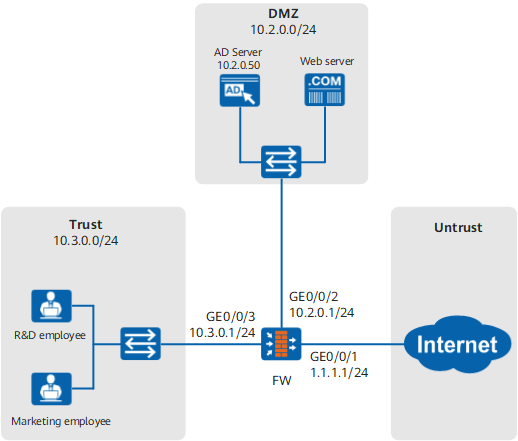
The user management and authentication mechanisms of the FW must identify IP addresses on the intranet as users to implement user-specific behavior control and permission assignment. Requirements are as follows:
- Information about users and departments is saved on the FW and can be referenced by policies.
- R&D and marketing employees can log in to the AD domain using their domain accounts and passwords and access the Internet through the browser without further authentication. R&D and marketing employees are identified by the user names they use to log in to AD domains.
- If the domain accounts of new employees have been created on an AD server but not stored on a FW, the employees go online as temporary users in a specified user group.

- This example describes only how to configure user management and authentication.
- A prerequisite of NTLM authentication is that the browser must support NTLM authentication. Otherwise, the browser cannot automatically provide user login information. At present, IE and Chrome support NTLM authentication. However, you must enable automatic logon in Internet Options.
- In the Internet Options dialog box, click the Security tab and then Custom level.
- Click Automatic logon with current user name and password in .
Configuration Roadmap
The configuration roadmap is as follows:
- Configure the new user option of the authentication domain. If an authenticated user does not exist on the FW, the employees go online as temporary users in a specified user group.
- Configure the portal authentication template and enable NTLM authentication.
- Configure the authentication policy on the FW and set the action to authentication and portal authentication template reference.
Procedure
- Choose , set IP addresses for interfaces and assign the interfaces to security zones. The following example describes how to configure interface GigabitEthernet 0/0/3. You can configure other interfaces based on the networking diagram.
Zone
trust
IP Address
10.3.0.1/24
- Choose , click Add to configure security policies.
- Configure a security policy to allow users to access the Internet.
Name
policy_sec_02
Source Zone
trust
Destination Zone
untrust
Source Address
10.3.0.0/24
Action
Permit
Enable the DNS service for the Trust -> Untrust interzone to allow HTTP domain name resolution packets through.
- Configure a security policy to allow users to access the Internet.
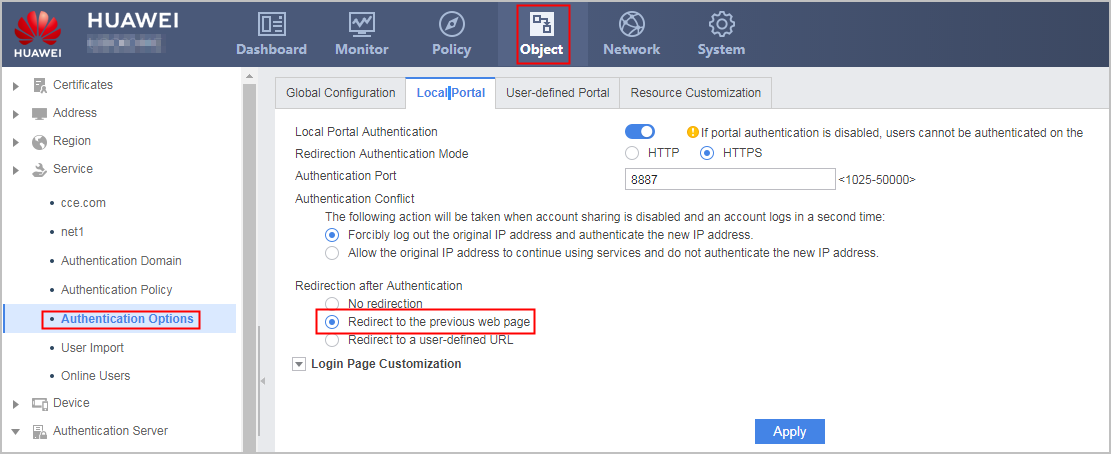
- Choose , configure the redirect from the authentication page to the previously accessed page after authentication.
Set Redirection after Authentication as Redirect to the previous web page.
- Choose , configure a portal authentication template, and enable NTLM authentication.
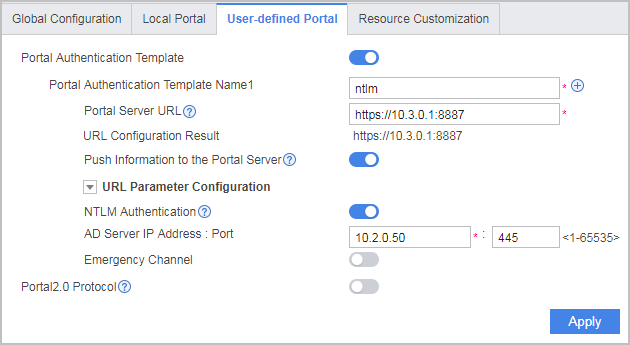
In NTLM authentication, the FW does not prompt a portal authentication page for entering the user name and password. This process, however, involves redirection for authentication. Therefore, you must configure the URL of the portal authentication page in the portal authentication template, namely, https://interface IP address:8887.
Ensure that users can access https://interface-IP-address:8887. If not, see The Portal Authentication Page Cannot Be Displayed.
- Choose , click Add to create authentication policies.
Pay attention to the sequence of configuring the following two authentication policies. If the sequence is incorrect, traffic of users logging in to the AD domain matches the portal authentication policy and needs to go through the firewall authentication process.
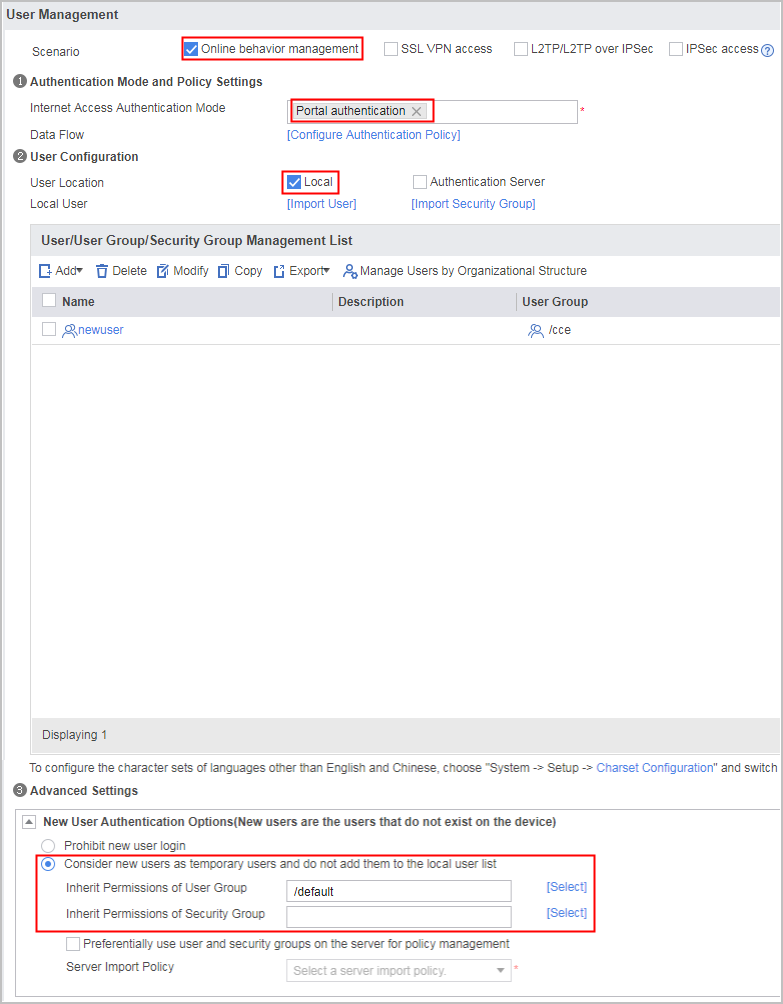
- Choose , configure portal authentication, new user option, and click Apply.
NTLM authentication supports only using the permission of a certain user as a temporary user but not referencing an import policy in the new user option configuration to obtain a user's organizational structure on the AD server.
- After the configuration is complete, you can configure security policies, PBR policies, bandwidth policies, quota control policies, proxy policies, and audit policies that reference the user and user group objects.
Verification
- Verify whether users that already log in to the AD domain using domain accounts and passwords can access the Internet through the browser without entering user names or passwords again.
If the browser displays a dialog box asking for the user name and password, enter your domain account and password.
- On the FW, choose to see information about online users.
Configuration Scripts
#
 sysname FW
#
 user-manage redirect
#
 user-manage portal-template ntlm 0
  portal-url https://10.3.0.1:8887
  portal-url push information
  ntlm enable
  ntlm auth-server address 10.2.0.50 port 445
 #
security-policy
 rule name policy_sec_01
  source-zone trust
  destination-zone dmz
  source-address 10.3.0.0 24
  action permit
 rule name local_policy_user_01
  source-zone trust
  destination-zone local
  source-address 10.3.0.0 24
  action permit
 rule name local_policy_ad_01
  source-zone local
  destination-zone dmz
  destination-address 10.2.0.50 32
  action permit
 rule name local_policy_ad_02
  source-zone dmz
  destination-zone local
  source-address 10.2.0.50 32
  action permit
 rule name policy_sec_02
  source-zone trust
  destination-zone untrust
  source-address 10.3.0.0 24
   action permit
#
auth-policy
 rule name auth_policy_ad
  source-zone trust
  destination-zone dmz
  source-address 10.3.0.0 24
  destination-address 10.2.0.50 32
  action none
rule name auth_policy_service
  source-zone trust
  source-address 10.3.0.0 24
  action auth portal-template nltm
#
interface GigabitEthernet0/0/1
 ip address 1.1.1.1 255.255.255.0
#
interface GigabitEthernet0/0/2
 ip address 10.2.0.1 255.255.255.0
#
interface GigabitEthernet0/0/3
 ip address 10.3.0.1 255.255.255.0
#
firewall zone trust
 add interface GigabitEthernet0/0/3
#
firewall zone untrust
 add interface GigabitEthernet0/0/1
#
firewall zone dmz
 add interface GigabitEthernet0/0/2
#
aaa
 domain cce
  service-type internetaccess
  new-user add-temporary group /default