Web: Example for Configuring RADIUS SSO for Internet Access Users (Out-of-Path Mode)
This section provides an example for configuring RADIUS Single Sign On (SSO) for Internet access users when a FW works as an egress gateway.
Networking Requirements
An enterprise has deployed a FW as the egress gateway to connect the intranet to the Internet, as shown in Figure 1.
- Internet access users use the NAS to access the Internet.
- The NAS sends user credentials to the RADIUS server for user authentication. The RADIUS server stores user and user group information.
- Internet access users include R&D employees and marketing employees.
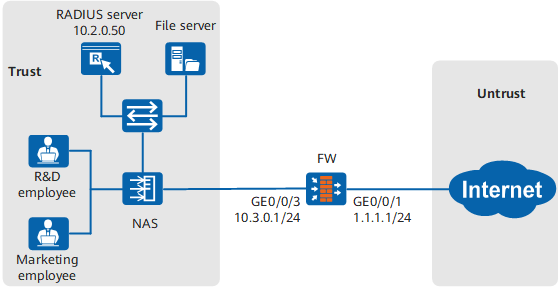
The user management and authentication mechanisms of the FW must identify IP addresses on the intranet as users to implement user-specific behavior control and permission assignment. Requirements are as follows:
- Information about users and departments is saved on the FW and can be referenced by policies.
- After passing the authentication by entering correct RADIUS accounts and passwords, R&D employees and marketing employees can access network resources. R&D employees and marketing employees are identified by the user names they use for RADIUS authentication.
- If the RADIUS accounts of new employees have been created on a RADIUS server but not stored on a FW, the FW considers them as temporary users and assigns them permissions of the specified group.
Configuration Roadmap

This example describes only how to configure user management and authentication.
- Export user information on a RADIUS server into a CSV file in the specified format and import the CSV file into a FW to create users and user groups in a batch.
- Set RADIUS SSO parameters on the FW.
- Set a new user authentication item for the default authentication domain. After a new user is authenticated, the user adopts the permission of the newuser group to access network resources.
- To prevent users from frequently log in to and log off from the FW, you are advised to set users' online duration to a larger value than the update interval of RADIUS accounting packets on the FW. In the example, the online duration is set to 480 minutes.
- On the FW, configure an authentication policy for users' service traffic and set the action to authentication exemption.
- In this deployment mode, configure the NAS to send the accounting start packet to the RADIUS server and the firewall at the same time. The firewall parses the accounting start packet and responds to the NAS.
Data Planning
Item |
Data |
Description |
|---|---|---|
Parent group of new users |
As a temporary user, and use permission of this group newuser. |
|
RADIUS SSO |
Set SSO parameters on the FW for the FW to analyze RADIUS accounting packets sent by the NAS to obtain mappings between users and IP addresses. |
Procedure
- Choose , set IP addresses for interfaces, and assign the interfaces to security zones.
The following part uses GigabitEthernet 0/0/3 as an example to describe the configuration. Configure other interfaces as the data in the networking diagram.
Zone
trust
IP Address
10.3.0.1/24
- Choose , click Add to configure security policies.
Name
policy_sec
Source Zone
trust
Destination Zone
untrust
Destination Address
10.3.0.0/24
Action
Permit
- Choose , import users and user groups from a CSV file.
- In Import User, click Download CSV Template and download the CSV template to your PC.
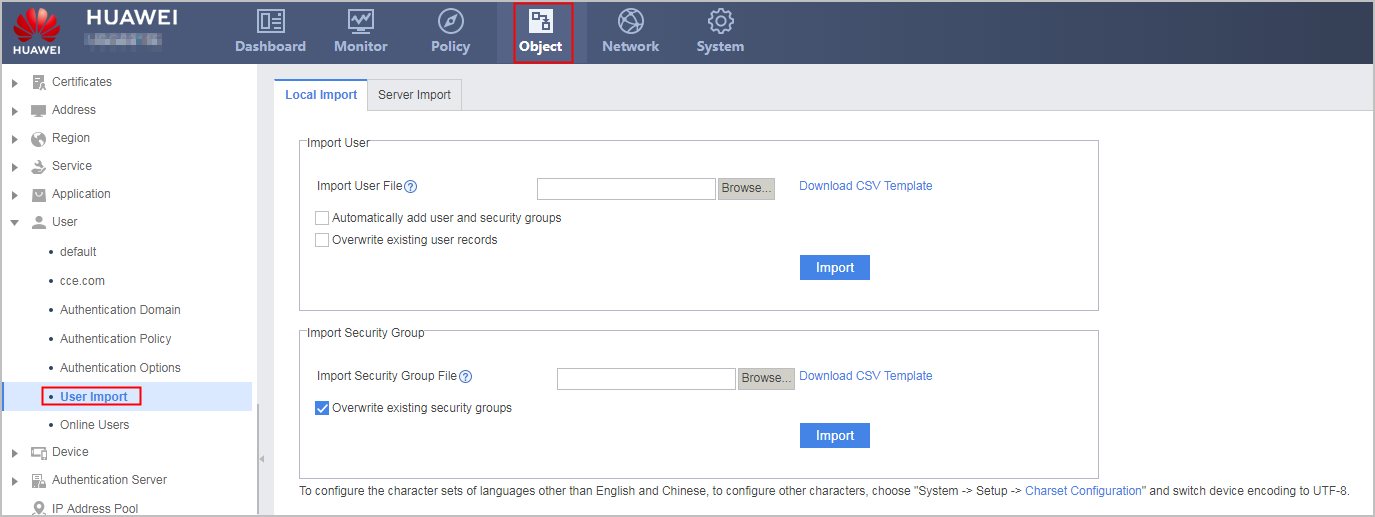
- Write user information on the RADIUS server into a CSV file according to the template.
Read the instructions on the CSV template and fill in user information. The following figure shows a complete CSV file.

- Click Import to import the CSV file.
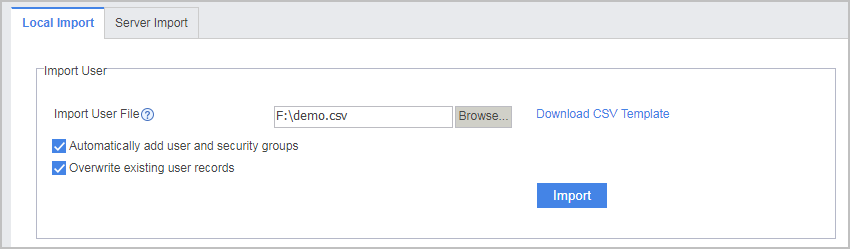
- In Import User, click Download CSV Template and download the CSV template to your PC.
- Choose and perform the following configuration.
- Select the scenario and Internet access mode and use the newly created user group newuser for new users.
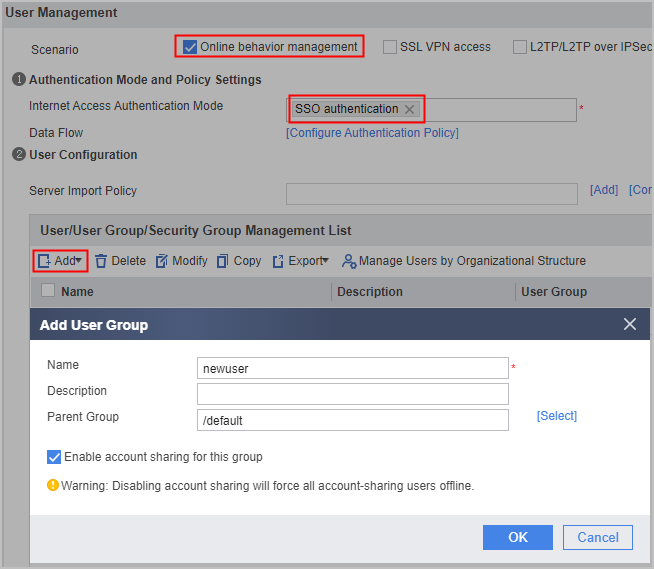
- Configure RADIUS SSO parameters.
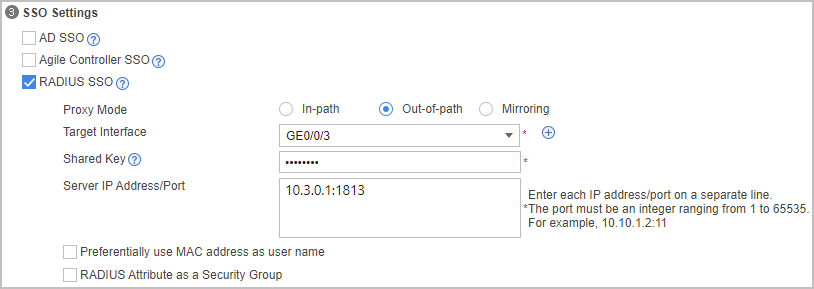
In out-of-path mode, the NAS sends accounting packets to the FW. In this case, the FW also functions as a RADIUS server. Therefore, set the server IP address to the IP address of the FW interface that receives accounting packets.
- Configure new user authentication options.
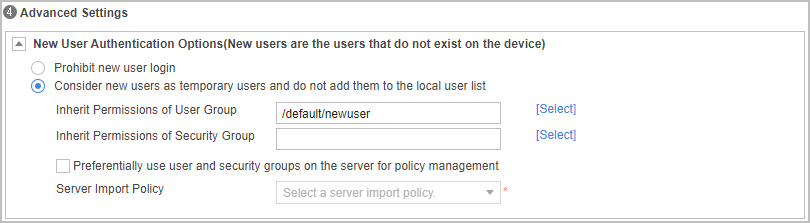
- Select the scenario and Internet access mode and use the newly created user group newuser for new users.
- Choose , set the online user timeout duration to 480 minutes.
- Choose , click Add to configure authentication policies. Configure the action of the authentication policy for users' service traffic to authentication exemption so that the FW can obtain user information through SSO.
Name
auth_policy_service
Source Zone
trust
Source Address/Region
10.3.0.0/24
Action
Authentication exemption
If the action of the authentication policy is set to authentication exemption, the FW obtains user information through SSO and permits the traffic when user information fails to be obtained during SSO authentication. If the network has high security requirements, set the action of the authentication policy to portal authentication. Then the FW will implement portal authentication on the users failing the SSO authentication.
- Configure the NAS to send RADIUS accounting packets to the FW. The encryption key configured on the NAS must be the same as the shared key configured for RADIUS SSO on the FW. Otherwise, the FW cannot correctly parse the RADIUS accounting packets sent by the NAS or encrypt the RADIUS accounting response packet (Accounting-Response) sent to the NAS.
- After the configuration is complete, you can configure security policies, PBR policies, bandwidth policies, quota control policies, proxy policies, and audit policies that reference the user and user group objects.
Verification
- R&D employees can access network resources after successful logins to the NAS using RADIUS accounts and passwords.
- Marketing employees can access network resources after successful logins to the NAS using RADIUS accounts and passwords.
- On the FW, choose to see information about online users.
Configuration Scripts
#
sysname FW
#
user-manage online-user aging-time 480
user-manage single-sign-on radius
 enable
 mode out-of-path
 shared-key %^%#o3Z7,b[Ox7Sc#r-f+WDC:D=s%^%#
 interface GigabitEthernet 0/0/3
 traffic server-ip 10.3.0.1 port 1813
#
security-policy
 rule name policy_sec
  source-zone trust
  source-address 10.3.0.0 24
  destination-zone untrust
  action permit
#
auth-policy
 rule name auth_policy_service
  source-zone trust
  source-address 10.3.0.0 24
  action exempt-auth
#
interface GigabitEthernet 0/0/3
 ip address 1.1.1.1 255.255.255.0
#
interface GigabitEthernet 0/0/3
 ip address 10.3.0.1 255.255.255.0
#
firewall zone trust
 add interface GigabitEthernet 0/0/3
#
firewall zone untrust
 add interface GigabitEthernet 0/0/3
#
aaa
 domain default
  service-type internetaccess
  new-user add-temporary group /default/newuser

# The following configuration is used to perform a one-time operation and not stored in the configuration profile.
 user-manage user-import demo.csv auto-create-group override
 user-manage group /default/newuser