Configuring the Whitelist Using the Web UI
This section describes how to configure the whitelist on the web UI.
Procedure
- Choose .
- On the Configure Whitelist page, enable Whitelist Function. Click Apply.
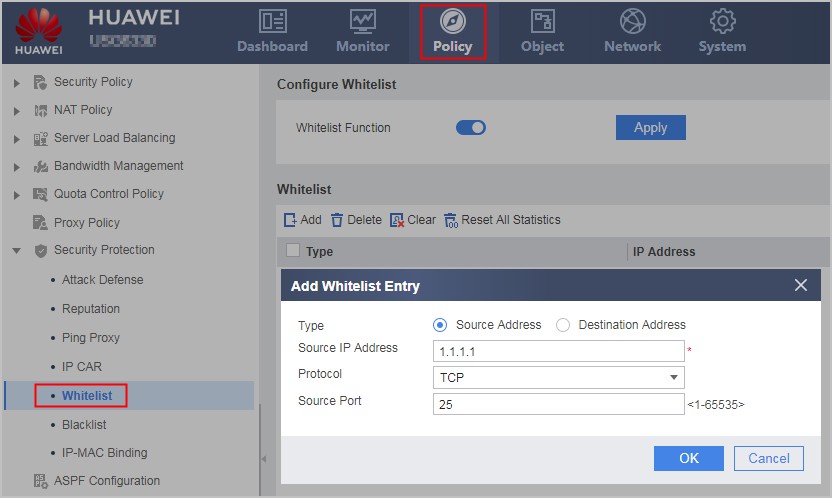
- On the Whitelist page, click Add.
- Add whitelist entries.
Add a source IP address to the whitelist.
Parameter
Description
Type
Select Source Address.
Source IP Address
Enter the source IP address.
Packets from a whitelisted source IP address are directly forwarded, and the blacklist checks, content filtering, and anti-DDoS checks cease to be effective.
Protocol
Select a protocol type or enter a protocol ID. This configuration allows the device to forward only the packets of the specified protocol type or source port from this source IP address.
- any: This whitelist entry applies to the packets transmitted using all protocols. In this case, a source port can be specified.
- TCP: This whitelist entry applies to the packets transmitted using TCP. In this case, a source port can be specified.
- UDP: This whitelist entry applies to the packets transmitted using UDP. In this case, a source port can be specified.
- ICMP: This whitelist entry applies to the packets transmitted using ICMP.
- If the desired protocol is not listed, you can specify a protocol by manually specifying the protocol ID.
Add a destination IP address to the whitelist.
Parameter
Description
Type
Select Destination Address.
Destination IP Address
Enter the destination IP address.
Packets destined for a whitelisted destination IP address are directly forwarded, and the blacklist checks, content filtering, and anti-DDoS checks cease to be effective.
Protocol
Select a protocol type or enter a protocol ID. This configuration allows the device to forward the packets of the specified protocol type or destination port number only destined for this destination IP address.
- any: This whitelist entry applies to the packets transmitted using all protocols. In this case, a destination port can be specified.
- TCP: This whitelist entry applies to the packets transmitted using TCP. In this case, a destination port can be specified.
- UDP: This whitelist entry applies to the packets transmitted using UDP. In this case, a destination port can be specified.
- ICMP: This whitelist entry applies to the packets transmitted using ICMP.
- If the desired protocol is not listed, you can specify a protocol by manually specifying the protocol ID.
- Click OK.
Follow-up Procedure
The FW allows users to remove all whitelist entries or reset the whitelist statistics. This function can be used as a debugging method to locate faults or commission network deployment. To remove all whitelist entries, click Clear on the Whitelist page, and then click OK to confirm the removal. To reset the whitelist statistics, click Reset All Statistics on the Whitelist page, and then click OK to confirm the reset.
In addition, the whitelist function also allows users to search for a specified IP address in the whitelist and remove the found entry.