Web: Example for Configuring an IPv6 User in a Virtual System to Access an IPv4 Server
Dynamic NAT64 mapping applies when the IPv6 network accesses the IPv4 network. Virtual systems support dynamic NAT64 mapping configuration.
Networking Requirements
As shown in Figure 1, the virtual system vsysa supports the IPv6/IPv4 dual stack and is connected to an IPv6 network and an IPv4 network. The PC on the IPv6 network can access the server on the IPv4 network using URL www.example.com.
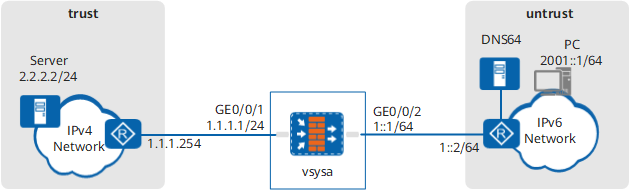

When the NAT64 is deployed with DNS64. The DNS64 device provides domain name resolution. The NAT64 prefix and prefix length configured for DNS64 are the same as those of the NAT64 device.
Procedure
- Enable the virtual system and IPv6 functions.
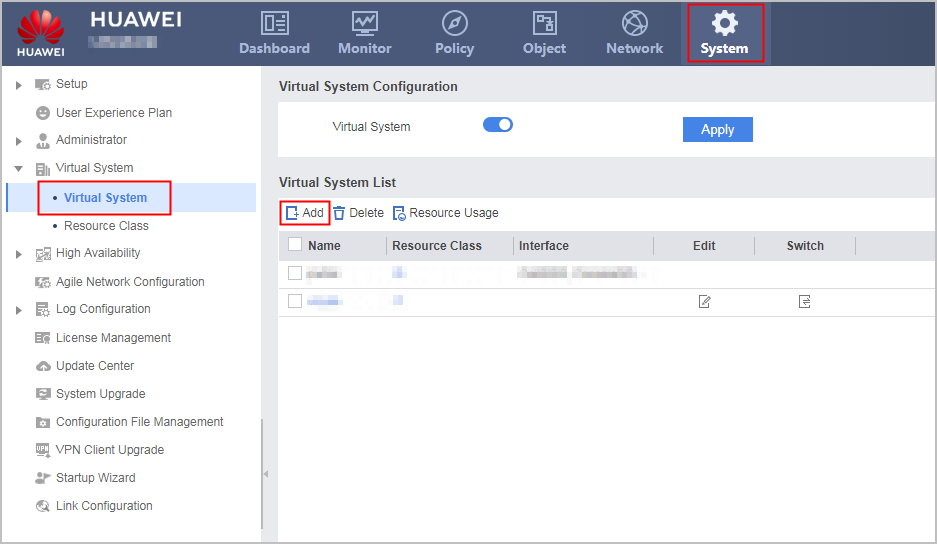
- Click Dashboard on the main menu. In the Device Information area, click Configure on the line of Virtual System to enable the virtual system function.
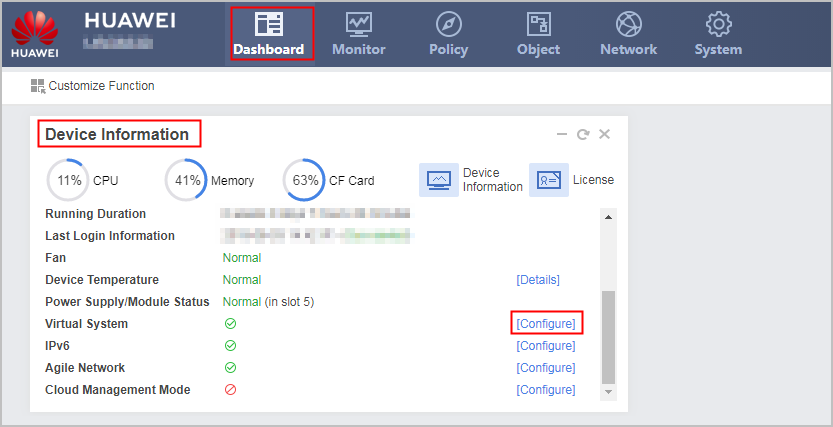
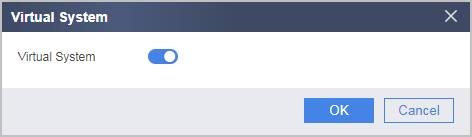
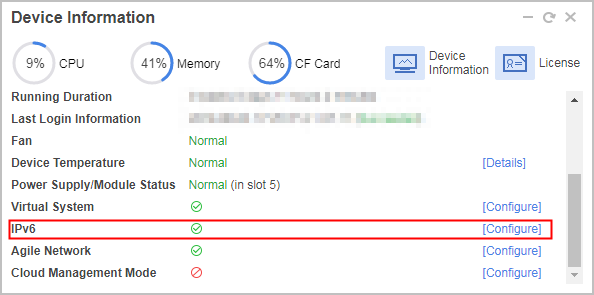
- Click Configure on the line of IPv6 to enable the IPv6 function.
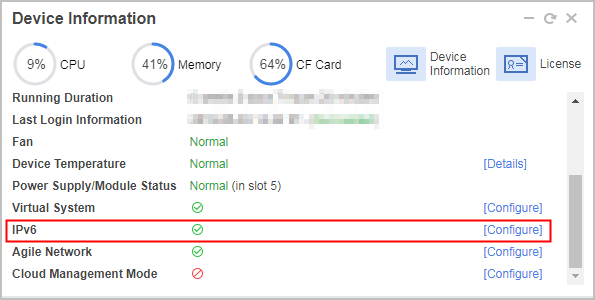
- Click Dashboard on the main menu. In the Device Information area, click Configure on the line of Virtual System to enable the virtual system function.
- In the root system, create virtual system vsysa and allocate interfaces and global ip addresses to it.
- Choose .
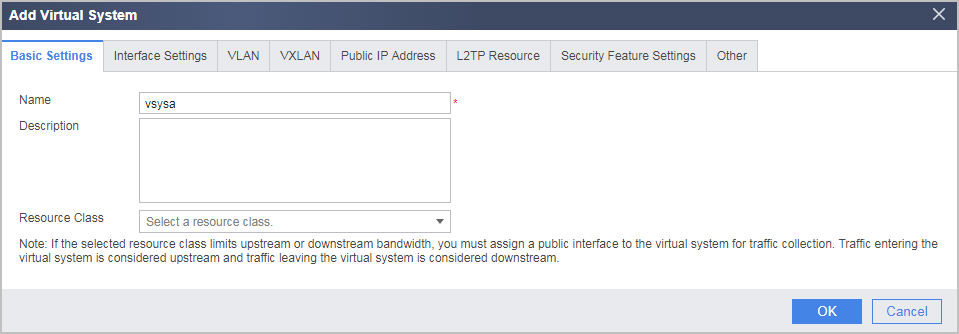
- Click Add and then the Basic Configuration tab and set the following parameters.
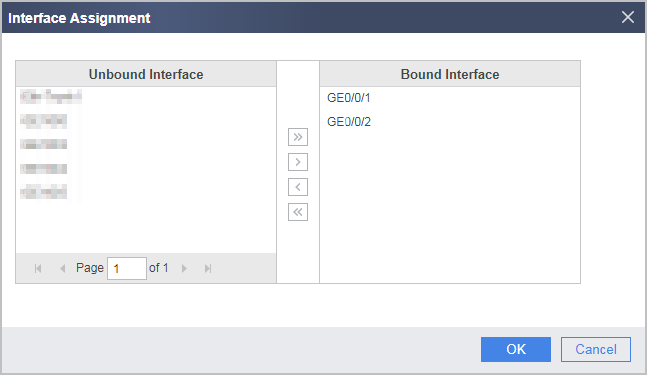
- Click the Interface Settings tab and allocate interfaces to the virtual system.
- Click the IP Address Settings tab and allocate global ip addresses to the virtual system. Global IP addresses will be used in the NAT address pool.
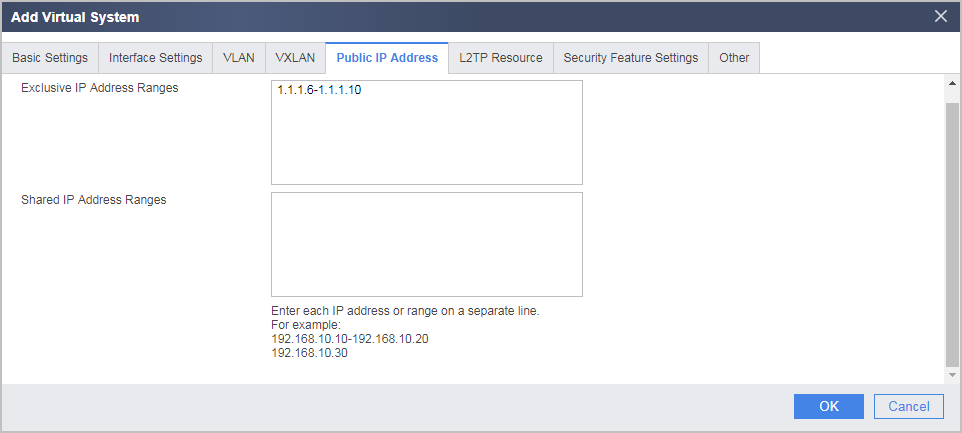
- Choose .
- Enable the IPv6 address family for virtual systems.
<FW> system-view
[FW] ip vpn-instance vsysa
[FW-vpn-instance-vsysa] ipv6-family
- Configure interface IP addresses and security zones.
- Click
 of GigabitEthernet 0/0/1 and set the following parameters.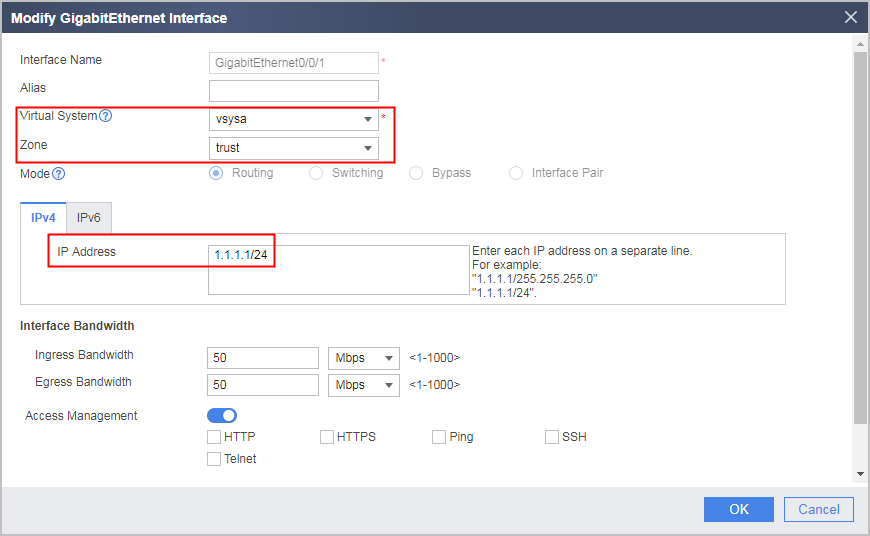
- Click of GigabitEthernet 0/0/2 and set the following parameters.
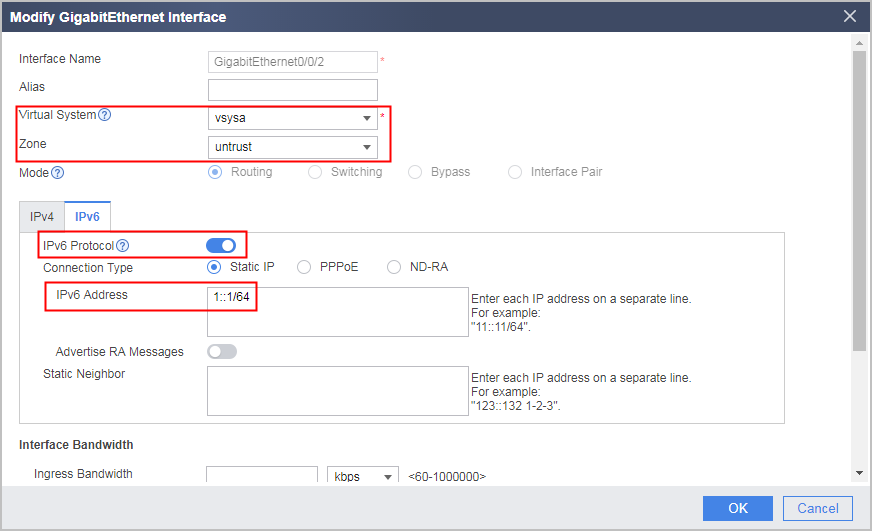
- Click
- Choose , configure a static route to the IPv6 network.
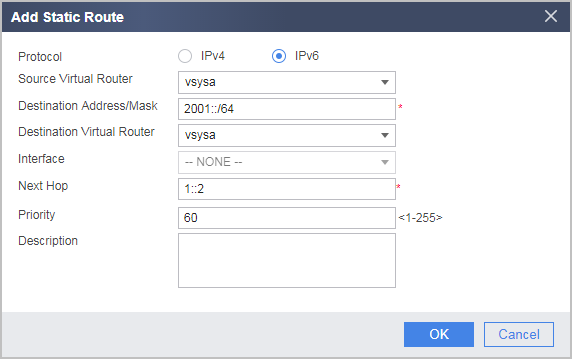
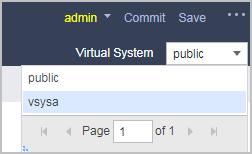
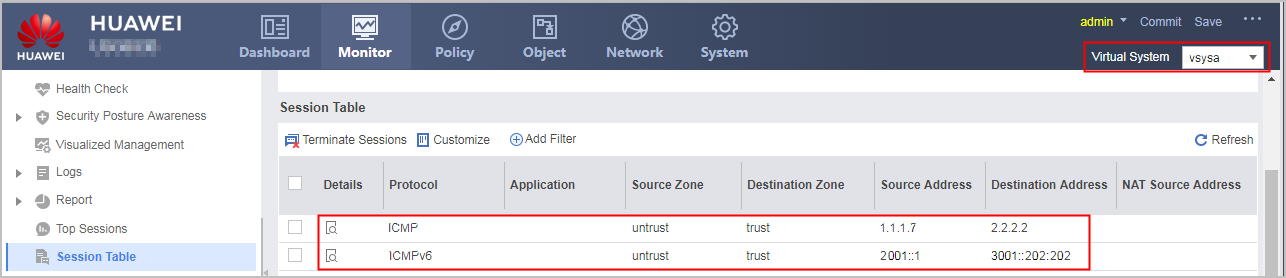
- Select vsysa from the Virtual System drop-down list in the upper right corner to access vsysa.
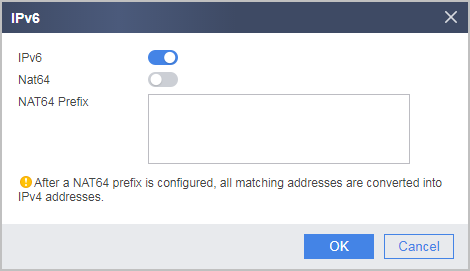
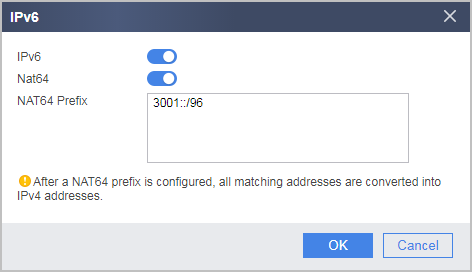
- Click Dashboard on the main menu. In the System Information area, click Configure on the line of IPv6 to configure NAT64 prefix.
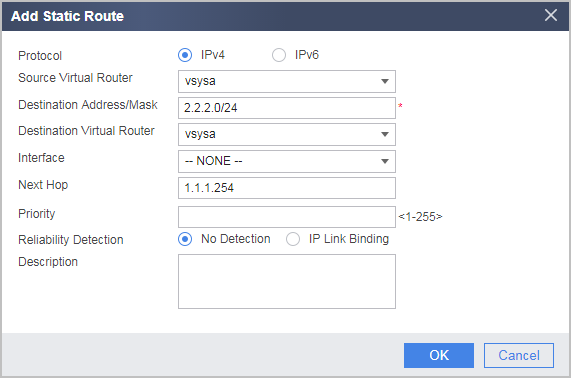
- Choose , configure a static route to the IPv4 network.
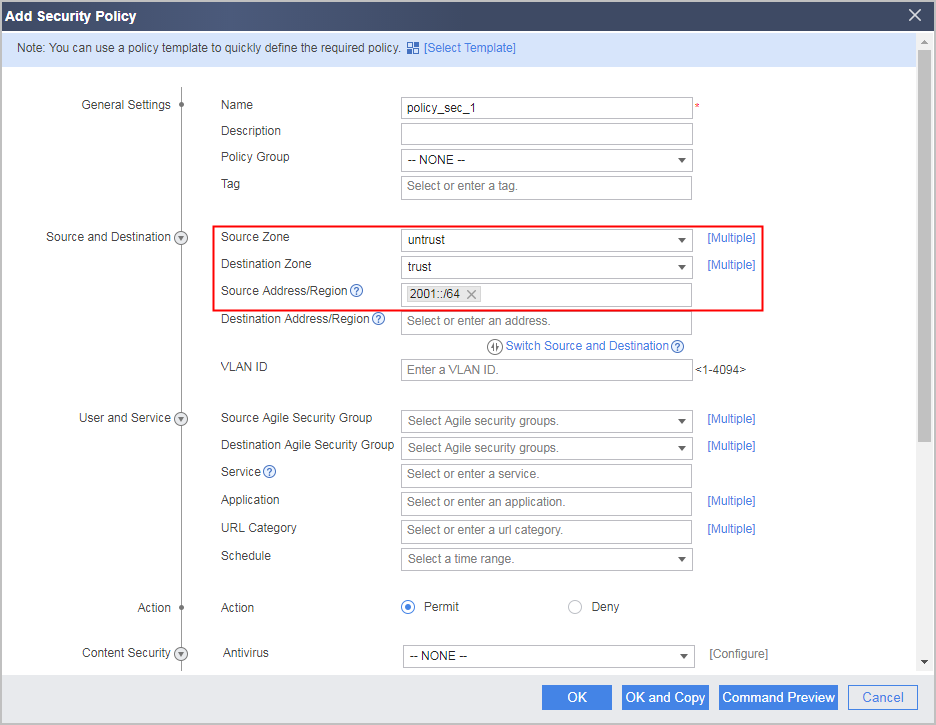
- Configure a security policy
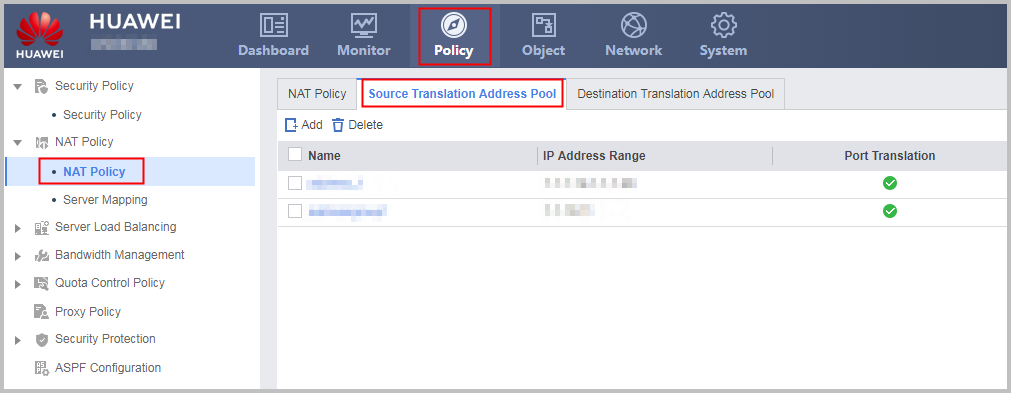
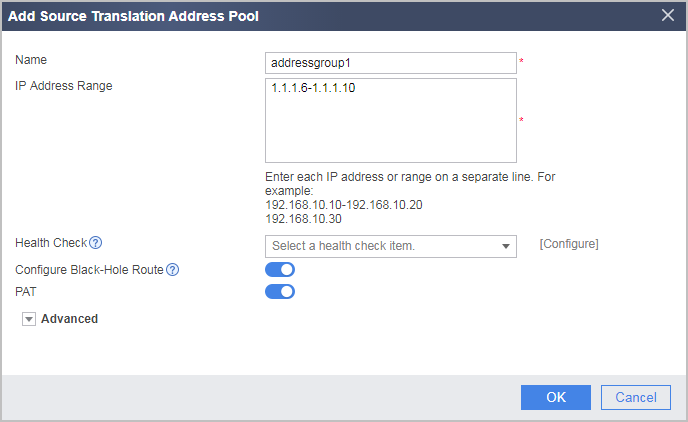
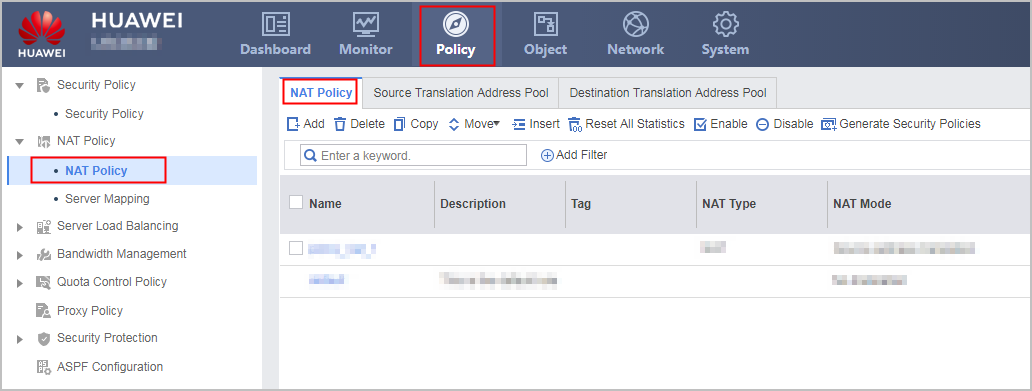
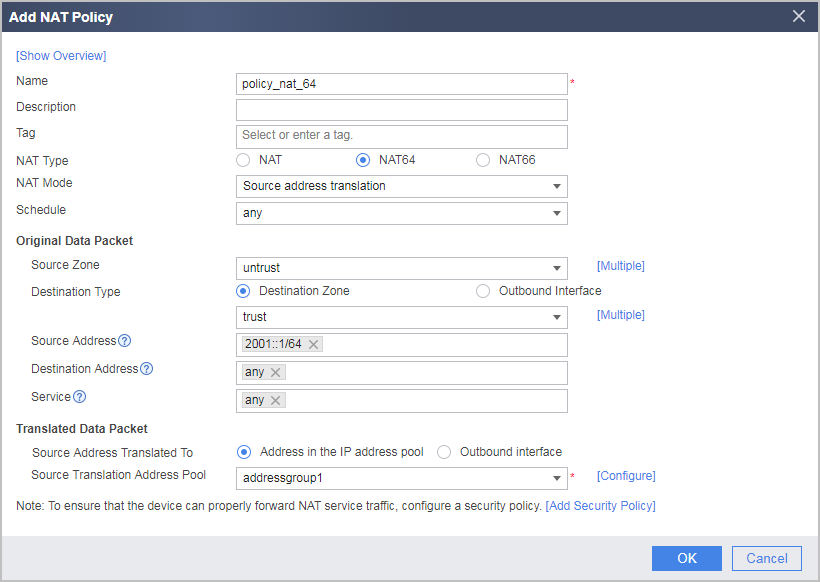
- Configure a NAT address pool and a NAT64 policy.
- Configure the DNS64 device.
# Set the IPv6 prefix of the DNS64 device to 3001::/96, which is the same as the NAT64 prefix of the FW.
# Configure a route from the DNS64 device to the PC.
- Configure IPv6 address, route and DNS server for the PC. (The method of setting IPv6 address, route and DNS server varies depending on the operating system of the PC. The setting method is omitted here.)
# Set the PC IPv6 address to 2001::1/24.
# Configure a route from the PC to 3001::/96 and set the next hop to the address of the egress router on the IPv6 network.
# Set the DNS server of the PC as the IPv6 address of the DNS64 device.
- Configure IPv4 address and route for the server. (The method of setting IPv4 address varies depending on the operating system of the server. The setting method is omitted here.)
# Set the server IPv4 address to 2.2.2.2/24.
# Configure a route from the server to 1.1.1.6-1.1.1.10 and set the next hop to the address of the egress router on the IPv4 network.
Configuration Scripts
Configuration script of the root system
#
 ipv6
#
 vsys enable
#
vsys name vsysa 1
 assign interface GigabitEthernet0/0/1
 assign interface GigabitEthernet0/0/2
 assign global-ip 1.1.1.6 1.1.1.10 exclusive
#
interface GigabitEthernet 0/0/1
 ip address 1.1.1.1 255.255.255.0
#
interface GigabitEthernet 0/0/2
 ipv6 enable
 ipv6 address 1::1/64
#
 ipv6 route-static vpn-instance vsysa 2001:: 64 1::2
#
return
Configuration script of vsysa
#
switch vsys vsysa
#
nat64 enable
#
firewall zone trust
 set priority 85
 add interface GigabitEthernet0/0/1
#
firewall zone untrust
 set priority 5
 add interface GigabitEthernet0/0/2
#
nat address-group addressgroup1
 mode pat
 section 1 1.1.1.6 1.1.1.10
#
 nat64 prefix 3001:: 96
#
 ip route-static 2.2.2.0 24 1.1.1.254
#
security-policy
  rule name policy_sec_1
    source-zone untrust
    destination-zone trust
    source-address 2001:: 64
    action permit
#
nat-policy
  rule name policy_nat64
    source-zone untrust
    destination-zone trust
    nat-type nat64
    source-address 2001:: 64
    action source-nat address-group addressgroup1
#
return