Web: Example for Configuring the FW to Interwork with the HiSec Insight (Encrypted Traffic)
This example describes the typical networking and method for configuring the interworking with the HiSec Insight.
Networking Requirements
The FW can interwork with the HiSec Insight to identify and block malicious sessions. As shown in Figure 1, the FW acts as the RESTCONF server, and the HiSec Insight as the RESTCONF client. The FW and HiSec Insight are reachable, and the FW uses the RESTCONF NBI to communicate with the HiSec Insight.
In this example, the service traffic is encrypted traffic.
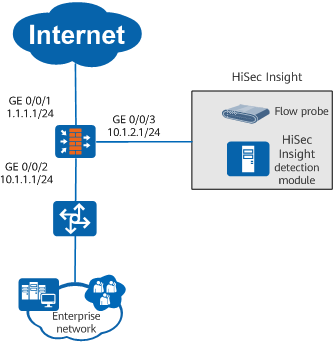
Configuration Roadmap
- Configure an API administrator for authentication for communication between the HiSec Insight and the FW.
Create a detection profile and a detection policy to decrypt encrypted traffic. In this example, HTTPS-encrypted packets are decrypted.
HiSec Insight V100R003C30 and later versions support encrypted traffic analysis. Encrypted service traffic (such as HTTPS, POP3S, IMAPS, and SMTPS traffic encrypted based on SSL) can be directly mirrored to the HiSec Insight through the FW or switch. For versions earlier than HiSec Insight V100R003C30, you need to configure SSL encrypted traffic detection on the FW to decrypt the traffic and then mirror the traffic to the HiSec Insight through the FW.
- Configure the HiSec Insight interworking function.
Procedure
- Set interface IP addresses and assign the interfaces to security zones.
- Click
 of GE0/0/1 and set the parameters as follows.
IP Address
1.1.1.1
Subnet Mask
255.255.255.0
Security Zone
untrust
- Click
- Configure security policies to ensure that users in the enterprise network, HiSec Insight, and FW can communicate.
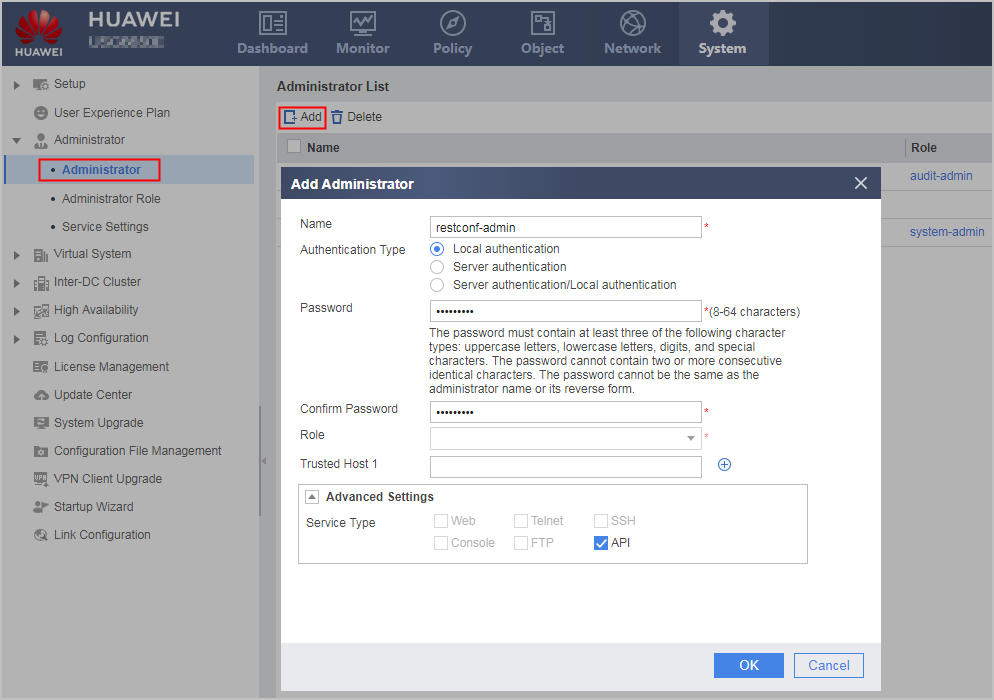
- Create an API administrator and use local authentication. The user name and password can be customized. After this administrator account is created, remember the user name and password. When the HiSec Insight system communicates with the FW, this administrator account shall be used for authentication.
Choose and click Add.
- Create a detection profile.
- Click Add to create the following detection profile.
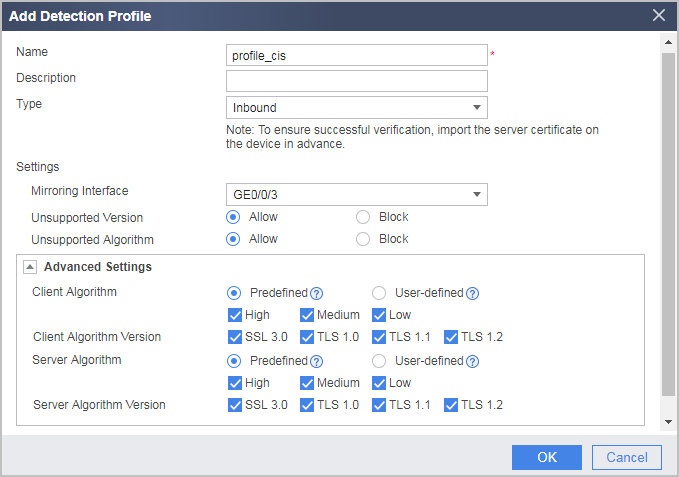
- Click Add to create the following detection profile.
- Configure a detection policy, so that encrypted traffic can be mirrored to the HiSec Insight after matching the detection policy on the FW.
- Click Add to create an SSL-encrypted traffic detection policy.
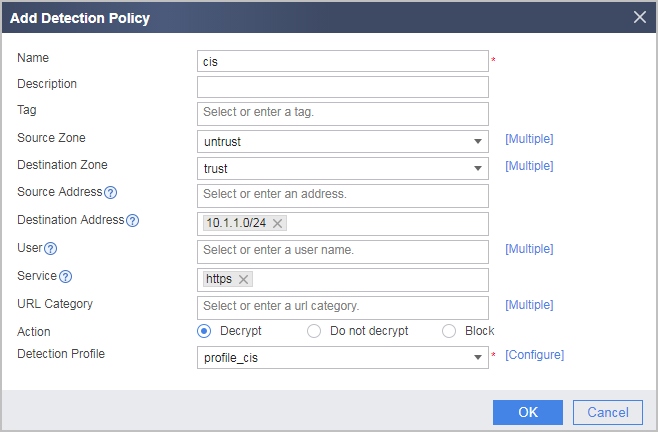
- Click Add to create an SSL-encrypted traffic detection policy.
- Configure the HiSec Insight interworking function.
Verification
Choose . In the blacklist list, set the cause to HiSec Insight-detection and click Search to check entries added to the FW blacklist through interworking with the HiSec Insight.
Configuration Scripts
#
aaa
  manager-user restconf-admin
  password cipher @%@%r"4+){k0COFQte$ymxOMEk80.\ACNlhJgDNfvyN*CqfSk83E@%@%
  service-type api
#
interface GigabitEthernet0/0/1
 undo shutdown
 ip address 1.1.1.1 255.255.255.0
#
interface GigabitEthernet0/0/2
 undo shutdown
 ip address 10.1.1.1 255.255.255.0
 #
interface GigabitEthernet0/0/3
 undo shutdown
 ip address 10.1.2.1 255.255.255.0
#
 firewall zone trust
 set priority 85
 add interface GigabitEthernet0/0/2
#
firewall zone untrust
 set priority 5
 add interface GigabitEthernet0/0/1
#
firewall zone dmz
 set priority 50
 add interface GigabitEthernet0/0/3
#
api
 api https enable
#
security-policy
 default action permit
 rule name policy_to_cis
  source-zone local
  destination-zone dmz
  action permit
 rule name policy_to_Internet
  source-zone trust
  destination-zone untrust
  action permit
 group name https
#
profile type decryption name profile_cis
  detect type inbound
  mirror-interface GigabitEthernet0/0/3
  #
decryption-policy
 rule name cis
  source-zone untrust
  destination-zone trust
  destination-address 10.1.1.0 mask 255.255.255.0
  service https
  action decrypt profile profile_cis
#
apt-cis
 linkage enable
#
return