Web: Example for Configuring Easy IP for Intranet Users to Access the Internet
This section provides an example for configuring Easy IP for intranet users to access the Internet.
Networking Requirements
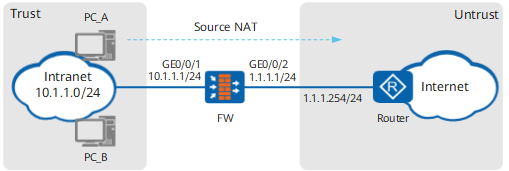
An enterprise has deployed a FW as a security gateway on the intranet border. The enterprise applies for a public IP address from an ISP to connect the FW to the ISP router. The router is an access gateway on the ISP network. A source NAT policy working in WAN interface mode must be configured on the FW. This policy allows the FW to translate the IP addresses of intranet users on the network 10.1.1.0/24 into the public IP address so that intranet users can access the Internet. Figure 1 illustrates the networking for a source NAT policy working in WAN interface mode.
Data Planning
Item |
Data |
Description |
|
|---|---|---|---|
GigabitEthernet 0/0/1 |
IP address: 10.1.1.1/24 Security zone: trust |
Set the default gateway address on each intranet host to 10.1.1.1. |
|
GigabitEthernet 0/0/2 |
IP address: 1.1.1.1/24 Security zone: untrust |
1.1.1.1/24 is a public address provided by the ISP. |
|
Intranet segment that is allowed to access the Internet |
10.1.1.0/24 |
- |
|
| FW's default route | Destination address: 0.0.0.0 Next hop address: 1.1.1.254 |
Configure a default route on the FW to direct intranet traffic to the ISP network. |
|
Configuration Roadmap
The configuration roadmap is as follows:
- Assign IP addresses to interfaces, add the interfaces to security zones, and configure network connectivity.
- Configure a security policy to allow a specific intranet segment to access the Internet.
- Configure a default route on the FW to direct intranet traffic to the ISP router.
- Configure a NAT policy working in WAN interface mode so that intranet users can use the FW's public IP address to access the Internet.

To enable NAT in outbound interface mode, set easy-ip parameter, which enables the FW to automatically map intranet packet addresses to a WAN interface address based on routing information.
- On each PC, configure the IP address of the FW interface connected to the intranet as the default gateway address to direct intranet traffic to the FW. The detailed configuration process is omitted.
Procedure
- Set IP addresses for interfaces on the FW and assign the interfaces to security zones.
- Set the IP address of GigabitEthernet 0/0/1 and assign the interface to a security zone.
- Set the IP address of GigabitEthernet 0/0/2 and assign the interface to a security zone.
- Configure a security policy to allow users on a specific network to access the Internet.
- Configure a default route on the FW, so that traffic from the private network can be forwarded to the ISP router.
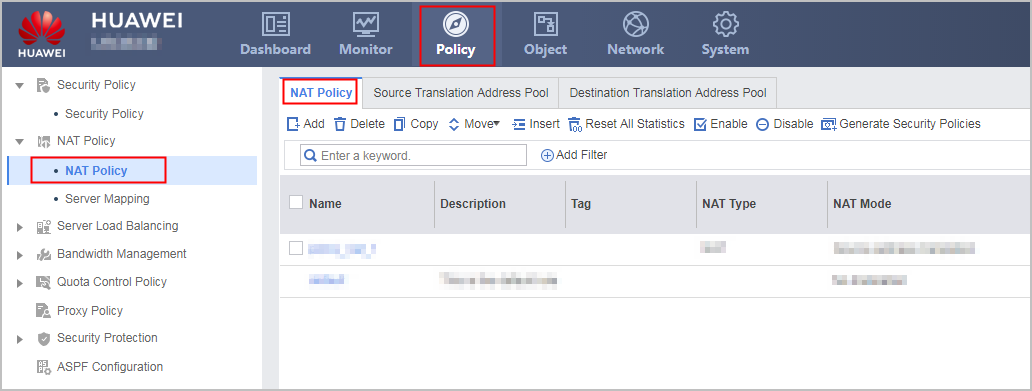
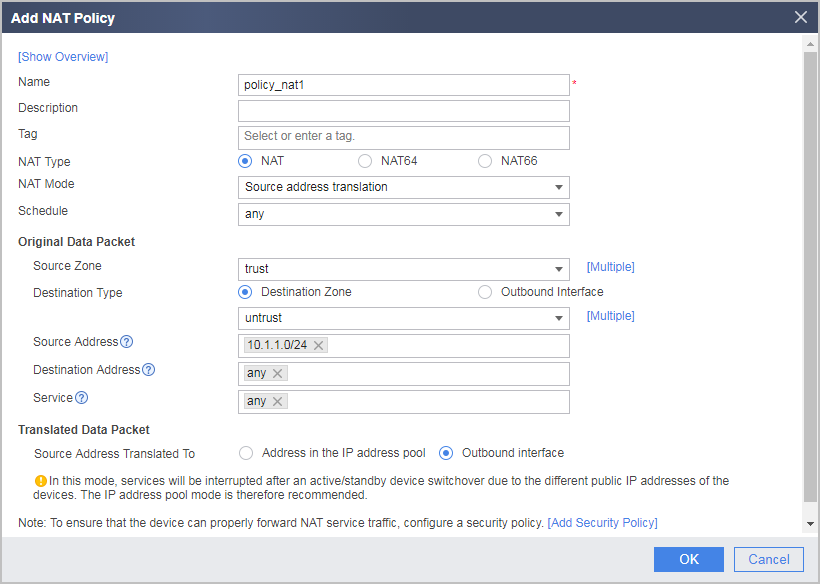
- Configure a NAT policy working in outbound interface address mode so that intranet users can use the FW's public IP address to access the Internet.
- On each PC, configure the IP address of the FW interface connected to the intranet as the default gateway address to direct intranet traffic to the FW. The detailed configuration process is omitted.

Configuration Scripts
Configuration script for the FW:
#
 sysname FW
#
interface GigabitEthernet0/0/1
 undo shutdown
 ip address 10.1.1.1 255.255.255.0
#
interface GigabitEthernet0/0/2
 undo shutdown
 ip address 1.1.1.1 255.255.255.0
#
firewall zone trust
 set priority 85
 add interface GigabitEthernet0/0/1
#
firewall zone untrust
 set priority 5
 add interface GigabitEthernet0/0/2
#
 ip route-static 0.0.0.0 0.0.0.0 1.1.1.254
#
security-policy
  rule name policy1
    source-zone trust
    destination-zone untrust
    source-address 10.1.1.0 24
    action permit
#
nat-policy
  rule name policy_nat1
    source-zone trust
    destination-zone untrust
    source-address 10.1.1.0 24
    action source-nat easy-ip
#
return