Web: Example for Enabling Remote Users to Access Enterprise Web Servers Through Web Proxy (Web Rewriting)
Networking Requirements
As shown in Figure 1, remote users need to access the web server on the enterprise intranet for work. The enterprise uses local authentication on the FW to authenticate all employees, and the authentication domain is default. Authenticated users can access intranet resources.
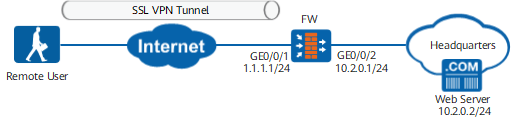
Procedure
- Configure interfaces.
- Choose .
- Click
 of GigabitEthernet 0/0/1 and set parameters as follows:
Zone
untrust
IPv4
IP address
1.1.1.1/24
- Click OK.
- Repeat the preceding steps to set the parameters for GigabitEthernet 0/0/2.
Zone
trust
IPv4
IP address
10.2.0.1/24
- Configure user objects and authentication.
- Choose and set parameters as follows:
User user0001 belongs to user group /default/group1. Authentication Type is local authentication, and Password is Password@123. Before creating user user0001, you need to create group /default/group1 so that you have a group to reference when creating a user.
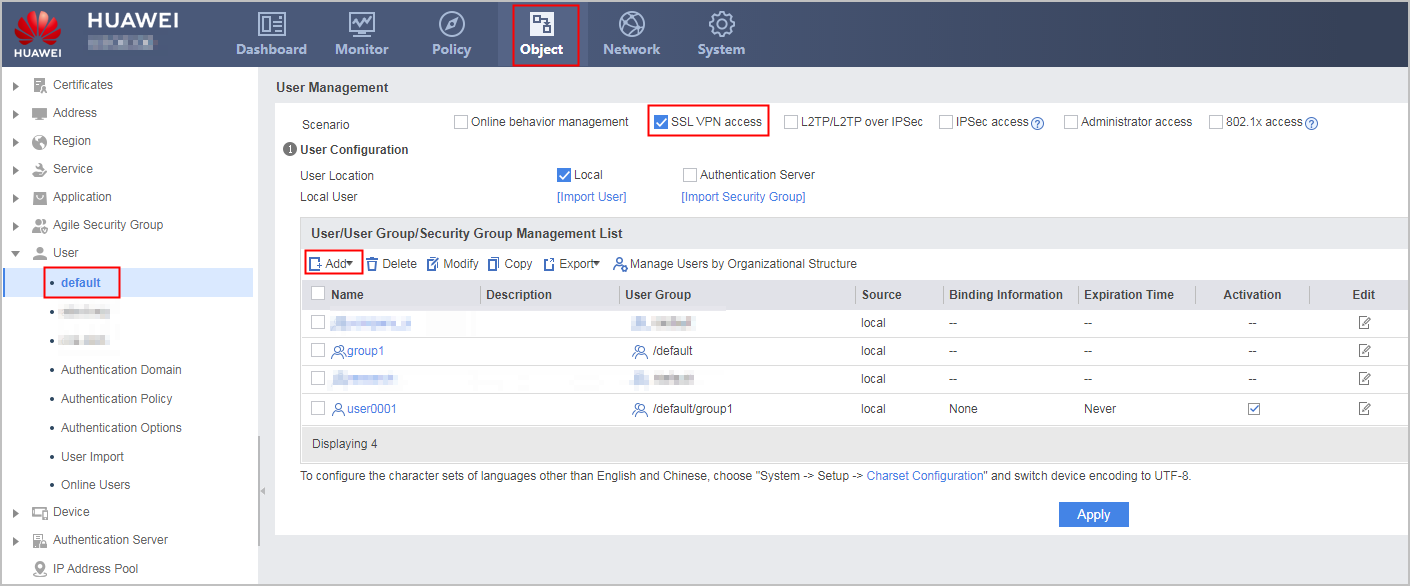
- Click Apply.
- Choose and set parameters as follows:
- Configure the SSL VPN gateway.
- Choose .
- Click Add and set parameters as follows:
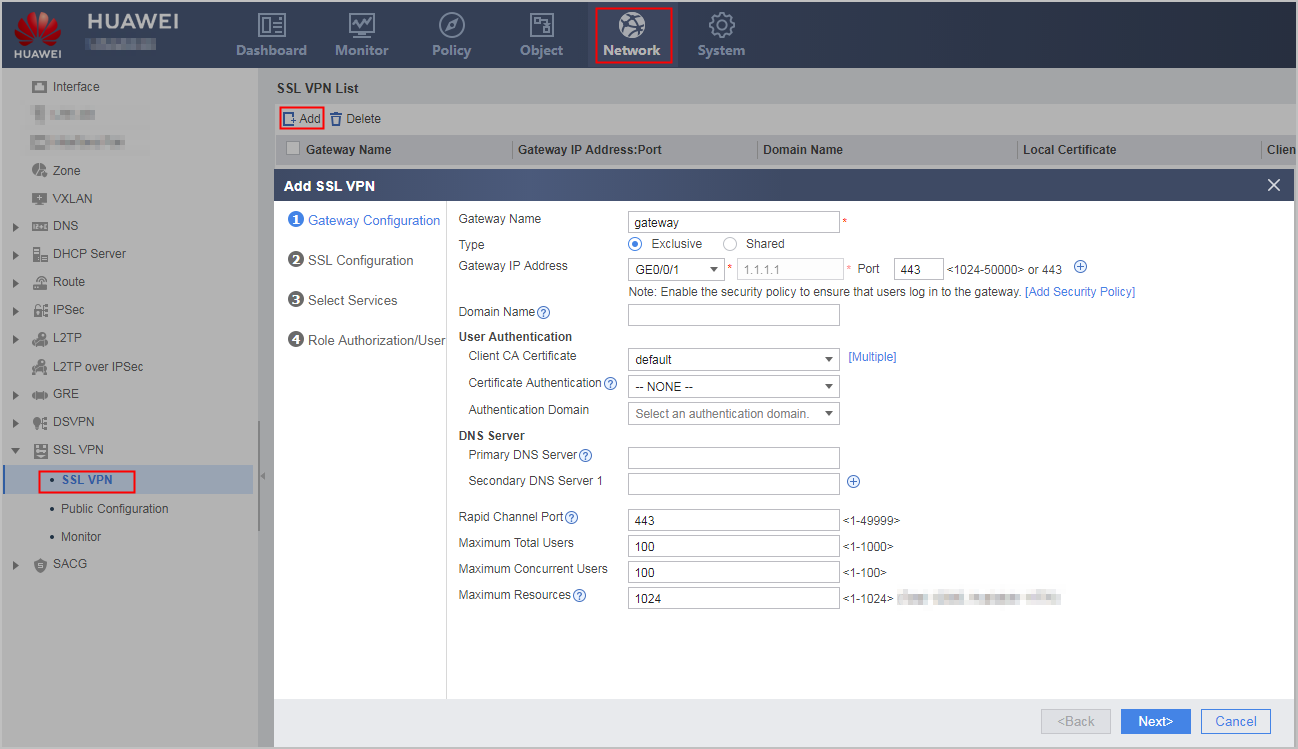
- Click Next.
- Configure the SSL version, cipher suite, session timeout duration, and session lifecycle. You can use the default values and click Next.
- Select Web Proxy and click Next.
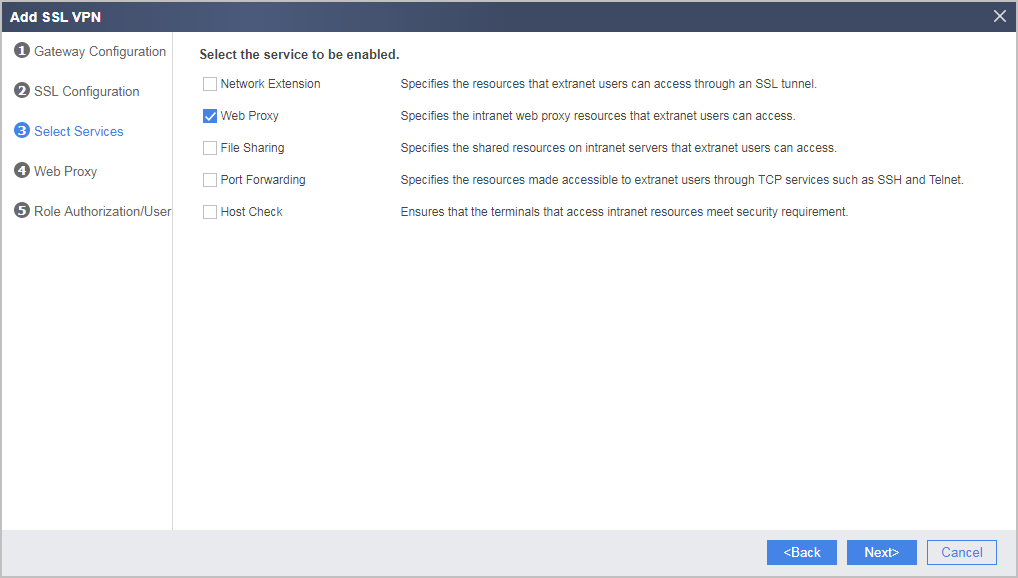
- Configure the web proxy.
- In Web Proxy Resource List, click Add and configure web proxy resources as follows:
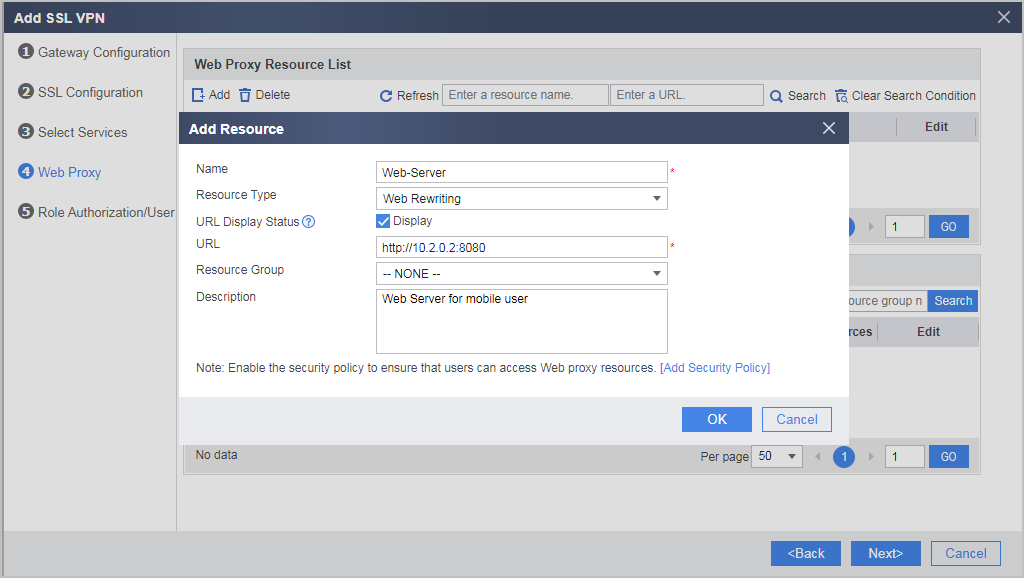

Usually, a portal website provides links to other websites. For example, a link to website http://10.2.0.10:8081 exists on the home page of website http://10.2.0.2:8080. In this case, you need to configure a web proxy resource for both http://10.2.0.2:8080 and http://10.2.0.10:8081. Otherwise, users can access only resources on the local website. Generally, remote users do not care whether the resources are on the local website or external website. Therefore, when configuring web resources for external websites, do not select Display next to URL Display Status. In this way, remote users can access external websites through the links on the local website, although the login page of the virtual gateway displays only the web resources of the local website.
- Click OK.
- Click Next.
- In Web Proxy Resource List, click Add and configure web proxy resources as follows:
- Configure SSL VPN role authorization/users.
- Click Add in List of Authorized Roles and set the role authorization parameters as follows. After the configuration is completed, click OK.
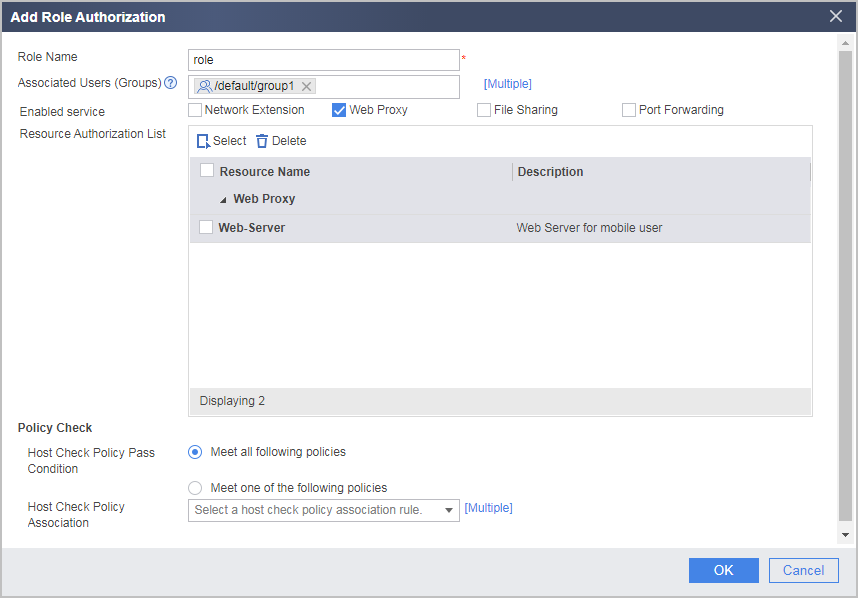
- Return to the Role Authorization/User configuration page, and click Finish.
- Click Add in List of Authorized Roles and set the role authorization parameters as follows. After the configuration is completed, click OK.
- Configure a security policy to allow remote users to access web proxy resources.
- Configure an Internet-to-FW security policy to allow remote users to access the SSL VPN gateway.
- Choose .
- Click Add and configure security policy policy01 as follows:
Name
policy01
Source Zone
untrust
Destination Zone
local
Destination Address/Region
1.1.1.1/24
Service
https
NOTE:If the HTTPS port number is changed, use the new port number when creating the security policy.
Action
Permit
- Click OK.
- Configure a FW-to-intranet security policy to allow remote users to access resources at the Headquarters.
- Choose .
- Click Add and configure security policy policy02 as follows:
Name
policy02
Source Zone
local
Destination Zone
trust
Destination Address/Region
10.2.0.0/24
Action
Permit
- Click OK.
- Configure an Internet-to-FW security policy to allow remote users to access the SSL VPN gateway.
Verifying the Configuration
- Enter https://1.1.1.1:443 in the address bar of Internet Explorer to access the SSL VPN login page.
Install the control as prompted upon the first login.
The Active control version required on clients depends on the version of the virtual gateway. If you need to change the Active control version, you must uninstall the old version before installing the new one. Otherwise, the browser will be stuck at the control loading page.
If the client is a PC, run the following commands to uninstall the control:
PC> regsvr32 SVNIEAgt.ocx -u -s
PC> del %systemroot%\SVNIEAgt.ocx /q
PC> del %systemroot%\"Downloaded Program Files"\SVNIEAgt.inf /q
PC> cd %appdata%
PC> rmdir svnclient /q /s
- In the login window, enter the user name and password, and then click Login.
After the login succeeds, the web resource links are displayed on the virtual gateway page. You can click a link to access the resource.
Configuration Script
#
aaa
 authentication-scheme default
 authorization-scheme default
 domain default
  service-type ssl-vpn
  internet-access mode password
  reference user current-domain
#
interface GigabitEthernet 0/0/1
 ip address 1.1.1.1 255.255.255.0
#
interface GigabitEthernet 0/0/2
 ip address 10.2.0.1 255.255.255.0
#
firewall zone trust
 set priority 85
 add interface GigabitEthernet 0/0/2
#
firewall zone untrust
 set priority 5
 add interface GigabitEthernet 0/0/1
#
v-gateway gateway authentication-domain default
#
#****BEGIN***gateway**1****#
v-gateway gateway
 basic
  ssl version tlsv11 tlsv12
  ssl timeout 5
  ssl lifecycle 1440
  ssl ciphersuit custom aes256-sha aes128-sha
 service
  web-proxy enable
  web-proxy web-link enable
  web-proxy proxy-resource Web-Server http://10.2.0.2:8080 show-link
 security
  policy-default-action permit vt-src-ip
  certification cert-anonymous cert-field user-filter subject cn group-filter subject cn
  certification cert-anonymous filter-policy permit-all
  certification cert-challenge cert-field user-filter subject cn
  certification user-cert-filter key-usage any
  undo public-user enable
 hostchecker
 cachecleaner
 vpndb
  group /default
  group /default/group1
 role
 role default
  role default condition all
 role role
  role role condition all
  role role web-proxy enable
  role role web-proxy resource Web-Server
#****END****#
#
security-policy
 rule name policy01
  source-zone untrust
  destination-zone local
  destination-address 1.1.1.0 mask 255.255.255.0
  service https
  action permit
 rule name policy02
  source-zone local
  destination-zone trust
  destination-address 10.2.0.0 mask 255.255.255.0
  action permit
#
# The following configurations are saved in the database and are not displayed in the configuration file.  user-manage user user0001 domain default
 password %$%$j@p.U.0bwNQv9nE#tf]G-+"v%$%$
  parent-group /default/group1
 v-gateway gateway
  role
   role role group /default/group1