Web: Example for Configuring Policy-based Routes for Internet Access from Multiple ISPs
This section provides an example for configuring NAT and policy-based routes to enable campus network users to access an education network and the Internet through different links.
Networking Requirements
A college deploys a FW as a security gateway on the campus network shown in Figure 1. The campus network consists of a student network and a teacher network, and is connected to the Internet through an education network. The college also purchases broadband services from an ISP and accesses the Internet through the ISP network.
The networking requirements are as follows:
- PCs on the student network access the Internet through the education network.
- PCs on the teacher network access the Internet through the ISP network.
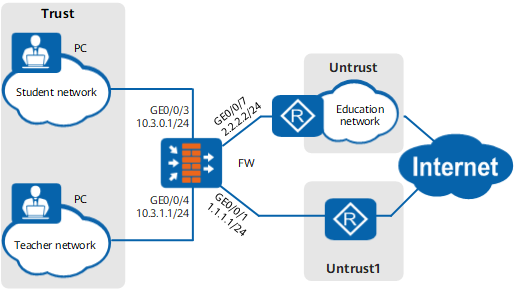

This example focuses on the configuration related to PBR. Configure other data such as NAT based on the actual networking.
Configuration Roadmap
The configuration roadmap is as follows:
- Assign IP addresses to interfaces and add the interfaces to security zones.
- Configure policy-based routes, which specify that the student network connects to the education network through GigabitEthernet 0/0/7 and accesses the Internet through the education network, and that the teacher network directly accesses the Internet through GigabitEthernet 0/0/1.
- Configure security policies to allow all campus network PCs to access the Internet.
- Configure NAT policies for translating source addresses.
Procedure
- Set an IP address for each interface, assign interfaces to security zones, and complete basic parameter settings.
Choose , configure an IP address for the interface, and assign the interface to a security zone.
GigabitEthernet 0/0/7
Zone
untrust
IP Address
2.2.2.2/24
GigabitEthernet 0/0/3
Zone
trust
IP Address
10.3.0.1/24
GigabitEthernet 0/0/4
Zone
untrust
IP Address
10.3.1.1/24
Choose and click Add. Create security zone untrust1 and assign GigabitEthernet 0/0/1 to the zone.
Zone Name
untrust1
Priority
10
Added Interface
GigabitEthernet 0/0/1
- Configure PBR.
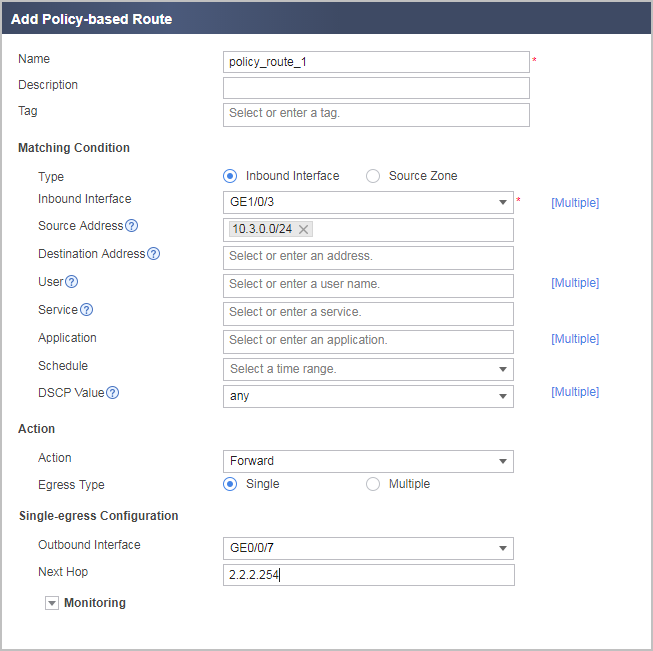
Configure PBR to allow PCs on the student network to access the Internet through GigabitEthernet 0/0/7 by means of the education network.
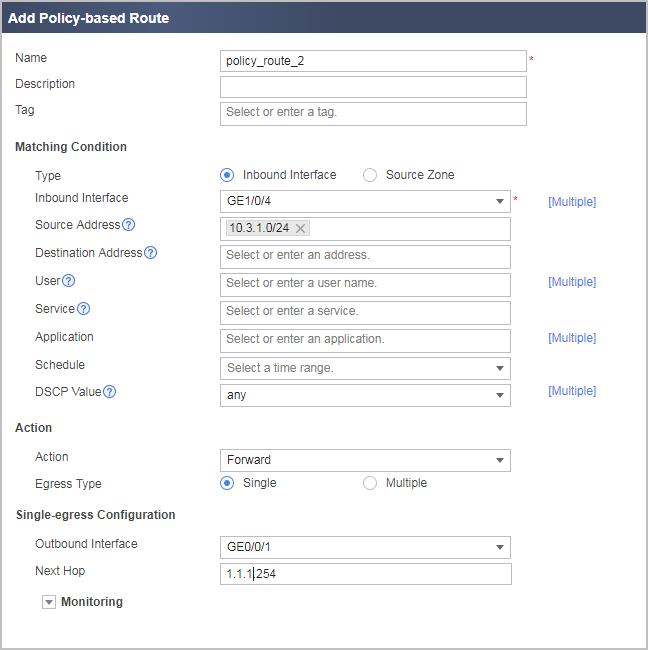
Configure PBR to allow PCs on the teacher network to access the Internet through GigabitEthernet 0/0/1 over the education network.
- Configure security policies.
Choose and click Add Security Policy to create a security policy.
Name
policy_sec_1
Source Zone
trust
Destination Zone
untrust
Source Address/Region
10.3.0.0/24
Action
Permit
Name
policy_sec_1
Source Zone
trust
Destination Zone
untrust1
Source Address/Region
10.3.1.0/24
Action
Permit
- Configure a NAT policy to perform NAT for traffic sent from PCs on the student network to access the Internet.
# Configure an IP address pool.
Choose , click Add, and set the following parameters.
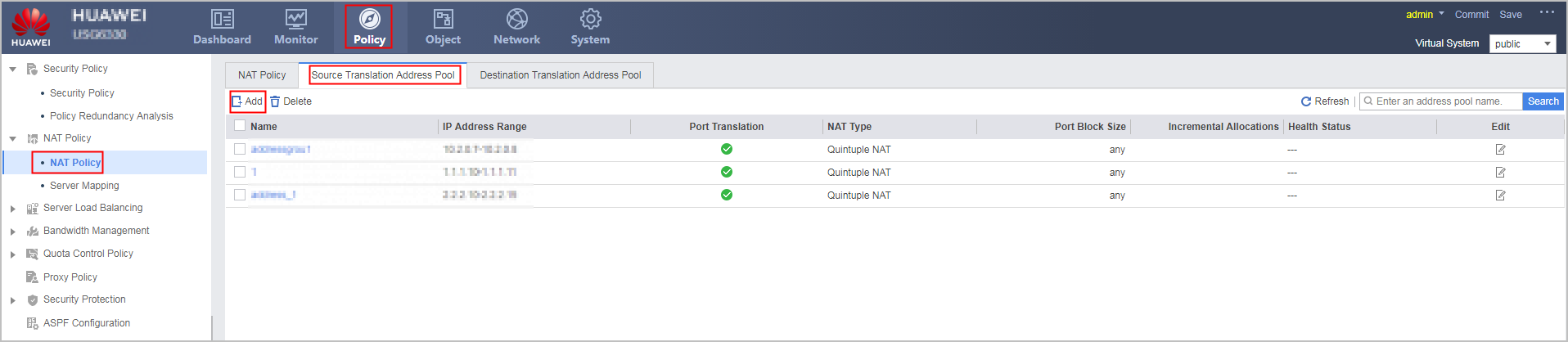
Name
address_1
IP Address Range
2.2.2.10-2.2.2.15
# Configure a NAT policy.
Choose , click Add, and set the following parameters.
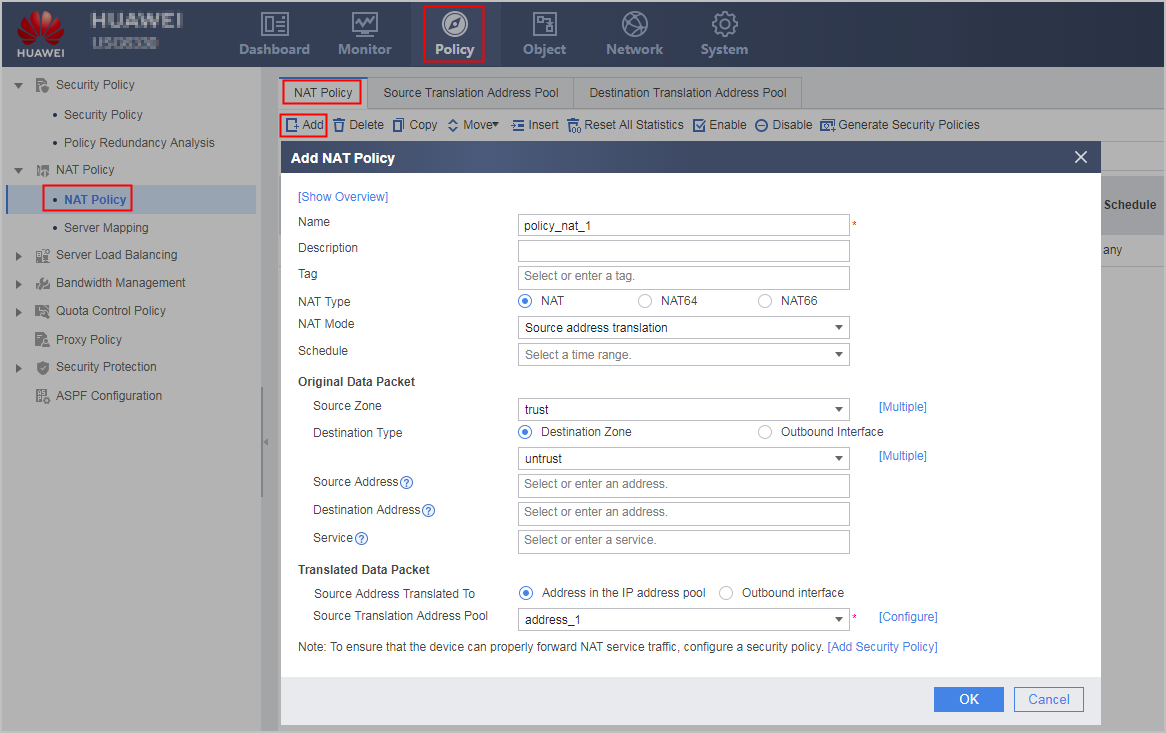
- Configure a NAT policy to perform NAT for traffic sent from PCs on the teacher network to access the Internet.
# Configure an IP address pool.
Choose , click Add, and set the following parameters.
Name
address_2
IP Address Range
1.1.1.10-1.1.1.15
# Configure a NAT policy.
Choose , click Add, and set the following parameters.
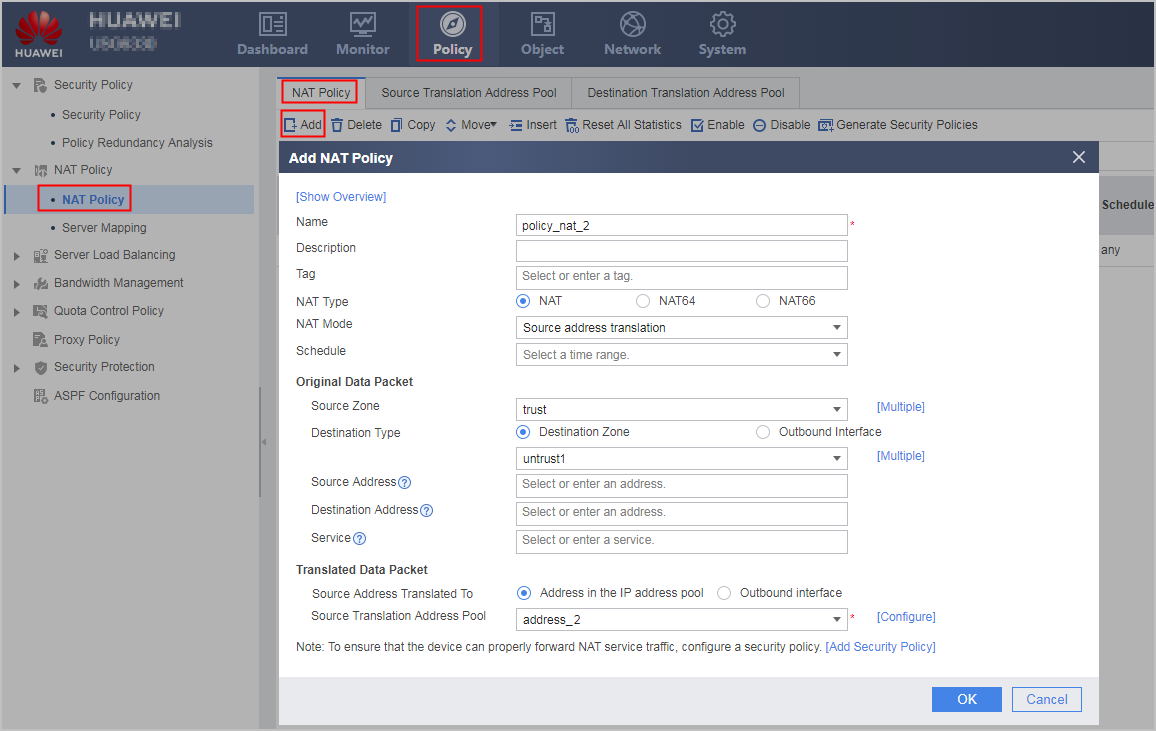
Configuration Scripts
#
interface GigabitEthernet0/0/1
 ip address 1.1.1.1 255.255.255.0
#
interface GigabitEthernet0/0/3
 ip address 10.3.0.1 255.255.255.0
#
interface GigabitEthernet0/0/4
 ip address 10.3.1.1 255.255.255.0
#
interface GigabitEthernet0/0/7
 ip address 2.2.2.2 255.255.255.0
#
firewall zone trust
 set priority 85
 add interface GigabitEthernet0/0/3
 add interface GigabitEthernet0/0/4
#
firewall zone untrust
 set priority 5
 add interface GigabitEthernet0/0/7
#
firewall zone name untrust1
 set priority 10
 add interface GigabitEthernet0/0/1
#
 nat address-group address_1
  section 0 2.2.2.10 2.2.2.15
 nat address-group address_2
  section 0 1.1.1.10 1.1.1.15
#
security-policy
  rule name policy_sec_1
    source-zone trust
    destination-zone untrust
    source-address 10.3.0.0 24
    action permit
  rule name policy_sec_2
    source-zone trust
    destination-zone untrust1
    source-address 10.3.1.0 24
    action permit
#
policy-based-route
  rule name policy_route_1
    ingress-interface GigabitEthernet0/0/3
    source-address 10.3.0.0 24
    action pbr egress-interface GigabitEthernet0/0/7 next-hop 2.2.2.254
  rule name policy_route_2
    ingress-interface GigabitEthernet0/0/4
    source-address 10.3.1.0 24
    action pbr egress-interface GigabitEthernet0/0/1 next-hop 1.1.1.254
#
nat-policy
  rule name policy_nat_1
    source-zone trust
    destination-zone untrust
    source-address 10.3.0.0 24
    action source-nat address-group address_1
  rule name policy_nat_2
    source-zone trust
    destination-zone untrust1
    source-address 10.3.1.0 24
    action source-nat address-group address_2
#
return