Preparation for the Upgrade
This section describes how to prepare for the system software and configuration file upgrade on multiple FWs where configuration files already exist.
Procedure
- Obtain system software and store them in the same directory that stores the configuration file on the USB flash drive.
- Optional: Obtain the HMACs of the system software and configuration file. Skip this step if HMAC check is not required.
- Download the HashCalc tool. Install and start it.
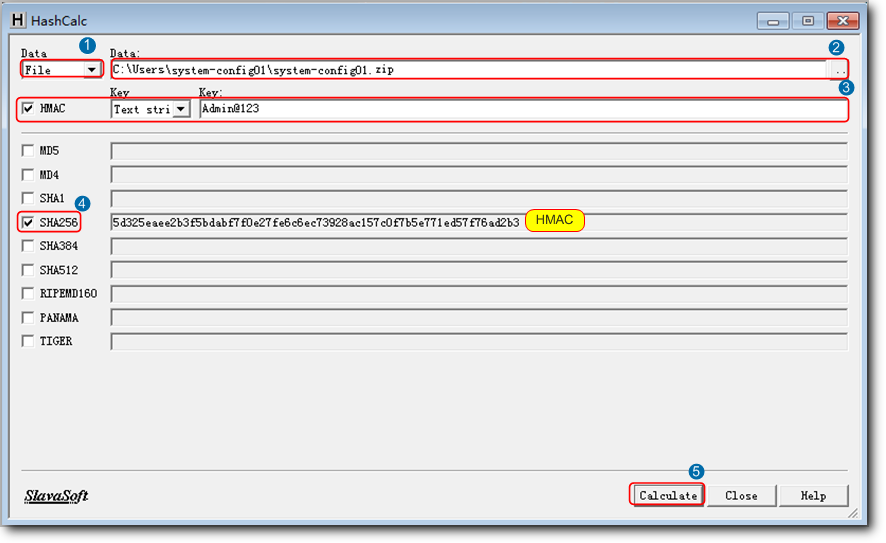
- Obtain the HMACs as follows:

- Ensure that Key: contains at least three of the following types of characters: upper-case letters, lower-case letters, digits, and special characters (except spaces and question marks) for security.
Select SHA256 because FW supports only this type of hash algorithm.
- Make an index file.
- Create a text file named usb.ini.
- Copy the following content into the text file and edit fields. For details, see Table 1.
BEGIN
[USB CONFIG]
SN=
[UPGRADE INFO]
OPTION=AUTO
DEVICENUM=
RUNMODE=TRADITION
[DEVICEn DESCRIPTION]
OPTION=OK
ESN=
MAC=
VERSION=
DIRECTORY=
FILENUM=2
TYPEn=
FILENAMEn=
HMACn=
END
Table 1 Fields in the index file Field
Content
DEVICENUM
To upgrade the software for only one FW, set DEVICENUM to 1, ESN to the ESN of the FW, and MAC to the MAC address of the FW.
To upgrade the software of multiple FWs to the same version, set DEVICENUM to 1, ESN to DEFAULT, and MAC to DEFAULT.
To upgrade the software of multiple FWs to different versions, set DEVICENUM to the actual number of FWs to be upgraded and enter the actual values in ESN and MAC.
SN
Enter the SN, which is the time of the automatic upgrade through USB in the format of YearMonthDate.HourMinuteSecond. For example, when the upgrade time of the FW is 2014-12-28 08:09:10, the SN is 20141228.080910.
NOTE:When a USB flash drive storing an index file is inserted into the FW, the FW compares its SN field with the one in the index file and starts automatic upgrade through USB when they are different. After the upgrade succeeds, the FW sets its SN field to the one in the index file to avoid repetitive upgrade.
RUNMODE
Device running mode:
- TRADITION: Traditional Modes
- CLOUD-MANAGE: Cloud Management Modes
The cloud management mode and traditional mode differ in presetting user roles. Therefore, if you use a profile of the traditional mode to start a device in cloud management mode, the compare configuration result must be inconsistent. You are advised to run the save command after the startup to save the profile.
DEVICEn DESCRIPTION
Enter the description about the FW to be upgraded. For example, DEVICE2 DESCRIPTION indicates the description of the second FW to be upgraded.
n is an integer ranging from 1 to 100.
ESN
Enter the ESN of the FW. You can run the display esn command to obtain the ESN of each FW. To match all FWs, enter DEFAULT.
MAC
Enter the MAC address of interface GigabitEthernet 0/0/0 of the FW. You can run the display interface GigabitEthernet 0/0/0 command to obtain the MAC address. To match all FWs, enter DEFAULT.
VERSION
Enter the version name.
To upgrade the software package, enter the target version name. To upgrade only configurations, enter the current version name.
DIRECTORY
Enter the path where files are stored on USB. If it is the root directory of USB, enter DEFAULT; otherwise, enter the specific path, such as /test.
FILENUM
Enter the number of upgrade file types. To upgrade either the system software or configuration file, enter 1; to upgrade both, enter 2.
TYPEn
FILENAMEn
HMACn
Enter the system software type and name. For example, to upgrade both the system software and configuration file, enter system-software.bin for the system software and system-config.zip for the configuration file as follows:TYPE1=SYSTEM-SOFTWARE FILENAME1=system-software.bin HMAC1=0ab30a2596bd0f6744631002d941f4218f40e784ae51447ed0bf3a2ff075939a TYPE2=SYSTEM-CONFIG FILENAME2=system-config.zip HMAC2=27dadb18efe4c0cf00268c3d3573a1ea9c270e5c56bfda9dd9bba1d168b5d680
n values in TYPE, FILENAME, and HMAC must be the same.
- Save the index file.
- Copy index file usb.ini to the root directory of USB.
Index File Examples
Example 1: The software of a FW needs to be upgraded, and HMAC check needs to be implemented to determine whether the system software has been tampered with.
- The data change time is 2014-06-28 08:09:10.
- Upgrade is required.
- The device ESN is 00080123456789, and the MAC address is 0018-0303-1234.
- The system software system-software01.bin is in the root directory of the USB flash drive, the version is V600R007C20, and the HMAC is c3caaee8f4f6bd1389f438801e40dad9af30f2fbbe7e8f55121b39c6c16ba488.
The corresponding index file is as follows:
BEGIN
[USB CONFIG]
SN=20140628.080910
[UPGRADE INFO]
OPTION=AUTO
DEVICENUM=1
[DEVICE1 DESCRIPTION]
OPTION=OK
ESN=00080123456789
MAC=0018-0303-1234
VERSION=V600R007C20
DIRECTORY=DEFAULT
FILENUM=1
TYPE1=SYSTEM-SOFTWARE
FILENAME1=system-software01.bin
HMAC1=c3caaee8f4f6bd1389f438801e40dad9af30f2fbbe7e8f55121b39c6c16ba488
END
Example 2: The software of multiple FWs needs to be upgraded, and HMAC check is not required.
- The data change time is 2014-06-28 08:09:10.
- Upgrade is required.
- The system software system-software01.bin is in the root directory of the USB flash drive, the version is V600R007C20, and HMAC check is not required.
The corresponding index file is as follows:
BEGIN
[USB CONFIG]
SN=20140628.080910
[UPGRADE INFO]
OPTION=AUTO
DEVICENUM=1
[DEVICE1 DESCRIPTION]
OPTION=OK
ESN=DEFAULT
MAC=DEFAULT
VERSION=V600R007C20
DIRECTORY=DEFAULT
FILENUM=1
TYPE1=SYSTEM-SOFTWARE
FILENAME1=system-software01.bin
END
Example 3: The software of two FWs needs to be upgraded, and HMAC check is not required.
- The data change time is 2014-06-28 08:09:10.
- For one FW, the ESN is 00080123456789, the MAC address is 0018-0303-1234, the system software name is system-software01.bin, the version number is V600R007C20, the configuration file is system-config01.zip, and neither file requires HMAC check.
- For the other FW, the ESN is 66680123456789, the MAC address is 0018-0303-5678, the system software name is system-software02.bin, the version number is V600R007C20, the configuration file is system-config01.zip, and neither file requires HMAC check.
The corresponding index file is as follows:
BEGIN
[USB CONFIG]
SN=20140628.080910
[UPGRADE INFO]
OPTION=AUTO
DEVICENUM=2
[DEVICE1 DESCRIPTION]
OPTION=OK
ESN=00080123456789
MAC=0018-0303-1234
VERSION=V600R007C20
DIRECTORY=DEFAULT
FILENUM=2
TYPE1=SYSTEM-SOFTWARE
FILENAME1=system-software01.bin
TYPE2=SYSTEM-CONFIG
FILENAME2=system-config01.zip
[DEVICE2 DESCRIPTION]
OPTION=OK
ESN=66680123456789
MAC=0018-0303-5678
VERSION=V600R007C20
DIRECTORY=DEFAULT
FILENUM=2
TYPE1=SYSTEM-SOFTWARE
FILENAME1=system-software02.bin
TYPE2=SYSTEM-CONFIG
FILENAME2=system-config02.zip
END