Huawei Cloud Sandbox Guide
This section describes how to log in to and use Huawei cloud sandbox.

- The cloud sandbox is the extended and enhanced version of the local sandbox. The cloud sandbox updates threat information in real time, delivers a more powerful detection capability that supports the detection of more unknown advanced threats, and satisfies the needs of detecting a large number of files.
- The cloud sandbox presents file detection results and threat analysis reports in a more comprehensive way, helping users better understand the network security status and adjust network security policies immediately.
- Users no longer need to purchase physical sandbox devices. Instead, they can use cloud sandboxes to detect locally unknown advanced threats, reducing deployment costs.
Logging In to Huawei Cloud Sandbox
You can access isecurity.huawei.com and log in to Huawei cloud sandbox, to view file detection results.
Open the browser on the security center platform.
In the input box of the browser, enter isecurity.huawei.com to open the homepage of Huawei security center platform.
Click the login button in the upper right corner, enter Account and Password, and click Login.
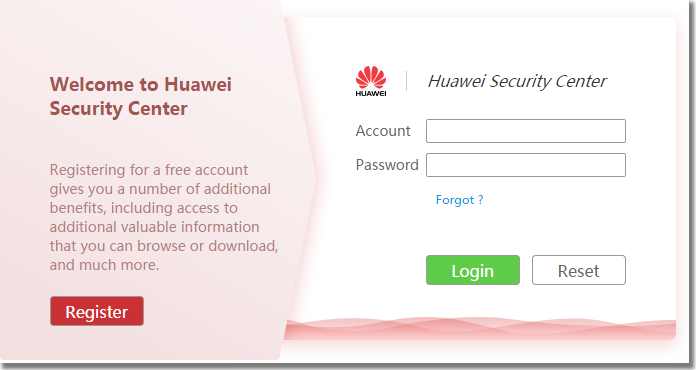
The account is the cloud account used to configure the cloud sandbox on the FW. You can configure a cloud account on the FW to bind the FW with the cloud account. You can also choose on the security center platform isecurity.huawei.com, click Add a Device on the Interactive Detection Device page, enter the ESN of the corresponding FW to bind the FW with the cloud account.
If no cloud account is available, click the Reguster button in the upper right corner on the homepage or login page of the security center platform to register an account, and then log in to the platform.
- On the homepage of Huawei security center platform, click Cloud Detection to enter the Huawei Cloud Sandbox page.
Introduction to Huawei Cloud Sandbox Pages
Huawei cloud sandbox has three pages: DashBoard, Report, and UploadSample. Content on each page is described as follows:
DashBoard Page
The DashBoard page collects statistics on and displays file detection results from multiple dimensions, analyzes and summarizes the results, and provides threat processing suggestions. The DashBoard page falls into four blocks of content: query area, statistical charts, detection result summarization, and threat processing suggestions. The latter three display, analyze, and summarize the query results.
-
You can filter existing data based on different time ranges (such as Last 24 hours, Last 7 days, Last 30 days, and Last 90 days) and sources (such as Manual, device ESN, and device alias). Click Query to display detection results of the corresponding time range and source.

-
This area presents queried detection results from five different dimensions so that you can have a comprehensive understanding of malicious files on the current network.
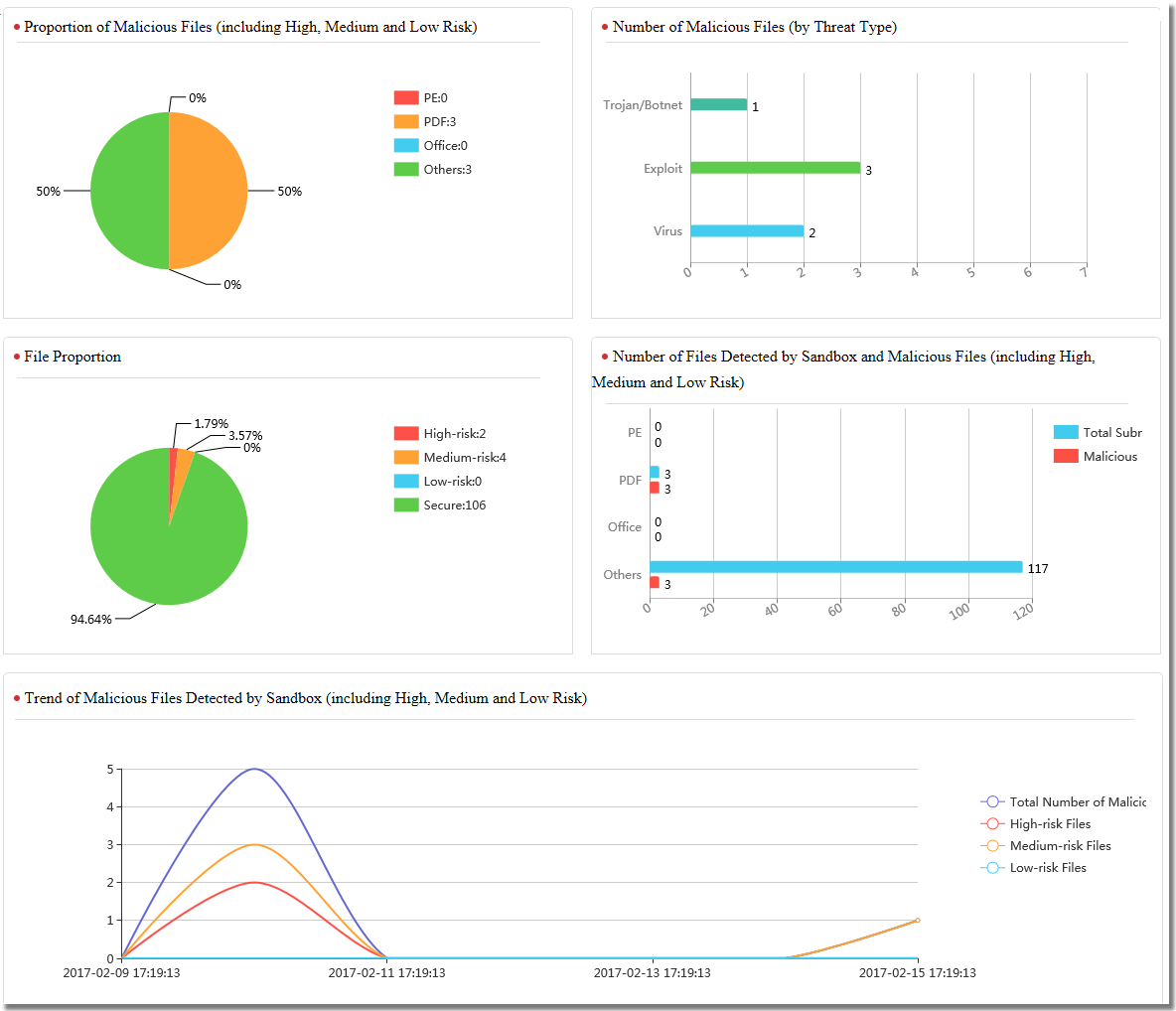
For detailed statistical chart information, see Table 1.
Table 1 Statistical chart information Parameter Description Proportion of Malicious Files (including High, Medium and Low Risk) Proportion of malicious files by file type Number of Malicious Files (by Threat Type) Number of files by threat type File Proportion Proportions of files detected as high-risk, medium-risk, low-risk, and secure Number of Files Detected by Sandbox and Malicious Files (including High, Medium and Low Risk) Total number of submitted files by file type and comparison of the number of malicious files by file type Trend of Malicious Files Detected by Sandbox (including High, Medium and Low Risk) Number of high-risk, medium-risk, and low-risk files, and the trend of the total number of malicious files - On the dashboard presenting the file detection result percentages and malicious file type (high-risk, medium-risk, and low-risk files) percentages, click a diagram to jump to the Report page to view the list of the corresponding file detection reports.
- You can enable the system to display or not display certain file types by setting the category tag. After you click the category tag, it becomes unavailable, and the page does not display the data of the corresponding category. If you click the category tag again, it becomes available, and the page displays the data of the corresponding category.
- Summary of Detection Results
Detection results are summarized from multiple dimensions of the total number, threat level (secure, low-risk, medium-risk, and high-risk), and detection status (being detected and detection failed). You can have a good understanding of the security risks or threats confronting the networks of various devices.

- Threat Treatment Recommendation
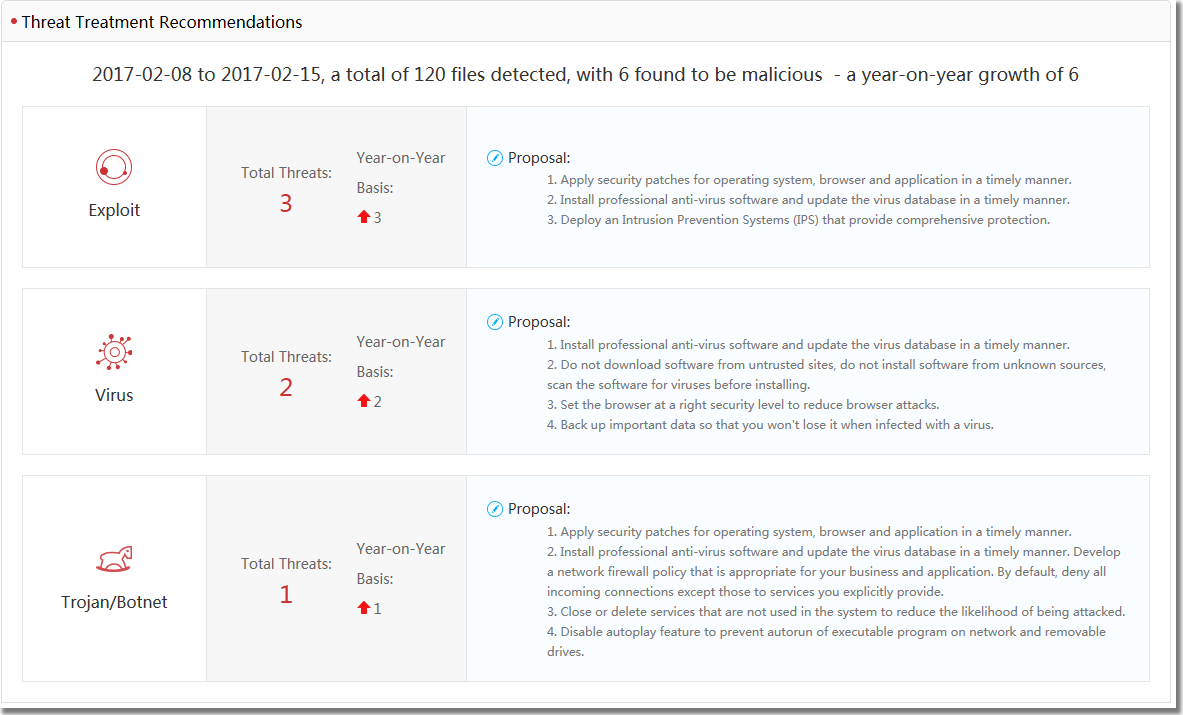
The threat processing suggestion area displays the total number of threats and number of increased or decreased malicious files within the given time range by malicious file type (such as virus, Trojan horse/botnet, and vulnerability exploitation), and gives corresponding threat processing suggestions.
Report
On the Report page, you can query and view file detection reports by setting search conditions, as shown in Figure 1.
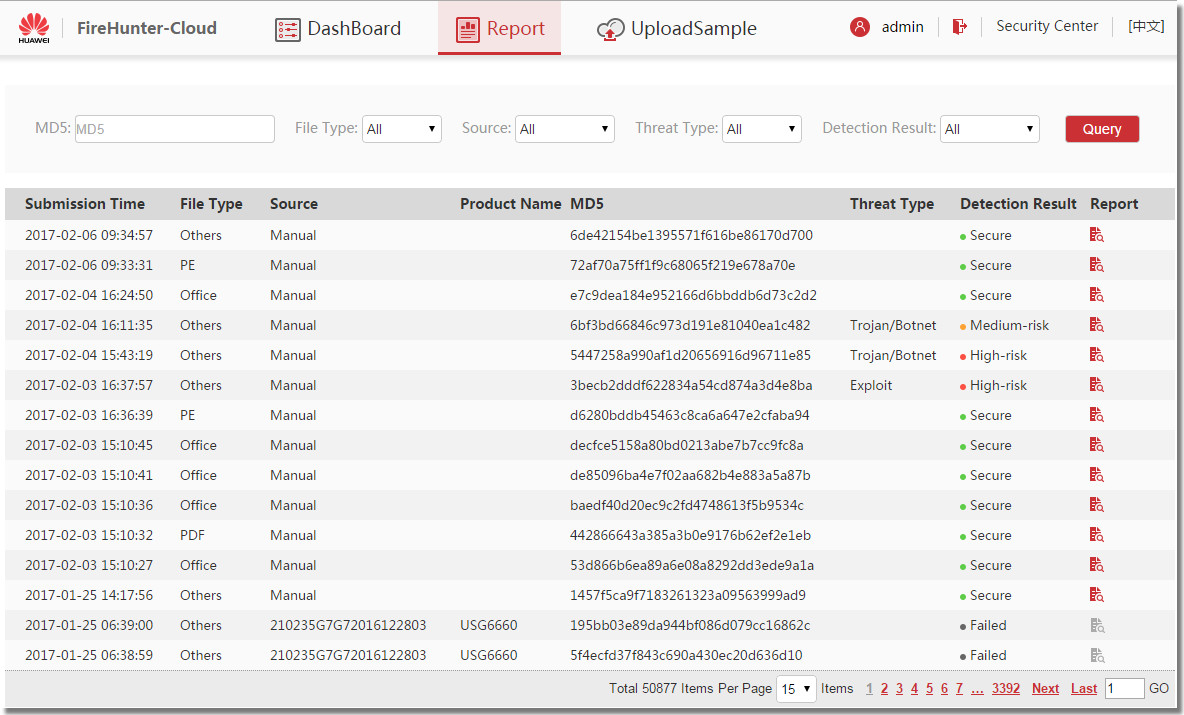
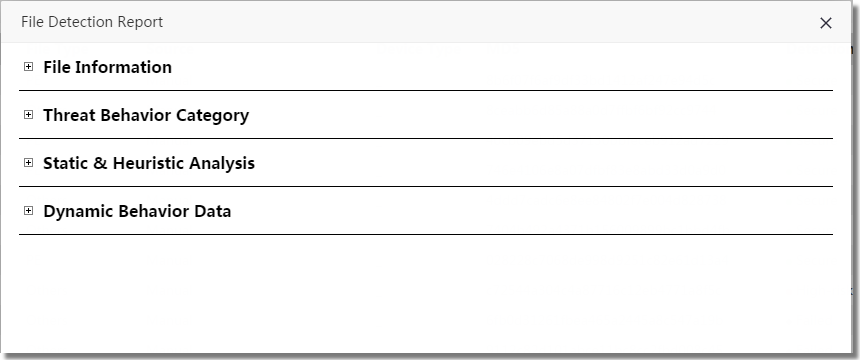
To view the details of a detection report, click the corresponding button in the Report column.For details about the Report page and page information, see Figure 2 and Table 2.
| Parameter | Description |
|---|---|
| File information | File name, size, and type, MD5 value, detection duration, and detection result |
| Threat behavior category | Threat behavior categories, such as incorrect format, defect, known malicious software characteristics, or process, service, and memory object changes |
| Static and heuristic detection | AV engine, file vulnerability detection, and static detection results |
| Dynamic behavior data | Virtual implementation environment of files and host behaviors |
UploadSample
The cloud sandbox can detect both files sent by the FW and files manually submitted. As shown in Figure 3, you can manually submit file samples to the cloud sandbox for detection. You can submit only 1 file at a time and a maximum of 100 files a day, and the file is no smaller than 1 MB and no larger than 10 MB.
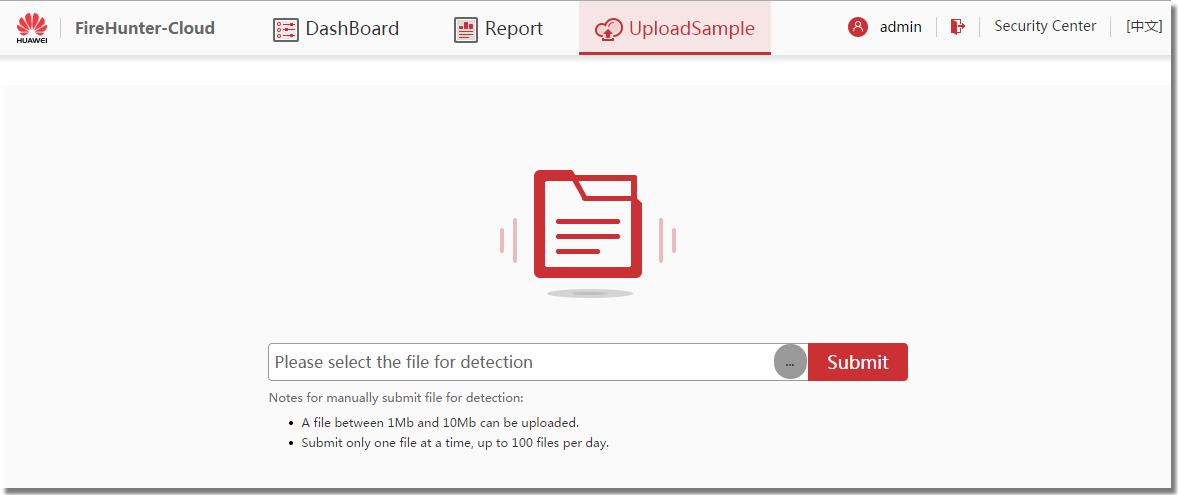
- To view detection results of manually submitted files on the DashBoard page, set Source to Manual, and click Query.
- To query detection reports of manually submitted files on the Report page, set Source to Manual, and click Query.