Customizing Antivirus-related Notifications
This section describes how to customize antivirus-related notifications on the FW to meet diversified requirements.
Faced Problems
When detecting and processing a virus-infected file, the FW will generate a notification. Enterprise network administrators expect that the notification can be customized.
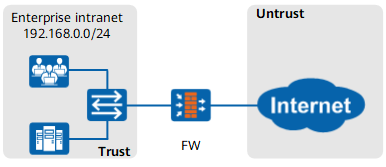
Solution
When detecting viruses for traffic of a mail protocol and HTTP, the FW displays notifications based on the configured actions.
- For a mail protocol, if the action is set to Declare or Delete Attachment in the antivirus profile and the FW detects a mail carries a virus-infected file, the FW takes the action and adds a notification to the mail body.
- For HTTP, if the action is set to Block in the antivirus profile and the FW detects that a web page has a virus-infected file, the FW blocks the access from a user to the web page and pushes the web page with a notification to the user.
Administrators can customize notifications to meet diversified requirements.
-

Click Email Declaration in Antivirus or click Import to download the notification template and edit notifications in the template.
In the template, %FILE indicates the name of a virus-infected file. The notification contains only file %FILE. When pushing a notification, the FW will automatically replace %FILE with the actual one.
The size of the notification template file cannot exceed 1 KB.
Click Email Delete Attachment in Antivirus or click Import to download the notification template and edit notifications in the template.
In the template, %FILE indicates the name of a virus-infected file. The notification contains only file %FILE. When pushing a notification, the FW will automatically replace %FILE with the actual one.
The size of the notification template file cannot exceed 1 KB.
Click Virus-infected File Blocking in Antivirus or click Import to download the notification template and edit notifications in the template.
In the Virus-infected File Blocking notification template, parameter %FILE_NAME indicates the name of a virus-infected file. Each notification message must contain only one %FILE_NAME. The FW automatically replaces %FILE_NAME with the actual value when sending notification messages.
The size of the notification template file cannot exceed 21 KB.
Click Email Declaration, Email Delete Attachment, or Virus-infected File Blocking or click Import. Then click Browse to select a template file.
- Click Import.
- Click OK.
Verification
Set the action to Declare for SMTP in the antivirus profile, reference the antivirus profile in the security policy, and send a mail carrying the EICAR test file. The FW adds a customized notification in the mail body. Upon receiving the mail, users can find the notification in the mail body.
Set the action to Delete Attachment for SMTP in the antivirus profile, reference the antivirus profile in the security policy, and send a mail carrying the EICAR test file. The FW deletes the EICAR test file in the attachment and adds the customized notification in the mail body. Upon receiving the mail, users can find the notification in the mail body.
Set the action to Block for SMTP in the antivirus profile, reference the antivirus profile in the security policy, and access the web page that has the EICAR test file. The FW blocks the access to the page and pushes the web page with the customized notification.
Configuration Scripts
None.