Updating Local Reputation Using the Web UI
This section describes how to update local reputation using the web UI.
Procedure
- Choose .
- Click Configure Local Reputation Update.
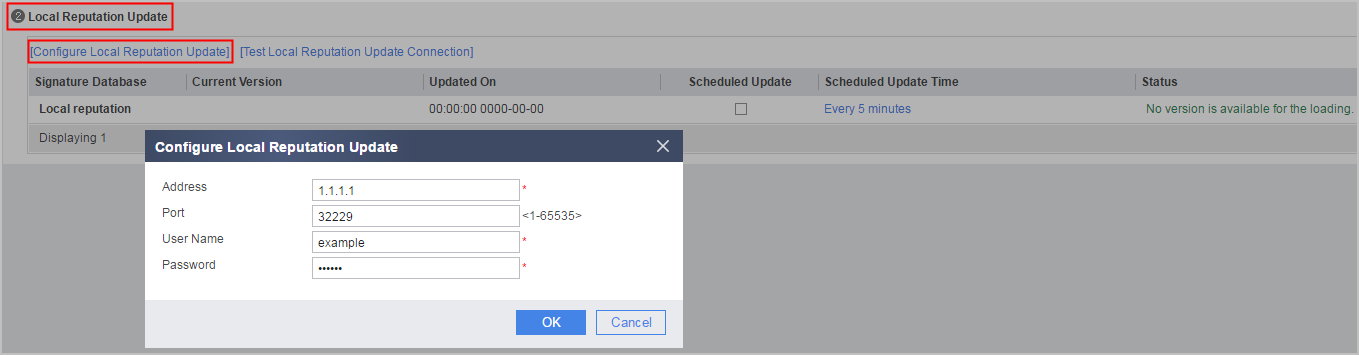
- In the Configure Local Reputation Update dialog box displayed, set parameters for connecting the FW with the HiSec Insight.
Parameter
Description
Address
Indicates the IP address of the HiSec Insight to be accessed during the update. The value can only be an IP address.
Port
Indicates the port number of the HiSec Insight. The default value is 32229.
User Name
Indicates the user name and password for logging in to the HiSec Insight, which are the same as those configured on the HiSec Insight server.
Password
- Click OK.
- Select Scheduled Update in the line of local reputation to enable scheduled local reputation update.
By default, the scheduled local reputation update function is disabled.
- Click Scheduled Update Time in the line of local reputation to set the interval for scheduled update.
The update is performed every five minutes by default.
- Click OK to complete the configuration.
- After the update is complete, you can view that Status is The online upgrade succeeded and that Current Version is the target version.
Follow-up Procedure
If the Status information indicates that the update fails, you can run the Test Local Reputation Update Connection to find the failure cause.
After you click Test Local Reputation Update Connection, the system automatically detects the connectivity between the FW and the HiSec Insight. A dialog box is displayed on the web UI, displaying the detection process and providing specific causes and handling suggestions when the connection fails.