How Can I Clear the Alarm "Your certificate of calibration is illegal, continue to log in?"
Symptom
When a mobile user uses the SecoClient to log in to the FW over an SSL VPN tunnel, the system displays the following alarm information:
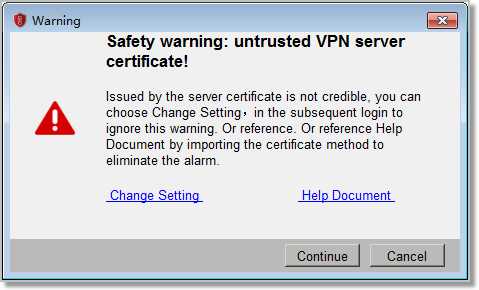
- Click the Change Setting, Deselect Block links to Untrust Servers.
If the authenticity of the FW's identity can be identified, the method can be used.
Issue certificates to the SecoClient and FW.
Produce two certificates and place the device certificate on the FW and the CA certificate on the host where the SecoClient resides. If the enterprise has its own certificate system, use the enterprise's certificate system to produce certificates. If the enterprise does not have any certificate system, use the XCA software to produce certificates.
When the SecoClient accesses the FW over an SSL VPN tunnel, the FW sends a device certificate to the SecoClient. As long as the CA certificate of the SecoClient can be used to verify the device certificate of the FW, the system does not generate the alarm.
If the authenticity of the FW's identity cannot be identified, the method can be used.
Procedure
- Download the XCA software from the website and install it.
- Open the XCA software. In File, create a database and set a database name and a password for logging in to the database. This database is used to store key pairs and certificates.
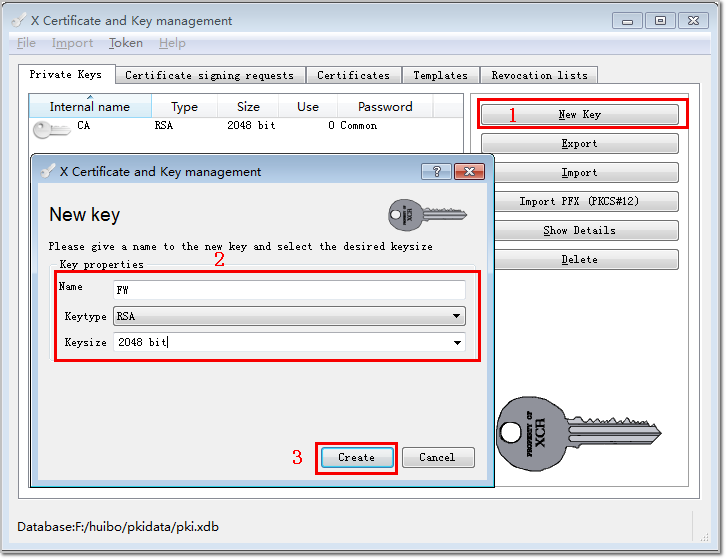
- On the Private Keys tab, generate a public and private key pair for the CA certificate.
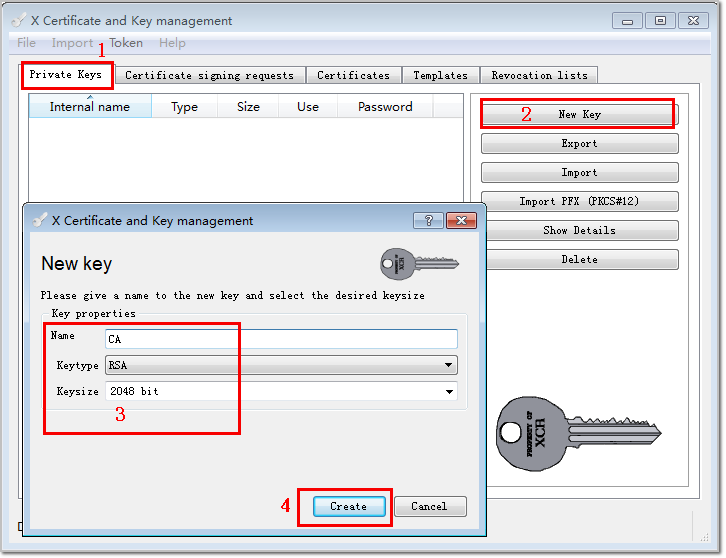
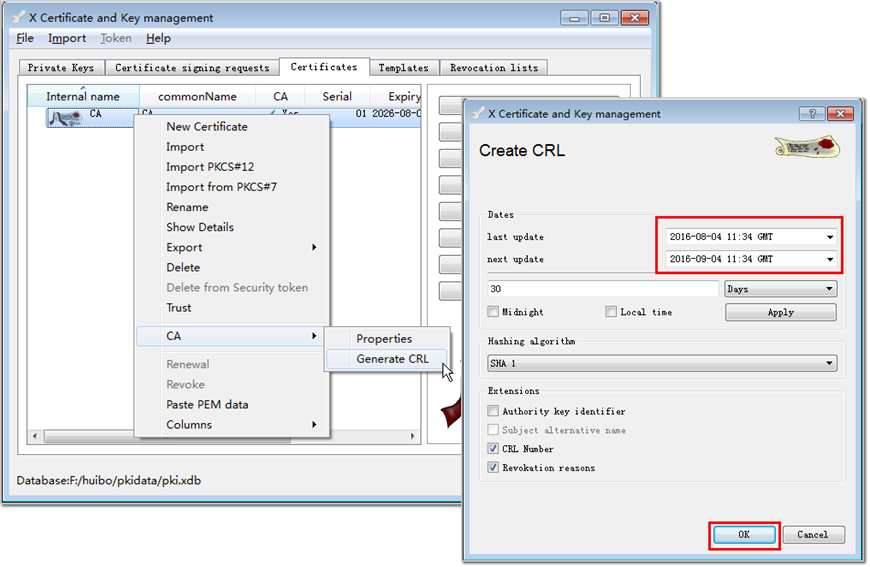
- On the Certificates tab, generate a CA certificate.
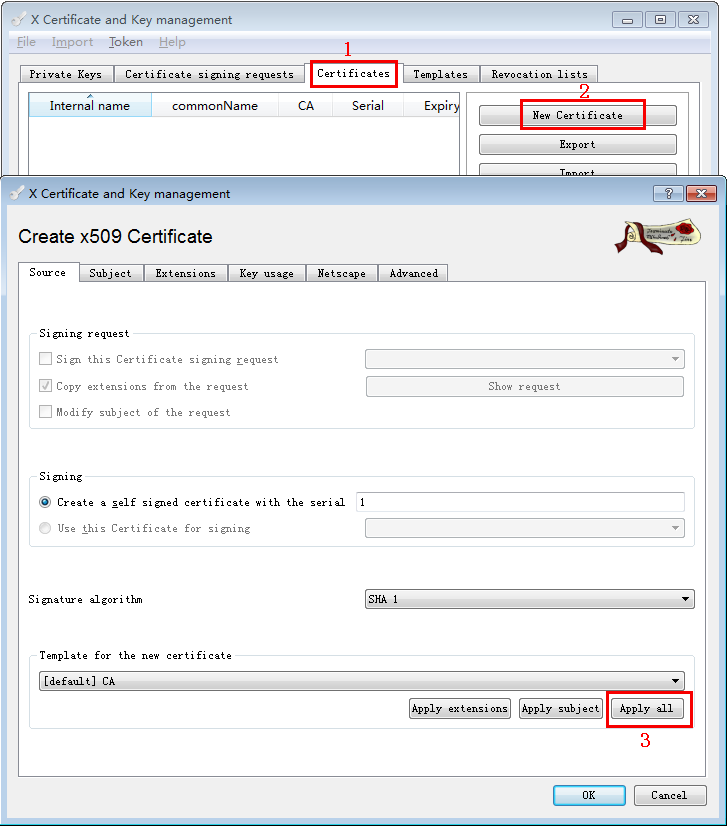
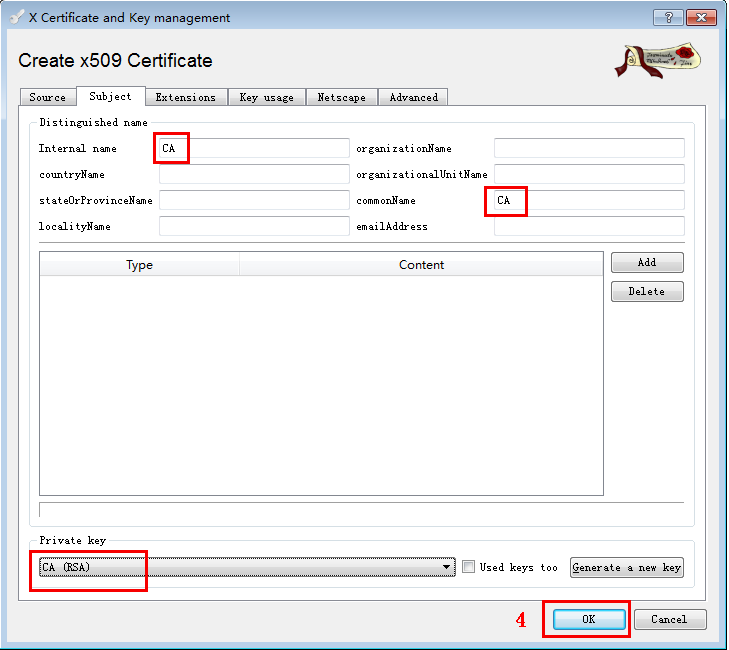
- Set a validity period for the CA certificate.
- Generate a public and private key pair for the device certificate of the FW.
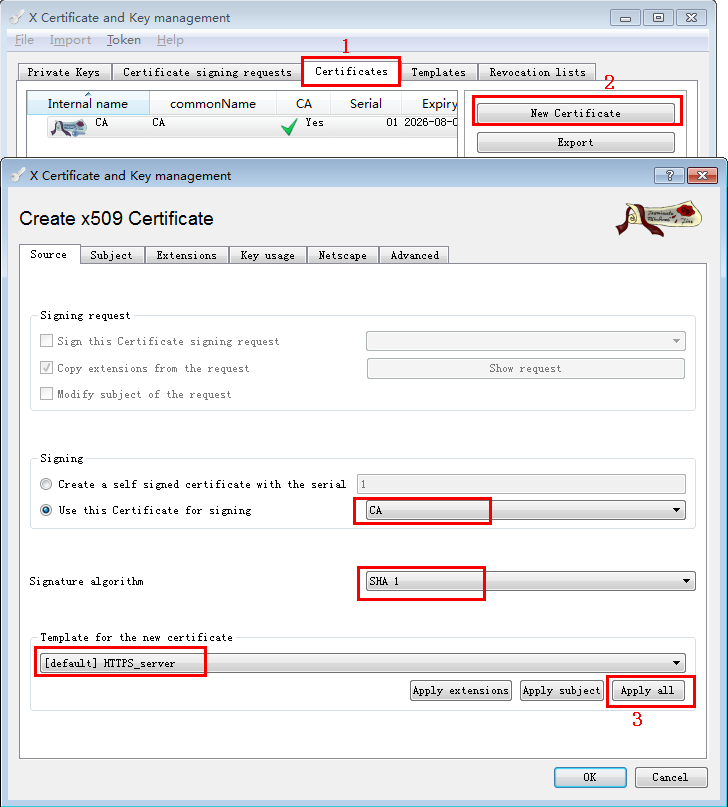
- On the Certificates tab, generate a device certificate for the FW.
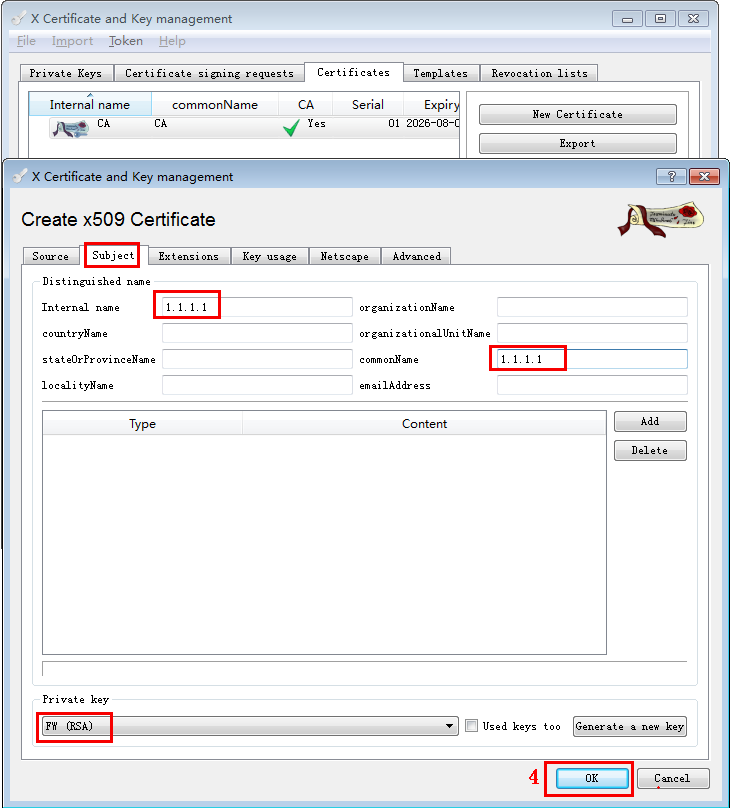
When generating the device certificate, select CA for Use this Certificate for signing on the Source tab, indicating that the device certificate can be verified by the CA certificate. In this way, when establishing an SSL VPN tunnel, the SecoClient can use the CA certificate to verify the validity of the device certificate of the FW. Internal name and commonName are set to the IP address of the VPN gateway that provides VPN services. In this section, Internal name and commonName are set to 1.1.1.1.
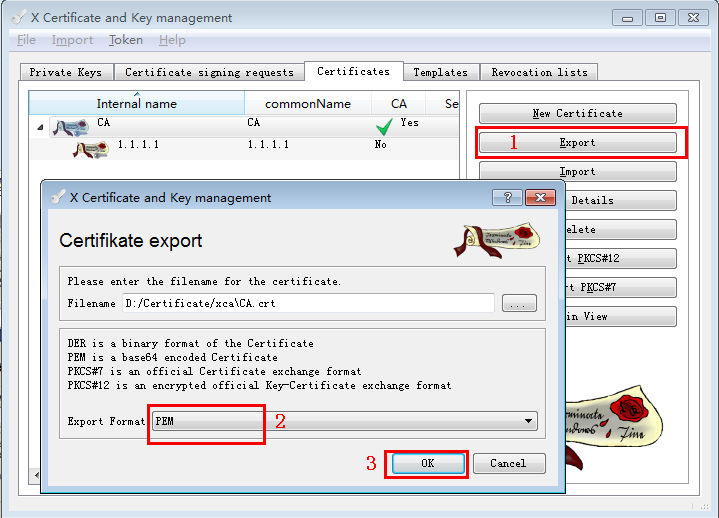
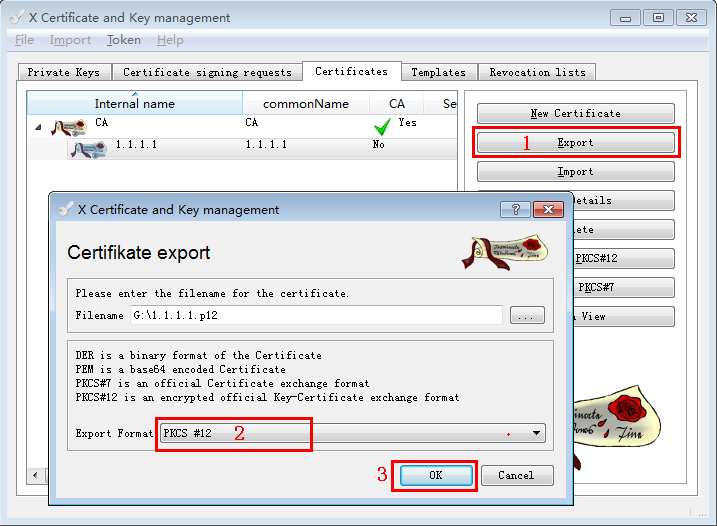
- Exports the CA certificate into a PEM file and device certificate into a PKCS #12 file.
- Place the CA certificate on the PC where the SecoClient resides and install it.
- Double-click the CA certificate file. In the window that is displayed, click Install Certificate.
- Click Next as prompted until the certificate installation is complete.
During installation, use the default values in the dialog box.
- Load the certificate on the FW.
- Log in to the FW and choose .
- Click
 of the virtual gateway. Select Update Local Certificate from the Certificate Authentication drop-down list.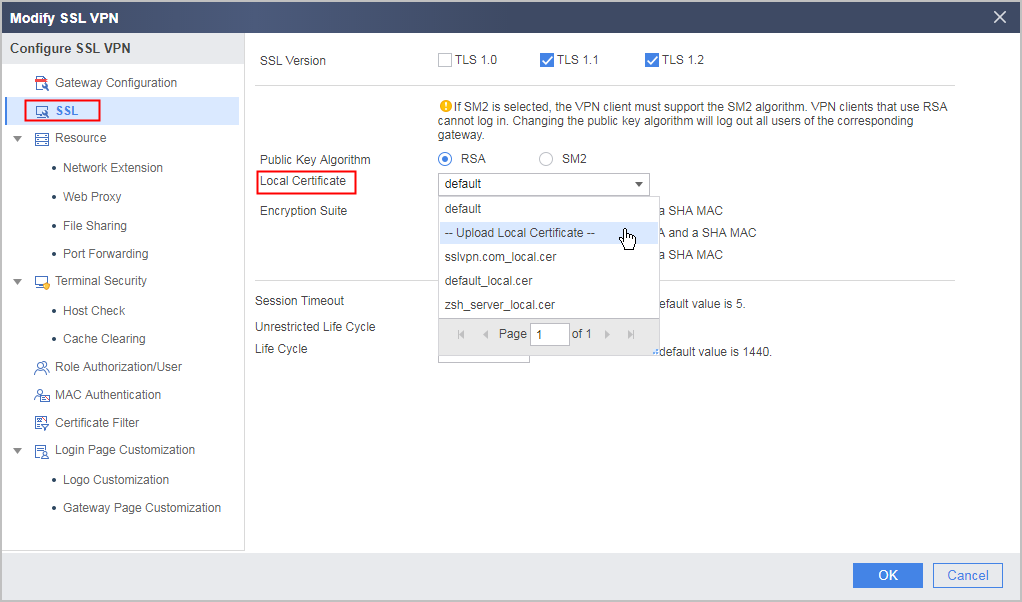
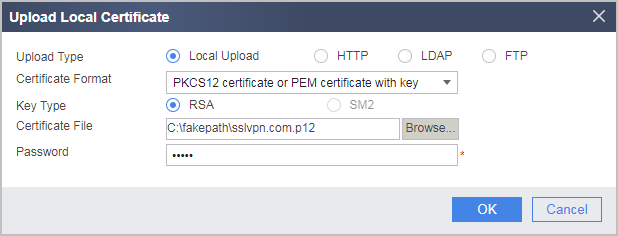
- Import the device certificate.
The password is the one set during device certificate export.
- Return to the configuration UI of the virtual gateway and click OK.
- Re-log in to the FW from the SecoClient.
If the alarm is cleared, the certificate Verifying the Configuration succeeds.