CLI: Example for Logging In to the CLI Using Telnet (Local Authentication)
By default, Telnet is disabled on the device. You need to establish a Telnet login environment. This section provides an example for configuring how to log in to the CLI using Telnet.
Networking Requirements
Figure 1 shows that the FW has a local administrator. The local administrator has some administrator permissions and can use Telnet to log in to the CLI only from a local PC for FW management and maintenance. The FW implements local authentication on administrators.
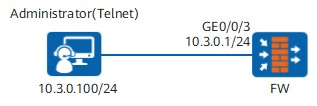
Data Planning
Item |
Data |
Description |
|---|---|---|
VTY interface timeout period |
5 minutes |
The default period is 10 minutes. |
Maximum number of authentication attempts allowed |
2 |
The default value is 3. |
Lockout period |
10 minutes |
The default period is 30 minutes. |
Administrator account/password |
vtyadmin/Mydevice@abc |
Note down the user name and password in case you forget them. |
IP address of the administrator's PC |
10.3.0.100/255.255.255.0 |
- |
Procedure
- If you log in to the CLI for the first time, reference Logging In to the CLI Through the Console Port and establish the Telnet login environment.
- Enable the Telnet service for IPv4 or IPv6. IPv4 is used as an example.
<FW> system-view
[FW] telnet server enable
- Optional: Configure the login interface.

If you use the default settings of management interface to log in to the device, do not perform this step.
Because the default IP address of the management interface has been set to 192.168.0.1, the interface has been added to the Trust zone, and the administrator is allowed to log in to the device using Telnet.
- Configure the VTY administrator interface.
Set the authentication mode of the VTY administrator interface to AAA and idle disconnection duration to 5 minutes (the default value is 10 minutes).
The number of default VTY administrator interfaces is five. To add more interfaces, run the user-interface maximum-vty number command.
[FW] user-interface vty 0 4
[FW-ui-vty0-4] authentication-mode aaa
[FW-ui-vty0-4] protocol inbound telnet
[FW-ui-vty0-4] user privilege level 3
[FW-ui-vty0-4] idle-timeout 5
[FW-ui-vty0-4] quit
- Configure the Telnet administrator.
- Optional: Create an administrator role.
Ignore this step if the default administrator role is used.
[FW] aaa
[FW-aaa] role service-admin
[FW-aaa-role-service-admin] description policy_object_network_readwrite_and_other_modules_none
[FW-aaa-role-service-admin] dashboard none
[FW-aaa-role-service-admin] monitor none
[FW-aaa-role-service-admin] system none
[FW-aaa-role-service-admin] network read-write
[FW-aaa-role-service-admin] object read-write
[FW-aaa-role-service-admin] policy read-write
[FW-aaa-role-service-admin] quit
- Optional: Create an administrator role.
- Configure the local administrator PC as follows:
Configuration Scripts
#
 telnet server enable
#
interface GigabitEthernet0/0/3
 ip address 10.3.0.1 255.255.255.0
 service-manage enable
 service-manage telnet permit
#
user-interface vty 0 4
 authentication-mode aaa
 protocol inbound telnet
 user privilege level 3
 idle-timeout 5
#
aaa
 authentication-scheme default
#
 manager-user vtyadmin
  password cipher %@%@*y:3*ZN}.%%qcL1cCyDwlB.|@XBVMDWq'6JF(iOz2D8>A\SN%@%@
  service-type telnet
  level 15
#
 lock-authentication enable
 lock-authentication failed-count 2
 lock-authentication timeout 10
#
 bind manager-user vtyadmin role service-admin
role service-admin
  description policy_object_network_readwrite_and_other_modules_none
 dashboard none
 monitor none
 system none
 network read-write
 object read-write
 policy read-write
#
firewall zone trust
 set priority 85
 add interface GigabitEthernet0/0/3
#
return