CLI: Example for Configuring FTP ASPF
In the applications of multi-channel protocols and NAT, ASPF acts as an important auxiliary means. This example describes how to configure ASPF, so that intranets can provide FTP service normally.
Networking Requirements
The FW is deployed at the egress of an enterprise that provides FTP service.
To enable intranet users to access the FTP server, in addition to configuring a security policy to allow the establishment of a control connection between the intranet users and FTP server, you need also to enable ASPF for FTP in the interzone to ensure that a data connection can be successfully established between the intranet users and FTP server.
Figure 1 shows the networking diagram.
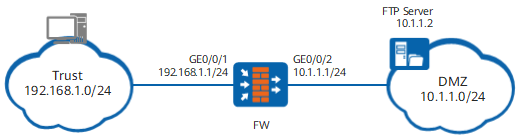
Data Planning
Data |
Description |
|---|---|
Interface number: GigabitEthernet 0/0/1 IP address: 192.168.1.1 Security zone: Trust |
The interface is connected to the PC of the employee through the switch. They are on the same network segment. |
Interface number: GigabitEthernet 0/0/2 IP address: 10.1.1.1 Security zone: DMZ |
The interface is connected to the server through the switch. They are on the same network segment. |
IP address range: 192.168.1.0/24 |
The IP addresses of the PCs of all employees are classified into the network segment and deployed in the Trust zone. |
FTP server: 10.1.1.2/24 |
FTP server is deployed in the DMZ. |
Procedure
- Set the IP addresses of interfaces, and add the interfaces to corresponding security zones.
<FW> system-view
[FW] interface GigabitEthernet 0/0/1
[FW-GigabitEthernet0/0/1] ip address 192.168.1.1 24
[FW-GigabitEthernet0/0/1] quit
[FW] interface GigabitEthernet 0/0/2
[FW-GigabitEthernet0/0/2] ip address 10.1.1.1 24
[FW-GigabitEthernet0/0/2] quit
[FW] firewall zone trust
[FW-zone-trust] add interface GigabitEthernet 0/0/1
[FW-zone-trust] quit
[FW] firewall zone dmz
[FW-zone-dmz] add interface GigabitEthernet 0/0/2
[FW-zone-dmz] quit
- Configure a security policy to allow intranet users to access the FTP server.
[FW] security-policy
[FW-policy-security] rule name policy_sec_ftp
[FW-policy-security-rule-policy_sec_ftp] source-zone trust
[FW-policy-security-rule-policy_sec_ftp] source-address 192.168.1.0 24
[FW-policy-security-rule-policy_sec_ftp] destination-zone dmz
[FW-policy-security-rule-policy_sec_ftp] destination-address 10.1.1.2 32
[FW-policy-security-rule-policy_sec_ftp] service protocol tcp destination-port 21
[FW-policy-security-rule-policy_sec_ftp] action permit
[FW-policy-security-rule-policy_sec_ftp] quit

To protect the FTP server, you are advised to configure refined matching conditions in the security policy to allow intranet users to access only port 21 on the FTP server. In this example, the FTP server uses the well-known port (TCP 21) to provide FTP services.
- Run the detect ftp command in the interzone to realize the normal forwarding of FTP packets.
[FW] firewall interzone trust dmz
[FW-interzone-trust-dmz] detect ftp
[FW-interzone-trust-dmz] quit
Configuration Scripts
The following lists the related scripts of this configuration example.
#
 sysname FW
#
interface GigabitEthernet0/0/1
 ip address 192.168.1.1 255.255.255.0
#
interface GigabitEthernet0/0/2
 ip address 10.1.1.1 255.255.255.0
#
 firewall zone local
 set priority 100
#
firewall zone trust
 set priority 85
 add interface GigabitEthernet0/0/1
#
firewall zone dmz
 set priority 50
 add interface GigabitEthernet0/0/2
#
security-policy
 rule name policy_sec_ftp
  source-zone trust
  destination-zone dmz
  source-address 192.168.1.0 24
  destination-address 10.1.1.2 32
  service protocol tcp destination-port 21
  action permit
#
firewall interzone trust dmz
 detect ftp
#
return