Configuring an LDAP Server
This section describes how to set parameters for a FW to communicate with an LDAP server.
Context
When an LDAP server is deployed to implement authentication on users, you must import user information on the LDAP server to a FW. During user authentication, the FW serves as a proxy client and sends user names and passwords to the LDAP server. To ensure normal communication between the FW and the LDAP server, set the parameters on the FW.
Procedure
- Choose .
- Click Add.
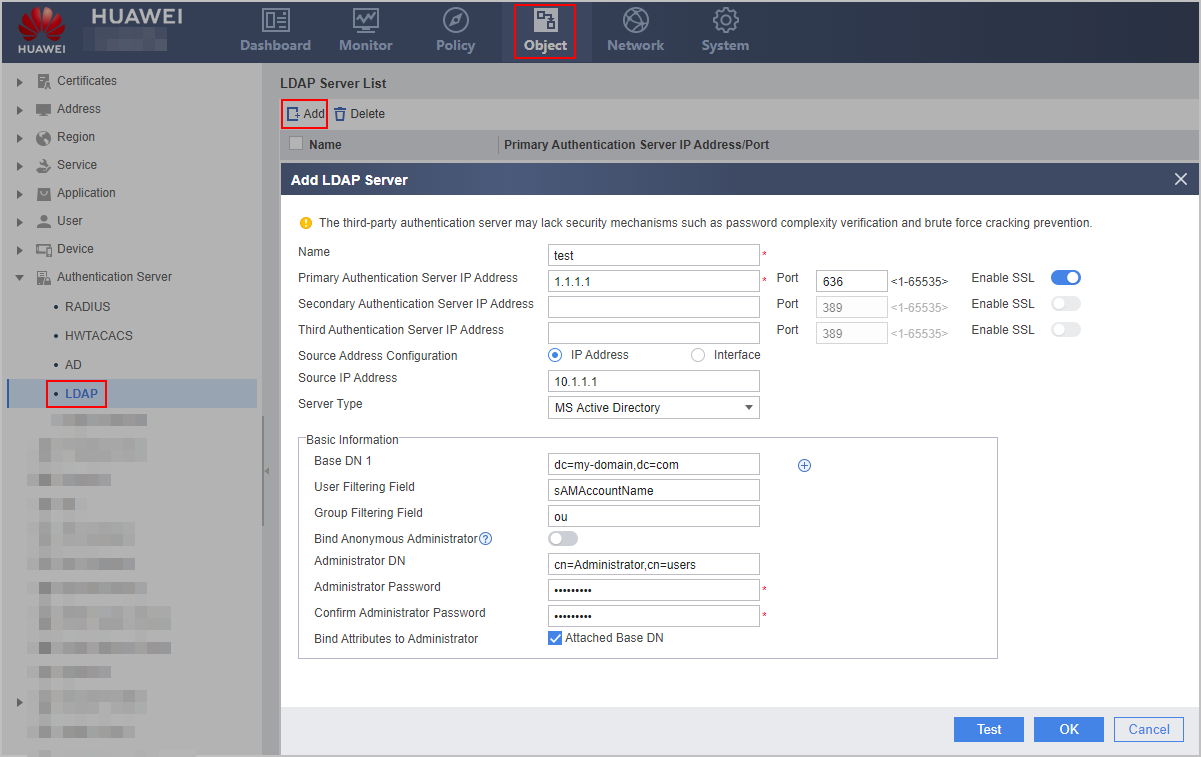
- Configure the parameters for communication with an LDAP server.

The parameter settings on the FW must be consistent with those on the LDAP server.
For the V600R007C20 version, whether to enable SSL for LDAP authentication cannot be configured on the web UI. When you configure the LDAP server on the web UI, no SSL (no-ssl) is enabled by default. To enable SSL (ssl), perform the configuration on the CLI. From V600R007C20SPC100, you can configure whether to enable SSL for LDAP authentication on the Web UI. Since no-ssl has security risks, ssl is recommended. When ssl is deployed, it must also be enabled on the LDAP server. For details, see the operating system guide of the LDAP server.
Parameter
Description
Name
Name of an LDAP server
Primary Authentication Server IP Address/Port
IP address and port of the primary LDAP server that provides authentication services
Secondary Authentication Server IP Address/Port
IP address and port of the secondary LDAP server that provides authentication services
A FW preferentially communicates with the primary LDAP server. If the primary LDAP server is unreachable, the FW communicates with the secondary LDAP server.
Third Authentication Server IP Address/Port
IP address and port of the third LDAP server that provides authentication services
A FW preferentially communicates with the primary or secondary LDAP server. If the primary and secondary LDAP server is unreachable, the FW communicates with the third LDAP server.
Enable SSL
Whether to use LDAP over SSL for encrypted transmission during LDAP authentication.
During LDAP authentication, LDAP is used in interaction between the device and LDAP server. LDAP data is not encrypted during transmission. For security purposes, you can enable SSL to use LDAP over SSL for encrypted transmission. In this case, you need to deploy the LDAPS server and import the CA certificate corresponding to the LDAPS server certificate into the device to authenticate the LDAPS server.
Source Address Configuration
By default, the FW uses the actual outbound interface IP address to communicate with the LDAP server. To enable the FW to use another IP address to communicate with the LDAP server, configure this parameter. You can configure either the IP address or the interface.
For example, in the networking where two FWs serve as the egress gateways of the headquarters and branch respectively, if the branch FW needs to have an IPSec tunnel established between the branch and headquarters and proactively communicates with the LDAP server at the headquarters, you can specify the source IP address used by the branch FW to communicate with the LDAP server so that communication packets between the branch FW and LDAP server can be transmitted through the IPSec tunnel.
If you do not specify the source IP address used by the branch FW to communicate with the LDAP server, the branch FW uses the actual outbound interface IP address to communicate with the LDAP server. In this case, communication packets cannot be transmitted through the IPSec tunnel.
Source IP Address
Source IP address used by the FW to communicate with the LDAP server.
In hot standby networking, if the FW needs to import the user/user group/security group from the LDAP server, do not specify the source IP address as the virtual IP address. If so, the active device can import the user/user group/security group from the LDAP server, whereas the standby device cannot.
Interface
Source interface selected from the drop-down list and used by the FW to communicate with the LDAP server, which can be a loopback or VLANIF interface.
Server Type
The LDAP server type is selected based on the type of the peer LDAP server.- MS Active Directory
- Sun ONE LDAP
- Open LDAP
- IBM Tivoli Directory
When the FW connects to a Microsoft AD server, you can configure AD Server or configure the LDAP server of the MS Active Directory type. AD server authentication contains the Kerberos authentication and standard LDAP authentication processes, whereas the LDAP server authentication contains only the LDAP authentication process.
Basic Information
Base DN 1
Base distinguished name (DN) of an LDAP server, which indicates the starting position for entry search.
To add multiple Base DNs, click Add and enter the Base DN of the LDAP server.
User Filtering Field
User filtering field of an LDAP server. The default value is recommended.
Group Filtering Field
Group filtering field of an LDAP server. The default value is recommended.
Bind an Anonymous Administrator
Whether to allow an anonymous administrator
If you select Bind an Anonymous Administrator, the LDAP server supports anonymous authentication.
Administrator DN
Administrator DN used for obtaining the permission to operate an LDAP server
In common cases, the administrator DN is under the Base DN. You do not need to enter the full path of an administrator DN when the Base DN is to be attached to the administrator DN.
For example, on the LDAP server of the Windows Server 2003 operating system, the administrator account is under Base DN example.com and belongs to the users group. In this case, set the administrator DN to either of the following values:
- cn=administrator,cn=users if Attached Base DN in Bind Attributes to Administrator is selected.
- cn=administrator,cn=users,dc=example,dc=com if Attached Base DN in Bind Attributes to Administrator is not selected.
Administrator Password
Administrator password of an LDAP server
Confirm Administrator Password
Administrator password (of an LDAP server) re-entered for confirmation
Bind Attributes to Administrator
Whether to attach the Base DN to the administrator DN
If the Base DN does not include the administrator DN, deselect Bind Attributes to Administrator. Note that you must enter the full path in Administrator DN.
- Click Test. In the dialog box that is displayed, click OK and enter the user name and password. Click Start to check the connectivity to the LDAP server.
Any user name and password can be used to test connectivity to the server, which means no need to maintain consistency with the user name and password on the server.
After the connectivity test succeeds, click Cancel.
- Click OK.