Manually Configuring the FW to Connect to the Cloud Management Platform
If the FW starts with a specified profile, the deployment personnel must manually configure the FW to connect to the cloud management platform.
Switching the FW Operating Mode
- Through the web UI
The deployment personnel can switch the operating mode of the FW to cloud management mode on the web UI. For details, see Configuring Cloud Management Using the Web UI.
- Through the CLI
The deployment personnel can switch the operating mode of the FW to cloud management mode through the CLI. For details, see Configuring Cloud Management Using the CLI.
- Through USB upgrade
The deployment personnel can place the profile in the USB disk in advance. After the FW starts, it switches its operating mode to cloud management mode, and then the profile in the USB disk is loaded. For details, see Upgrade Through USB.
The USB upgrade mode applies to batch deployment scenarios. Deployment personnel need to configure the profile once only in that this profile can be repeatedly used on multiple devices. Compared with the CLI and web UI modes, the USB mode helps reduce the configuration workload and boost the deployment efficiency.
Connecting the FW to the Cloud Management Platform
After the FW operating in cloud management mode is connected to the Internet, it immediately initiates a connection request towards the cloud management platform. After the connection succeeds and the authentication is passed, the FW is incorporated into the management of the cloud management platform. Figure 1 shows the process.
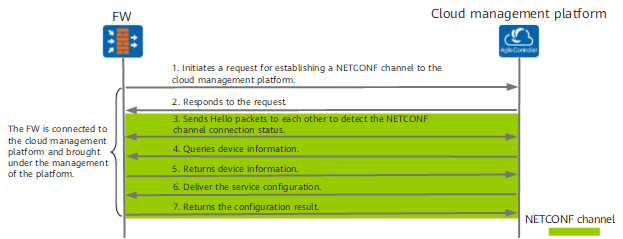
- The FW sends a NETCONF channel connection request towards the specified cloud management platform as configured.
The connection request carries the device certificate of the FW for the cloud management platform to authenticate the FW.
- The cloud management platform returns a NETCONF channel connection response message to the FW.
The established NETCONF channel transmits the subsequent query request and service configuration.
- The FW and cloud management platform send Hello packets to each other to detect the connection status of the NETCONF channel.
- The cloud management platform sends a device information query request towards the FW.
- The FW returns its device information to the cloud management platform.
- The cloud management platform delivers the service configuration to the FW based on the device information acquired in the preceding step.
- The FW returns the configuration result to the cloud management platform.
The cloud management platform can properly deliver the service configuration to the FW, indicating that the FW has been incorporated into the management of the cloud management platform. The FW incorporated into the cloud management platform proactively reports NETCONF Notification alarms to the cloud management platform. For alarm details, see API Development Guide.