Configuring Cloud Management-Standard Wizard
Context
- The standard wizard allows a device to access the Internet in PPPoE, DHCP, or fixed IP address mode.
- If There are problems with the security certificate for this site is displayed on the browser when you log in to https://192.168.0.1:8443/hw, click Continue.
Data Planning
Before configuring the device, prepare the data listed in the following table according to the actual Internet access mode. The data in the following table is for reference only.
Internet Access Mode |
Interface |
Item |
Description |
|---|---|---|---|
PPPoE |
GE0/0/1 |
User name: user Password: Admin@123 Cloud platform address/port: 3.3.3.3:10020 |
Select a service interface for connecting to the Internet. Obtain the data in the Item column from your network service provider or network administrator. |
DHCP |
GE0/0/1 |
Cloud platform address/port: 3.3.3.3:10020 |
|
Fixed IP address |
GE0/0/1 |
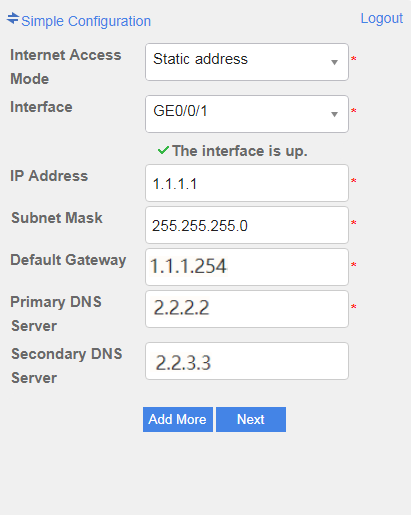
IP address: 1.1.1.1 Mask: 255.255.255.0 Default gateway: 1.1.1.254 Primary DNS server: 2.2.2.2 Secondary DNS server: 2.2.3.3 Cloud platform address/port: 3.3.3.3:10020 |
Procedure
- Connect the device.
- Connect the ground terminal of the firewall to the ground bar in the equipment room using a ground cable.
- Connect a service interface (for example, GE0/0/1) to the Internet using a network cable.
- Connect a power cable.
- Connect the management interface (GE0/0/0) to the PC using a network cable.
- Change the password after login.
- Set Internet access parameters and connect to the cloud platform.
- Click Standard Configuration in the upper left corner of the screen to enter the standard configuration mode.
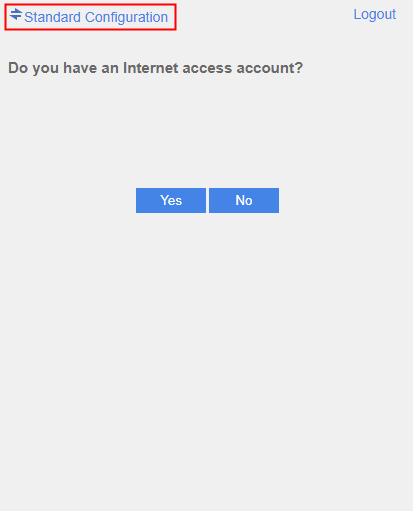
- Select an Internet access mode based on actual requirements and set the parameters as shown in the following figure. If you need to use multiple interfaces to access the Internet, click Add More to configure other interfaces.
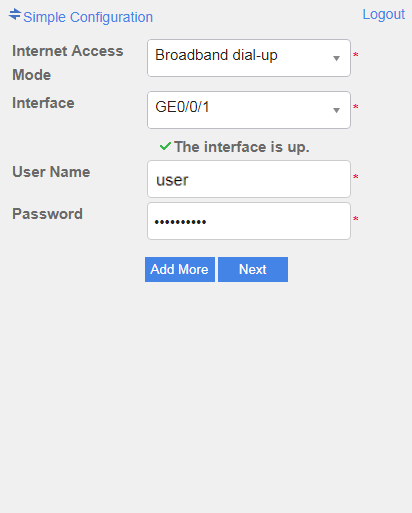
- Broadband dial-up (PPPoE). Select an interface for accessing the Internet based on the cable connection, set User Name and Password, and click Next. Obtain the user name and password from the carrier.

In this example, the PPPoE session is always online.
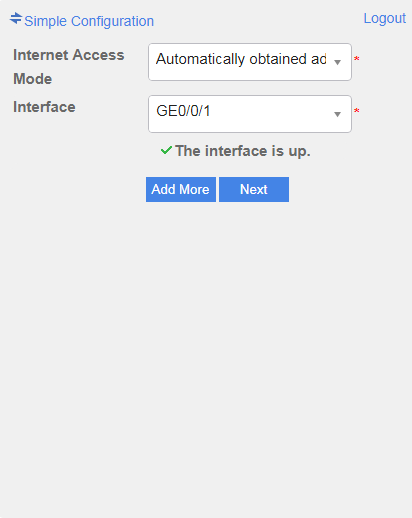
- Automatically obtaining IP addresses (DHCP). Select an interface for accessing the Internet based on the cable connection.
- Fixed IP address. Select an interface for accessing the Internet based on the cable connection, and set IP Address, Subnet Mask, Default Gateway, Primary DNS Server, and Secondary DNS Server based on the networking.
- Broadband dial-up (PPPoE). Select an interface for accessing the Internet based on the cable connection, set User Name and Password, and click Next. Obtain the user name and password from the carrier.
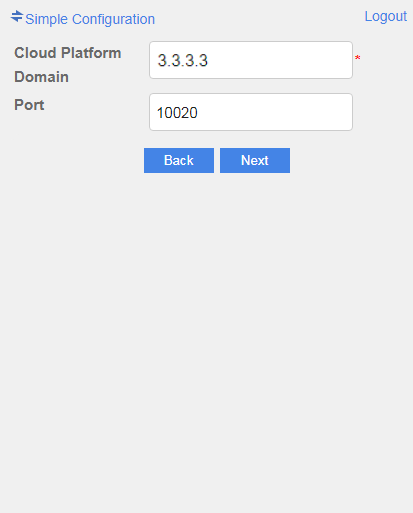
- Set Cloud Platform Domain and Port.
Obtain the IP address/domain name of the cloud management platform from the platform administrator.
Generally, the port number of the cloud management platform is 10020. Obtain the actual port number from the platform administrator.
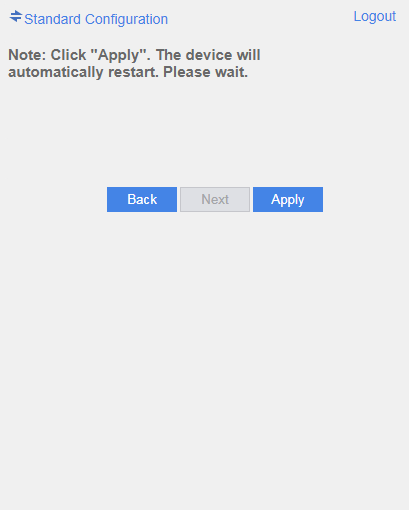
- Click Apply. The device restarts and automatically connects to the cloud platform.
If you need to modify the preceding configurations, restore the factory settings first.
- Click Standard Configuration in the upper left corner of the screen to enter the standard configuration mode.