Source Address Ranking by Real-Time Traffic
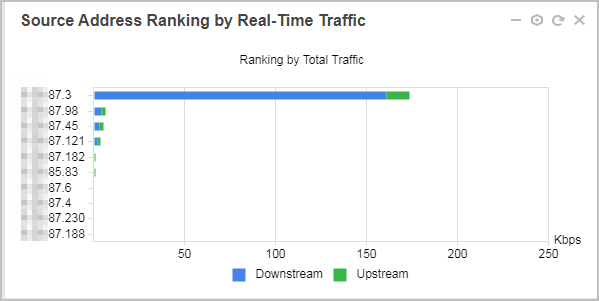
This window displays top 10 source IP addresses by real-time traffic.
If Internet access is slow for some users, you can monitor the real-time traffic trend of a source IP address to check whether the traffic rate or number of sessions regarding this IP address is abnormal. Then, identify bandwidth-consuming services to locate the problem.
You can view real-time monitoring statistics on source IP addresses of the device or virtual systems. In the root system, you can view the real-time traffic statistics of the device (including the root system and all virtual systems) or the root system. In the virtual system, you can view the real-time traffic statistics of the current virtual system.
In the root system, click  to prompt the Source Address Ranking by Real-Time Traffic window, where you can enable or disable the real-time traffic monitoring function. When you enable real-time traffic monitoring, click the drop-down list of Scope, select All virtual systems or public as required, and set Type to Upstream, Downstream, Total, or Session.
In a virtual system, click to prompt the Source Address Ranking by Real-Time Traffic window, where you can enable or disable the real-time traffic monitoring function.
Table 1 describes the dimensions of real-time traffic statistics on source IP addresses.
Parameter |
Description |
|---|---|
up |
Top source addresses ranked based on the upstream traffic. Traffic sent from a source address is regarded as upstream traffic. |
down |
Top source addresses ranked based on the downstream traffic. Traffic received by a source address is regarded as downstream traffic. |
total |
Total traffic (sum of upstream and downstream traffic) |
session |
Number of sessions |

For top N IPv4 statistics, during ranking by traffic, the FW collects statistics on traffic processed by the SPU. Therefore, if hardware fast forwarding is enabled, and the ranking is based on traffic, statistics on traffic fast-forwarded cannot be collected. To collect statistics on all traffic, disable hardware fast forwarding first. IPv6 traffic does not support hardware fast forwarding; therefore, top N IPv6 statistics collection does not have this restriction.
If the ranking is based on sessions, statistics collection is not affected by the hardware fast forwarding function. This is because that sessions are created on the MPU, regardless of whether hardware fast forwarding is enabled.
This topic uses top 10 source IP addresses by device total traffic as an example to show real-time statistics.
- Real-time monitoring consumes a lot of device resources. Therefore, enable this function with caution. Disable this function immediately after using it.
- The per-IP traffic statistics displayed on the panel are the value before the traffic is processed by the bandwidth management function. The traffic policy statistics displayed with the CLI are the value after the traffic is processed by the bandwidth management function. These two values are different.
To view the historical traffic data of an IP address, you can click the bar chart and choose View Details to view the summary data based on this source IP address. You can also view data of this IP address drilled from such dimensions as the destination IP address and application.
Only devices with hard disks support overview data statistics.
Summary data based on a source IP address indicates historical traffic statistics and requires some time to collect. Therefore, the real-time traffic data of some source addresses may be large, but no information is displayed on the page after you click View Details. A possible cause is that the historical statistics collection time is not reached or the traffic volume in the historical time range is too small. This is a normal situation.
If you find that the user corresponding to this IP address downloads a large number of files or watches work-irrelevant content through P2P to occupy a large amount of bandwidth, you can select Add Blacklist to block the IP address.
When you view the real-time traffic of a source IP address of the device, if you click Add Blacklist under a source IP address, the traffic in the virtual system is also blocked.
After the source IP address is blacklisted, the traffic of the source IP address cannot be cleared immediately. You need to wait until the data of the next source IP address with heavy traffic overwrites the original data.
You can click the bar chart of a source IP address in the preceding diagram to view general data of this IP address, namely, historical traffic data of this IP address filtered based on user-defined time. You can also view data of this IP address drilled from such dimensions as the application dimension.