Configuration Example for LLDP
This section provides an example for configuring the LLDP function.
Networking Requirements
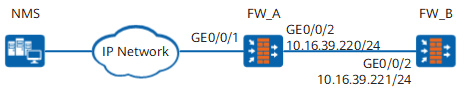
As shown in Figure 1, FW_A connects to FW_B and the NMS respectively. The LLDP function is configured on both FW_A and FW_B, so that the network administrator can check the status of the links connected to FW_A.
Procedure
- Configure the LLDP function on FW_A. Enable the function on GigabitEthernet 0/0/2, set the IP addresses and set the working mode of LLDP to rx. In this way, FW_A receives only the LLDP packets from neighbor nodes.
<FW_A> system-view
[FW_A] lldp enable
[FW_A] lldp management-address 10.16.39.220
[FW_A] interface GigabitEthernet 0/0/2
[FW_A-GigabitEthernet0/0/2] ip address 10.16.39.220 24
[FW_A-GigabitEthernet0/0/2] lldp state rx
[FW_A-GigabitEthernet0/0/2] quit
- Configure the LLDP function on FW_B. Enable the function on GigabitEthernet 0/0/2, set the IP addresses and set the working mode of LLDP to tx. In this way, FW_B sends LLDP packets only to neighbor nodes.
<FW_B> system-view
[FW_B] lldp enable
[FW_B] lldp management-address 10.16.39.221
[FW_B] interface GigabitEthernet 0/0/2
[FW_B-GigabitEthernet0/0/2] ip address 10.16.39.221 24
[FW_B-GigabitEthernet0/0/2] lldp state tx
[FW_B-GigabitEthernet0/0/2] quit
Verification
Run the display lldp neighbor interface GigabitEthernet 0/0/2 command on FW_A to display the information about the LLDP neighbor of the specified interface.
<FW_A> Expired Time: 103 seconds
According to the output that is displayed, GigabitEthernet 0/0/2 on FW_A connects to FW_B.
If you display the information about the LLDP neighbors of the interface on the FW_A, after the link between FW_A and FW_B is interrupted and the LLDP information of FW_B is aged, no neighbor information is available on GigabitEthernet 0/0/2 of FW_A.
<FW_A> display lldp neighbor interface GigabitEthernet0/0/2
 Interface GigabitEthernet0/0/2 has 0 Neighbors :
Configuration Scripts
Configuration file of FW_A
#
 sysname FW_A
#
 lldp enable
 lldp management-address 10.16.39.220
#
interface GigabitEthernet 0/0/2
 ip address 10.16.39.220 255.255.255.0
 lldp state tx
#
return
Configuration file of FW_B
#
 sysname FW_B
#
 lldp enable
 lldp management-address 10.16.39.221
#
interface GigabitEthernet 0/0/2
 ip address 10.16.39.221 255.255.255.0
 lldp state tx
#
return