Storing, Sending, and Viewing Logs
This section describes the paths for storing logs, destinations for the FW to send logs, and how to view logs.
When packets pass through the FW, and corresponding log generation and recording conditions are met, the log module of the FW performs assembly according to the configured log format. Then, the FW sends logs to the log server or other storage paths. End users can view the logs in the paths where the logs are stored.
- Hard disk or SD card: The device memory database can store service logs (including traffic logs, policy matching logs, and threat logs), running logs generated during system running, and operation logs about administrator login and logout and device configuration. The data stored in the memory database is eventually stored in the hard disk or SD card after being processed.
The FW does not support outputting logs in the hard disk or SD card. When the space of the service log disk is full, the FW overwrites earlier logs by default. You can manually adjust the processing mode of new logs. In addition, the FW allocates the default disk space to the logs of each module. When the storage space of a type of logs is insufficient or the storage space of a certain type of logs needs to be reduced, you can customize the disk space. For details, see Customizing the Space of a Log Disk.
For devices without hard disks, some logs are stored in the device memory database. After the device is restarted, these logs are lost.
- Log buffer (Logbuffer): The Logbuffer is a fixed space reserved in the flash memory. It can be used to store a small number of service logs and system logs.
If the number of logs in the Logbuffer reaches the upper limit, new logs will replace the existing logs in a time order until all the new logs are stored. That is, the log put into the Logbuffer earliest is replaced first.
- Log file: The log information is saved in the log.log format on the FW. A small number of service logs and system logs in syslog format can be stored. Log files are usually used for troubleshooting.
- Log server: Log servers are classified into Huawei eLog log servers and third-party log servers. All types of logs can be stored on the log server. After receiving the log information from the FW, the log server processes the data and displays the data in various logs and reports, so that the administrator can easily view logs.
The log server has large storage space and can store log data for a long period of time. Therefore, the log server is recommended. For details about how to send logs of different formats to various types of log servers, see the log server related content in .
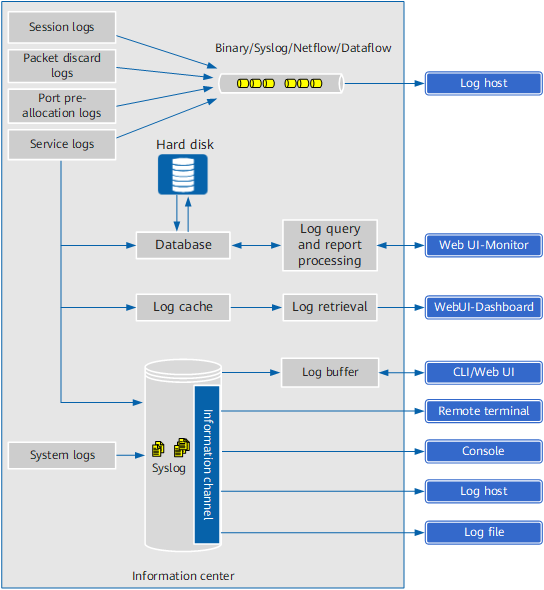
As shown in Figure 1, some logs cannot be stored on the FW and need to be sent to the log server. Some logs are sent to the log server through the information center. The methods of storing, sending, and viewing logs of each type are described as follows:
Log Type |
Storage and Sending |
Viewing Method |
|---|---|---|
Session log |
Session logs are not stored to the device. Instead, the FW directly sends session logs to the log server through an independent channel. |
Session logs support Syslog, binary and netflow formats. You can view session logs in binary and netflow formats on the eLog log server. |
Packet discard log |
Session logs are not stored to the device. Instead, the FW directly sends session logs to the log server through an independent channel. |
Packet discard logs support Syslog and netflow formats. You can view packet discard logs in binary format on the eLog log server. |
Port pre-allocation log |
Session logs are not stored to the device. Instead, the FW directly sends session logs to the log server through an independent channel. |
Port pre-allocation logs support Syslog format. You can view port pre-allocation logs on the log server eLog. |
System log |
System logs are stored in the log buffers or log files through the information center and can be sent to the log server, console (console user interfaces), or terminals (VTY user interfaces). |
|
Service logs |
|
|