CLI: Example for Configuring 5-Tuple Packet Capture
This section provides an example for configuring 5-tuple packet capture and downloading captured packets to a PC for fault analysis.
Networking Requirements
As shown in Figure 1, interfaces GigabitEthernet 0/0/1, GigabitEthernet 0/0/2, and GigabitEthernet 0/0/3 on the FW respectively connect to networks 1, 2, and 3. All the three interfaces have traffic passing. Log in to the FW from a PC to configure packet capture on interfaces , GigabitEthernet 0/0/1, GigabitEthernet 0/0/2, and GigabitEthernet 0/0/3 and download the captured packets to the PC.
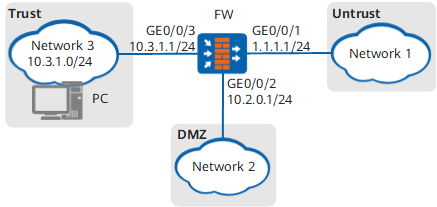
Configuration Roadmap
The roadmap for configuring remote packet capture is as follows:
Set the queue for captured packets, start packet capture, and save the captured packets.
Use SFTP to download the captured packets to the PC, and use packet capture software to analyze the packets.
Procedure
- Set an IP address for each interface and assign the interfaces to security zones.
<FW> system-view
[FW] interface GigabitEthernet 0/0/3
[FW-GigabitEthernet0/0/3] ip address 10.3.1.1 24
[FW-GigabitEthernet0/0/3] quit
[FW] interface GigabitEthernet 0/0/2
[FW-GigabitEthernet0/0/2] ip address 10.2.0.1 24
[FW-GigabitEthernet0/0/2] quit
[FW] interface GigabitEthernet 0/0/1
[FW-GigabitEthernet0/0/1] ip address 1.1.1.1 24
[FW-GigabitEthernet0/0/1] quit
[FW] firewall zone trust
[FW-zone-trust] add interface GigabitEthernet 0/0/3
[FW-zone-trust] quit
[FW] firewall zone dmz
[FW-zone-dmz] add interface GigabitEthernet 0/0/2
[FW-zone-dmz] quit
[FW] firewall zone untrust
[FW-zone-untrust] add interface GigabitEthernet 0/0/1
[FW-zone-untrust] quit
- Configure the packet capture queue.
[FW] packet-capture ipv4-packet 3001 queue 0 interface GigabitEthernet 0/0/1
[FW] packet-capture ipv4-packet 3002 queue 1 interface GigabitEthernet 0/0/2
[FW] packet-capture ipv4-packet 3003 queue 2 interface GigabitEthernet 0/0/3

In the example, the ACL rules have already been configured. Select the packets to be captured.
- Start packet capture for the FW to capture the 1000 packets at a time.
[FW] packet-capture startup packet-len 1500 packet-num 1000 - Save the specified queue in the 1.cap file into the FW CF card. The default path is hda1:/.
[FW] packet-capture queue 0 to-file 0.cap
[FW] packet-capture queue 1 to-file 1.cap
[FW] packet-capture queue 2 to-file 2.cap
- Use SFTP to download the *.cap file from the FW CF card and use packet capture software to analyze the captured packets. Details are omitted.
- Clear the packet capture queue to release memory.
You can delete all packets in the queue after the host receives all of them.
<FW> reset packet-capture queue 0
<FW> reset packet-capture queue 1
<FW> reset packet-capture queue 2
- Terminate the packet capture process after packet capture is complete.
<FW> system-view
[FW] undo packet-capture startup