Threat Logs
Threat logs provide statistics on network threats (such as viruses, intrusion behaviors, DDoS, Trojan horses, Botnets, worms, and advanced threats). Threat logs help you learn what threats have occurred or are occurring, and adjust the security policies for better attack defense.
Context
Threat logs are generated as a result of antivirus, intrusion prevention, Botnet/Trojan horse/worm detection, and attack defense.
The FW deployed between an intranet and the Internet generates threat logs when detecting viruses, threats, Trojan horses, botnet, or attacks.

Before viewing threat logs, ensure that you have configured the intrusion prevention, antivirus function, advanced threat detection or attack defense function on the FW.
Only the USG6615E/6625E and USG6575E-B/6605E-B support advanced threat types.
Before querying threat logs on the USG6510E/6510E-POE/6530E, you have run the log type threat enable command on the FW to enable the recording of system logs.
Procedure
- Choose to view threat logs.
- Choose Customize and select/deselect conditions for threat log display.
- Optional: Click
 to export threat logs in CSV format to the management PC.
 - Click Add Filter. Enter the query condition, such as Attacker and Threat Name to query threat logs.
If the device has no disk, click Advanced Search to filter logs.
- Optional: You can click
 to save the current log query conditions as a log query template for future use.
The next time you want to use these query conditions, you only need to click
 to select the template name and click OK. Then the system queries logs based on the template conditions. The device administrator can click Template Distribution to view the number of templates created by each user. In addition, you can click
  to delete a log query template.
 Only the user that creates a log query template can view or use this template.
Each log page supports a maximum of 10 log query templates, and a device supports a maximum of 1000 log query templates.
Log Sample
The following figure shows the threat logs generated within a specific time range:

The following table lists the fields in a threat log.
Field |
Description |
|---|---|
View |
Click In View Threat Log Details, click the Source Address/Destination Address/Application/Security Policy/Profile/Source Region/Destination Region/Threat Name field value. When the threat log type is virus log, you can see the Hash Value field in View Threat Log Details. This field enables you to view the Hash value of the virus file when the FW interworks to detect viruses. When the threat log type is virus log, intrusion log, or botnet, Trojan horse, and worm log, you can see the Accessed Content field in View Threat Log Details. This field enables you to view URL content contained in the threats. |
Attack Evidence Collection |
Click NOTE:
For details about how to use the attack evidence collection function, see Configure Attack Evidence Collection of Intrusion Prevention and Configure Attack Evidence Collection of Antivirus. |
Time |
Time when a threat log is generated |
Threat Type |
Threat type:
|
Severity |
Severity level:
The severity level is the same as that in the signature database. Focus on high-risk threats. If a threat is not blocked, add the attack source to the blacklist to block the threat. |
Threat ID |
ID of a threat NOTE:
If Threat Type is virus or intrusion, click Threat ID to add the virus or intrusion to the running or another configuration file as a virus or signature exception. Note that if the configuration file corresponding to the log does not exist, add the virus or intrusion to another configuration file. Virus/signature exceptions cannot be added to the default configuration file. |
Threat Name |
Name of a threat |
CVE Number |
CVE number. You can obtain vulnerability information by CVE number to fix vulnerabilities in a timely manner. The CVE number is displayed only when Threat Type is set to Intrusion. |
Source Zone |
Source security zone of traffic |
Destination Zone |
Destination security zone of traffic |
Attacker |
IP address/user of an attacker |
Victim |
IP address/user of a victim |
Source Address/Source Port |
Source IP address/Source port of traffic |
Destination Address/Destination Port |
Destination IP address/Destination port of traffic |
Application |
Application type of traffic |
Protocol |
Protocol type of traffic |
Action |
Actions against various threats:
|
Security Policy |
Security policy that traffic matches |
Profile |
Security profile that traffic matches |
Source Region |
Attacking region |
Destination Region |
Attacked region |
Virtual System |
Virtual system that generates the traffic |
Extended Information |
Evidence collection field information. This parameter is displayed only when the following conditions are met:
|


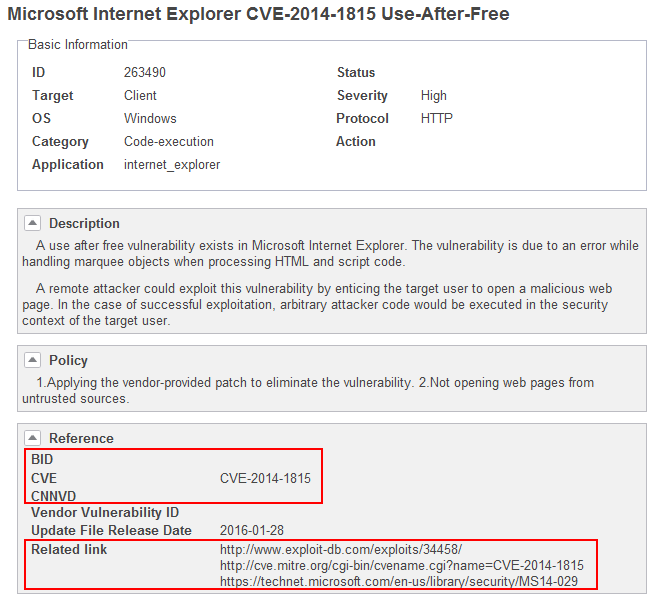
You can click Threat Name in the log to view the basic feature, principle, and countermeasure for the threat. You can also access the URL in Related link to get more information about the threat. Some threats may have Common Vulnerabilities and Exposures (CVE) ID, Bugtraq ID (BID) or China National Vulnerability Database of Information Security (CNNVD) ID. You can access http://cve.mitre.org/, http://www.securityfocus.com/bid or http://www.cnnvd.org.cn/ to further understand such a threat based on the CVE ID, BID or CNNVD ID, as shown in the following figure.
During threat log analysis, you can click Advanced Search. You can take the actions in the following table on the queried threat logs.
Field |
Configuration |
|---|---|
Threat ID |
When Threat Type is virus, click Threat ID. Add the virus to the current configuration script as an exception or add it to other configuration scripts. |
Attacker |
Click the Attacker value of the log corresponding to a threat to be controlled. In Add Black Entry, set the timeout period as required. |
Application |
Click the Application value of the log corresponding to a threat to be controlled. In Application Details, view the details on the application and configure port mappings. |
Security Policy |
Click the Security Policy value of the log corresponding to a threat to be controlled. In Modify Security Policy, reconfigure the source address, destination address, user, application, time range, action, content security configuration script. |
Configuration Script |
Click the Profile value of the log corresponding to a threat to be controlled. In Modify Antivirus Profile, reconfigure the upload and download protocol and mail protocol and change the action to alert or block. |
Source/Destination Region |
Click the Source Region/Destination Region value of the log corresponding to a threat to be controlled. In Modify Region, modify the region configuration as required. |