Viewing Traffic Reports by Security Policy
This section describes how to view traffic reports by security policy.
To view the traffic trend related to a specific traffic policy, you can view traffic reports by traffic policy.
Viewing Reports
Click the Security Policy tab and view traffic reports by security policy.
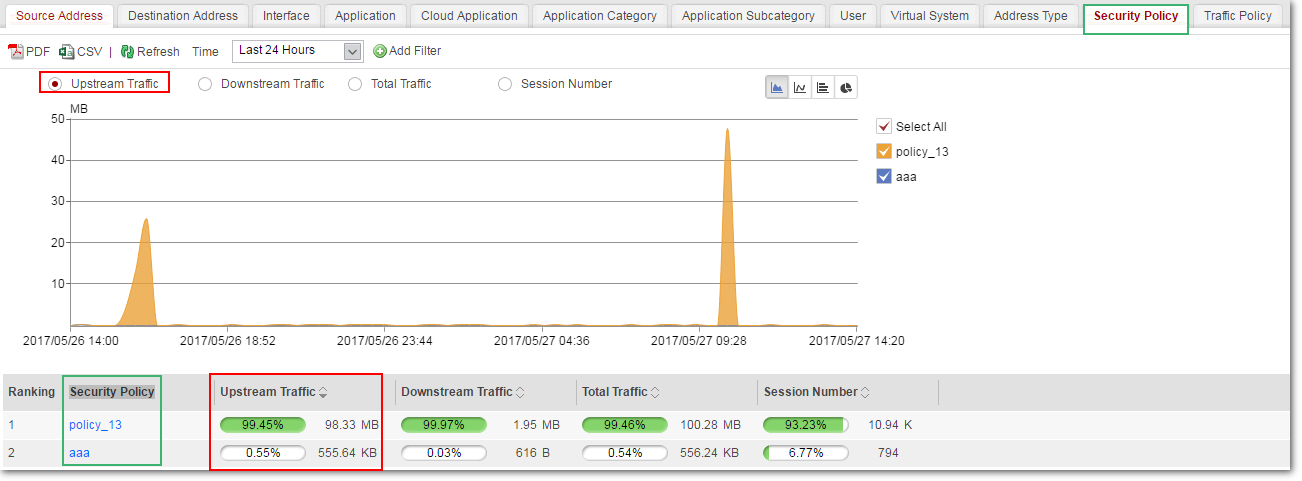
Customized Reports
- Source address: specifies a source address. Security policy traffic ranking based on the source address is displayed.
- Destination address: specifies a destination address. Security policy traffic ranking based on the destination address is displayed.
- Application: specifies the name of an application. Security policy traffic ranking based on the application name is displayed.
- User: specifies a user name. Security policy traffic ranking based on the user is displayed.
- Security policy: specifies a security policy. Traffic ranking based on the security policy is displayed.
Drilling Traffic Data by Source/Destination Address
Only the USG6000E (not including USG6510E/6510E-POE/6530E) support this function.The traffic report by security policy allows you to drill traffic data by source/destination address. By clicking a data link, you can view the traffic of the source/destination address.
For example, if the volume of traffic generated by a certain security policy is
extremely high, you can view the source address traffic trend corresponding to this security policy. The following figure shows the specific operations and displayed information. 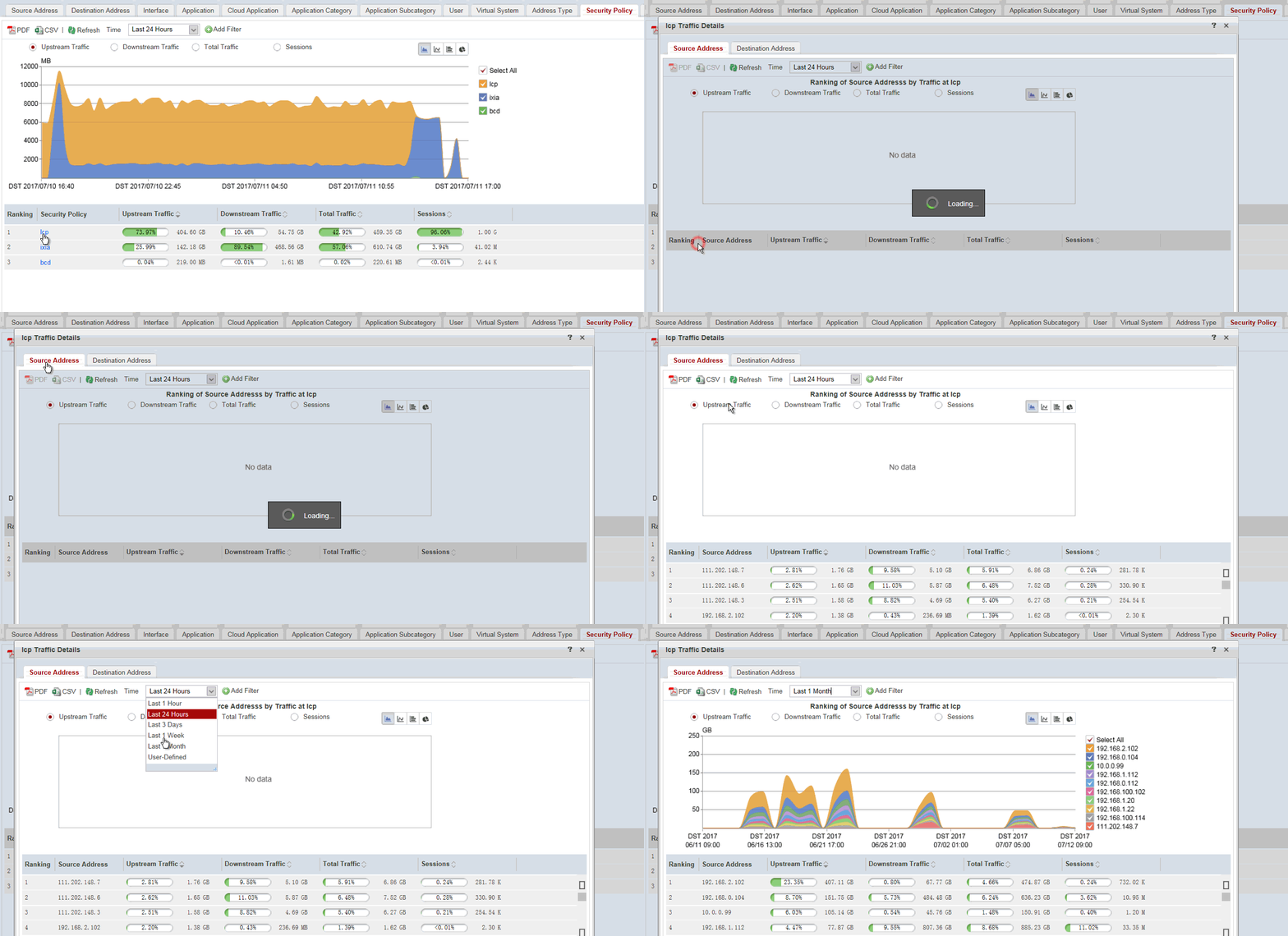
To modify a security policy, click the name of the security policy and select ModifySecurity Policy.