Example for Configuring IGMP Limit
After the IGMP limit function is configured on the multicast device connected to the user network segment, the network operator can limit the IGMP group memberships at the user side, thereby flexibly controlling the multicast network.
Networking Requirements
When a large number of users watch multiple programs simultaneously, great bandwidth of devices is consumed, which degrades the performance of the devices and lowers the stability of receiving multicast data.
The existing multicast technologies control multicast networks by limiting the number of multicast forwarding entries or the number of outgoing interfaces of an entry, which cannot meet the requirements of operators for real-time video services on IPTV networks and flexible management of network resources.
Configuring IGMP limit can enable operators to properly plan network resources and flexibly control the number of multicast groups that hosts can join. In the network shown in Figure 1, multicast services are deployed. The global IGMP limit, instance-based IGMP limit, and interface-based IGMP limit are configured on FW_A, FW_B, and FW_C connected to hosts to limit the number of multicast groups that the hosts can join. When the number of multicast groups that hosts can join reaches the limit, the devices are not allowed to create new IGMP entries. This ensures that the users that join related multicast groups more clearly and stably watch related programs.
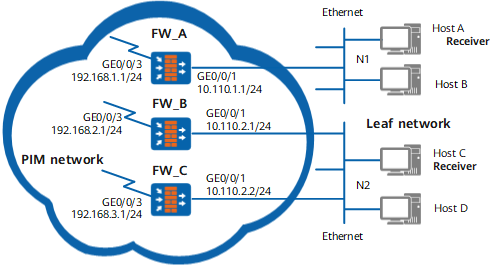
Configuration Roadmap
The configuration roadmap is as follows:
Enable multicast on all FWs because multicast is a prerequisite to IGMP.
Enable PIM-SM on all interfaces.
Enable IGMP on the interface connected to hosts.
Add GE0/0/1 on FW_A to multicast group 225.1.1.1 statically. In this manner, hosts can steadily receive the multicast data of multicast group 225.1.1.1 for a long time.
Limit the number of IGMP group memberships on FW_A.
Procedure
- Enable multicast on each FW, and configure
IGMP and PIM-SM on the interface connected to hosts.
Enable multicast on FW_A; enable IGMP and PIM-SM on GE0/0/1; configure the IGMP version to 2. Configurations of FW_B and FW_C are similar to those of FW_A, and are not mentioned here.
[FW_A] multicast routing-enable
[FW_A] interface GigabitEthernet 0/0/1
[FW_A-GigabitEthernet0/0/1] pim sm
[FW_A-GigabitEthernet0/0/1] igmp enable
[FW_A-GigabitEthernet0/0/1] quit
[FW_A] interface GigabitEthernet 0/0/3
[FW_A-GigabitEthernet0/0/3] pim sm
[FW_A-GigabitEthernet0/0/3] quit
- Add GE0/0/1 on FW_A to multicast
group 225.1.1.1 statically. In this manner, the hosts connected to
GE0/0/1 can steadily receive the multicast data sent to multicast
group 225.1.1.1.
[FW_A] interface GigabitEthernet 0/0/1
[FW_A-GigabitEthernet0/0/1] igmp static-group 225.1.1.1
[FW_A-GigabitEthernet0/0/1] quit
- Limit the number of IGMP group memberships on the last-hop FWconnected to users.
# Configure the maximum number of IGMP group memberships to 50 on FW_A.
[FW_A] igmp global limit 50# Configure the maximum number of IGMP group memberships to 40 in the public network instance.
[FW_A] igmp
[FW_A-igmp] limit 40
[FW_A-igmp] quit
# Configure the maximum number of IGMP group relationships to 30 on GE0/0/1.
[FW_A] interface GigabitEthernet 0/0/1
[FW_A-GigabitEthernet0/0/1] igmp limit 30
[FW_A-GigabitEthernet0/0/1] quit
# Configurations of FW_B and FW_C are similar to those of FW_A, and are not mentioned here.
- Verify the configuration.
Run the display igmp interface command to view the configuration and running status of IGMP on the interfaces of each FW. Take the display on GE0/0/1 of FW_A as an example. From the display, you can see that the maximum number of IGMP group members that the GE0/0/1 of FW_A can create is 30.
<FW_A> display igmp interface GigabitEthernet 0/0/1
Interface information of VPN-Instance: public net
 GigabitEthernet0/0/1(10.110.1.1):
   IGMP is enabled
   Current IGMP version is 2
   IGMP state: up
   IGMP group policy: none
   IGMP limit: 30
   Value of query interval for IGMP (negotiated): -
   Value of query interval for IGMP (configured): 60 s
   Value of other querier timeout for IGMP: 0 s
   Value of maximum query response time for IGMP: 10 s
   Querier for IGMP: 10.110.1.1 (this router)
Configuration Scripts
Configuration script of FW_A
#
sysname FW_A# igmp global limit 50
#
multicast routing-enable
#
interface GigabitEthernet0/0/1ip address 10.110.1.1 255.255.255.0
pim sm
igmp enable
igmp limit 30
igmp static-group 225.1.1.1
#
interface GigabitEthernet0/0/3link-protocol ppp
ip address 192.168.1.1 255.255.255.0
pim sm
#
ospf 1
area 0.0.0.0
network 10.110.1.0 0.0.0.255
network 192.168.1.0 0.0.0.255
#
igmp
 limit 40
#
return
Configuration script of FW_B
#
sysname FW_B# igmp global limit 50
#
multicast routing-enable
#
interface GigabitEthernet0/0/1ip address 10.110.2.1 255.255.255.0
pim sm
igmp enable
igmp limit 30
#
interface GigabitEthernet0/0/3link-protocol ppp
ip address 192.168.2.1 255.255.255.0
pim sm
#
ospf 1
area 0.0.0.0
network 10.110.2.0 0.0.0.255
network 192.168.2.0 0.0.0.255
#
igmp
 limit 40
#
return
Configuration script of FW_C
#
sysname FW_C# igmp global limit 50
#
multicast routing-enable
#
interface GigabitEthernet0/0/1ip address 10.110.2.2 255.255.255.0
pim sm
igmp enable
igmp limit 30
#
interface GigabitEthernet0/0/3link-protocol ppp
ip address 192.168.3.1 255.255.255.0
pim sm
#
ospf 1
area 0.0.0.0
network 10.110.2.0 0.0.0.255
network 192.168.3.0 0.0.0.255
#
igmp
 limit 40
#
return