Web: Example for Configuring Load Balancing Among Servers on Different Network Segments
This example describes the configuration of FTP server load balancing at Layer 4. The configuration of other servers, such as DNS, SMTP, or RADIUS servers, is similar.
Networking Requirements
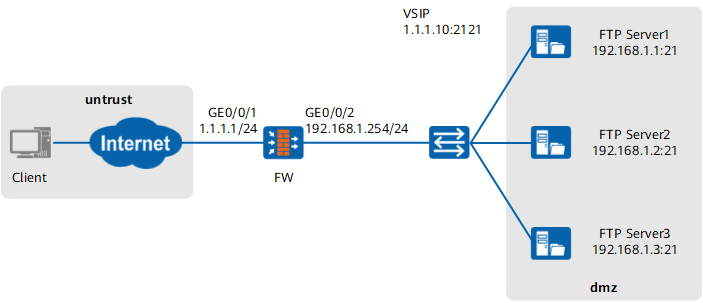
As shown in Figure 1, an enterprise has three FTP servers: Server1, Server2, and Server3. The hardware performance of the servers decreases in sequence. Server1 performance is twice of Server2 performance. Server2 performance is twice of Server3 performance. SLB is configured to allow the three servers to provide FTP services as a whole. The carried services match the server hardware performance. In addition, the health check function is configured to monitor the work of the servers.
Configuration Roadmap
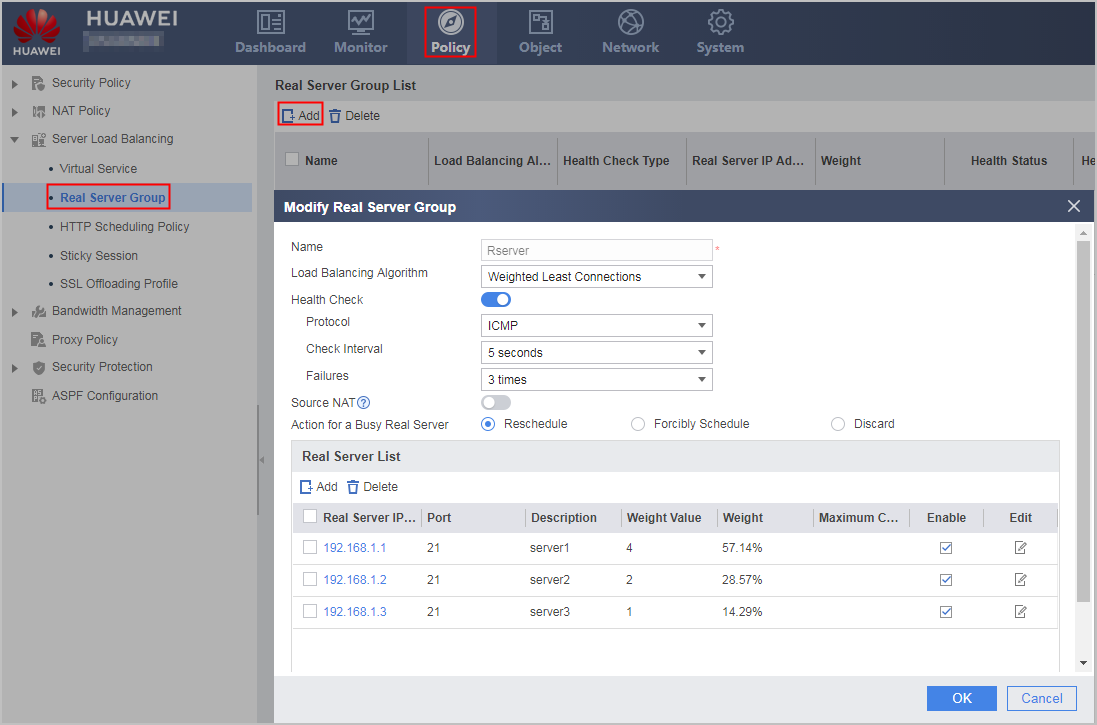
- Select Weighted Least Connections as the load balancing algorithm for performance-based SLB. As Server1 performance is twice of Server2 performance and Server2 performance is twice of Server3 performance, the weight ratio of the servers is 4:2:1.
- Configure the health check function on the FW to check server connectivity. In this example, the protocol type is set to ICMP for health check. You can also use TCP. To allow the FW to send health check packets, configure a Local -> DMZ security policy (the servers reside in the DMZ).
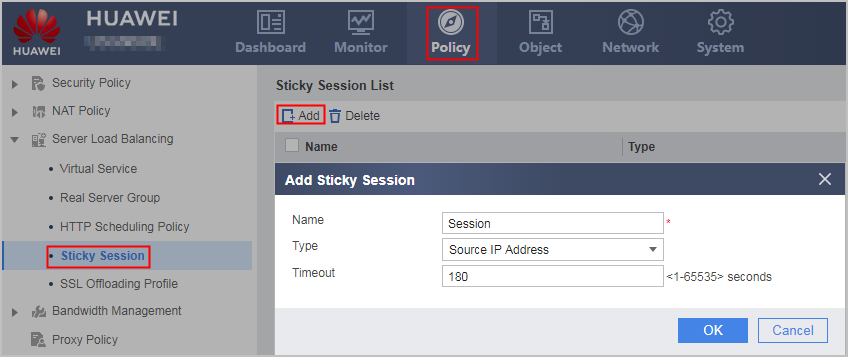
- Configure the sticky session function on the FW because a client may need to establish multiple connections to a server for one task. In this manner, the connection requests from the client can be allocated to the same server. As the servers provide FTP services, the sticky session mode can only be Source IP.
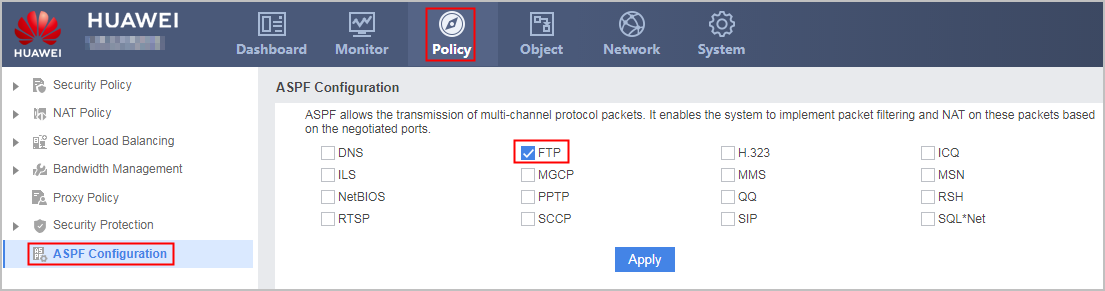
- Enable ASPF for FTP. ASPF is required only for multi-channel protocols.
Procedure
- Choose to configure interface IP addresses and security zones.
Interface Name
GigabitEthernet 0/0/1
GigabitEthernet 0/0/2
Zone
untrust
DMZ
IP Address
1.1.1.1/24
192.168.1.254/24
- Choose to configure security policies.
Configure an Untrust -> DMZ security policy to allow Internet users to access intranet web servers. The destination IP address specified in the policy must be the IP address of the virtual server.
Source Zone
untrust
Destination Zone
dmz
Source Address/Region
1.1.1.10/24
Configure a Local -> DMZ security policy to allow the FW to send health probe packets to real servers.
Source Zone
local
Destination Zone
dmz
Source Address/Region
192.168.1.1–192.168.1.3
- Choose to configure Sticky Session.
- Choose to configure Real Server Group.
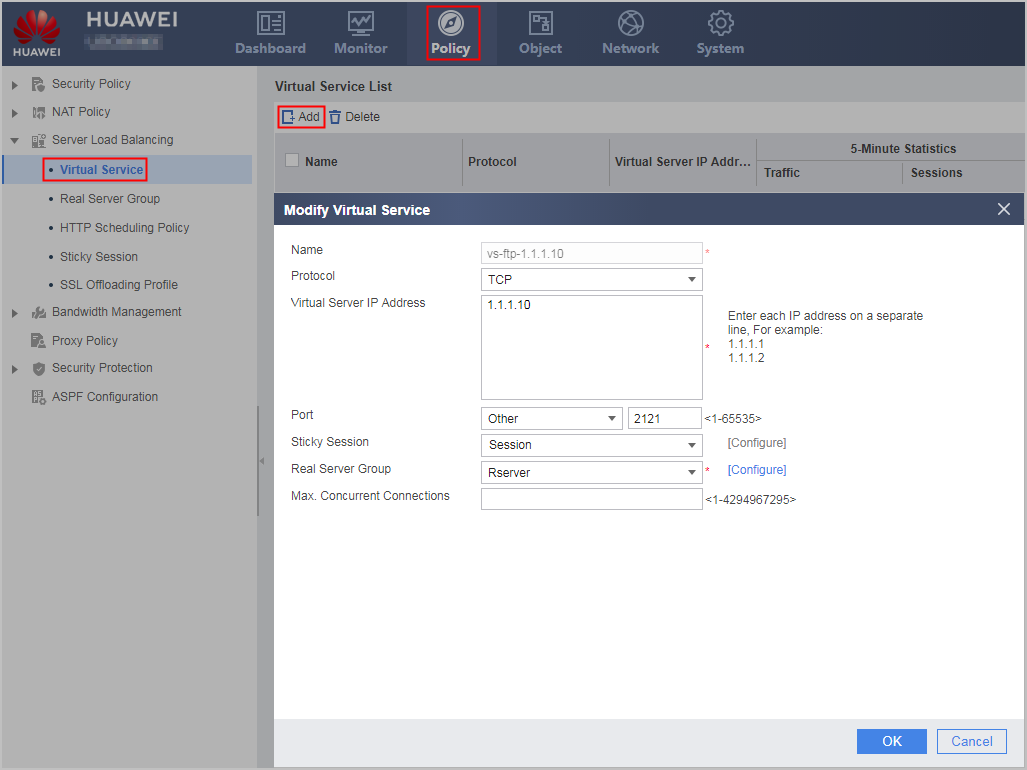
- Choose to configure Virtual Server.
- Choose to enable ASPF for FTP.
Configuration Scripts
#
interface GigabitEthernet 0/0/1
 ip address 1.1.1.1 24
#
interface GigabitEthernet 0/0/2
 ip address 192.168.1.254 24
#
firewall zone untrust
 add interface GigabitEthernet 0/0/1
#
firewall zone dmz
 add interface GigabitEthernet 0/0/2
#
security-policy
 rule name policy1
  source-zone untrust
  destination-zone dmz
  destination-address 1.1.1.10 24
  action permit
 rule name policy2
  source-zone local
  destination-zone dmz
  destination-address range 192.168.1.1 192.168.1.3
  action permit
#
slb enable
#
slb
 group 0 Rserver
  metric weight-least-connection
  health-check type icmp tx-interval 5 times 3
  rserver 0 rip 192.168.1.1 port 21 weight 4 description server1
  rserver 1 rip 192.168.1.2 port 21 weight 2 description server2
  rserver 2 rip 192.168.1.3 port 21 weight 1 description server3
 persistence 0 Session
  type source-ip aging-time 180
 vserver 0 vs-ftp-1.1.1.10
  vip 0 1.1.1.10
  protocol tcp
  vport 2121
  persistence Session
  group Rserver
#
firewall detect ftp