Customizing the Logo, Welcome Message, and Title of the Virtual Gateway
Procedure
- Choose .
- Click
 for an SSL VPN gateway.
 - Choose Login .
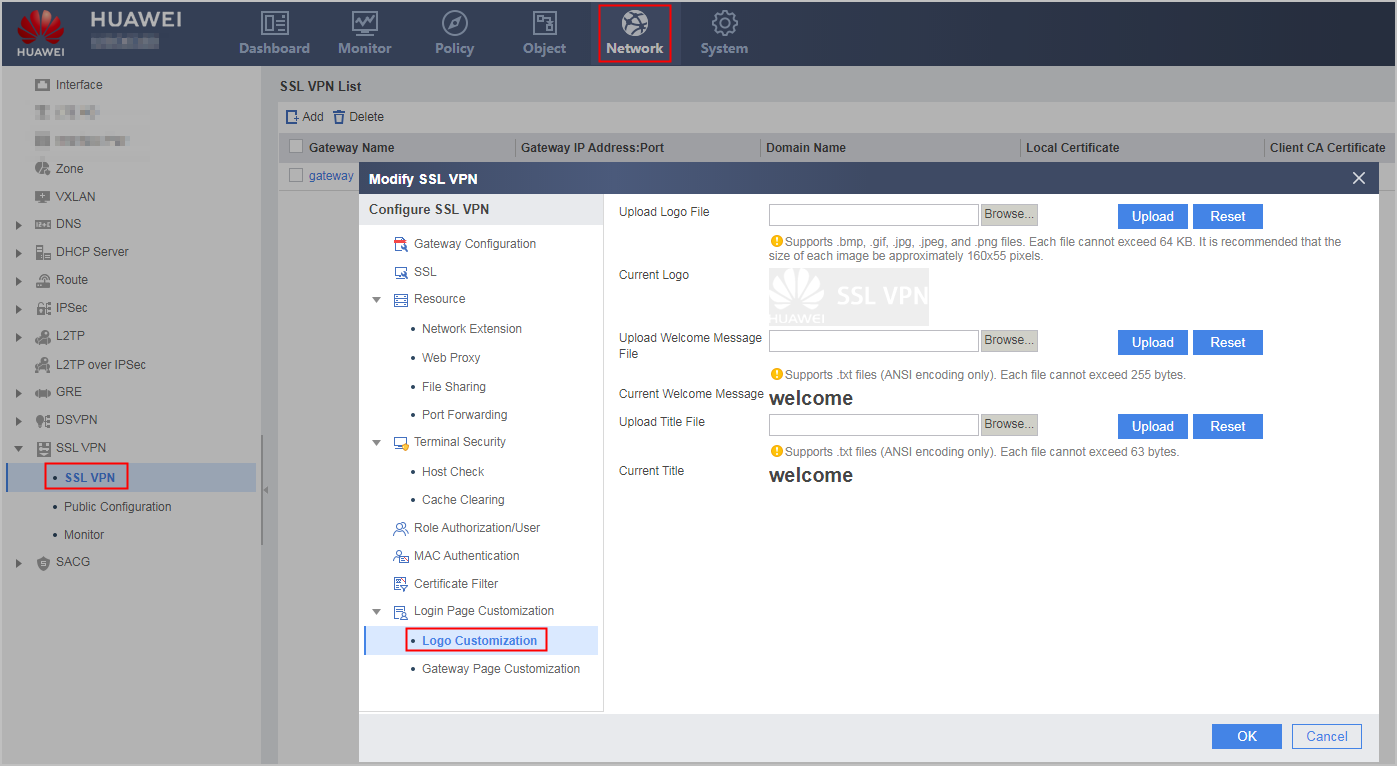
- Customize the logo, welcome message, and title of the virtual gateway according to the following table.
Item
Description
Customizing the Virtual Gateway Logo
- Click Browse and select the image of the logo.
- Click Upload to upload the logo.
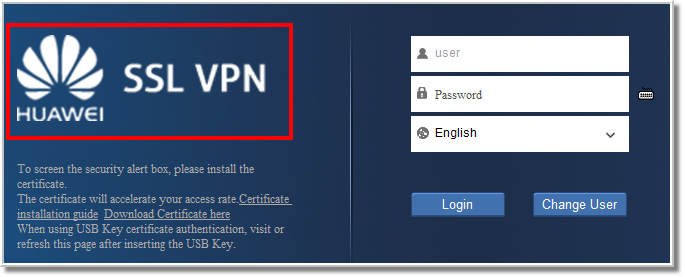
The default logo of the virtual gateway login page is shown in the following red box. If a user customizes a new logo, the new logo will be displayed.
Customizing the Virtual Gateway Welcome Message
- Click Browse and select the welcome message file.
- Click Upload to upload the welcome message file.
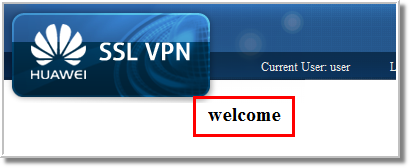
After the welcome message is customized, it is displayed when a user successfully logs in to the virtual gateway. The default welcome message of the virtual gateway is displayed in the following red box.
Customizing the Virtual Gateway Title
- Click Browse and select the title file.
- Click Upload to upload the title file.
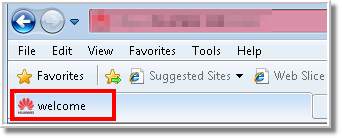
After the virtual gateway title is customized, it is displayed in the title bar when a user accesses the virtual gateway UI. The default virtual gateway title is displayed in the following red box. If a user customizes a new title, the new title will be displayed.