Web: Example for Configuring the SACG Interworking in Standalone In-line Mode
In in-line mode, the SACG is directly connected to the original network in serial mode, or replace the original core switch or router, to realize the SACG Interworking. The in-line mode realizes the SACG Interworking, and provides other security functions at the same time.
Networking Requirements
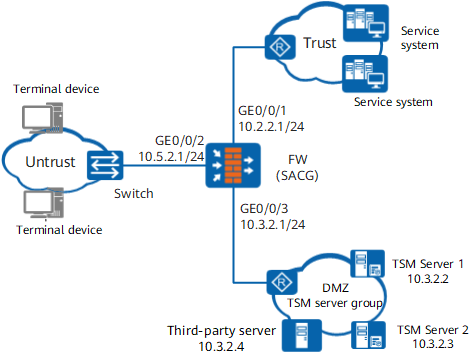
The Agile Controller server is deployed on an enterprise network, and the FW is deployed in in-line mode at the egress of this network, as shown in Figure 1. The following requirements should be met:
- Different user roles can access different network resources (configured in the Agile Controller server).
- Once user roles change, available network resources should be updated instantly.
Data Planning
Item |
Data |
Description |
|
|---|---|---|---|
Agile Controller server 1 |
IP Address: 10.3.2.2 Port: 3288 Shared key: TSM_Security |
The port and shared key configured need to be identical with those configured on the Agile Controller server. |
|
Agile Controller server 2 |
IP Address: 10.3.2.3 Port: 3288 Shared key: TSM_Security |
The port and shared key configured need to be identical with those configured on the Agile Controller server. |
|
Third-party server |
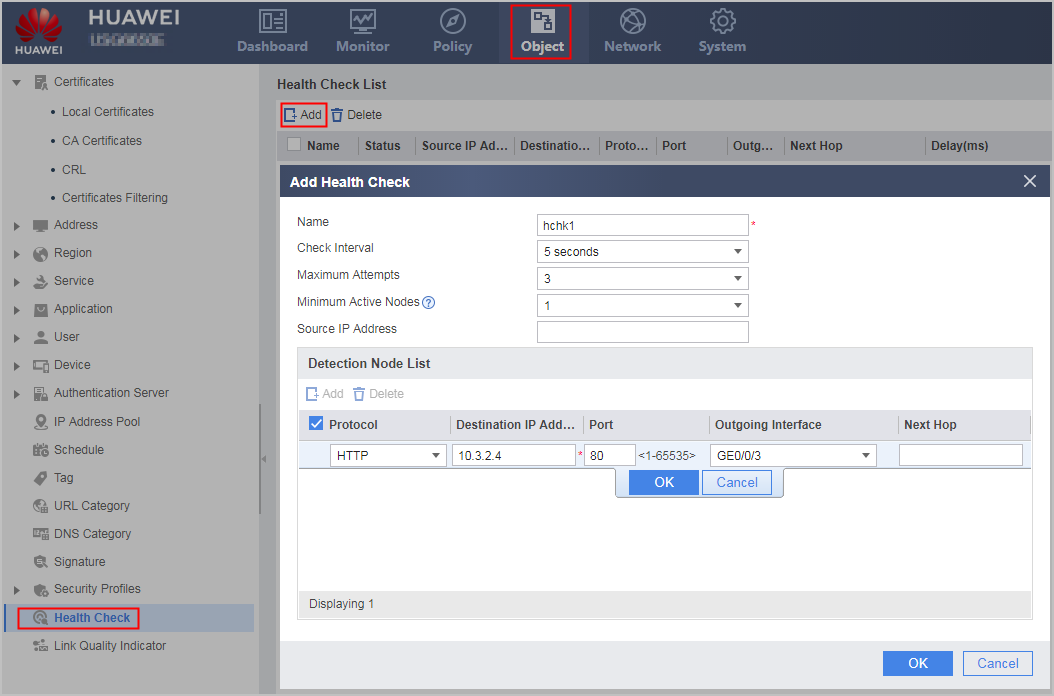
IP address: 10.1.4.4 Protocol of packets supported by health check: HTTP Health check destination port: 80 Minimum number of active nodes for health check: 1 |
- |
|
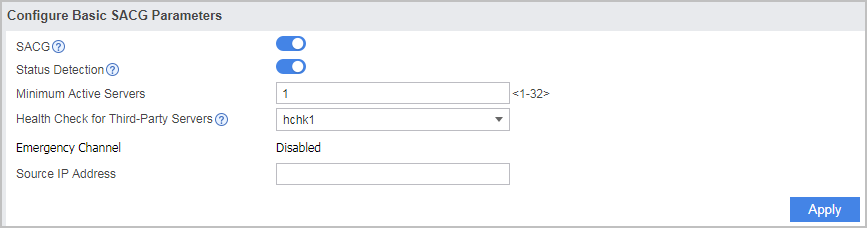
Minimum number of active servers |
1 |
- |
|
Configuration Roadmap
- Configure the Agile Controller server.
- Configure the basic parameters of the interfaces.
- Configure interzone packet filtering to ensure normal communication on the network.
- Add a Agile Controller server.
- Configure the authentication URL.
- Enable SACG, set the minimum number of active servers, and enable the status detection of the server.
- Apply the interworking policy to the interzone.
Procedure
- Configure the Agile Controller server.
Set the IP address of the Agile Controller server to 10.3.2.2/24.
For details, refer to related configuration manuals of the Agile Controller server.

Configure the static route from the Agent to the Agile Controller server group before performing the following operations. Details are omitted.
- Configure the basic parameters of the interfaces.
- Click the corresponding
 of GigabitEthernet 0/0/1.
The related parameters of GigabitEthernet 0/0/1 are specified as follows and the other parameters use the default values.
Zone
trust
Mode
Route
IPv4
Connection Type
Static IP
IP Address
10.2.2.1/255.255.255.0
- Click of GigabitEthernet 0/0/2.
The related parameters of GigabitEthernet 0/0/2 are specified as follows and the other parameters use the default values.
Zone
untrust
Mode
Route
IPv4
Connection Type
Static IP
IP Address
10.5.2.1/255.255.255.0
- Click of GigabitEthernet 0/0/3.
The related parameters of GigabitEthernet 0/0/3 are specified as follows and the other parameters use the default values.
Zone
dmz
Mode
Route
IPv4
Connection Type
Static IP
IP Address
10.3.2.1/255.255.255.0
- Click the corresponding
- Create a Agile Controller server.
- Click
 .
Configure the parameters for Agile Controller server 1.
.
Configure the parameters for Agile Controller server 1.
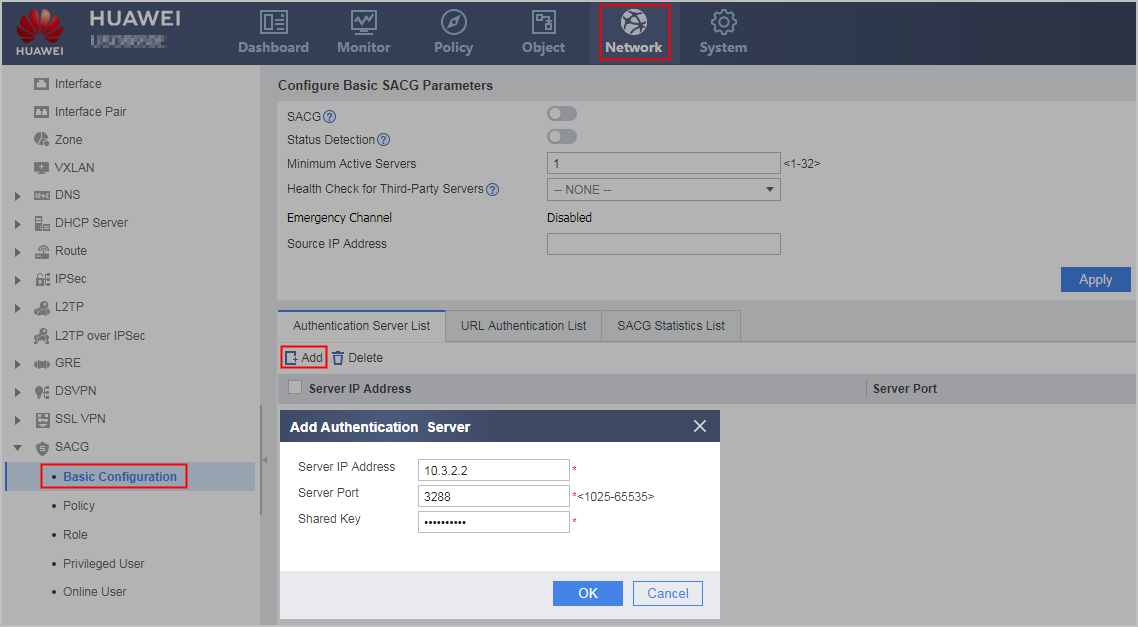
Server IP
10.3.2.2
Server Port
3288
Shared Key
TSM_Security
The server port and shared key configured on the FW must be identical with those configured on the Agile Controller server.
- Click
- Configure the authentication URL.
- On the Configure Basic SACG Parameter interface, click the URL Authentication List tab.
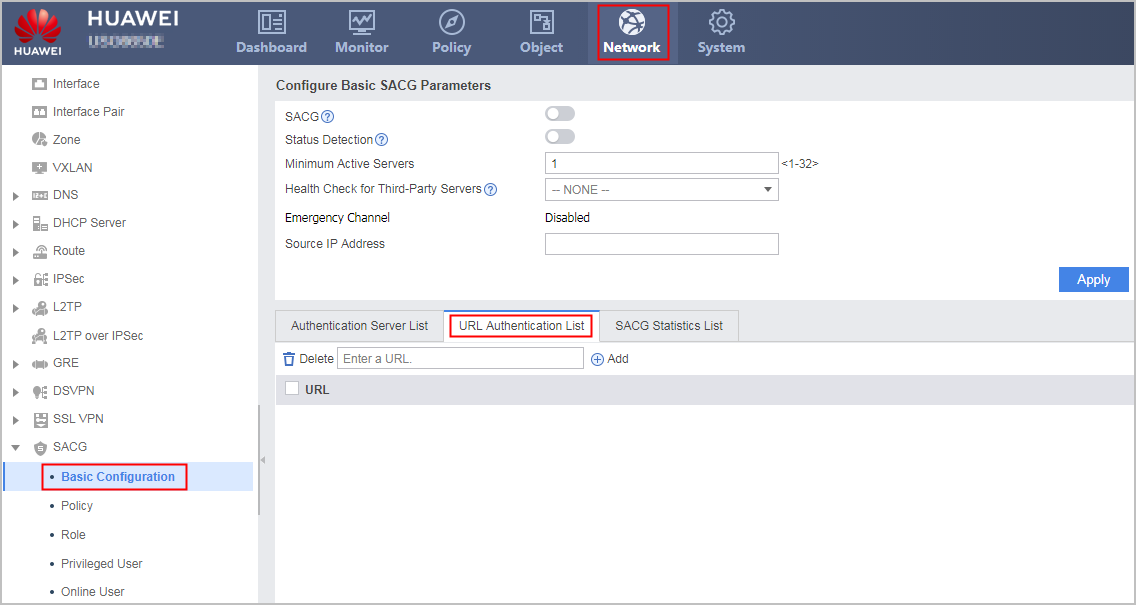
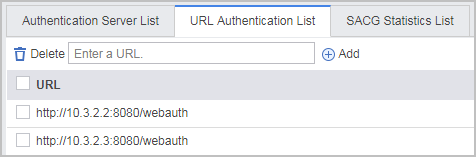
- Click Add, and the URL address
is displayed in the list, as shown in the following figure.
- On the Configure Basic SACG Parameter interface, click the URL Authentication List tab.
- Enable SACG, set the minimum number of active servers,
and enable the status detection of the server.
Before enabling the SACG, delete ACLs numbered from 3099 to 3999 using commands. Otherwise, the SACG fails to be enabled.
Before configuring the health check function for third-party servers, you must set related parameters and enable the health check function in .
- On the interface, configure
the parameters as shown in the following figure.
- On the Configure Basic SACG Parameter interface, configure the parameters as shown in the following figure.
- On the interface, configure
the parameters as shown in the following figure.
- Apply the interworking policy between zones.
- Choose .
- In Apply Policy to Interzone List, select the Untrust and Trust zones from the drop-down list and click Add to apply the SACG interworking policy in the inbound direction of the Untrust-Trust zone.
- In Apply Policy to Interzone List, select the Untrust zone and DMZ from the drop-down list and click Add to apply the interworking policy in the inbound direction
between the Untrust zone and the DMZ, as shown in the following figure.

- Add the connection parameters of the SACG, configure the pre-authentication and post-authentication domains, and create user information on the Agile Controller Server. For details, refer to the related documents of Agile Controller products.
Verification
After completing the configurations, choose . You can see that the running status of the Agile Controller Server is Connected in Authentication Server List and that the authentication policy configured on the Agile Controller Server is delivered to the FW. This indicates that the configurations succeed.
Configuration Scripts
#
 sysname FW
#
interface GigabitEthernet0/0/1
 ip address 10.2.2.1 255.255.255.0
#
interface GigabitEthernet0/0/2
 ip address 10.5.2.1 255.255.255.0
#
interface GigabitEthernet0/0/3
 ip address 10.3.2.1 255.255.255.0
#
firewall zone local
 set priority 100
#
firewall zone trust
 set priority 85
 add interface GigabitEthernet0/0/1
#
firewall zone untrust
 set priority 5
 add interface GigabitEthernet0/0/2
#
firewall zone dmz
 set priority 50
 add interface GigabitEthernet0/0/3
#
right-manager server-group
 healthcheck hchk1
 default acl 3099
 server ip 10.3.2.2 port 3288 shared-key %$%$!g8A4;cd.T(7d@Bdhw#~iI@7%$%$
 server ip 10.3.2.3 port 3288 shared-key %$%$!g8A4;cd.T(7d@Bdhw#~iI@7%$%$
 right-manager server-group enable
 right-manager status-detect enable
 right-manager server-group active-minimun 1
 right-manager authentication url http://10.3.2.2:8080/webauth
 right-manager authentication url http://10.3.2.3:8080/webauth
#
firewall interzone trust untrust
 apply packet-filter right-manager inbound
#
firewall interzone dmz untrust
 apply packet-filter right-manager inbound
#
healthcheck enable
healthcheck name hchk1
least active-linknumber 1
destination 10.3.2.4 interface GigabitEthernet 0/0/3 protocol http destination-port 80
#
return