Web UI: Example for Configuring L2TP VPN (AD Authentication) in the Client-Initiated Scenario
This section provides an example for configuring L2TP VPN in the client-initiated scenario. In the client-initiated scenario, the LNS works with the AD server to perform identity authentication for mobile users.
Networking Requirements
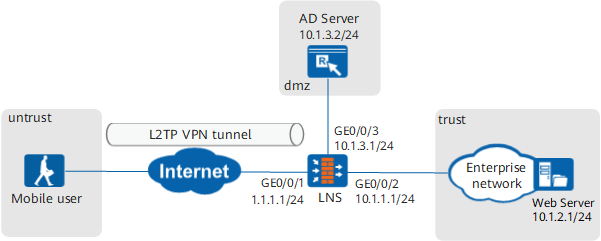
Data Planning
Item |
Data |
|
|---|---|---|
LNS |
Interface |
Interface ID: GigabitEthernet 0/0/1 IP address: 1.1.1.1/24 Security zone: Untrust Interface ID: GigabitEthernet 0/0/2 IP address: 10.1.1.1/24 Security zone: Trust Interface ID: GigabitEthernet 0/0/3 IP address: 10.1.3.1/24 Security zone: DMZ |
L2TP configuration |
User name: user0001 Password: Password123 Peer tunnel name: client Tunnel authentication password: Hello123 Address pool: 172.16.1.2 to 172.16.1.100 NOTE:
If the intranet server IP address and address pool addresses are on different network segments, configure a route on the intranet server to an address in the address pool. |
|
Parameters for interconnection with the AD server |
AD server address: 10.1.3.2/24 Administrator DN: cn=Administrator,cn=Users Password: Admin123 |
|
Mobile user |
User name: user0001 Password: Password123 Tunnel name: client Tunnel authentication password: Hello123 |
|
Procedure
- Configure the LNS.
- Configure IP addresses for interfaces and assign the interfaces to security zones.
- Choose and configure parameters for interconnecting the LNS and AD server.
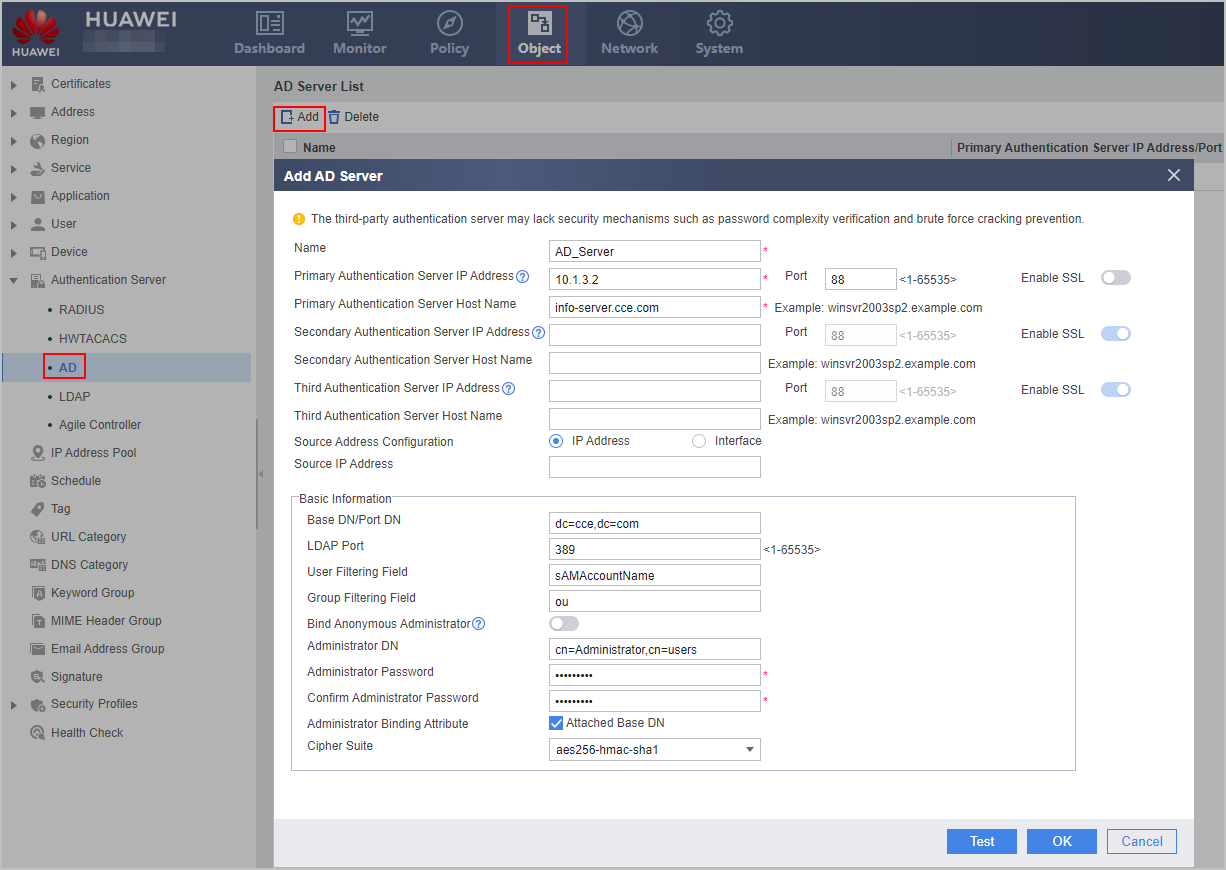

For the V600R007C20 version, whether to enable SSL for AD authentication cannot be configured on the web UI. When you configure the AD server on the web UI, SSL (ldap-over-ssl) is enabled by default. In this mode, LDAP over SSL must also be enabled on the AD server. For details, see the operating system guide of the AD server. To disable SSL (no-ssl), click CLI Console in the lower right corner of the web page. On the CLI configuration page that is displayed, run the ad-server authentication 10.1.3.2 88 no-ssl command in the corresponding AD server template view. From V600R007C20SPC100, you can configure whether to enable SSL for AD authentication on the Web UI. The following uses no-ssl as an example.
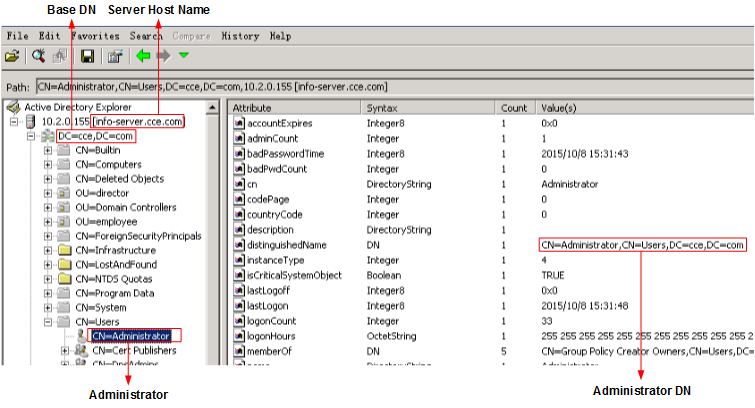
If you are unfamiliar with the AD server and cannot provide the server name, Base DN, or filter field values, you can use the AD Explorer or LDAP Browser/Editor software to connect to the AD server to query the attribute values. The AD Explorer is used as an example. The AD server attributes and mappings between the server attributes and parameters on the LNS are as follows.
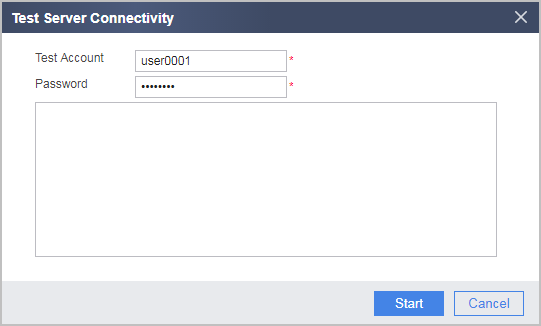
Click Test. In the window that is displayed, click OK and then enter the test account and password. Click Start to check the connectivity to the AD server.
The user name and password used for the test must be the same as those on the AD server.
- Choose and click Add to create an authentication domain.
When the LNS uses AD server authentication, the authentication domain name configured on the LNS must be the same as that configured on the authentication server. In this example, the domain name on the AS server is cce.com. Therefore, the authentication domain name must be set to cce.com on the LNS.
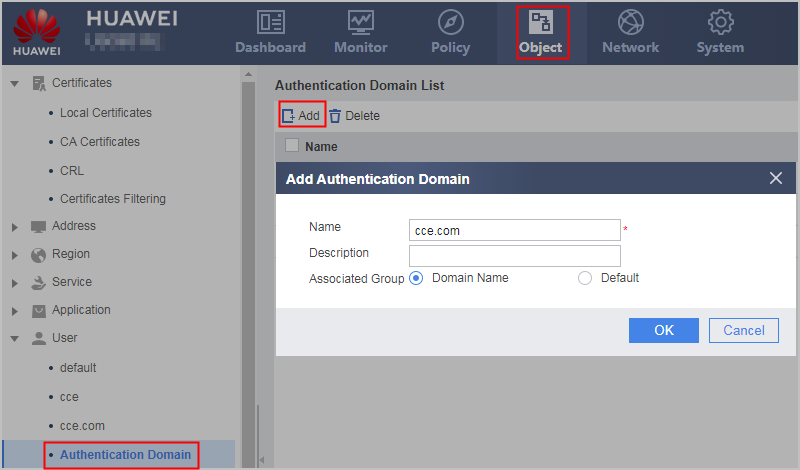
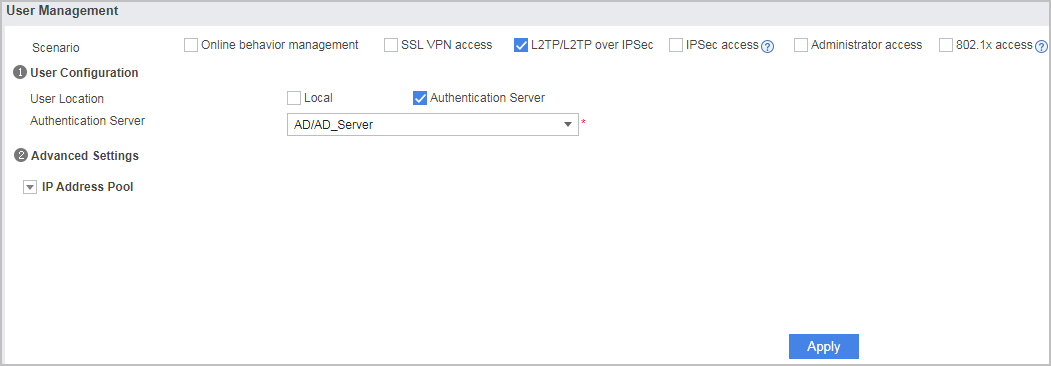
- Choose Object > User > cce.com and configure AD server authentication. After completing the preceding configurations, click Apply.
- Configure L2TP VPN.
- Choose .
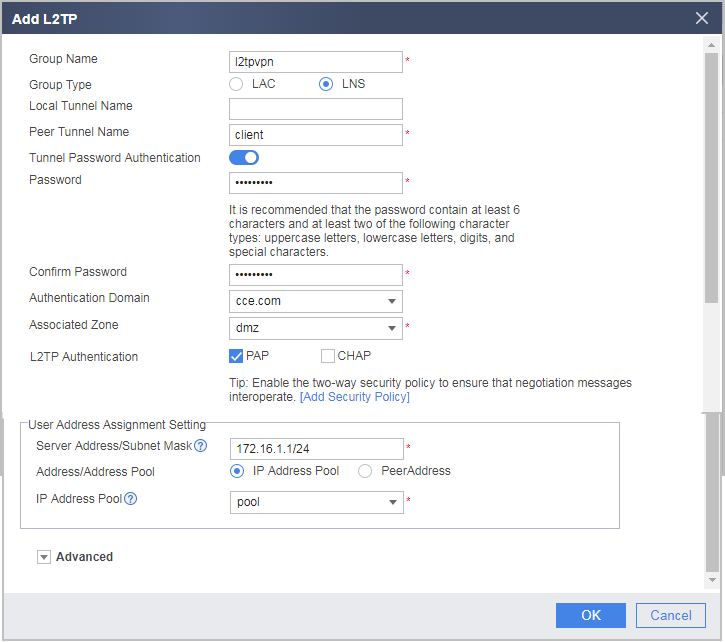
In L2TP Group List, click Add and set L2TP parameters.
Set Password to Hello123 and the address range of Address/Address Pool to 172.16.1.2 to 172.16.1.100. Associated Zone indicates the security zone where the VT interface resides. Server Address/Subnet Mask is the address of the VT interface on the LNS side. It is recommended that the IP address be in the same network as the address pool.
- Click OK.
- Configure the SecoClient at the mobile user side.
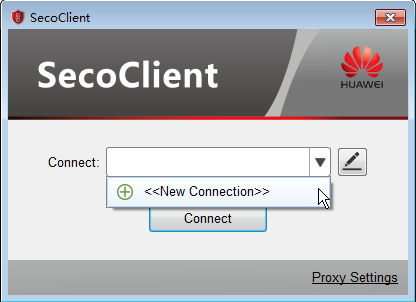
- Open the SecoClient and access the home page.
Select New Connection from the Connect drop-down list.
- Set L2TP VPN connection parameters.
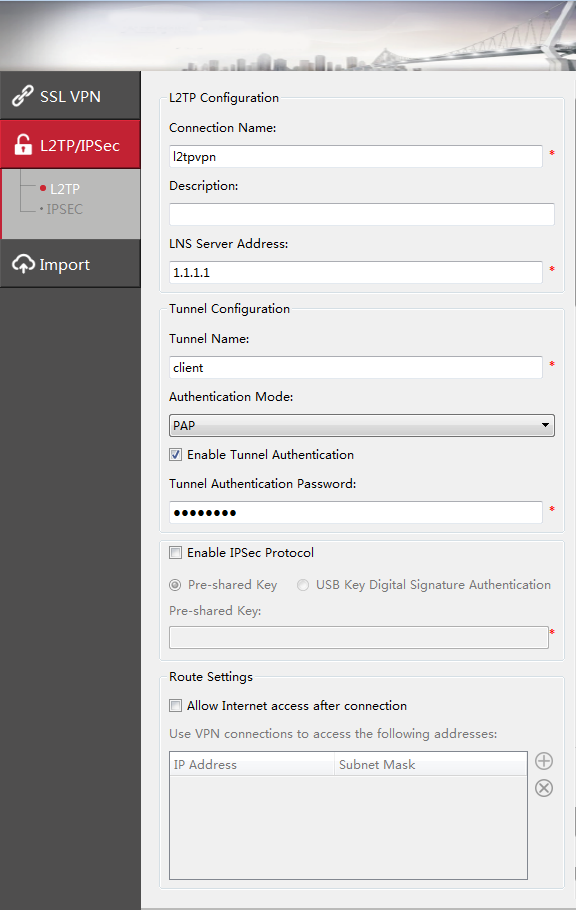
In the New Connection navigation tree, select L2TP/IPSec. Set connection parameters and click OK.
The tunnel authentication password is Hello123.
- Log in to the L2TP VPN gateway.
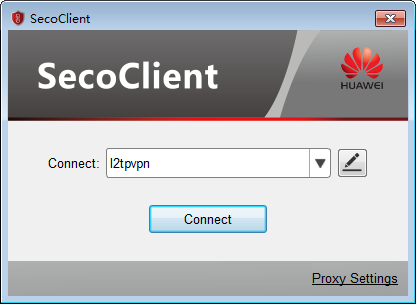
- Select the created L2TP VPN connection from the Connect drop-down list and click Connect.
- On the login page, enter the user name and password.
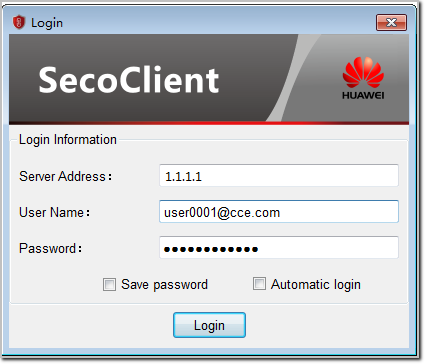
- Click Login to initiate a VPN connection request.
A message on a VPN access success will be displayed on the web UI.
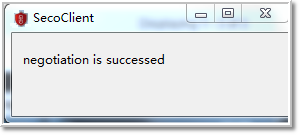
After the connection is established, mobile users can access intranet resources as intranet users.
- Select the created L2TP VPN connection from the Connect drop-down list and click Connect.
- Open the SecoClient and access the home page.

Verification
- Log in to the LNS and choose to view the monitoring list. You can find that user user0001 has logged in to the device successfully.
- Mobile users can access intranet resources properly.
Configuration Scripts
#
sysname LNS
#
 l2tp enable
 undo l2tp sendaccm enable
 l2tp domain suffix-separator @
#
ad-server template AD_Server
 ad-server authentication 10.1.3.2 88 no-ssl
 ad-server authentication base-dn dc=cce,dc=com
 ad-server authentication manager cn=Administrator,cn=users %^%#,C)<BJ^0BH7p/A5cODX0k-%$,_MAC8*D]n-V_,6A%^%#
 ad-server authentication host-name info-server.cce.com
 ad-server authentication ldap-port 389
 ad-server user-filter sAMAccountName
 ad-server group-filter ou
 ad-server time-stamp-filter createTimeStamp
#
ip pool pool
 section 0 172.16.1.2 172.16.1.100
#
aaa
 authentication-scheme admin_ad
 service-scheme webServerScheme1499928213525
 service-scheme l2tpSScheme_1497877787064
  ip-pool pool
 domain cce.com
  authentication-scheme admin_ad
  service-scheme webServerScheme1499928213525
  ad-server AD_Server
  service-type l2tp
  internet-access mode password
  reference user current-domain
#
l2tp-group l2tpvpn
 tunnel password cipher %$%$(%J>Y.2ajQIcq@N6)$04859Z%$%$
 allow l2tp virtual-template 1 remote client domain cce.com
#
interface Virtual-Template1
 ppp authentication-mode pap
 remote service-scheme l2tpSScheme_1497877787064
 ip address 172.16.1.1 255.255.255.0
 alias L2TP_LNS_1
 undo service-manage enable
#
interface GigabitEthernet 0/0/1
 undo shutdown
 ip address 1.1.1.1 255.255.255.0
#
interface GigabitEthernet 0/0/2
 undo shutdown
 ip address 10.1.1.1 255.255.255.0
#
interface GigabitEthernet 0/0/3
 undo shutdown
 ip address 10.1.3.1 255.255.255.0
#
firewall zone trust
 set priority 85
 add interface GigabitEthernet 0/0/2
#
firewall zone untrust
 set priority 5
 add interface GigabitEthernet 0/0/1
#
firewall zone dmz
 set priority 50
 add interface GigabitEthernet 0/0/3
 add interface Virtual-Template1
#
ip route-static 0.0.0.0 0.0.0.0 1.1.1.2
#
security-policy
 rule name service_td
  source-zone trust
  destination-zone dmz
  source-address 10.1.2.0 mask 255.255.255.0
  destination-address 172.16.1.0 mask 255.255.255.0
  action permit
 rule name service_dt
  source-zone dmz
  destination-zone trust
  source-address 172.16.1.0 mask 255.255.255.0
  destination-address 10.1.2.0 mask 255.255.255.0
  action permit
 rule name l2tp_ul
  source-zone untrust
  destination-zone local
  destination-address 1.1.1.0 mask 255.255.255.0
  action permit
 rule name ad_ld
  source-zone local
  destination-zone dmz
  source-address 10.1.3.0 mask 255.255.255.0
  action permit