CLI: Example for Logging In to the CLI Using STelnet (RSA Authentication)
This section describes how to configure the administrator PC as the STelnet client and FW as the STelnet server, and how to use STelnet to log in to the VTY administrator interface of the FW after RSA authentication.
Networking Requirements
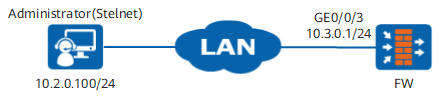
Figure 1 shows that the FW has an administrator. The administrator wants to use STelnet to log in to the VTY administrator interface of the FW after RSA authentication and manage and maintain the FW.
Data Planning
Item |
Data |
|
|---|---|---|
FW |
SSH account |
sshadmin |
Authentication mode |
RSA |
|
Service type |
STelnet |
|
Administrator PC |
SSH client software: PuTTY software (Windows 7 operating system). The PuTTY software includes the PuTTY client for the STelnet service and the SFTP client PSFTP. |
|
Configuration Roadmap
- Generate a local RSA key pair on the PC and an RSA public key in the format supported by the FW.
- Install the PuTTY software.
- Use the PuTTYgen tool to generate a local SSH-RSA key pair.
- Configure FW as the SSH server.
- Enable the SSH service on the interface.
- Configure the VTY administrator interface.
- Save the RSA public key on the SSH client (the PC).
- Create an SSH administrator account.
- Enable the STelnet service.
- Configure the administrator PC as the SSH client.
- Set an IP address for the administrator PC.
- Use PuTTY to log in to the FW through SSH.

The prerequisite is that IP addresses of the interface and administrator PC, security zone, route, and security policies have been configured. The following example introduces content related only to the administrator.
Procedure
- Generate an RSA public key on the PC.
- Use the PuTTYgen tool to generate a local SSH-RSA key pair. (PuTTYgen 0.60 is used as an example in the following part.)
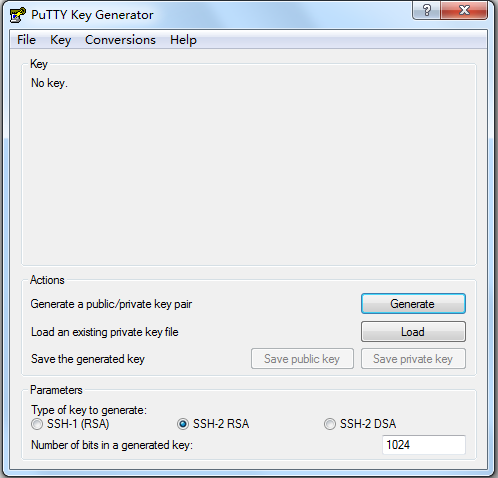
- Double-click PuTTYgen.exe. The interface shown in Figure 2 is displayed. In Parameters, set Type of key to generate to SSH-2 RSA. Click Generate. The PC starts to generate a local RSA key pair.
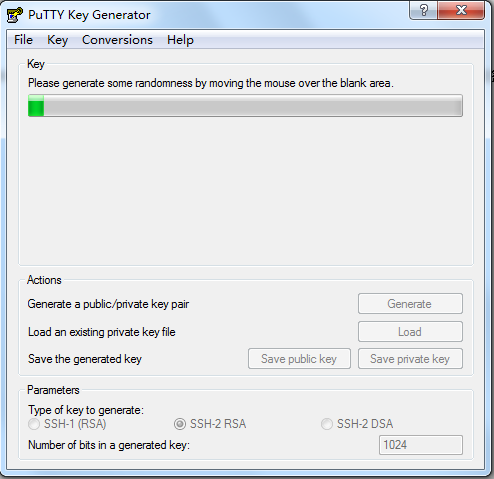
- Figure 3 shows the interface for generating a local RSA key pair. You must move the mouse continuously during the generation of the local RSA key pair. Move the pointer only in the window other than the process bar in green. Otherwise, the progress bar suspends, and the generation of the key pair is stopped.
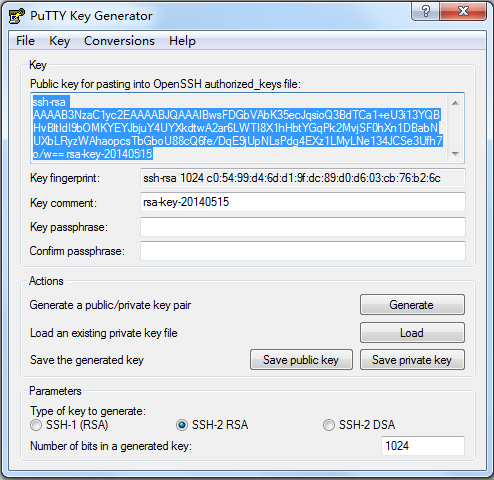
- Figure 4 shows the generation of the local RSA key pair. Do as follows to save the RSA key pair in the specified format:
- OpenSSH: Copy the marked content in the Key text box.
- PEM: Click Save public key, enter public for the name of the public key file, and click Save. Click Save private key, enter private for the name of the private key file, and click Save.
To enhance security, you must enter a password in the Key passphrase text box and enter the password again in the Confirm passphrase text box to set a password for using this key pair.
- Use the PuTTYgen tool to generate a local SSH-RSA key pair. (PuTTYgen 0.60 is used as an example in the following part.)
- Configure the FW.
- Enable the SSH service on interface GigabitEthernet 0/0/3.
The SSH service is enabled on management interface by default. If the SSH service is disabled, enable it as follows.
<FW> system-view
[FW] interface GigabitEthernet 0/0/3
[FW-GigabitEthernet0/0/3] service-manage ssh permit
[FW-GigabitEthernet0/0/3] service-manage enable
[FW-GigabitEthernet0/0/3] quit
- Configure the VTY administrator interface.
# Configure VTY administrator interfaces that support AAA. The administrator interface level is 3.
[FW] user-interface vty 0 4
[FW-ui-vty0-4] authentication-mode aaa
[FW-ui-vty0-4] protocol inbound ssh
[FW-ui-vty0-4] user privilege level 3
[FW-ui-vty0-4] quit
The level of an SSH administrator using RSA authentication relies on the VTY interface level (the user privilege level level command is used to configure the administrator interface level).
To ensure that the administrator can log in to the device, you are advised to set the administrator level to 3 or higher.
- Optional: Set the SSH server parameters.
# Set the listening port of the SSH server to 22, authentication timeout period 80 seconds, number of authentication retries to 4, update interval of the key pair to 1 hour, and enable the backward compatibility function.
If the default SSH port number 22 is changed, the service-manage function does not take effect for the protocol. You need to configure a security policy to allow the protocol to access the device.
[FW] ssh server port 22
[FW] ssh server timeout 80
[FW] ssh server authentication-retries 4
[FW] ssh server rekey-interval 1
[FW] ssh server compatible-ssh1x enable
- Enable the SSH service on interface GigabitEthernet 0/0/3.
- Configure the administrator PC as the SSH client.
- Use the PuTTY software to log in to the FW through STelnet. (The following example uses PuTTY0.60.)
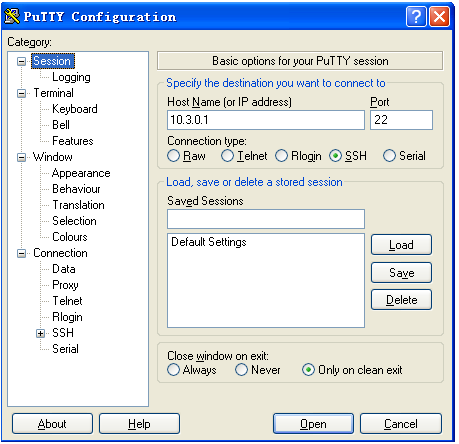
- Double-click PuTTY.exe. The interface shown in Figure 5 is displayed. Enter the IP address of the SSH server in the Host Name (or IP address) text box.
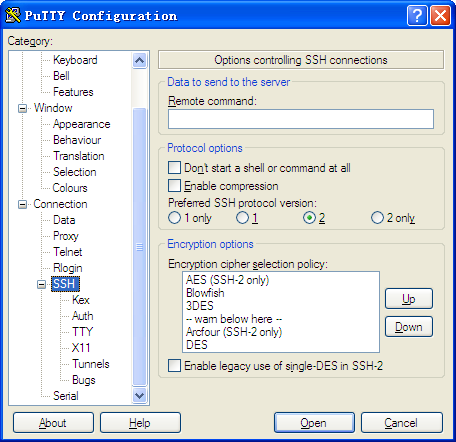
- Choose in the left Category tree. The interface shown in Figure 6 is displayed. In the Protocol options area, set Preferred SSH protocol version to 2.
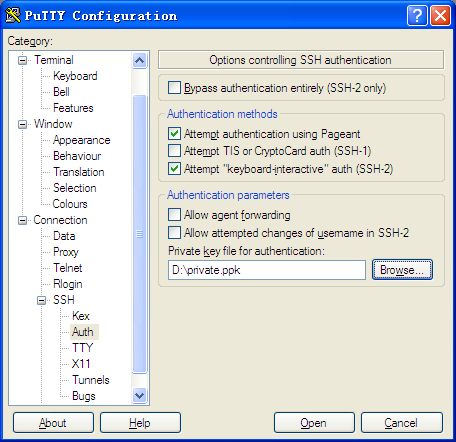
- Select Auth in SSH. The dialog box shown in Figure 7 is displayed. Click Browse, import the private key file private.ppk in the saved SSH-RSA key pair.
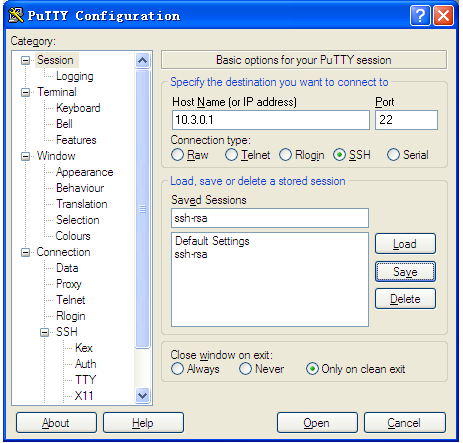
- Click Session, enter ssh-rsa in the Saved Sessions text box, and click Save to save the SSH session, as shown in Figure 8.
The saved session will be used when the PSFTP tool is used for SFTP login. Besides, no configuration is required for future STelnet login. You can double-click the SSH session to open the login page.
- Enter SSH administrator account sshadmin in the login page that is displayed and press Enter. You can log in to FW.
If a password is specified for using the key pair, you must enter the password for the login.
- Use the PuTTY software to log in to the FW through STelnet. (The following example uses PuTTY0.60.)
Configuration Scripts
#
interface GigabitEthernet0/0/3
 ip address 10.3.0.1 255.255.255.0
 service-manage enable
 service-manage ssh permit
#
user-interface vty 0 4
 authentication-mode aaa
 user privilege level 3
 protocol inbound ssh
#
manager-user sshadmin
 service-type ssh
 level 15

 bind manager-user sshadmin role system-admin
#
stelnet server enable
ssh user sshadmin
ssh user sshadmin authentication-type rsa
ssh user sshadmin service-type stelnet
ssh user sshadmin assign rsa-key key_pc
ssh server port 22
ssh server timeout 80
ssh server authentication-retries 4
ssh server rekey-interval 1
ssh server compatible-ssh1x enable
#
return