CLI: Example for Accessing the Internet Using IPv4 PPPoE
This section provides an example for the device, working as a PPPoE client, to obtain an IP address by dialing up to the carrier's server through PPPoE for Internet access.
Networking Requirements
- All PCs on the LAN are deployed on network segment 10.3.0.1/24, and they dynamically obtain IP addresses through DHCP.
- The device connects to all PCs of the company over the downstream link.
- The device applies for Internet service from the carrier over the upstream link. The Internet access service is provided using the PPPoE protocol.
According to the previous requirements, specify the FW as a PPPoE client. After the client obtains IP and DNS addresses from the carrier's server, the Intranet users can access the Internet.
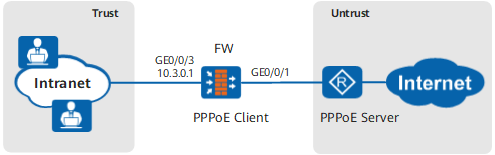
In this example, the information provided by the carrier is used only for reference.
Data |
Description |
|---|---|
Interface number: GigabitEthernet 0/0/1 Security zone: untrust |
The device obtains IP and DNS addresses from the PPPoE server (deployed by the carrier) through dial-up.
|
Interface number: GigabitEthernet 0/0/3 IP address: 10.3.0.1/24 Security zone: Trust |
DHCP is used to dynamically assign IP addresses to PCs on the LAN. |
Configuration Roadmap
Configure the downstream link.
Enable DHCP server on the GigabitEthernet 0/0/3 interface so that it dynamically assigns IP addresses to PCs, and specify the GigabitEthernet 0/0/3 interface's IP address as the gateway and DNS server addresses for the PCs.
During Internet access, a PC usually requires domain name resolution. This is why a DNS server shall be specified. In this example, FW works as a DNS relay.
Configure the upstream link and use PPPoE to obtain IP and DNS addresses.
Add the interfaces into security zones and configure security policies.
Add the interface connected to the LAN to a high-priority security zone (Trust zone), and the upstream interface connected to the Internet to a low-priority security zone (Untrust zone).
The IP addresses used on LANs are private IP addresses, which shall be converted by NAT to public IP addresses for Internet access, if needed. In this example, the upstream interface obtains its IP address by dial-up. This IP address may vary for each dial-up. Therefore, easy IP is recommended.
Procedure
- Configure the IP address of the interface GigabitEthernet 0/0/3.
<FW> system-view
[FW] interface GigabitEthernet 0/0/3
[FW-GigabitEthernet0/0/3] ip address 10.3.0.1 255.255.255.0
[FW-GigabitEthernet0/0/3] quit
- Assign the interfaces to the security zones.
[FW] firewall zone untrust
[FW-zone-untrust] add interface GigabitEthernet 0/0/1
[FW-zone-untrust] quit
[FW] firewall zone trust
[FW-zone-trust] add interface GigabitEthernet 0/0/3
[FW-zone-trust] quit
- Configure the device as a DHCP server to assign IP addresses to PCs on the LAN.
# Enable the DHCP function.
[FW] dhcp enable# Create an interface address pool on the interface and specify the DNS server for the Intranet PCs.
[FW] interface GigabitEthernet 0/0/3
[FW-GigabitEthernet0/0/3] dhcp select interface
[FW-GigabitEthernet0/0/3] dhcp server ip-range 10.3.0.1 10.3.0.254
[FW-GigabitEthernet0/0/3] dhcp server dns-list 9.9.9.9
[FW-GigabitEthernet0/0/3] dhcp server gateway-list 10.3.0.1
[FW-GigabitEthernet0/0/3] quit
- Configure interface GigabitEthernet 0/0/1 so that it obtains IP and DNS addresses using PPPoE.
[FW] dialer-rule 1 ip permit
[FW] interface Dialer 1
[FW-Dialer1] link-protocol ppp
[FW-Dialer1] dialer user user
[FW-Dialer1] ip address ppp-negotiate
[FW-Dialer1] ppp ipcp dns admit-any
[FW-Dialer1] dialer-group 1
[FW-Dialer1] dialer bundle 1
[FW-Dialer1] ppp pap local-user user password cipher password
[FW-Dialer1] quit
[FW] firewall zone untrust
[FW-zone-untrust] add interface Dialer 1
[FW-zone-untrust] quit
[FW] interface GigabitEthernet 0/0/1
[FW-GigabitEthernet0/0/1] pppoe-client dial-bundle-number 1 ipv4
[FW-GigabitEthernet0/0/1] quit
- Configure a security policy to allow Intranet PCs to access the Internet.
[FW] security-policy
[FW-security-policy] rule name policy_sec_1
[FW-security-policy-policy_sec_1] source-address 10.3.0.0 mask 255.255.255.0
[FW-security-policy-policy_sec_1] source-zone trust
[FW-security-policy-policy_sec_1] destination-zone untrust
[FW-security-policy-policy_sec_1] action permit
[FW-security-policy-policy_sec_1] quit
[FW-security-policy] quit
- Configure a NAT policy to allow Intranet users to access the Internet.
[FW] nat-policy
[FW-policy-nat] rule name policy_nat_1
[FW-policy-nat-rule-policy_nat_1] source-address 10.3.0.0 mask 255.255.255.0
[FW-policy-nat-rule-policy_nat_1] source-zone trust
[FW-policy-nat-rule-policy_nat_1] egress-interface dialer 1
[FW-policy-nat-rule-policy_nat_1] action source-nat easy-ip
[FW-policy-nat-rule-policy_nat_1] quit
[FW-policy-nat] quit
- Configure a default route to ensure that the LAN users are routable to the Internet. The next hop shall be the gateway address assigned by the carrier to the enterprise.
[FW] ip route-static 0.0.0.0 0.0.0.0 Dialer 1
Verification
- Check whether the Dialer 1 interface on the FW is assigned an IP address. If yes, FW has successfully connected to the Internet. Assume that the IP address assigned by the PPPoE server to the Dialer 1 interface is 1.1.1.2/32.
[FW] display ip interface  Dialer 1
Dialer1 current state : UP
Line protocol current state : UP (spoofing)
The Maximum Transmit Unit : 1492 bytes
input packets : 2209, bytes : 114868, multicasts : 0
output packets : 0, bytes : 0, multicasts : 0
Directed-broadcast packets:
 received packets:            0, sent packets:            0
 forwarded packets:           0, dropped packets:           0
Internet Address is negotiated, 1.1.1.2/32
Broadcast address : 1.1.1.2
TTL being 1 packet number:         0
TTL invalid packet number:         0
ICMP packet input number:          0
  Echo reply:                      0
  Unreachable:                     0
  Source quench:                   0
  Routing redirect:                0
  Echo request:                    0
  Router advert:                   0
  Router solicit:                  0
  Time exceed:                     0
  IP header bad:                   0
  Timestamp request:               0
  Timestamp reply:                 0
  Information request:             0
  Information reply:               0
  Netmask request:                 0
  Netmask reply:                   0
  Unknown type:                    0
On a LAN PC, run the ipconfig /all command to check whether the private IP and DNS addresses have been correctly configured for the network adapter. The following uses Windows XP for example.
Ethernet adapter Local: Connection-specific DNS Suffix . : Description . . . . . . . . . . . : Intel(R) 82574L Gigabit Network Connection Physical Address. . . . . . . . . : 00-1B-21-B4-0B-35 Dhcp Enabled. . . . . . . . . . . : Yes Autoconfiguration Enabled . . . . : Yes IP Address. . . . . . . . . . . . : 10.3.0.3 Subnet Mask . . . . . . . . . . . : 255.255.255.0 Default Gateway . . . . . . . . . : 10.3.0.1 DHCP Server . . . . . . . . . . . : 10.3.0.1 DNS Servers . . . . . . . . . . . : 9.9.9.9 Lease Obtained. . . . . . . . . . : 2012-8-2 9:38:14 Lease Expires . . . . . . . . . . : 2012-8-13 9:38:14- Check whether LAN PCs can use a domain name to access the Internet. If so, the configurations are correct. If not, check and correct the configurations.
Configuration Script
#
interface GigabitEthernet0/0/1
 pppoe-client dial-bundle-number 1 ipv4
#
interface GigabitEthernet0/0/3
 ip address 10.3.0.1 24
 dhcp select interface
 dhcp server ip-range 10.3.0.1 10.3.0.254
 dhcp server gateway-list 10.3.0.1
 dhcp server dns-list 9.9.9.9
#
dhcp enable
#
interface Dialer1
 link-protocol ppp
 ppp chap user user
 ppp chap password cipher %$%$8*YSTS6T4Xon5,*wo<v~0>5,%$%$
 ppp pap local-user user password cipher %$%$8*YSTS6T4Xon5,*wo<v~0>5,%$%$
 ppp ipcp dns admit-any
 ip address ppp-negotiate
 dialer user user
 dialer bundle 1
 dialer-group 1
#
 firewall zone trust
 set priority 85
 add interface GigabitEthernet0/0/3
#
firewall zone untrust
 set priority 5
 add interface GigabitEthernet0/0/1
 add interface Dialer1
#
 ip route-static 0.0.0.0 0.0.0.0 Dialer 1
#
security-policy
 rule name policy_sec_1
  source-zone trust
  destination-zone untrust
  source-address 10.3.0.0 24
  action permit
#
nat-policy
 rule name policy_nat_1
  source-zone trust
  source-address 10.3.0.0 24
  egress-interface dialer 1
  action source-nat easy-ip
#
return