CLI: Example for Accessing the Internet Using a Static IPv4 Address
A FW is assigned a static IPv4 address to access the Internet and provides access services for intranet users.
Networking Requirements
An enterprise deploys a FW as a security gateway on the network shown in Figure 1 and purchases broadband services from an ISP.
The networking requirements are as follows:
- Intranet PCs communicate with each other using addresses on the network segment 10.3.0.0/24. The FW allocates private network addresses and a DNS server address to the PCs.
- Intranet PCs are able to access the Internet.
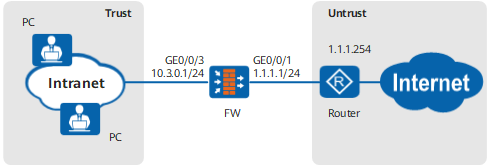
The following information is used as an example. Obtain the desired service information from your local ISP.
| Item | Data | Description |
|---|---|---|
Enterprise address |
1.1.1.1/24 |
Public network address that the ISP assigns to the enterprise |
Default gateway address |
1.1.1.254 |
Provided by the ISP |
DNS server address |
9.9.9.9 |
Provided by the ISP |
Configuration Roadmap
The configuration roadmap is as follows:
- Assign IP addresses to interfaces and add the interfaces to security zones. Set the default gateway address to 1.1.1.254 for GigabitEthernet 0/0/1.
- Configure the DHCP server function on the FW to allocate IP addresses and a DNS server address to intranet PCs.
- Configure security policies to allow PCs to access the Internet.
- Configure NAT policies for source address translation. As the FW translates private addresses into a fixed public network address that is assigned by the ISP, easy-IP is used to simplify the configuration.
Procedure
- Set the IP addresses of interfaces, and then assign the interfaces to security zones.
<FW> system-view
[FW] interface GigabitEthernet 0/0/1
[FW-GigabitEthernet0/0/1] ip address 1.1.1.1 255.255.255.0
[FW-GigabitEthernet0/0/1] quit
[FW] interface GigabitEthernet 0/0/3
[FW-GigabitEthernet0/0/3] ip address 10.3.0.1 255.255.255.0
[FW-GigabitEthernet0/0/3] quit
[FW] firewall zone untrust
[FW-zone-untrust] add interface GigabitEthernet 0/0/1
[FW-zone-untrust] quit
[FW] firewall zone trust
[FW-zone-trust] add interface GigabitEthernet 0/0/3
[FW-zone-trust] quit
- Configure the FW as a DHCPv4 Server.
# Enable the DHCP function.
[FW] dhcp enable# Create an interface address pool and specify the default gateway IP address and the DNS server address for PCs on the intranet.
[FW] interface GigabitEthernet 0/0/3
[FW-GigabitEthernet0/0/3] dhcp select interface
[FW-GigabitEthernet0/0/3] dhcp server ip-range 10.3.0.1 10.3.0.254
[FW-GigabitEthernet0/0/3] dhcp server dns-list 9.9.9.9
[FW-GigabitEthernet0/0/3] dhcp server gateway-list 10.3.0.1
[FW-GigabitEthernet0/0/3] quit
- Configure security policies, allowing PCs on the intranet to access the Internet.
[FW] security-policy
[FW-security-policy] rule name policy_sec_1
[FW-security-policy-sec_policy_1] source-address 10.3.0.0 mask 255.255.255.0
[FW-security-policy-sec_policy_1] source-zone trust
[FW-security-policy-sec_policy_1] destination-zone untrust
[FW-security-policy-sec_policy_1] action permit
[FW-security-policy-sec_policy_1] quit
[FW-security-policy] quit
- Configure a NAT policy, allowing PCs on the intranet to access the Internet by using the resulting public IP address of translation.
[FW] nat-policy
[FW-policy-nat] rule name policy_nat_1
[FW-policy-nat-rule-policy_nat_1] source-address 10.3.0.0 mask 255.255.255.0
[FW-policy-nat-rule-policy_nat_1] source-zone trust
[FW-policy-nat-rule-policy_nat_1] egress-interface GigabitEthernet 0/0/1
[FW-policy-nat-rule-policy_nat_1] action source-nat easy-ip
[FW-policy-nat-rule-policy_nat_1] quit
[FW-policy-nat] quit
- Configure the default route whose next hop IP address is 1.1.1.254.
[FW] ip route-static 0.0.0.0 0.0.0.0 1.1.1.254
Configuration Verification
View details about GigabitEthernet 0/0/1 and check whether interface GigabitEthernet 0/0/1 has obtained a public IP address and both the physical and IPv4 states are Up.
[FW] display interface GigabitEthernet 0/0/1
GigabitEthernet 0/0/1 current state : UP
Line protocol current state : UP
GigabitEthernet 0/0/1 current firewall zone : untrust
Description : GigabitEthernet 0/0/1 Interface, Route Port
The Maximum Transmit Unit is 1500 bytes, Hold timer is 10(sec)
Internet Address is 1.1.1.1/24
IP Sending Frames' Format is PKTFMT_ETHNT_2, Hardware address is 0022-a100-a101
Media type is twisted pair, loopback not set, promiscuous mode not set
100Mb/s-speed mode, full-duplex mode, link type is auto negotiation
max-bandwidth : 100000 kbps
Last physical up time   : -
Last physical down time : 2018-01-16 20:33:13
Current system time: 2018-01-17 10:08:18
Top 3 input bit rate: 672688 bits/sec at 2018-01-15 11:11:41
                      20872 bits/sec at 2018-01-15 11:11:40
                      17456 bits/sec at 2018-01-14 19:23:00
Top 3 output bit rate: 672000 bits/sec at 2018-01-15 11:11:41
                       19568 bits/sec at 2018-01-15 11:11:40
                       9064 bits/sec at 2018-01-14 11:11:53
Top 3 input packet rate: 8008 packets/sec at 2018-01-15 11:11:41
                         248 packets/sec at 2018-01-15 11:11:40
                         216 packets/sec at 2018-01-14 11:11:56
Top 3 output packet rate: 8000 packets/sec at 2018-01-15 11:11:41
                          232 packets/sec at 2018-01-15 11:11:40
                          80 packets/sec at 2018-01-14 11:11:53
Last 300 seconds input rate 8  bytes/sec, 0  packets/sec
Last 300 seconds output rate 8  bytes/sec, 0  packets/sec
    Input: 1149 packets, 99478 bytes
          12 unicasts, 4 broadcasts, 1133 multicasts, 0 pauses
          0 overruns, 0 runts, 0 jumbos, 0 FCS errors
          0 length errors,  0 code errors, 0 align errors
          0 fragment errors,  0 giants, 0 jabber errors
          0 dribble condition detected,  0 other errors
    Output: 1104 packets, 94646 bytes
          7 unicasts, 10 broadcasts, 1087 multicasts, 0 pauses
          0 underruns, 0 runts, 0 jumbos, 0 FCS errors
          0 fragment errors, 0 giants, 0 jabber errors
          0 collisions, 0 late collisions
          0 ex. collisions, 0 deferred, 0 other errors
Run the ipconfig/all command on a PC to verify that the PC has obtained a valid IP address and DNS address. The following example uses a PC running Windows XP. The actual command output may vary.
Ethernet adapter Local Area Connection: Connection-specific DNS Suffix . : Description . . . . . . . . . . . : Intel(R) 82574L Gigabit Network Connection Physical Address. . . . . . . . . : 00-1B-21-B4-0B-35 Dhcp Enabled. . . . . . . . . . . : Yes Autoconfiguration Enabled . . . . : Yes IP Address. . . . . . . . . . . . : 10.3.0.2 Subnet Mask . . . . . . . . . . . : 255.255.255.0 Default Gateway . . . . . . . . . : 10.3.0.1 DHCP Server . . . . . . . . . . . : 10.3.0.1 DNS Servers . . . . . . . . . . . : 9.9.9.9 Lease Obtained. . . . . . . . . . : Tuesday, December 6, 2011, 05:58:28 AM Lease Expires . . . . . . . . . . : Friday, December 16, 2011, 05:58:28 AM- Check whether an intranet PC can use a domain name to access the Internet. If the PC can access the Internet, the configuration is successful. If the PC fails to access the Internet, modify the configuration and try again.
Configuration Script
#
dhcp enable
#
interface GigabitEthernet0/0/1
 undo shutdown
 ip address 1.1.1.1 255.255.255.0
#
interface GigabitEthernet0/0/3
 undo shutdown
 ip address 10.3.0.1 255.255.255.0
 dhcp select interface
 dhcp server ip-range 10.3.0.1 10.3.0.254
 dhcp server gateway-list 10.3.0.1
 dhcp server dns-list 9.9.9.9
#
firewall zone trust
 set priority 85
 add interface GigabitEthernet0/0/3
#
firewall zone untrust
 set priority 5
 add interface GigabitEthernet0/0/1
#
 ip route-static 0.0.0.0 0.0.0.0 1.1.1.254
#
security-policy
  rule name policy_sec_1
    source-zone trust
    destination-zone untrust
    source-address 10.3.0.0 24
    action permit
#
nat-policy
  rule name policy_nat_1
    source-zone trust
    egress-interface GigabitEthernet0/0/1
    source-address 10.3.0.0 24
    action source-nat easy-ip
#
return